1. Introduction
The APC SMC1500IC Line-Interactive 1500VA Uninterruptible Power Supply (UPS) provides reliable power protection for your electronic devices. It delivers pure sine wave output, essential for servers with active power factor corrected (PFC) power supplies, and offers network-grade power conditioning to safeguard against damaging surges and disruptive noise. This UPS ensures continuous operation during power outages and allows for graceful system shutdowns, protecting your valuable equipment and data.

Image: The APC SMC1500IC UPS unit, a compact black device with an LCD screen, positioned next to a black briefcase on a carpeted floor, illustrating its size and typical office environment use.
2. Safety Information
Please read and understand these safety instructions before installing or operating the UPS. Failure to follow these instructions may result in electric shock, fire, or serious injury.
- Electrical Safety: This unit contains hazardous voltages. Do not attempt to disassemble the UPS. Servicing should only be performed by qualified personnel.
- Battery Safety: The UPS contains a sealed lead-acid battery. Do not dispose of batteries in a fire as they may explode. Do not open or mutilate batteries. Released electrolyte is harmful to the skin and eyes.
- Installation Environment: Install the UPS indoors in a controlled environment, away from excessive moisture, direct sunlight, heat sources, or conductive contaminants. Ensure adequate ventilation around the unit.
- Grounding: The UPS must be connected to a grounded AC power outlet.
- Load Capacity: Do not overload the UPS. Ensure the total power draw of connected equipment does not exceed the UPS's rated output capacity.
3. Product Overview
Familiarize yourself with the components of your APC SMC1500IC UPS.
Front Panel
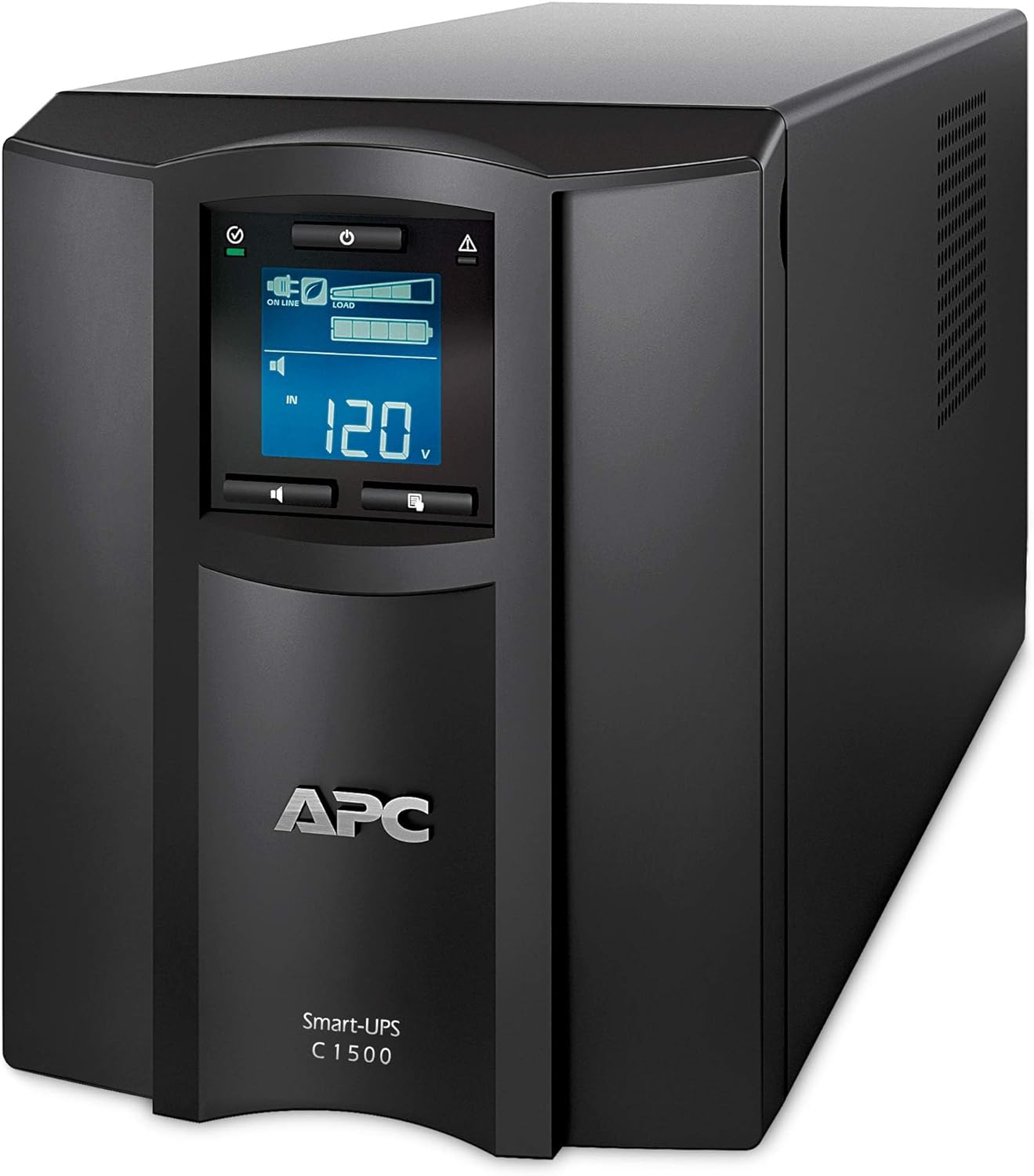
Image: A detailed front view of the APC SMC1500IC UPS, highlighting the central LCD display panel and the power button below it. The unit is black with ventilation grilles on the sides.
- LCD Display: Provides real-time status information, configuration options, and alerts.
- Navigation Buttons: Used to navigate menus and adjust settings on the LCD.
- Power Button: Controls the power to the UPS and connected equipment.
Rear Panel
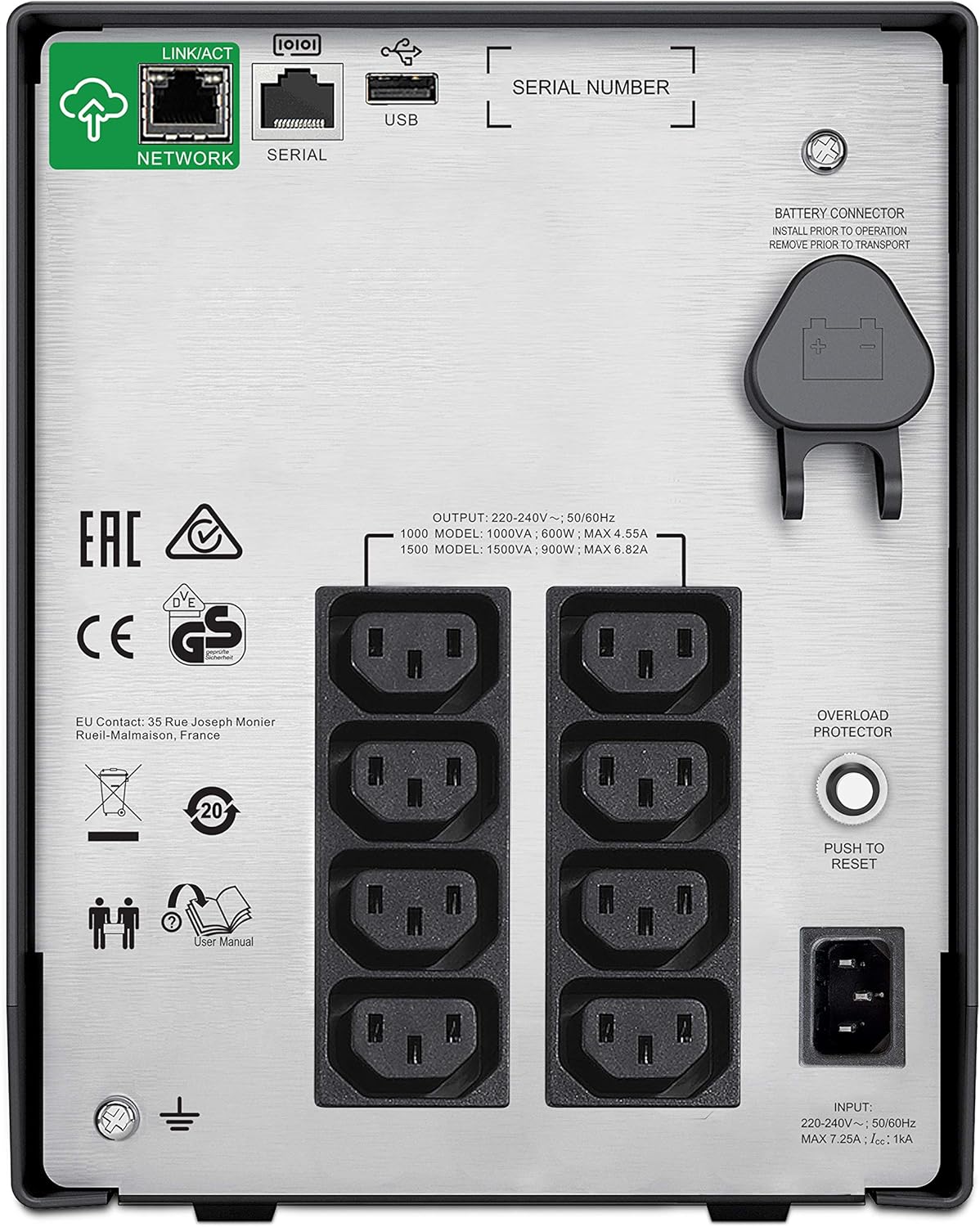
Image: The rear panel of the APC SMC1500IC UPS, displaying multiple AC power outlets, a network port, a serial port, a USB port, an overload protector button, and the battery connector.
- AC Outlets: Provide battery backup and surge protection for connected devices.
- Network Port (RJ45): For network management and SmartConnect functionality.
- Serial Port (RJ45): For direct communication with a computer or server.
- USB Port: For communication with a computer or server.
- Battery Connector: Connects the internal battery to the UPS.
- Overload Protector: A resettable circuit breaker.
- Input Power Cord: Connects the UPS to the utility power.

Image: A close-up view of the communication ports on the rear of the APC SMC1500IC UPS, specifically showing the 'NETWORK' (RJ45), 'SERIAL' (RJ45), and 'USB' ports.
4. Setup
Follow these steps to set up your UPS for the first time.
- Unpack the UPS: Carefully remove the UPS from its packaging. Inspect for any shipping damage.
- Connect the Battery: The UPS is shipped with the internal battery disconnected for safety. Locate the battery connector on the rear panel (refer to the 'Rear Panel' image in Section 3) and push it firmly into place until it clicks.
- Position the UPS: Place the UPS on a flat, stable surface in a well-ventilated area. Avoid placing it near heat sources or in direct sunlight. Ensure there is sufficient space around the unit for airflow.
- Connect Equipment: Plug your computer, monitor, network devices, and other critical electronics into the AC outlets on the rear panel of the UPS. Ensure the total load does not exceed the UPS's capacity.
- Connect to Utility Power: Plug the UPS's input power cord into a grounded wall outlet.
- Initial Charge: Allow the UPS to charge for at least 3 hours before connecting any critical equipment or expecting full runtime. The battery will charge whether the UPS is turned on or off.
- Connect Communication Cables (Optional): For advanced monitoring and management, connect a USB cable from the UPS to your computer, or an Ethernet cable to your network for SmartConnect functionality.
5. Operating
This section describes how to operate your UPS and understand its status indicators.
Powering On/Off
- To Power On: Press the power button on the front panel. The LCD will illuminate, and the UPS will perform a self-test.
- To Power Off: Press and hold the power button until the UPS powers down.
LCD Display and Navigation
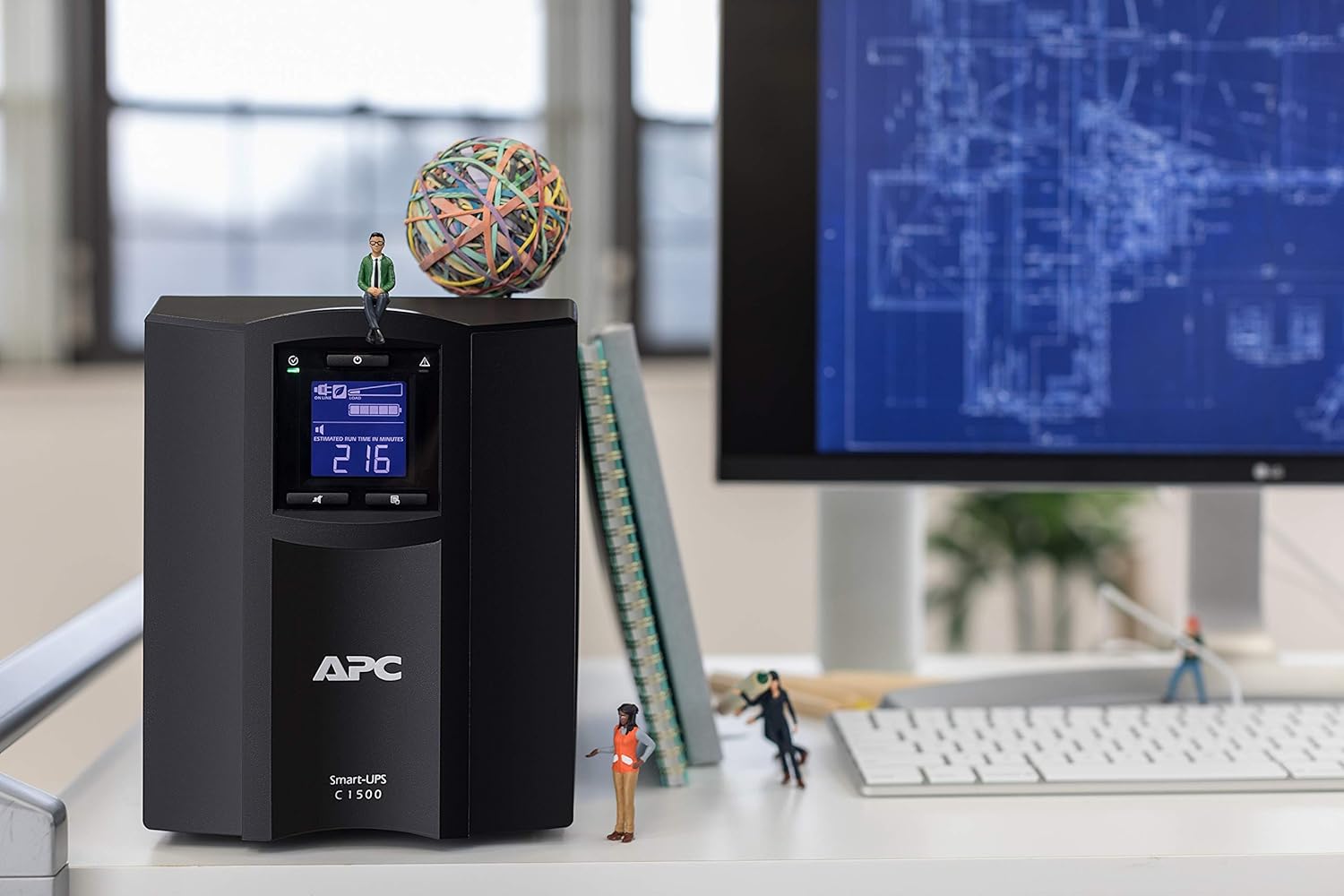
Image: A close-up of the APC SMC1500IC UPS's LCD screen, displaying 'ON LINE' status, input voltage (124V), and battery charge level, along with other status icons.
The intuitive LCD interface provides clear information and allows you to configure the UPS locally using the navigation keys. You can view various parameters such as input/output voltage, load percentage, battery charge level, and estimated runtime.
SmartConnect Functionality

Image: A composite image showing the APC SmartConnect dashboard interface displayed on a desktop monitor, a tablet, and a smartphone, illustrating remote monitoring capabilities.
The SMC1500IC features APC SmartConnect, allowing you to monitor the health and status of your UPS from any web-enabled device. Connect the UPS to your network via the RJ45 network port and follow the instructions provided with your unit to register it with the SmartConnect portal. This enables remote management, alerts, and firmware updates.
Programmable Settings
The UPS offers over 15 different programmable settings, including switched outlet group control. These settings allow for application-specific configurations, thresholds, and notifications. Refer to the detailed user manual available on the APC website for a complete list and instructions on how to adjust these settings via the LCD or SmartConnect interface.
6. Maintenance
Proper maintenance ensures the longevity and optimal performance of your UPS.
- Battery Replacement: The internal lead-acid battery has a finite lifespan. When the UPS indicates a battery fault or low runtime, the battery should be replaced. Contact APC support or an authorized service provider for replacement batteries. Always ensure the UPS is powered off and disconnected from utility power before attempting battery replacement.
- Cleaning: Periodically clean the exterior of the UPS with a soft, dry cloth. Ensure ventilation openings are free from dust and debris to maintain proper airflow. Do not use liquid cleaners or solvents.
- Self-Test: Regularly perform a self-test (usually initiated via the LCD menu) to ensure the battery and internal components are functioning correctly.
7. Troubleshooting
This section provides solutions to common issues you might encounter with your UPS.
| Problem | Possible Cause | Solution |
|---|---|---|
| UPS does not turn on | Battery not connected; No utility power; Faulty unit | Ensure battery is fully connected; Check wall outlet and power cord; Contact support if issue persists. |
| UPS beeps continuously / Overload alarm | Connected equipment exceeds UPS capacity | Disconnect non-essential equipment; Press the Overload Protector button on the rear panel to reset if tripped. |
| Short runtime on battery | Battery not fully charged; Battery nearing end of life | Allow UPS to charge for 3 hours; Replace battery if old or faulty. |
| UPS not communicating with computer/network | Incorrect cable; Driver issue; Network configuration | Ensure correct USB/Ethernet cable is used; Install necessary drivers; Verify network settings for SmartConnect. |
For more detailed troubleshooting or issues not listed here, refer to the comprehensive user manual on the APC website or contact APC technical support.
8. Specifications
Key technical specifications for the APC SMC1500IC UPS.
| Feature | Specification |
|---|---|
| Brand | APC |
| Model | SMC1500IC |
| Output Wattage | 900 Watts |
| Voltage | 300 Volts (Input/Output dependent on region) |
| Battery Type | Lead Acid Battery |
| Charging Time | 3 Hours |
| Product Dimensions (D x W x H) | 21.9 x 43.9 x 17.1 cm |
| Item Weight | 20 Kilograms |
| Noise Level | 45 Decibels |
| Total USB Ports | 1 |
| Form Factor | Tower |
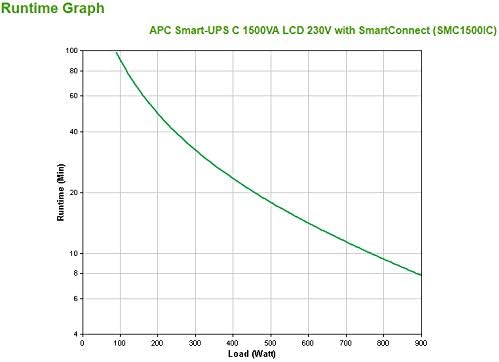
Image: A runtime graph illustrating the battery backup duration (in minutes) versus the load (in Watts) for the APC Smart-UPS C 1500VA LCD 230V with SmartConnect (SMC1500IC).
9. Warranty and Support
For warranty information, technical support, or to access the full user manual, please visit the official APC website or contact their customer service department. Keep your purchase receipt as proof of purchase for warranty claims.
APC Official Website: www.apc.com


