
NETUM AK-55VI-9N2E
NETUM Bluetooth Barcode Scanner User Manual
Model: NT-1228BC
Brand: NETUM
Introduction
This manual provides comprehensive instructions for the setup, operation, maintenance, and troubleshooting of your NETUM Bluetooth Barcode Scanner (Model NT-1228BC). Please read this manual carefully before using the device to ensure optimal performance and longevity.
Product Overview
The NETUM NT-1228BC is a versatile barcode scanner designed for various applications, offering multiple connectivity options and advanced scanning capabilities.
Key Features:
- 3-in-1 Connection Design: Supports Bluetooth, 2.4G Wireless, and Wired USB connections for maximum flexibility.
- Superior CCD Sensor: Equipped with a 2500-pixel high-resolution CCD sensor for rapid and accurate decoding of 1D barcodes, even from screens or damaged labels.
- Multiple Trigger Modes: Offers Key Trigger, Continuous Scan, and Auto-induction modes to suit different operational needs.
- Two Upload Modes: Features Instant Upload for real-time data transfer and Storage Mode for batch uploading of up to 100,000 barcodes.
- Long-lasting Battery: Integrated 2600mAh battery provides extended operation, supporting up to 200,000 scans on a single charge.
- Programmable Configuration: Allows customization of prefixes/suffixes, character deletion, and enabling/disabling of barcode types. Includes tactile vibration feedback.

Image: The NETUM NT-1228BC barcode scanner, showing its main unit, USB charging cable, and 2.4G wireless dongle.
Setup
1. Bluetooth Connection
The scanner supports HID, SPP, and BLE modes for Bluetooth connectivity. It can be easily connected to laptops, PCs, mobile phones, tablets, iPhones, iPads, and POS systems.
- Ensure the scanner is charged.
- Scan the "Bluetooth Pairing" barcode from the included manual (not provided here, refer to physical manual).
- On your device (phone, tablet, PC), go to Bluetooth settings and search for "NETUM Bluetooth".
- Select the scanner to pair. A successful connection will be indicated by a blue light on the scanner.

Image: Illustration of the scanner's compatibility with various devices via Bluetooth and 2.4G wireless modes.
2. 2.4G Wireless Connection
For devices without Bluetooth or for a more stable connection, use the 2.4G wireless dongle. Compatible with Windows XP/7/8/10, Mac OS, and Linux.
- Insert the USB dongle into an available USB port on your computer.
- The system will automatically install the necessary drivers (Plug & Play).
- The scanner will automatically connect to the dongle.

Image: Rear view of the scanner, highlighting the USB dongle storage and charging port.
3. Wired Connection
Connect the scanner directly to your device using the provided USB cable. This mode also charges the scanner.
- Connect one end of the USB cable to the scanner's charging port.
- Connect the other end to a USB port on your computer.
- The scanner will function as a wired device and begin charging.
Operating Instructions
Scanning Modes
The NT-1228BC offers three distinct scanning modes:
- Key Trigger Mode: The scanning light activates only when the trigger button is pressed.
- Continuous Scan Mode: The scanning light remains constantly on when the scanner is powered, allowing for continuous scanning without pressing the button.
- Auto-induction Mode: The scanning light remains off until a barcode is presented in front of the scanner. It automatically turns on to read the barcode upon detection.
To switch between these modes, scan the corresponding setting barcodes found in your physical user manual.
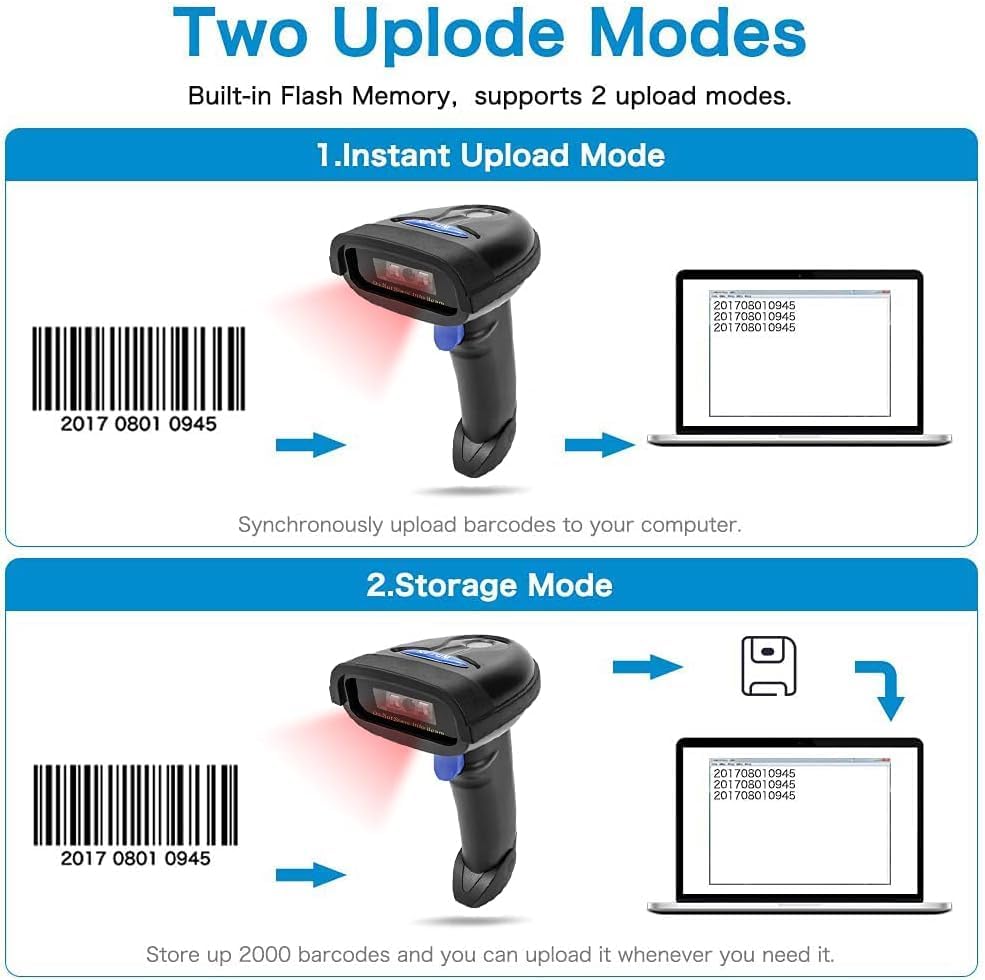
Image: The scanner demonstrating its ability to read 1D barcodes from digital screens.
Upload Modes
Choose between two data upload methods:
- Instant Upload Mode: Barcodes are read and immediately uploaded to the active file or application on your connected device.
- Storage Mode: All scanned barcodes are stored in the scanner's built-in memory. This mode is useful when out of range of your connected device. Data can be uploaded in batch later. The scanner supports storage of up to 100,000 barcodes.
Refer to your physical manual for barcodes to activate these modes.

Image: Visual representation of the two data upload modes: instant and storage.
Supported Symbologies
The scanner supports a wide range of 1D barcode symbologies, including:
- UPC/EAN/JAN (UPC-A & UPC-E, EAN-8 & EAN-13, JAN-8 & JAN-13)
- ISBN/ISSN
- Code 39, Codabar, Code 128 & EAN 128, Code 93
- ITF 2 of 5, IATA Code, MSI, China Postal Code, Code 32
- Industrial 2 of 5, Standard 2 of 5, JAP, Code 11
- GS1 DataBar (GS1 DataBar Limited, GS1 DataBar Expanded), Telepen
Note: This scanner is a 1D CCD scanner and does not support 2D barcodes (e.g., QR codes).

Image: The scanner's capability to read 1D barcodes, with an explicit indication that QR codes are not supported.
Programmable Configuration
The scanner can be configured to meet specific data formatting needs:
- Add custom prefixes or suffixes to scanned data.
- Delete specific characters from scanned data.
- Add keyboard keys or combinations (e.g., TAB, CR&LF, Home) as terminators.
- Enable or disable specific barcode types.
- Adjust buzzer settings for quiet operation.
These configurations are typically done by scanning specific barcodes provided in the full user manual.
Maintenance
Battery Information
The scanner is equipped with a 2600mAh Lithium Metal battery. To ensure optimal battery life:
- Charge the scanner fully before first use.
- Recharge when the battery indicator shows low power.
- Avoid extreme temperatures, which can affect battery performance.
- A full charge can provide continuous scanning for up to 200,000 times, lasting approximately one month with typical use.

Image: Illustration of the scanner's 2600mAh battery, emphasizing its long-lasting power.
General Care
- Keep the scanner clean by wiping it with a soft, dry cloth.
- Avoid exposing the scanner to excessive moisture or dust.
- Do not drop the scanner or subject it to strong impacts.
- Store the scanner in a cool, dry place when not in use.
Troubleshooting
| Problem | Possible Cause | Solution |
|---|---|---|
| Scanner not connecting via Bluetooth. | Scanner not in pairing mode; device Bluetooth off; interference. | Ensure scanner is in Bluetooth pairing mode (scan barcode from manual). Check device Bluetooth settings. Move closer to device. |
| Scanner not reading barcodes. | Barcode damaged/unreadable; incorrect scanning mode; scanner not charged. | Ensure barcode is clear and flat. Check scanning mode (e.g., not in auto-induction if manual trigger is desired). Charge the scanner. |
| Data not appearing on screen. | Incorrect upload mode (e.g., in storage mode); application not active. | Switch to Instant Upload Mode. Ensure the cursor is in the desired input field of your application. |
| Not compatible with Square POS. | Inherent software incompatibility. | This model is not designed to work with Square POS systems. Consider alternative software or hardware if Square POS is required. |
| USB receiver issues (e.g., falling apart). | Physical damage to the dongle. | Handle the USB dongle carefully. If damaged, contact customer support for a replacement. |
Specifications
- Product Dimensions: 2.93 x 4.13 x 3.23 inches
- Item Weight: 11.6 ounces
- Model Number: AK-55VI-9N2E
- Batteries: 1 Lithium Metal battery (included)
- Manufacturer: NETUM
- Compatible Devices: Laptop, Desktop, Tablet, Smartphone
- Power Source: Corded Electric
- Connectivity Technology: Bluetooth, 2.4G Wireless, USB Cable
- First Available Date: April 8, 2018
Warranty and Support
Your NETUM barcode scanner comes with a standard return policy allowing for refund or replacement within 30 days of purchase. For detailed warranty information or technical support, please refer to the official NETUM website or contact their customer service directly.
A digital version of the user manual is available for download: User Manual (PDF)
Official Product Videos
No official seller videos are available for embedding based on the provided criteria.
Related documentsAK-55VI-9N2E


Ask a question about this manual
Ask about setup, troubleshooting, compatibility, parts, safety, or missing instructions. Manuals+ will review the question and use this page’s manual context to help answer it.