
THE G-LAB KEYZ-CARBON-V2
THE G-LAB KEYZ CARBON V2 Illuminated Mechanical Gaming Keyboard User Manual
Model: KEYZ-CARBON-V2/FR
Introduction
Thank you for choosing the THE G-LAB KEYZ CARBON V2 Illuminated Mechanical Gaming Keyboard. This manual provides essential information for setting up, operating, maintaining, and troubleshooting your new keyboard. Please read this manual carefully before use to ensure optimal performance and longevity of your device.
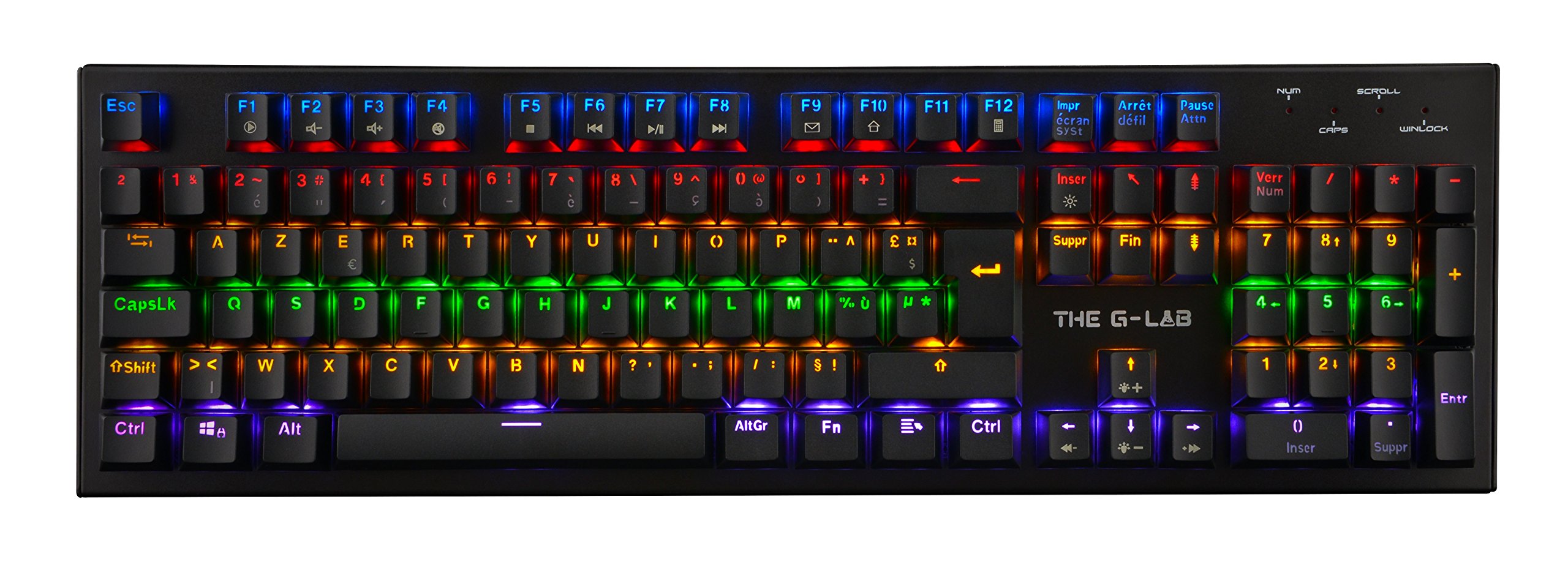
Image: The THE G-LAB KEYZ CARBON V2 Illuminated Mechanical Gaming Keyboard, showcasing its full layout and illumination.
Setup
Follow these steps to set up your THE G-LAB KEYZ CARBON V2 keyboard:
- Unpacking: Carefully remove the keyboard from its packaging. Ensure all components are present.
- Connection: Locate an available USB port on your computer. Insert the keyboard's USB connector firmly into the USB port.
- Driver Installation: The keyboard is plug-and-play. Your operating system (Windows, macOS, Linux) should automatically detect and install the necessary drivers. No additional software installation is typically required for basic functionality.
- Placement: Position the keyboard comfortably on your desk. The metal frame provides stability.

Image: The keyboard integrated into a gaming setup, connected to a computer alongside a mouse and headset.
Operating Instructions
The KEYZ CARBON V2 keyboard offers various features for an enhanced user experience:
Basic Key Functions
- The keyboard features a standard AZERTY layout with 105 keys.
- All keys function as standard input keys for typing and commands.
- N-Key Rollover: This keyboard supports N-Key Rollover, allowing multiple keys to be pressed simultaneously without ghosting or missed inputs, which is beneficial for gaming.
Illumination Control
The keyboard features illuminated keys with various effects. Use the following key combinations to control the lighting:
- FN + [Key]: Specific function keys (F1-F12) combined with the FN key may control lighting modes, brightness, or speed. Refer to the keycap legends for specific functions (e.g., FN + Scroll Lock for mode change, FN + Arrow keys for brightness/speed).
- Brightness Adjustment: Typically, FN + Up/Down arrow keys control illumination brightness.
- Effect Speed: Typically, FN + Left/Right arrow keys control the speed of dynamic lighting effects.
- Mode Switching: Look for dedicated keys or FN combinations (e.g., FN + INS, HOME, PGUP, DEL, END, PGDN) to cycle through different lighting patterns and colors.
Multimedia Shortcuts
Access multimedia functions using the FN key in combination with the F-keys:
- FN + F1-F12: These keys often provide shortcuts for media playback (play/pause, stop, previous/next track), volume control (mute, volume up/down), and other system functions (e.g., opening browser, email). Refer to the secondary legends on the F-keys.

Image: The keyboard displaying its illuminated keys and standard AZERTY layout, highlighting the visibility of characters in low light.
Maintenance
Proper maintenance ensures the longevity and performance of your keyboard:
- Cleaning: Regularly clean the keyboard to prevent dust and debris buildup. Use a soft, dry cloth for general cleaning. For deeper cleaning, use compressed air to remove particles from between keycaps.
- Keycap Removal: If necessary, keycaps can be carefully removed for thorough cleaning or replacement. Use a keycap puller (not included) to gently lift keycaps straight up. Avoid excessive force to prevent damage to the mechanical switches.
- Spills: In case of liquid spills, immediately disconnect the keyboard from your computer. Turn it upside down to drain liquid and allow it to dry completely before reconnecting. Do not attempt to use the keyboard while wet.
- Storage: When not in use for extended periods, store the keyboard in a clean, dry environment away from extreme temperatures.

Image: A close-up view of the mechanical switches beneath the keycaps, illustrating the design for durability and tactile feedback.
Troubleshooting
If you encounter issues with your keyboard, refer to the following troubleshooting steps:
- Keyboard Not Responding:
- Ensure the USB cable is securely connected to both the keyboard and the computer.
- Try connecting the keyboard to a different USB port on your computer.
- Test the keyboard on another computer to determine if the issue is with the keyboard or the computer.
- Restart your computer.
- Keys Not Registering or Double-Typing:
- Clean the affected key(s) using compressed air to remove any debris that might be obstructing the switch.
- If a specific key is consistently malfunctioning, it might indicate a hardware issue.
- Illumination Not Working or Incorrect:
- Ensure the illumination is not turned off using the FN key combinations (refer to "Illumination Control" section).
- Try cycling through different lighting modes to see if the issue persists across all modes.
- Disconnect and reconnect the keyboard.
- Multimedia Keys Not Functioning:
- Ensure you are pressing the FN key simultaneously with the correct F-key.
- Check your operating system's settings for any conflicting hotkeys or media player configurations.
If these steps do not resolve the issue, please contact THE G-LAB customer support for further assistance.
Specifications
| Feature | Specification |
|---|---|
| Brand | THE G-LAB |
| Model Number | KEYZ-CARBON-V2/FR |
| Keyboard Description | Gaming |
| Switch Type | Mechanical |
| Keyboard Layout | AZERTY |
| Number of Keys | 105 |
| Material | Metal |
| Color | Black |
| Connectivity | USB Powered |
| Compatible Devices | PC |
| Item Weight | 1.06 Kilograms |
Ask a question about this manual
Ask about setup, troubleshooting, compatibility, parts, safety, or missing instructions. Manuals+ will review the question and use this page’s manual context to help answer it.