
1. Introduction
This manual provides essential information for the safe and effective use of your Amcrest IP8M-2493EB Outdoor PoE Bullet Camera. Please read these instructions thoroughly before installation and operation to ensure optimal performance and to prevent damage to the device.
2. Product Overview
2.1 Key Features
- 2MP IP PoE Bullet Camera
- 1920x1080p @30fps Video Resolution
- Nightvision up to 98 feet (30 meters)
- IP67 Weatherproof Rating for outdoor use
- Cloud Storage Capability
- Wall Mount Design
- 4K Video Capture Resolution (for recording)
- Motion Sensor Special Feature
2.2 Package Contents
Verify that all components are present in your package:
- Amcrest IP8M-2493EB Outdoor PoE Bullet Camera
- Mounting Hardware (screws, anchors)
- Quick Start Guide (this manual)
2.3 Camera Components
Familiarize yourself with the camera's physical components:

Figure 1: Front view of the Amcrest IP8M-2493EB Bullet Camera, showing the lens, IR LEDs, and housing.
3. Setup
3.1 Before You Begin
Ensure you have the following items and conditions:
- A Power over Ethernet (PoE) switch or PoE injector (802.3af/at compliant)
- Cat5e or Cat6 Ethernet cable
- A stable internet connection (recommended for remote viewing and cloud features)
- A drill and screwdriver for mounting
3.2 Physical Installation
- Choose a Mounting Location: Select a suitable wall location that provides the desired viewing angle and is within reach of your Ethernet cable.
- Mark Drill Holes: Use the provided mounting template (if included) or the camera base to mark the positions for drilling.
- Drill Holes: Drill pilot holes and insert wall anchors if mounting on drywall or masonry.
- Secure the Camera: Attach the camera base to the wall using the provided screws.
- Adjust Angle: Loosen the adjustment screws on the camera body to position the camera for optimal coverage, then tighten them securely.
3.3 Network Connection
Connect one end of the Ethernet cable to the camera's Ethernet port and the other end to a PoE port on your PoE switch or injector. The camera will power on automatically.
3.4 Initial Configuration
For initial setup and configuration, download the Amcrest View Pro app on your mobile device or use the Amcrest web interface via a computer connected to the same network. Follow the on-screen instructions to discover and add your camera to your system.
4. Operating the Camera
4.1 Accessing Live View
Access the live video feed through the Amcrest View Pro app or the web interface. This allows real-time monitoring of your surveillance area.
4.2 Recording and Storage
The camera supports various recording options:
- Local Storage: If equipped with a microSD card slot (card sold separately), recordings can be stored directly on the camera.
- Network Video Recorder (NVR): Connect the camera to a compatible Amcrest NVR for continuous recording and extended storage.
- Cloud Storage: Utilize Amcrest Cloud services for off-site storage of event-triggered recordings. Refer to the Amcrest website for subscription details.
4.3 Motion Detection
Configure motion detection settings via the camera's interface. You can define detection zones, sensitivity levels, and set up alerts (e.g., email notifications, push notifications to your phone) when motion is detected.
4.4 Night Vision
The camera features infrared (IR) LEDs for night vision, providing clear surveillance footage in low-light or no-light conditions up to 98 feet. The camera automatically switches between day and night modes.
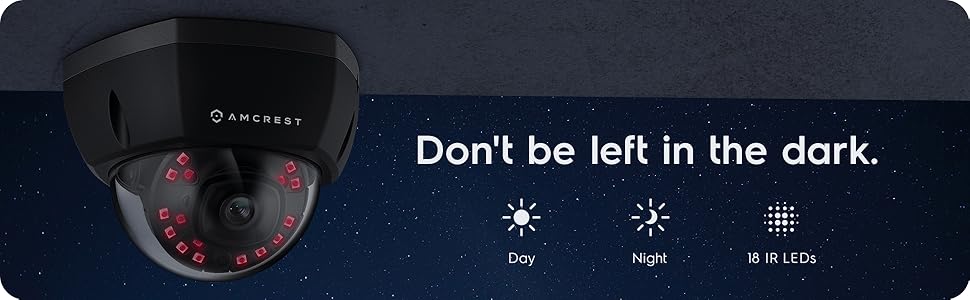
Figure 2: Example of night vision capability, illustrating clear image capture in dark conditions.
5. Maintenance
5.1 Cleaning
Periodically clean the camera lens and housing with a soft, damp cloth. Avoid using harsh chemicals or abrasive materials that could scratch the lens or damage the finish.
5.2 Firmware Updates
Regularly check for and install firmware updates from the Amcrest website. Firmware updates often include performance improvements, new features, and security enhancements.
5.3 Weather Protection
The IP8M-2493EB camera has an IP67 weatherproof rating, meaning it is protected against dust ingress and can withstand immersion in water up to 1 meter for 30 minutes. While designed for outdoor use, ensure all cable connections are properly sealed to maintain water resistance.
6. Troubleshooting
6.1 Common Issues and Solutions
- No Power/No Video: Ensure the Ethernet cable is securely connected to both the camera and a functioning PoE port. Check the PoE switch/injector for power.
- Poor Image Quality: Clean the camera lens. Check network bandwidth. Adjust resolution and compression settings in the camera interface. Ensure sufficient lighting for optimal image clarity.
- Night Vision Halo Effect: This can occur if the IR light reflects off nearby surfaces or the camera housing. Ensure there are no obstructions close to the lens.
6.2 Video Support
For visual guidance on resolving common issues, including potential IR reflection, please refer to the following video:
Video 1: This video from Amcrest Direct provides instructions on resolving IR reflection issues that can affect night vision clarity in Amcrest cameras.
7. Specifications
| Feature | Specification |
|---|---|
| Model Name | IP8M-2493EB |
| Indoor/Outdoor Usage | Outdoor |
| Power Source | AC/DC (via PoE) |
| Connectivity Protocol | Ethernet |
| Mounting Type | Wall Mount |
| Video Capture Resolution | 4K |
| Color | Black |
| Number of Items | 1 |
| Number of Channels | 1 |
| Wireless Communication Technology | POE (Power over Ethernet) |
| Form Factor | Bullet |
| Night Vision Range | 98 Feet (30 meters) |
| Frame Rate | 30 fps |
| Item Dimensions (L x W x H) | 6.1 x 6.1 x 5.4 inches |
| Item Weight | 1.3 pounds |
| Batteries Required? | No |
| Low Light Technology | Night Color |
| International Protection Rating | IP67 |
| Maximum Webcam Image Resolution | 2 MP |
| Control Method | App |
| Recommended Uses For Product | Outdoor Security |
| Connectivity Technology | Wired |
| Special Feature | Motion Sensor |
8. Warranty and Support
Amcrest products typically come with a limited warranty. For specific warranty terms, registration, and technical support, please visit the official Amcrest website or contact Amcrest customer service directly. Keep your purchase receipt for warranty claims.
Amcrest Support: https://amcrest.com/support


