
GimeBox H96 Max M5
User Manual: H96 Max M5 Android TV Box
Model: H96 Max M5 | Brand: GimeBox
Introduction
The GimeBox H96 Max M5 Android TV Box is a high-performance streaming media player designed to transform your television into a smart entertainment hub. Running on Android 11.0, it features a powerful RK3318 Quad-Core 64bit Cortex-A53 CPU and Penta-Core Mali-450 GPU, offering smooth 4K video decoding and an immersive viewing experience. With 2GB RAM and 16GB ROM, it provides ample space for applications and media. This device supports various multimedia formats and offers versatile connectivity options including Wi-Fi, USB, and HDMI.
Please note that this device does not come pre-installed with third-party applications. Users are encouraged to download desired software from the Google Play Store.
Setup Guide
1. Unpacking and Initial Inspection
Carefully remove all components from the packaging. Ensure the Android TV Box, remote control, power adapter, and HDMI cable are present and undamaged.

Image: The H96 Max M5 Android TV Box and its accompanying remote control, ready for setup.
2. Connecting to Your Television
- Connect one end of the HDMI cable to the HDMI OUT port on the H96 Max M5 TV Box.
- Connect the other end of the HDMI cable to an available HDMI IN port on your television. Note the HDMI port number (e.g., HDMI 1, HDMI 2).
3. Power Connection
- Plug the power adapter into the DC IN port on the TV Box.
- Plug the other end of the power adapter into a wall outlet.
4. Initial Power On
- Turn on your television and select the correct HDMI input source using your TV's remote control (e.g., HDMI 1).
- The H96 Max M5 TV Box should automatically power on and display the boot-up screen.
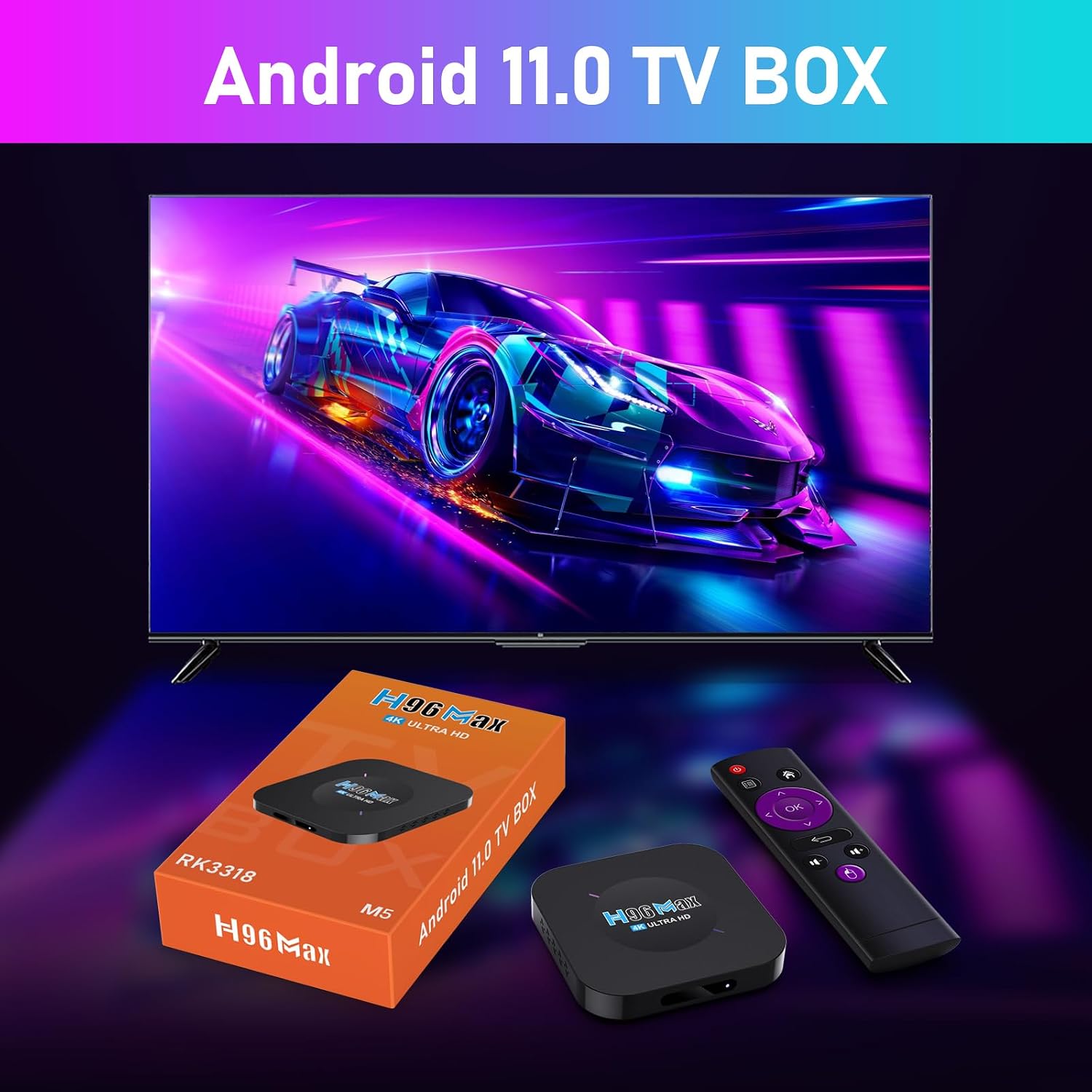
Image: The H96 Max M5 Android TV Box connected to a television, illustrating a typical setup for media consumption.
5. Network Connection
Once the device boots up, navigate to the settings menu to connect to your Wi-Fi network or plug in an Ethernet cable for a wired connection.
Operating Instructions
Basic Navigation
Use the included remote control to navigate the Android 11.0 interface. The directional pad (D-pad) allows movement, and the "OK" button confirms selections. The "Back" button returns to the previous screen, and the "Home" button takes you to the main launcher.
Installing Applications
The H96 Max M5 does not come with pre-installed third-party applications. To install apps, access the Google Play Store from the main menu. You will need a Google account to download and install applications. Search for your desired apps and follow the on-screen prompts for installation.
4K Video Playback
The device supports 4K2K H.265 Hardware Video Decode and 4K2K output at 60 frames per second, along with HDR, CEC, and HDCP 2.2. Ensure your television and content support 4K resolution for the best viewing experience.

Image: A television screen displaying vibrant 4K Ultra HD content, demonstrating the video decoding capabilities of the H96 Max M5.
Multi-screen Interaction
The H96 Max M5 supports various multi-screen interaction protocols such as Airplay, DLNA, and WiFiDisplay. This allows you to cast content from compatible smartphones, tablets, or computers directly to your television via the TV box.

Image: A smartphone screen being mirrored to a large television, illustrating the multi-screen interaction feature of the H96 Max M5.
Maintenance
OTA Online Upgrade
The H96 Max M5 supports Over-The-Air (OTA) firmware updates. It is recommended to keep your device's software up to date to ensure optimal performance, stability, and access to new features.
- Ensure the box is connected to the internet.
- Locate and open the "FOTA Update" app (or similar system update application) from the main menu.
- Click "CHECK VERSION" to see if a new firmware version is available.
- If a new version is detected, follow the on-screen prompts to initiate the update.
- Important: Do not power off the device during the upgrade process. The box will restart automatically after a successful update and return to the main screen.

Image: A television screen displaying the "System Update" interface for OTA online upgrades, showing the option to check for new firmware versions.
Cleaning
To clean the device, use a soft, dry cloth. Do not use liquid cleaners or abrasive materials, as they may damage the surface or internal components.
Troubleshooting
- No Power: Ensure the power adapter is securely connected to the TV box and a working power outlet. Try a different outlet if necessary.
- No Picture/Signal: Verify that the HDMI cable is firmly connected to both the TV box and the television. Ensure your TV is set to the correct HDMI input source.
- Remote Control Not Responding: Check the batteries in the remote control and replace them if needed. Ensure there are no obstructions between the remote and the TV box.
- Network Connection Issues: For Wi-Fi, ensure your router is on and within range. Re-enter the Wi-Fi password if prompted. For wired connections, check the Ethernet cable. Restarting your router and the TV box can often resolve connectivity problems.
- App Crashes/Freezing: Try clearing the cache of the problematic application via Android settings (Settings > Apps > [App Name] > Storage > Clear Cache). If the issue persists, consider uninstalling and reinstalling the app.
- Slow Performance: Close unused applications running in the background. Consider performing a factory reset as a last resort (Note: This will erase all data and installed apps).
Specifications

Image: An internal diagram highlighting the high-performance RK3318 chip, the core processing unit of the H96 Max M5.
| Feature | Detail |
|---|---|
| Operating System | Android 11.0 |
| CPU | RK3318 Quad-Core 64bit Cortex-A53 |
| GPU | Penta-Core Mali-450 (Up to 750Mhz+) |
| RAM | 2GB DDR3 |
| Internal Storage | 16GB EMMC Flash |
| Wi-Fi | 2.4GHz |
| USB Ports | 2 x High-speed USB 2.0 (supports U DISK and USB HDD) |
| Card Reader | SD/SDHC/MMC cards |
| Video Output | SD/HD max. 1920x1080 pixel, 4K2K output with HDR, CEC, HDCP 2.2 (4Kx2K@60 max resolution) |
| Video Decoding | 4K2K H.265 Hardware Video Decode, HD MPEG1/2/4, H.264 |
| Supported Formats | mkv, wmv, mpg, mpeg, dat, avi, mov, iso, mp4, rm, jpg (video); HD JPEG/BMP/GIF/PNG/TIFF (photo) |
| Subtitle Support | SRT/SMI/SUB/SSA/IDX+USB |
| Mouse/Keyboard Support | Via USB; 2.4GHz wireless via 2.4GHz USB dongle |
| Product Dimensions | 13 x 13 x 13 inches |
| Item Weight | 1.1 pounds |

Image: A visual representation of the Android 11.0 operating system, highlighting its position as the latest version for the device.
Warranty and Support
Specific warranty details for the GimeBox H96 Max M5 Android TV Box are not provided in this manual. Please refer to your purchase documentation or contact the retailer/manufacturer directly for warranty information.
For technical support or further assistance, please visit the official GimeBox store page or contact their customer service. You can often find support resources, FAQs, and contact information on the brand's official website or the platform where the product was purchased.
GimeBox Store: https://www.amazon.com/stores/GimeBox/page/FC5FA465-5E83-4C64-8A23-9C96D9C2DB4F
Ask a question about this manual
Ask about setup, troubleshooting, compatibility, parts, safety, or missing instructions. Manuals+ will review the question and use this page’s manual context to help answer it.