
Introduction
The ReTrak Utopia 360 VR Headset provides an immersive virtual reality experience for 3D movies, VR games, and virtual applications. This headset is designed for comfort and compatibility with a wide range of smartphones. This manual will guide you through the setup, operation, and maintenance of your VR headset to ensure optimal performance.
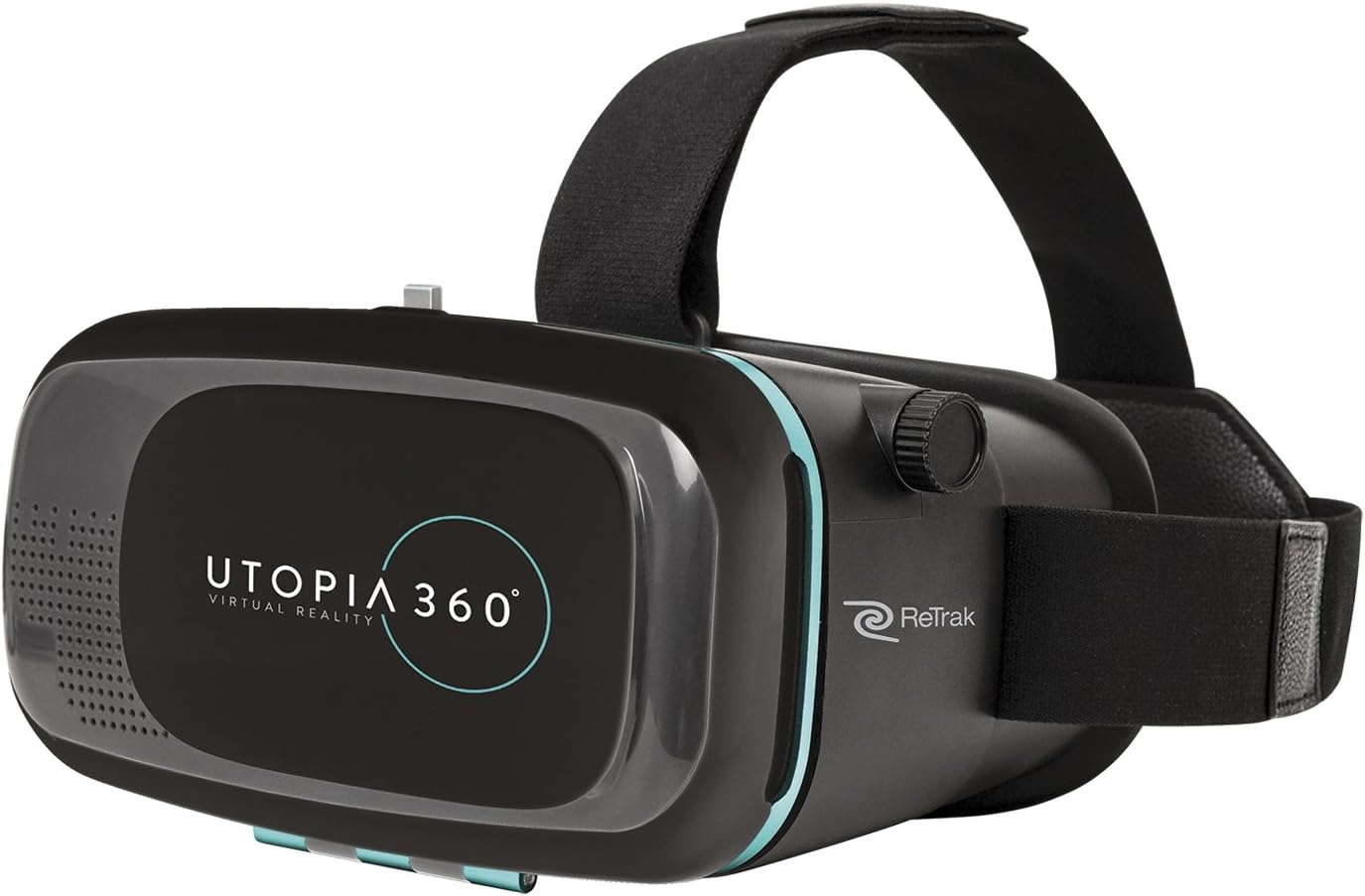
Image: The ReTrak Utopia 360 VR Headset, a black virtual reality device with the Utopia 360 logo on the front, shown from a slight angle.
Package Contents
Verify that all items are present in your package:
- 1 x ReTrak Utopia 360 Virtual Reality Headset
Key Features
- Wide Compatibility: Works with most iPhone iOS and Android smartphones, including models like iPhone 6/6s/7/7 plus/8/8plus/X, Samsung S5-S8, Note 4, 5, 7, LG G3-G6, V10, V20, Google Pixel & Pixel XL, Nexus 5, 6P, OnePlus 5, HTC U11, and iPod touch.
- Battery-Free Operation: The headset is powered by your device, requiring no internal batteries.
- Comfort-Focused Design: Features a breathable, form-fit cushion and a 3-way adjustable strap with additional padding for extended wear.
- Augmented Reality Support: Includes a sliding cover on the front for use with augmented reality applications.
- Adjustable Optics: Dual adjustable focus allows modification of focal length and interpupillary distance (PD) to suit individual vision needs.
- LucidView Lens System: Designed to reduce eye strain and provide clear, anti-glare viewing.
- Built-in Action Button: Provides touch technology for maximum app compatibility.
Setup Guide
- Prepare Your Smartphone:
Download VR applications from the Google Play Store or Apple App Store. Ensure your phone's screen is clean and free of smudges. For optimal fit, it may be necessary to remove your phone's protective case.

Image: An illustration showing a smartphone being inserted into the Utopia 360 VR Headset, highlighting its compatibility with various phone models.
- Insert Your Smartphone:
Open the front cover of the VR headset. Carefully place your smartphone into the designated slot, ensuring it is centered and securely held by the internal clips. Close the front cover. Ensure the phone's volume buttons are not accidentally pressed by the headset's internal structure.
- Adjust Head Straps:
Place the headset on your head. Adjust the three-way adjustable straps (top and side straps) to achieve a snug yet comfortable fit. The breathable, form-fit cushion should rest comfortably against your face.
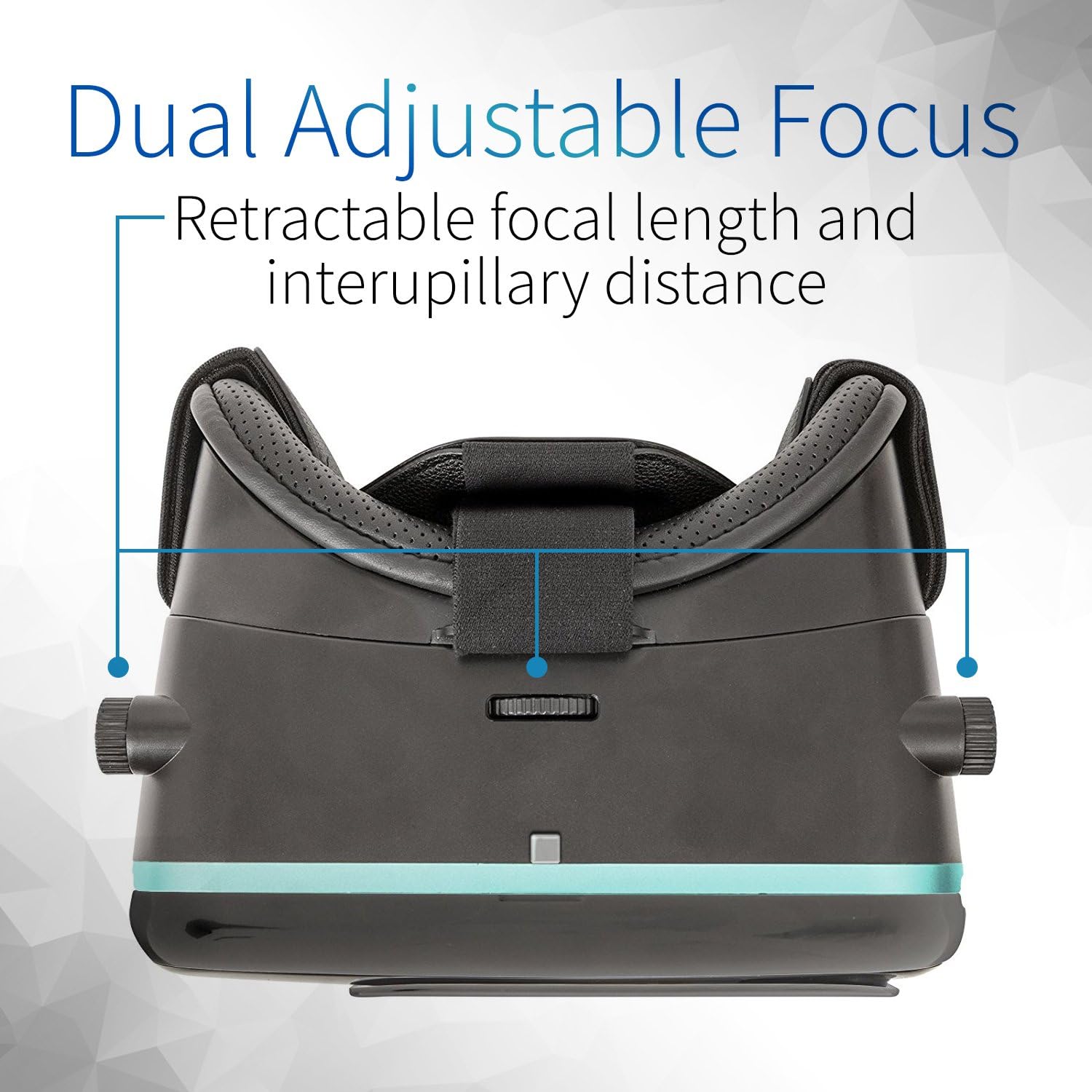
Image: A close-up view of the Utopia 360 VR Headset's interior, showing the ventilated, form-fitting cushion and the location of the dual adjustable focus and built-in action button.
- Adjust Focus and Interpupillary Distance (IPD):
Use the dual adjustable focus dials located on the sides of the headset to sharpen the image. Rotate these dials until the image appears clear. These adjustments also control the interpupillary distance (the distance between the lenses) to match your eyes.
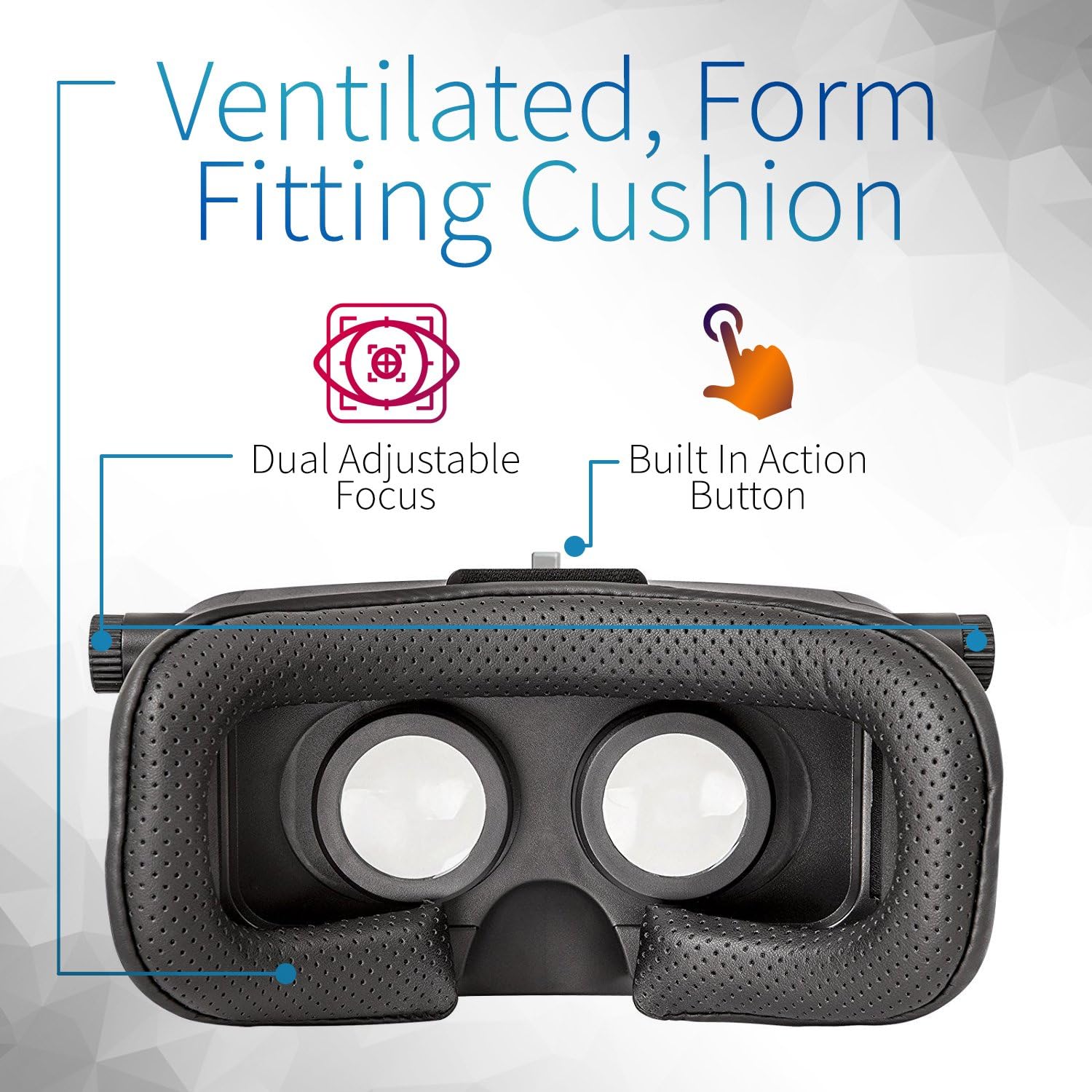
Image: A side view of the Utopia 360 VR Headset, illustrating the dual adjustable focus mechanism for retractable focal length and interpupillary distance.
Operating Instructions
- Launching VR Content:
Once your smartphone is securely in the headset and adjustments are made, launch your desired VR application or 360-degree video. The headset will display the content in a stereoscopic view.
- Using the Action Button:
Many VR applications require interaction. The built-in action button, typically located on the top or side of the headset, allows you to select items or interact within the virtual environment. Press this button as needed by the application.
- Augmented Reality (AR) Mode:
For augmented reality experiences, slide open the front cover of the headset. This allows your smartphone's camera to view the real world, integrating virtual elements onto it. Ensure the camera lens is unobstructed.
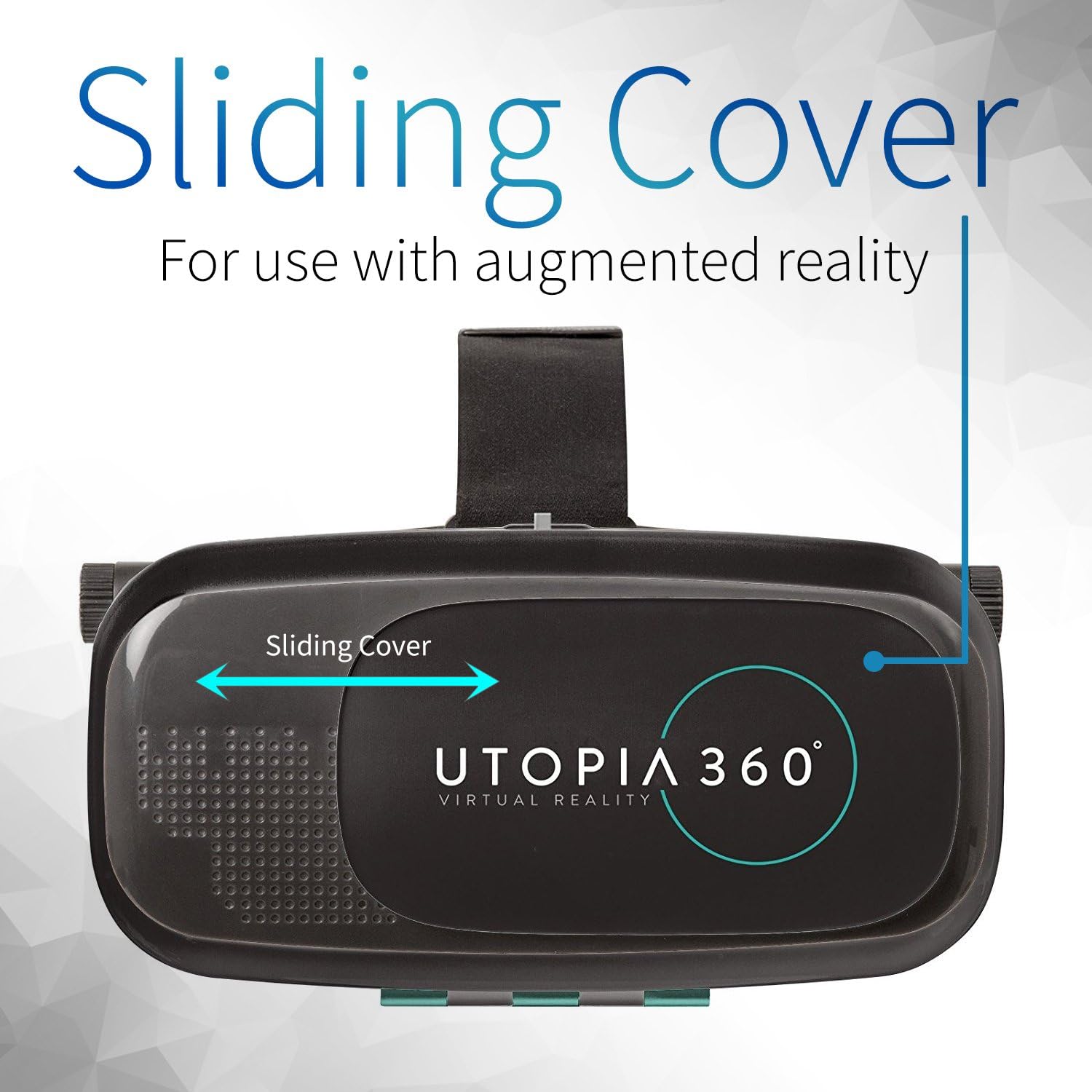
Image: A top-down view of the Utopia 360 VR Headset, indicating the sliding cover mechanism for augmented reality use.
- Navigating Virtual Environments:
Movement within VR applications is typically controlled by head movements. Turn your head to look around the virtual space. Some applications may require a separate Bluetooth controller (not included) for advanced navigation or gaming.
Maintenance
- Cleaning Lenses: Use a soft, dry microfiber cloth specifically designed for optical lenses to gently wipe the headset lenses. Avoid using abrasive materials or chemical cleaners, as these can scratch or damage the lens coating.
- Cleaning Exterior: Wipe the exterior of the headset with a soft, slightly damp cloth. Do not use harsh chemicals or immerse the headset in water.
- Cushion Care: The breathable cushion can be gently wiped with a damp cloth. Ensure it is completely dry before prolonged storage.
- Storage: Store the headset in a cool, dry place away from direct sunlight and extreme temperatures. Keep it free from dust and debris.
Troubleshooting
| Problem | Solution |
|---|---|
| Image is blurry or out of focus. | Adjust the dual focus dials on the sides of the headset until the image becomes clear. Ensure your smartphone is properly centered within the headset. |
| Smartphone does not fit or is difficult to insert. | Remove any protective case from your smartphone. Ensure the phone is aligned correctly with the internal clips. |
| Screen appears dark or headset is not powered. | The Utopia 360 VR Headset is battery-free and powered by your smartphone. Ensure your smartphone is charged and the VR application is running correctly. |
| Image drifts or rotates unintentionally. | This can be a common issue with smartphone-based VR. Try recalibrating your phone's gyroscope (if your phone has this feature) or restarting the VR application. Some applications may have a 'recenter' option. Using a swivel chair can help manage perceived drifting. |
| Cannot interact with VR apps using the action button. | Ensure the action button is functioning correctly and that the VR application supports this type of input. Some apps may require a separate Bluetooth controller. |
Specifications
| Feature | Detail |
|---|---|
| Brand | ReTrak |
| Model Name | B07C8GX5YW |
| Compatible Devices | Smartphones (iPhone iOS and Android) |
| Operating System Compatibility | Android, iOS |
| Connectivity Technology | Wireless (via smartphone) |
| Human Interface Input | Buttons (built-in action button) |
| Special Features | Sliding cover for AR, LucidView Lens System |
| Color | Black |
| Item Weight | 1.14 pounds |
| Package Dimensions | 8.62 x 6.73 x 4.53 inches |
| Manufacturer | Emerge Technologies, Inc. |
| Date First Available | March 21, 2018 |
Warranty and Support
For detailed warranty information, please refer to the documentation included with your product at the time of purchase or visit the official ReTrak website.
For technical support or further assistance, please contact ReTrak customer service through their official channels.

