Product Overview
The FIXD Bluetooth OBD2 Scanner is a wireless diagnostic tool designed to provide real-time insights into your vehicle's health. It connects to your car's On-Board Diagnostics II (OBD2) port and pairs with the FIXD mobile application on your smartphone (iOS and Android compatible) to deliver comprehensive diagnostic reports, maintenance alerts, and the ability to clear your check engine light.
This device is compatible with most gas-powered vehicles manufactured from 1996 onwards and diesel vehicles from 2006 onwards. It helps users understand over 7,000 potential car issues, track maintenance schedules, and monitor various vehicle parameters.

Image: Three FIXD Bluetooth OBD2 Scanners, illustrating the product in a multi-pack.
Setup and Installation
Setting up your FIXD device is a straightforward process. Follow these steps to get started:
- Download the FIXD App: Search for "FIXD" in the Apple App Store (for iOS devices) or Google Play Store (for Android devices) and download the official FIXD app.
- Create an Account: Open the app and follow the on-screen prompts to create your FIXD account.
- Locate Your OBD2 Port: The OBD2 port is typically located under the dashboard on the driver's side, often near the steering column. Refer to your vehicle's owner's manual if you have difficulty locating it.
- Plug in the FIXD Device: Firmly plug the FIXD sensor into your vehicle's OBD2 port. Ensure it is securely seated.
- Start Your Vehicle: Turn your vehicle's ignition to the "ON" position or start the engine.
- Pair with the App: Open the FIXD app on your smartphone. The app will guide you through the process of pairing with your FIXD sensor via Bluetooth. Ensure Bluetooth is enabled on your phone.
- Begin Scanning: Once paired, the app will prompt you to perform your first scan. Tap the "Scan" button to retrieve diagnostic information from your vehicle.

Image: A hand inserting the FIXD device into a vehicle's OBD2 port, demonstrating the physical installation step.
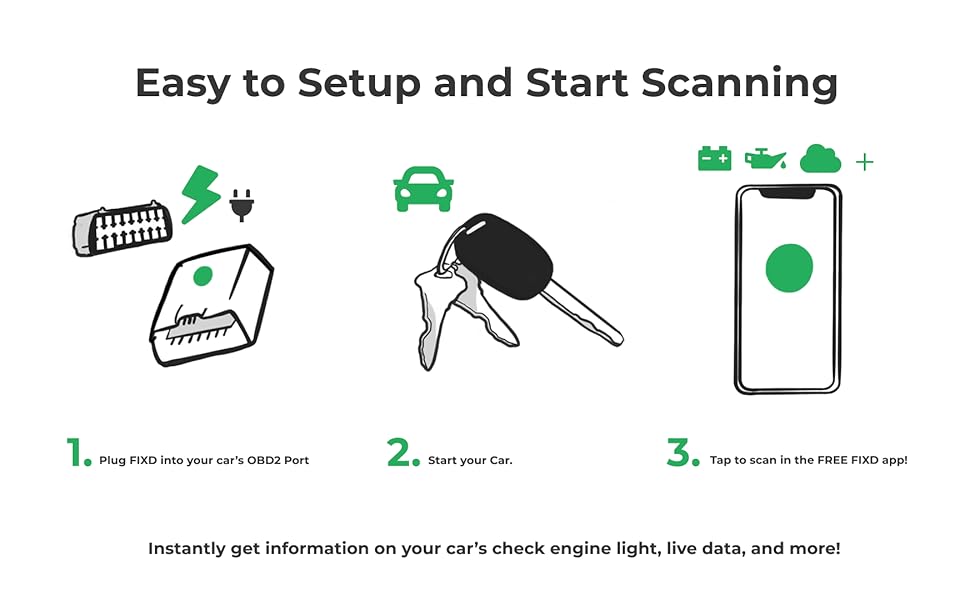
Image: A visual guide illustrating the three simple steps for setup: plugging in the device, starting the car, and scanning with the app.
Operating Instructions
Once your FIXD device is installed and paired, you can utilize the mobile app to access various diagnostic and maintenance features:
- Real-time Diagnostics: Perform a scan to receive immediate reports on your vehicle's condition. The app translates complex diagnostic trouble codes (DTCs) into easy-to-understand descriptions, indicating the severity of any detected issues.
- Check Engine Light (CEL) Management: If your check engine light is on, the FIXD app will identify the underlying cause. Once the issue is resolved, you can clear the CEL directly from the app.
- Maintenance Reminders: The app tracks your vehicle's specific maintenance schedule and notifies you when it's time for routine services such as oil changes, tire rotations, and battery checks.
- Multi-Vehicle Monitoring: With multiple FIXD sensors, you can monitor several vehicles from a single app, making it convenient for families or small fleets.
- Live Data: Access live sensor data from your vehicle, which can be useful for advanced diagnostics or monitoring performance.
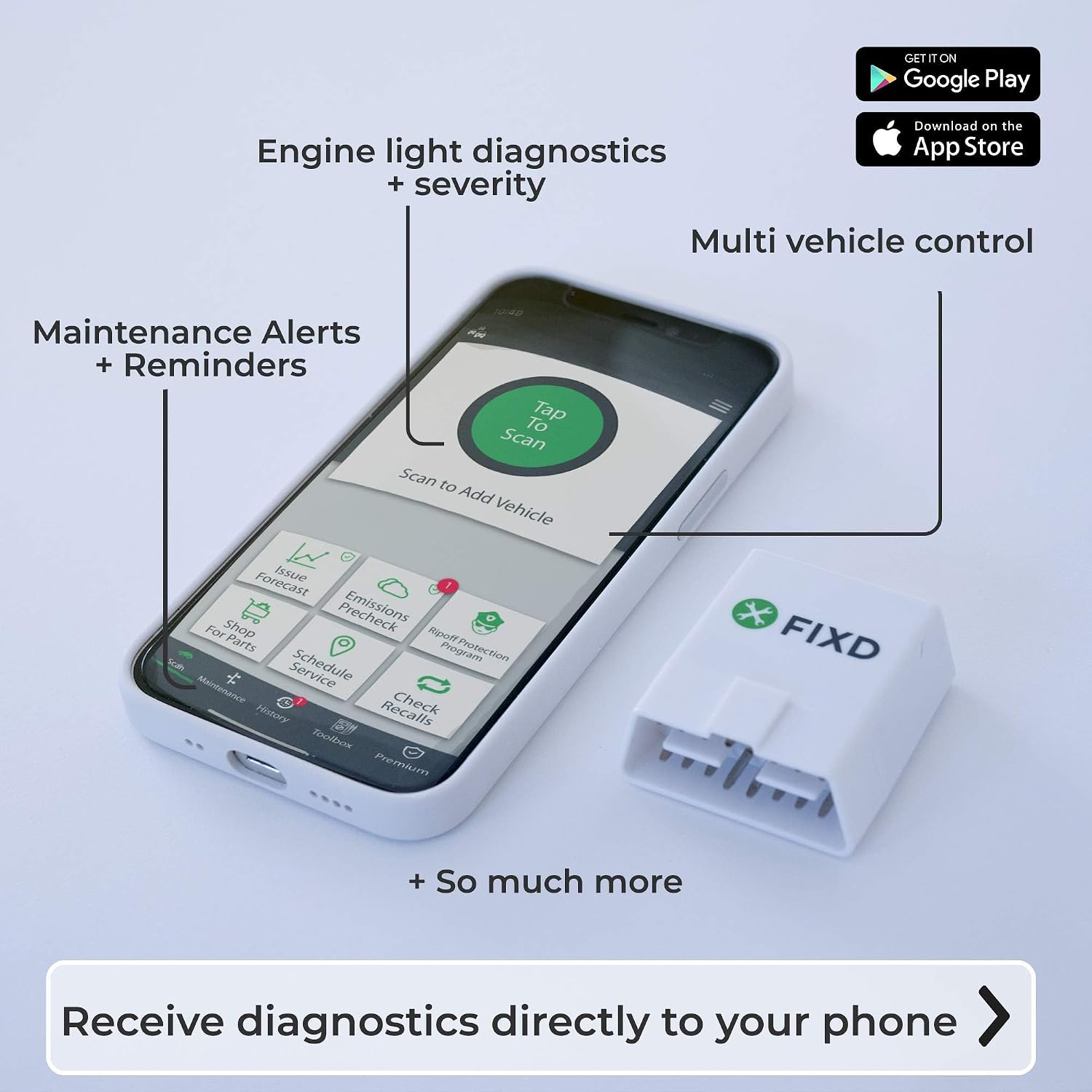
Image: A smartphone displaying the FIXD application interface, showing features like engine light diagnostics, maintenance alerts, and multi-vehicle control, alongside the physical FIXD device.

Image: The FIXD device resting on a car's engine bay, symbolizing its role in vehicle diagnostics and the ability to view issue severity and clear check engine lights.
Maintenance
The FIXD device itself requires minimal maintenance. The primary focus of maintenance is on the vehicle, which the FIXD app helps you manage:
- Keep the Device Clean: Occasionally wipe the FIXD sensor with a dry, soft cloth to remove dust or debris. Do not use liquid cleaners.
- Firm Connection: Ensure the device remains firmly plugged into the OBD2 port. A loose connection may interrupt data flow.
- App Updates: Regularly update the FIXD mobile application to ensure you have the latest features, vehicle compatibility, and bug fixes.
- Battery Life: The FIXD device is powered by your vehicle's OBD2 port. It draws minimal power and is designed to be left plugged in. If your vehicle is stored for extended periods without use, it is advisable to unplug the device to prevent any potential drain on the car's battery, especially in older vehicles or those with sensitive battery monitoring systems.
Troubleshooting
If you encounter issues with your FIXD device or app, consider the following troubleshooting steps:
| Problem | Possible Cause / Solution |
|---|---|
| Device not connecting to app |
|
| App shows "No Data" or "No Issues Found" when CEL is on |
|
| Inaccurate readings or missing features |
|
| Device draining car battery |
|
Specifications
| Feature | Detail |
|---|---|
| Brand | FIXD |
| Model Number | B013RIQMEO |
| Power Source | Vehicle's OBD2 Port (Battery Powered) |
| Product Dimensions (L x W x H) | 1.5" x 0.5" x 1.75" |
| Item Weight | 5.6 ounces |
| Operating System Compatibility | iOS, Android |
| Vehicle Compatibility | Most gas-powered cars 1996+, all diesel cars 2006+ |
| Connectivity | Bluetooth |
| UPC | 677892780930 |
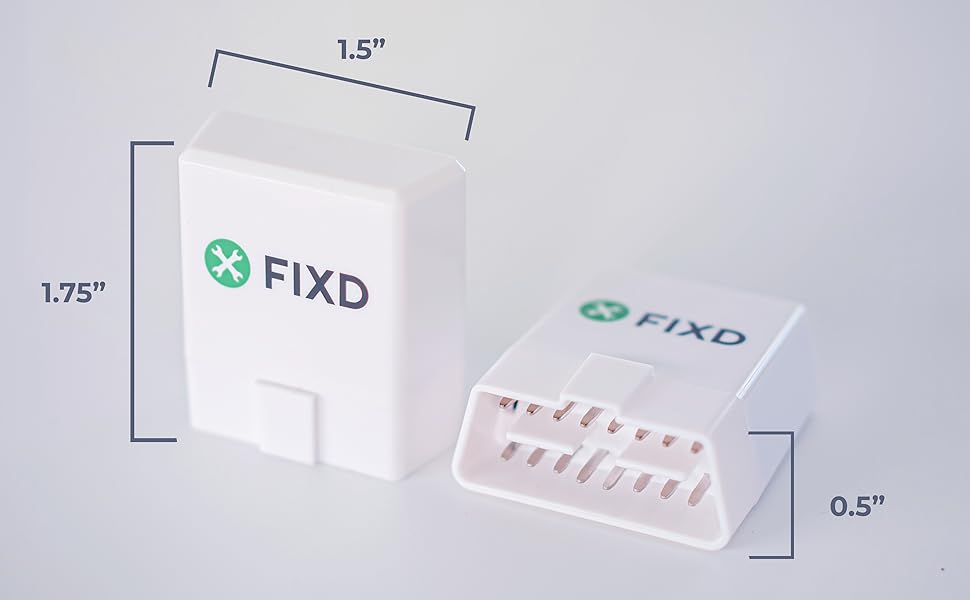
Image: A diagram illustrating the physical dimensions of the FIXD device, showing its length, width, and height.
Warranty and Support
For warranty information, technical support, or further assistance, please refer to the official FIXD website or contact their customer service directly. Details regarding product warranties and support channels are typically provided with your purchase or available online.
You can often find support resources, FAQs, and contact information by visiting the FIXD Store on Amazon or the official FIXD website.

