
TECKNET 8541666472
TECKNET Bluetooth Mouse Instruction Manual
Model: 8541666472
Introduction
Thank you for choosing the TECKNET Bluetooth Mouse. This manual provides detailed instructions for setting up, operating, maintaining, and troubleshooting your new wireless mouse. Designed for comfort and precision, this mouse offers adjustable DPI settings and broad compatibility for an enhanced computing experience.

Image: Top-down view of the TECKNET Bluetooth Mouse, showcasing its ergonomic design and central scroll wheel.
Setup
Battery Installation
The TECKNET Bluetooth Mouse requires two AA batteries (not included) for operation. Follow these steps to install the batteries:
- Locate the battery compartment on the underside of the mouse.
- Slide the battery compartment cover open.
- Insert two AA batteries, ensuring correct polarity (+/-) as indicated inside the compartment.
- Close the battery compartment cover securely.

Image: The underside of the mouse showing the open battery compartment, ready for two AA batteries, and the Bluetooth pairing button.
Bluetooth Pairing
To connect your TECKNET Bluetooth Mouse to your device, follow these pairing instructions:
- Ensure the mouse has fresh batteries installed.
- Slide the power switch on the underside of the mouse to the Bluetooth position.
- Press and hold the pairing button (located near the battery compartment) for 2-3 seconds until the LED indicator on the mouse begins to flash. This indicates the mouse is in pairing mode.
- On your computer or device, navigate to the Bluetooth settings.
- Search for new devices and select "BT5.0 Mouse" or "TECKNET Mouse" from the list of available devices.
- Click "Pairing" or "Connect" on your device and wait for the connection to be established. The LED on the mouse will stop flashing and remain solid or turn off once connected.
Note: If the mouse is idle for an extended period, it will automatically enter sleep mode to conserve battery. Click any button to wake it up and re-establish connection.

Image: A visual representation of the Bluetooth wireless connection, showing the mouse and a laptop with a 15-meter working range.
Operating Instructions
DPI Adjustment
The TECKNET Bluetooth Mouse features six adjustable DPI (Dots Per Inch) levels, allowing you to customize cursor sensitivity to your preference. The available DPI settings are 800, 1200, 1600, 2400, 3200, and 4800 DPI.
To change the DPI setting, press the DPI button located just below the scroll wheel. Each press will cycle through the available DPI levels. The mouse's tracking speed will adjust instantly.

Image: A diagram illustrating the six adjustable DPI levels (800 to 4800) and the button used to change them.
Button Functions
Your mouse is equipped with six efficient buttons:
- Left Click: Standard selection and activation.
- Right Click: Accesses contextual menus.
- Scroll Wheel: Scrolls content vertically. Can also be pressed for middle-click functionality.
- DPI Button: Adjusts cursor sensitivity (DPI levels).
- Forward Button (Side): Navigates forward in web browsers or file explorers.
- Backward Button (Side): Navigates backward in web browsers or file explorers.
Note: The side buttons (Forward/Backward) are not compatible with macOS.
TruWave Technology
The mouse incorporates TruWave Technology, providing accurate and responsive tracking on a variety of surfaces commonly encountered in daily use. This includes wood, paper, cloth, and leather, ensuring smooth and precise cursor movement without delay.
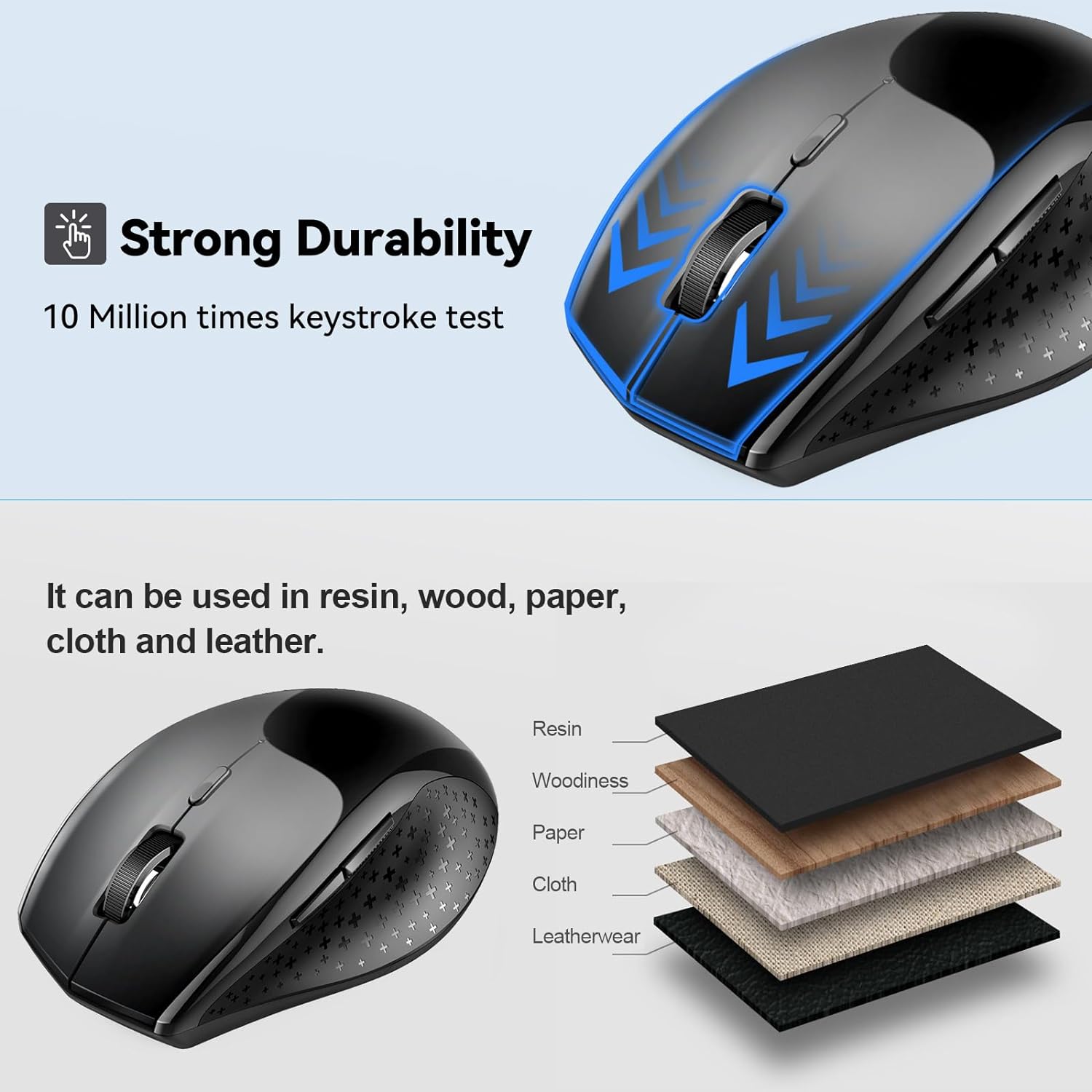
Image: The mouse positioned on different material layers, illustrating its compatibility with resin, wood, paper, cloth, and leather surfaces.
Ergonomic Design
The mouse is designed with an ergonomic shape and a soft rubber grip to fit comfortably in your hand, reducing wrist fatigue during prolonged use. Its compact size makes it convenient for both home and travel.

Image: A hand comfortably gripping the TECKNET Bluetooth Mouse, demonstrating its ergonomic design and the smooth click action.
Maintenance
Battery Life and Replacement
The TECKNET Bluetooth Mouse offers an impressive battery life of up to 24 months with two AA batteries. When the mouse's performance degrades or the LED indicator signals low power, it is time to replace the batteries. Follow the battery installation steps outlined in the "Setup" section.
Cleaning
To maintain optimal performance and hygiene, regularly clean your mouse. Use a soft, lint-free cloth lightly dampened with water or a mild cleaning solution. Avoid excessive moisture and abrasive cleaners. Ensure the mouse is powered off before cleaning.
Troubleshooting
| Problem | Possible Cause | Solution |
|---|---|---|
| Mouse not connecting/pairing. | Low battery; mouse not in pairing mode; Bluetooth on device is off or malfunctioning; interference. | Replace batteries. Ensure mouse is in pairing mode (flashing LED). Check device's Bluetooth settings. Move closer to the device. Restart both mouse and device. |
| Cursor movement is erratic or unresponsive. | Dirty optical sensor; unsuitable surface; low battery. | Clean the optical sensor with a soft cloth. Use the mouse on a suitable surface (e.g., mouse pad, wood, paper). Replace batteries. |
| Mouse enters sleep mode too quickly. | Automatic power-saving feature. | This is a normal power-saving function. Click any button to wake the mouse. This feature cannot be adjusted. |
| Side buttons not working on macOS. | Incompatibility with macOS. | The side buttons are not compatible with macOS. This is by design. |
Specifications
| Brand | TECKNET |
| Model Number | 8541666472 |
| Color | Black |
| Connectivity Technology | Bluetooth |
| DPI Levels | 800/1200/1600/2400/3200/4800 |
| Number of Buttons | 6 |
| Movement Detection Technology | Optical |
| Product Dimensions | 4.4 x 2.8 x 1.6 inches (112 x 71 x 41 mm) |
| Item Weight | 3.68 ounces |
| Battery Life | Up to 24 months (requires 2 AA batteries) |
| Country of Origin | China |
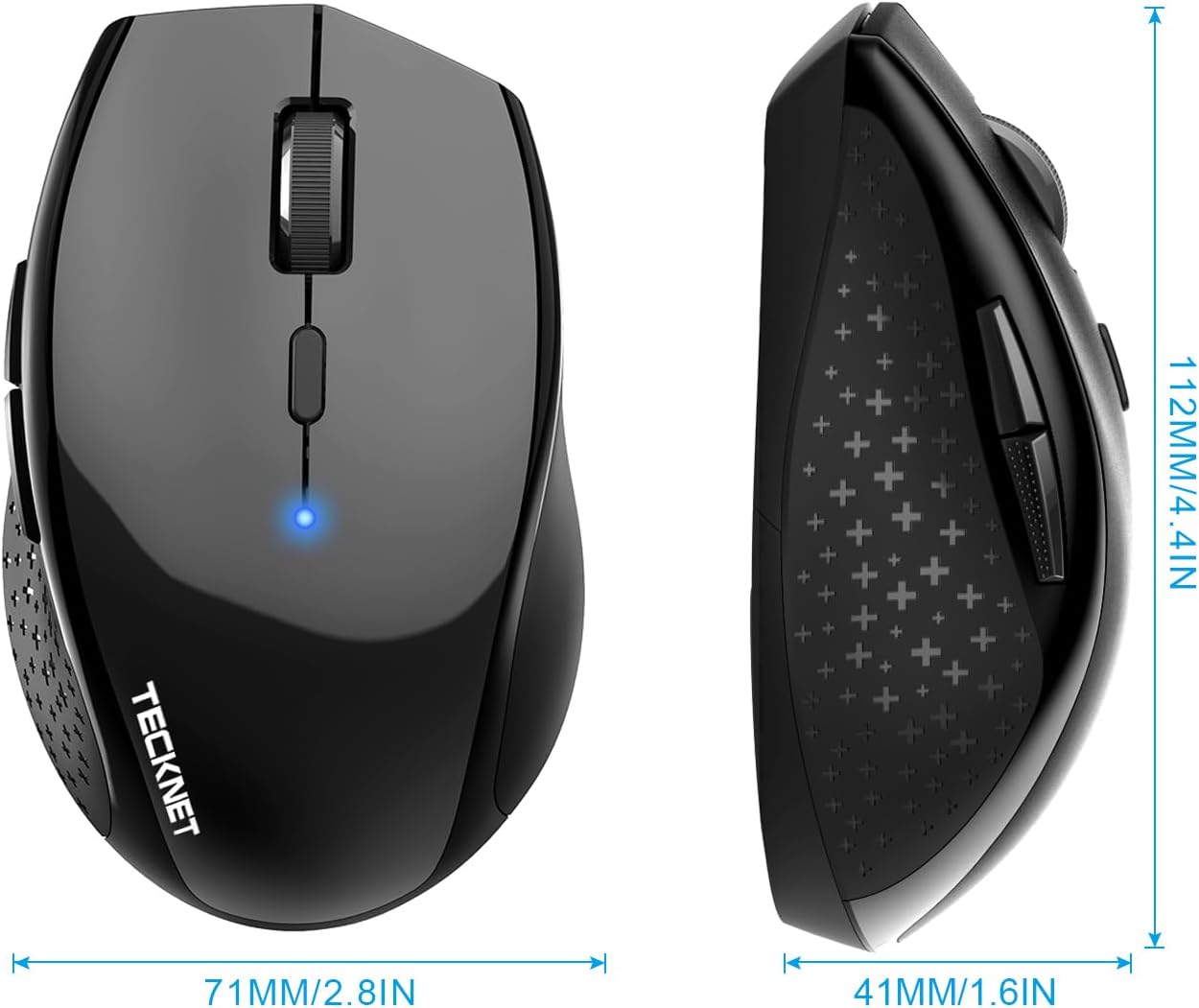
Image: Detailed dimensions of the TECKNET Bluetooth Mouse, showing its length (112mm/4.4in), width (71mm/2.8in), and height (41mm/1.6in).
Warranty and Support
TECKNET offers 36 MONTHS SUPPORT for this product (registration may be required). If you encounter any problems in using the product or require assistance, please contact TECKNET's professional customer service team.
For further support, please visit the official TECKNET website or refer to the contact information provided with your product packaging.
Ask a question about this manual
Ask about setup, troubleshooting, compatibility, parts, safety, or missing instructions. Manuals+ will review the question and use this page’s manual context to help answer it.