
1. Introduction
Thank you for choosing the ASAKUKI Smart Wi-Fi Essential Oil Diffuser. This device combines aromatherapy with smart technology, allowing you to control it via a mobile application or voice commands. It is designed to humidify and purify the air, creating a relaxing atmosphere in your home or office.
This manual provides detailed instructions for the safe and efficient use of your diffuser. Please read it thoroughly before operation and retain it for future reference.

Image: The ASAKUKI Smart Wi-Fi Essential Oil Diffuser is versatile for various environments, including nurseries, family rooms, bedrooms, yoga studios, and workspaces.
2. Safety Precautions
To ensure safe operation and prevent damage, please observe the following:
- Always place the diffuser on a flat, stable surface.
- Do not exceed the maximum water fill line (500ml).
- Use only clean tap water or distilled water. Avoid using hot water.
- Add essential oils carefully to avoid spilling on the exterior of the unit.
- Keep the diffuser out of reach of children and pets.
- Do not cover the mist outlet during operation.
- Unplug the device from the power outlet before cleaning or refilling.
- Do not immerse the unit in water or other liquids.
- If the unit is damaged, do not attempt to repair it yourself. Contact customer support.
- The diffuser features an automatic shut-off when water runs out, but it is recommended to monitor water levels.
3. Package Contents
Verify that all items are present in your package:
- ASAKUKI Smart Wi-Fi Essential Oil Diffuser (Model DF010)
- Power Adapter
- User Manual
- Measuring Cup (may be included)
4. Product Overview
Familiarize yourself with the main components of your diffuser:

Image: The ASAKUKI Smart Wi-Fi Essential Oil Diffuser, showing its sleek design and the accompanying mobile app for control.
- Lid: Top cover of the diffuser.
- Mist Outlet: Where the mist is released.
- Water Tank: Holds up to 500ml of water.
- Max Water Line: Indicates the maximum fill level.
- Ultrasonic Plate: Located at the bottom of the water tank, responsible for mist generation.
- Air Outlet: Located on the base.
- Drain Side: Indicated for proper water drainage.
- Light Button: Controls the LED light functions.
- Mist/Wi-Fi Button: Controls mist output and initiates Wi-Fi pairing.
- Power Jack: For connecting the power adapter.
5. Setup Instructions
Follow these steps for initial setup:
- Place the Diffuser: Position the diffuser on a flat, stable, and water-resistant surface.
- Remove the Lid: Gently lift the top lid off the diffuser.
- Add Water: Using a measuring cup, fill the water tank with clean tap water or distilled water up to the maximum water line (500ml). Do not overfill.
- Add Essential Oils: Add 3-5 drops of your preferred essential oil directly into the water tank. Adjust the amount based on personal preference and room size.
- Replace the Lid: Securely place the lid back onto the diffuser.
- Connect Power: Plug the power adapter into the power jack at the base of the diffuser, then plug the adapter into a wall outlet.
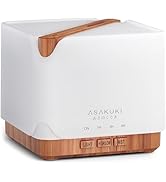
Image: Simple setup guide illustrating connecting power, app pairing, and wireless control.
6. Operating Instructions
6.1 Manual Control
- Mist Control: Press the Mist/Wi-Fi button once for continuous mist. Press again for intermittent mist (30 seconds on, 30 seconds off). Press a third time to turn off the mist.
- Light Control: Press the Light button once to turn on the LED light with automatic color cycling. Press again to fix the light to a specific color. Continue pressing to cycle through colors. Press and hold the Light button to turn off the light.
6.2 Smart Wi-Fi and App Control
The diffuser can be controlled remotely using the TuyaSmart app.
- Download the App: Search for "TuyaSmart" in your smartphone's app store (iOS or Android) and download it.
- Register/Log In: Open the app and register a new account or log in if you already have one.
- Enter Pairing Mode: With the diffuser plugged in, press and hold the Mist/Wi-Fi button for 5 seconds until the indicator light flashes rapidly. This indicates the diffuser is in pairing mode.
- Add Device: In the TuyaSmart app, tap "Add Device" or the "+" icon. Select "Small Home Appliance" > "Diffuser" (Wi-Fi).
- Connect to Wi-Fi: Follow the in-app instructions to connect the diffuser to your 2.4GHz Wi-Fi network. Ensure your phone is also connected to the same 2.4GHz network during setup.
- Control: Once successfully paired, you can control the mist, light, set timers, and create schedules directly from the TuyaSmart app.

Image: The mobile app allows for convenient control of the diffuser's functions.
6.3 Voice Control with Alexa
The diffuser is compatible with Amazon Alexa for voice control.
- Enable Skill: In the Alexa app, search for and enable the "TuyaSmart" skill.
- Link Account: Link your TuyaSmart account to your Alexa account.
- Discover Devices: Ask Alexa to "Discover devices" or manually discover them in the Alexa app.
- Voice Commands: Once discovered, you can use commands such as:
- "Alexa, turn on the diffuser."
- "Alexa, turn off the diffuser."
- "Alexa, set the diffuser to red."
- "Alexa, set diffuser brightness to 50%."

Image: Voice control with Alexa allows hands-free operation of the diffuser.
7. Maintenance
Regular cleaning helps maintain optimal performance and extends the lifespan of your diffuser.
7.1 Cleaning
Clean the diffuser after every 5-6 uses or every 3-5 days, especially when changing essential oils.
- Unplug: Disconnect the diffuser from the power outlet.
- Empty Water: Remove the lid and carefully pour out any remaining water from the drain side of the water tank.
- Wipe Clean: Use a soft cloth or cotton swab with a small amount of mild dish soap to gently wipe the inside of the water tank and the ultrasonic plate.
- Rinse: Rinse the water tank with clean water, being careful not to get water into the air outlet.
- Dry: Wipe all parts dry with a clean, soft cloth.
- Deep Clean (Optional): For stubborn residue, add a small amount of white vinegar to the water tank and let it sit for 10-15 minutes before wiping and rinsing.
7.2 Storage
When not in use for an extended period, ensure the diffuser is clean and completely dry. Store it in a cool, dry place away from direct sunlight.
8. Troubleshooting
If you encounter issues, refer to the following common problems and solutions:
| Problem | Possible Cause | Solution |
|---|---|---|
| No mist or low mist output |
|
|
| Diffuser does not power on |
|
|
| Cannot connect to Wi-Fi/App |
|
|
| Water leakage |
|
|
9. Specifications
| Feature | Detail |
|---|---|
| Brand | ASAKUKI |
| Model Number | DF010 |
| Capacity | 500 Milliliters |
| Dimensions | 6"L x 6"W x 7"H |
| Material | Acrylonitrile Butadiene Styrene (ABS), Polypropylene (PP) |
| Power Source | Corded Electric |
| Wattage | 10 watts |
| Coverage Area | Up to 323 Square Feet |
| Special Features | App Control, Automatic Shut-Off, Multiple Light Settings, Multiple Mist Settings, Voice Control (Alexa) |
| Noise Level | Lower than 35 dB |
| Runtime (Full Capacity) | Up to 16 hours (on weak mist setting) |
10. Warranty and Support
The ASAKUKI Smart Wi-Fi Essential Oil Diffuser comes with a 1-year technical support warranty. This warranty covers manufacturing defects and issues arising from normal use.
For technical assistance, troubleshooting, or warranty claims, please contact ASAKUKI customer support through the retailer where you purchased the product or visit the official ASAKUKI website for contact information.
Please have your model number (DF010) and proof of purchase ready when contacting support.


