
Walfront USB 3-in-1 Endoscope Inspection Camera
Walfront USB 3-in-1 Endoscope Inspection Camera User Manual
Model: USB 3-in-1 Endoscope Inspection Camera
1. Introduction
This manual provides detailed instructions for the proper use, setup, and maintenance of your Walfront USB 3-in-1 Endoscope Inspection Camera. This device is designed for visual inspection in hard-to-reach areas, offering compatibility with Android devices (with OTG support) and Windows PCs via USB, Micro USB, and Type-C connections.
2. Package Contents
Please verify that all items listed below are included in your package. If any items are missing or damaged, please contact customer support.
- USB 3-in-1 Endoscope Inspection Camera (1.5M cable)
- Hook attachment
- Magnet attachment
- Side view mirror attachment
- User Manual (this document)
- Software CD (for PC driver/application)

Image 2.1: Contents of the Walfront USB 3-in-1 Endoscope Inspection Camera package, including the camera, various attachments, and software CD.
3. Safety Information
- Do not attempt to disassemble or modify the device.
- Keep the device away from extreme temperatures and direct sunlight.
- Ensure the camera lens is clean before use for optimal image quality.
- The camera head is IP67 waterproof, but the USB connector and control unit are not. Do not immerse the entire device in water.
- Use only as intended for inspection purposes.
4. Setup
4.1 Software Installation
For Android Devices:
- Ensure your Android device supports OTG (On-The-Go) functionality.
- Download and install a compatible 'USB Camera' or 'OTG View' application from the Google Play Store. Popular options include 'CameraFi2' or 'USB Camera'.
For Windows PC:
- Insert the provided software CD into your computer's CD-ROM drive.
- Follow the on-screen instructions to install the necessary drivers and viewing software.
- Alternatively, if your PC does not have a CD drive, search online for 'Walfront Endoscope Camera Driver' or 'USB Camera Driver' and download from a reputable source.
4.2 Connecting the Camera
The endoscope features a 3-in-1 connector for versatile compatibility:
- Standard USB: For connecting to a PC or laptop.
- Micro USB: For connecting to older Android smartphones/tablets.
- Type-C USB: For connecting to newer Android smartphones/tablets.
- Select the appropriate connector for your device.
- Plug the camera's connector into your device's USB port.
- For Android, open the installed USB camera application. For PC, open the installed viewing software or a generic camera application.

Image 4.2.1: The versatile 3-in-1 connector, offering USB, Micro USB, and Type-C options for broad device compatibility.
4.3 Attaching Accessories
The endoscope comes with a hook, magnet, and side view mirror attachment. These can be screwed onto the camera head for specific inspection needs.
- Gently screw the desired attachment onto the threaded tip of the camera head.
- Ensure it is securely fastened but do not overtighten.

Image 4.3.1: The included hook, magnet, and mirror attachments, designed to enhance the camera's utility in various inspection scenarios.
5. Operating Instructions
5.1 Adjusting LED Brightness
The camera features 6 adjustable white LED lights to illuminate dark inspection areas. A control knob located on the USB cable allows you to adjust the brightness.
- Once the camera is connected and the application is running, rotate the knob on the cable to increase or decrease the LED brightness.
- Adjust the brightness to achieve optimal visibility without overexposure.

Image 5.1.1: The camera head featuring 6 adjustable white LED lights, providing illumination for dark inspection environments.
5.2 Capturing Images and Videos
The endoscope captures images and videos at a resolution of 640x480 pixels.
- Navigate the camera into the desired inspection area.
- Use the controls within your chosen Android application or PC software to capture still images or record video footage.
- Saved media files can typically be found in your device's gallery or a designated folder within the application.

Image 5.2.1: The endoscope camera in use, connected to a laptop, demonstrating its application for visual inspection.
5.3 Waterproof Capability
The camera head is rated IP67 waterproof, allowing for inspection in wet or submerged environments. This makes it suitable for surveying pipes and other areas where moisture is present.
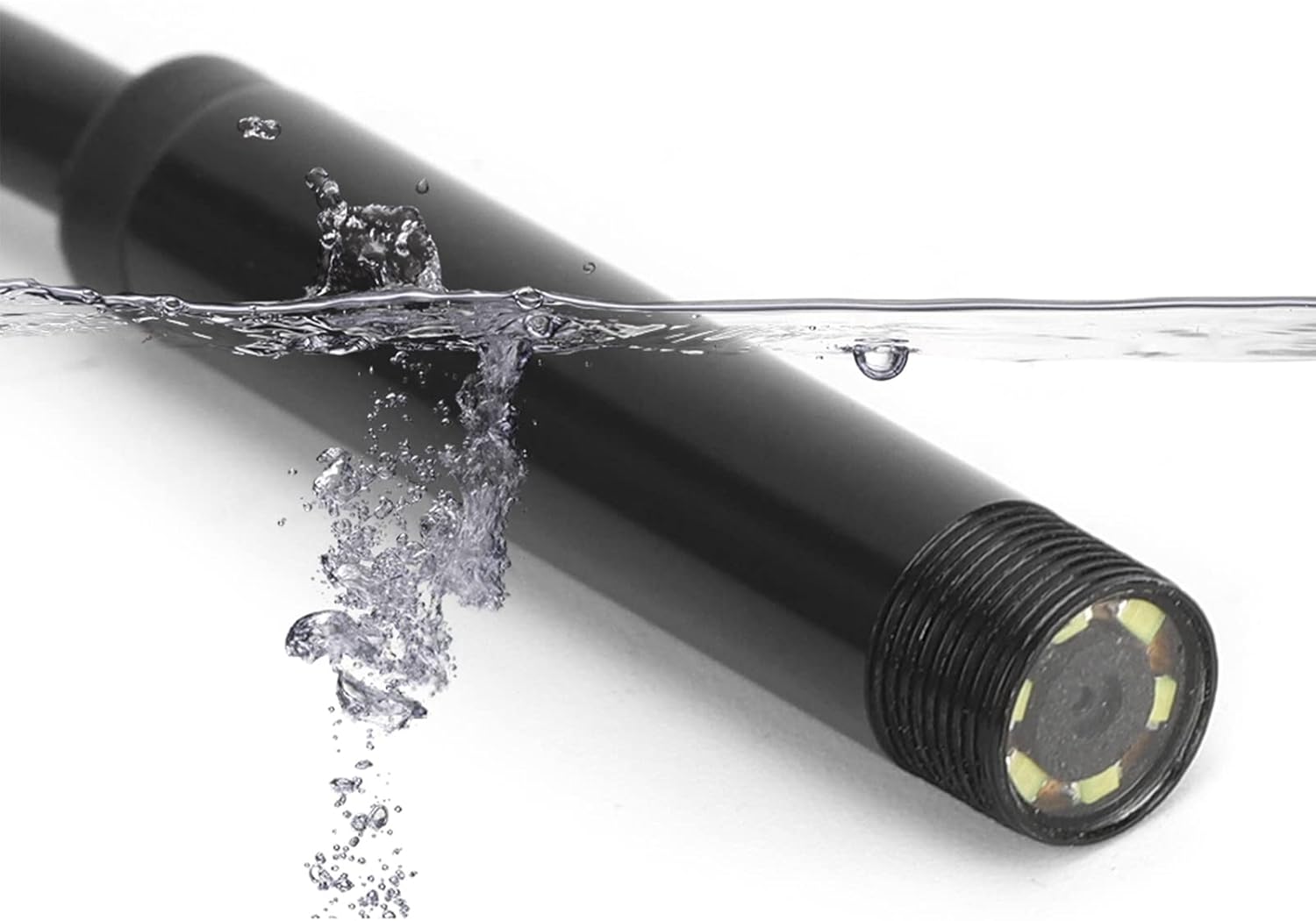
Image 5.3.1: The endoscope camera head submerged in water, illustrating its IP67 waterproof capability for use in wet conditions.
6. Maintenance
- Cleaning: After each use, gently wipe the camera lens and cable with a soft, dry cloth. For stubborn dirt, a slightly damp cloth can be used, ensuring no moisture enters the USB connector.
- Storage: Store the endoscope in a clean, dry place, away from direct sunlight and extreme temperatures. Coil the cable loosely to prevent damage.
- Lens Protection: Avoid scratching the camera lens. If using in abrasive environments, consider protective measures if available.
7. Troubleshooting
| Problem | Possible Cause | Solution |
|---|---|---|
| No image on screen / Camera not detected | Incorrect connection; App/driver issue; OTG not enabled (Android) | Ensure the camera is securely plugged in. Restart the application or computer. Verify OTG support and enable it in your Android device settings if necessary. Reinstall drivers/app. |
| Image is blurry or unclear | Dirty lens; Insufficient lighting; Object too close/far; Low resolution | Clean the camera lens. Adjust LED brightness. Ensure the object is within the camera's focal range (1-10 cm). Note that the camera's resolution is 640x480 pixels. |
| LED lights not working | Brightness knob set to minimum; Power issue | Rotate the brightness adjustment knob on the cable. Ensure the camera is properly connected and receiving power. |
| Application crashes or freezes | Software incompatibility; Device resource issues | Try a different compatible USB camera application. Close other applications running on your device. Restart your device. |
8. Specifications
- Model: USB 3-in-1 Endoscope Inspection Camera
- Resolution: 0.3 Megapixels (640x480 pixels)
- Cable Length: 1.5 meters (approx. 4.9 feet)
- Camera Diameter: 7mm
- LED Lights: 6 adjustable white LEDs
- Waterproof Rating: IP67 (camera head only)
- Macro Focus Range: 1-10 cm
- Compatibility: Android (OTG support required), Windows XP/7/8/10 PC
- Connectors: USB, Micro USB, Type-C
- Product Dimensions: 4.72 x 4.72 x 1.18 inches (packaging)
- Item Weight: 3.2 ounces
9. Warranty and Support
Walfront products are designed for reliability and performance. For specific warranty details, please refer to the documentation provided at the time of purchase or contact Walfront customer support directly. If you encounter any issues not covered in this manual, please reach out to our support team for assistance.
Contact Information: Please visit the official Walfront website or your retailer's support page for the most current contact information.
Ask a question about this manual
Ask about setup, troubleshooting, compatibility, parts, safety, or missing instructions. Manuals+ will review the question and use this page’s manual context to help answer it.