
1. Introduction
This manual provides essential information for the safe and efficient operation of your APC Smart-UPS 1500VA LCD 230V with SmartConnect, model SMT1500IC. This Uninterruptible Power Supply (UPS) is designed to protect your electronic equipment from power interruptions and fluctuations, ensuring reliable power for servers, point-of-sale systems, routers, switches, and other network devices.
The Smart-UPS features an intuitive LCD interface and SmartConnect capabilities for enhanced monitoring and management.
2. Safety Information
Please read and understand all safety instructions before installing or operating the UPS. Failure to follow these instructions may result in electric shock, fire, or serious injury.
- Weight: The UPS is heavy (approximately 24 kg / 52.8 lbs). Use proper lifting techniques or assistance to prevent injury during installation or relocation.
- Electrical Hazard: The UPS contains internal batteries that can present a shock hazard even when disconnected from the utility power. Servicing should only be performed by qualified personnel.
- Battery Safety: Do not dispose of batteries in a fire as they may explode. Do not open or mutilate batteries. Released electrolyte is harmful to the skin and eyes.
- Ventilation: Ensure adequate ventilation around the UPS. Do not block ventilation openings.
- Environment: Install the UPS indoors in a controlled environment, away from excessive moisture, heat, or conductive contaminants.
3. Package Contents
Verify that all items are present upon unpacking:
- APC Smart-UPS 1500VA LCD 230V with SmartConnect (SMT1500IC) unit
- Installation Guide
- USB Cable
- Note: A mains power cable (commonly known as a kettle lead) is not included and must be supplied by the user.
4. Setup
4.1 Physical Placement
Place the UPS in a secure location that allows for adequate airflow. Avoid placing it near heat sources or in direct sunlight. The unit can be placed vertically or horizontally, or mounted in a rack (rackmount kit sold separately).


4.2 Battery Connection
Before initial use, the internal battery must be connected. Refer to the rear panel of the UPS for the battery connector location. Ensure the connector is fully seated.

4.3 Power Connection
- Connect a user-supplied mains power cable (IEC C13 to local standard plug) to the UPS input power port on the rear panel.
- Plug the other end of the mains power cable into a grounded utility outlet.
- Connect your equipment to the IEC-C13 output receptacles on the rear panel. The UPS provides up to 8 protected outlets (depending on the model).
- Press the power button on the front panel to turn on the UPS.

5. Operating Instructions
5.1 LCD Display and Control
The front panel LCD provides real-time status information and allows configuration of UPS settings. Use the navigation buttons to scroll through menus and adjust parameters.
5.2 SmartConnect Features
The SmartConnect feature enables cloud-based monitoring of your UPS. Connect the UPS to your network using the Ethernet port on the rear panel. Once connected, you can access the SmartConnect dashboard via a web browser or mobile application to view UPS status, receive alerts, and manage settings remotely.

5.3 Automatic Voltage Regulation (AVR) and Green Mode
The UPS incorporates Automatic Voltage Regulation (AVR) to correct minor voltage fluctuations without switching to battery power, preserving battery life. Green Mode optimizes efficiency by bypassing internal components when power conditions are stable, reducing energy consumption.
5.4 Product Overview Video
Watch this video for a visual overview of the APC Smart-UPS SMT series and its SmartConnect features.
Video 5.1: APC Smart-UPS SMT - Smart Connect - Uninterruptible Power Supply. This video provides an overview of the APC Smart-UPS SMT series with SmartConnect, highlighting features such as firmware upgrade alerts, available models (750VA to 3000VA), intuitive LCD interface, protected IEC-C13 outlets, Automatic Voltage Regulation (AVR), Green Mode, and the optional SmartSlot for Network Management Card.
6. Maintenance
6.1 Battery Replacement
The UPS uses one 12V lead-acid battery. Batteries have a finite lifespan and will require replacement. The LCD display and SmartConnect dashboard will provide alerts when battery replacement is recommended. Always use genuine APC replacement batteries to ensure optimal performance and safety. Refer to the full user manual for detailed battery replacement procedures.
6.2 Firmware Upgrades
SmartConnect provides alerts for available firmware upgrades. Regularly updating the UPS firmware ensures optimal performance, security, and access to new features. Follow the instructions provided through the SmartConnect interface for firmware updates.
6.3 General Care
Keep the UPS clean and free from dust. Ensure ventilation openings are unobstructed. Do not operate the UPS in environments exceeding its specified temperature and humidity ranges.
7. Troubleshooting
This section provides basic troubleshooting steps for common issues. For more detailed diagnostics, consult the full user manual or APC support.
- UPS Not Turning On: Ensure the battery connector is fully seated and the mains power cable is securely connected to both the UPS and a live utility outlet.
- Overload Indication: If the UPS indicates an overload, disconnect non-essential equipment from the output receptacles until the load is within the UPS's capacity. Press the overload protector reset button on the rear if tripped.
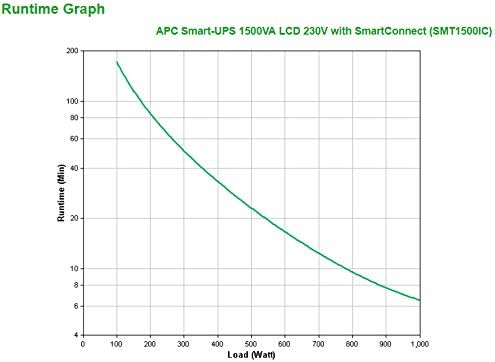
- Short Runtime: A short runtime on battery power may indicate an aging battery or an excessive load. Check the battery status via the LCD or SmartConnect.
- No Communication: Verify network cable connections for SmartConnect or USB/Serial cable connections for direct management. Check network settings.
8. Specifications
| Feature | Specification |
|---|---|
| Model Number | SMT1500IC |
| Product Dimensions (H x W x D) | 17.28 x 6.73 x 8.62 inches (43.9 x 17.1 x 21.9 cm) |
| Item Weight | 52.8 pounds (24 kg) |
| Battery Type | Lead Acid (1 x 12V battery included) |
| Voltage | 230 Volts (Input/Output) |
| Amperage | 10 Amps (Input) |
| Color | Black |
| Manufacturer | APC |
9. Warranty and Support
For warranty information, technical support, or to register your product, please visit the official APC by Schneider Electric website or contact their customer service. Keep your purchase receipt and product serial number (located on the rear of the UPS) handy for any inquiries.
Online Resources:
- APC by Schneider Electric Official Website: www.apc.com
- Product Support Page: Refer to the APC website for specific support pages related to the SMT1500IC model.


