
Introduction
This manual provides detailed instructions for the safe and efficient use of your Panasonic Viera TH-32F300 32-inch LCD TV. Please read this manual thoroughly before operating the unit and keep it for future reference.
The Panasonic Viera TH-32F300 is a 32-inch High-Vision LCD TV featuring an IPS panel for wide viewing angles and energy-efficient LED backlighting. Key features include:
- Simultaneous Program Recording: Record one program while watching another (requires external USB HDD).
- IPS Panel: Enjoy clear and vibrant images from various viewing angles.
- Room Jump Link: Stream live or recorded programs from compatible Panasonic Viera TVs or DIGA recorders on your home network to this unit in another room.
Setup
Unpacking and Assembly
Carefully remove the TV and all accessories from the packaging. Place the TV on a stable, flat surface or mount it securely using a VESA-compatible wall mount (200x200mm).
Note: A Phillips head screwdriver is required for stand assembly (if applicable).
Physical Dimensions and Weight
- Dimensions (with stand): 73.3 cm (Width) x 47.8 cm (Height) x 18.4 cm (Depth)
- Dimensions (without stand): 73.3 cm (Width) x 43.7 cm (Height) x 6.9 cm (Depth)
- Weight (with stand): Approx. 6.0 kg
- Weight (without stand): Approx. 5.5 kg
Connecting Cables
Refer to the diagram below for connection points. Ensure all cables are securely connected.

Image: Rear connection ports of the Panasonic Viera TH-32F300 TV, showing inputs for B-CAS card, USB, HDMI, LAN, and antenna.
- B-CAS Card Slot: Insert your B-CAS card here.
- USB Port: Connect an external USB hard disk drive for recording.
- Headphone/Earphone Jack: Connect headphones for private listening.
- HDMI 1~2 Ports: Connect external devices such as Blu-ray players, game consoles, or PCs.
- Video Input Terminal: Connect older video devices.
- Terrestrial Digital Antenna Terminal: Connect your terrestrial digital antenna.
- BS/CS Antenna Terminal: Connect your BS/CS satellite antenna.
- LAN Port: Connect to your home network for internet services and Room Jump Link.
Initial Setup
After connecting all necessary cables, plug the power cord into an electrical outlet. The TV will guide you through the initial setup process, including language selection, channel scanning, and network configuration. Follow the on-screen instructions.

Image: Illustration depicting the easy on-screen setup process for the TV.
Operating Instructions
Basic TV Functions
Use the supplied remote control to power on/off the TV, change channels, adjust volume, and access menus. The remote control is designed for intuitive navigation.
Simultaneous Program Recording
Your TV is equipped with dual tuners, allowing you to record one program to an external USB hard disk drive while watching another. To use this feature:
- Connect a compatible external USB hard disk drive to the TV's USB port.
- Format the HDD via the TV's menu (refer to the on-screen guide for instructions).
- Press the 'Program Guide' button on your remote to select programs for recording.

Image: Diagram illustrating the simultaneous recording feature, where a program is recorded to an external HDD while another is viewed. An external hard disk is required.
IPS Panel Viewing
The IPS panel technology provides a wide viewing angle, ensuring consistent picture quality and color accuracy even when viewed from the side. This minimizes color shift and contrast degradation, offering a clear image from almost any position.

Image: A visual comparison demonstrating the superior clarity and color retention of an IPS panel when viewed from an angle, compared to a standard panel.
Room Jump Link
If you have a home LAN environment and compatible Panasonic Viera or DIGA devices, you can use the 'Room Jump Link' feature to stream live broadcasts or recorded programs from those devices to your TH-32F300 TV in another room.
- Ensure your TV and other compatible devices are connected to the same home network (LAN).
- On your TH-32F300 remote, press the 'Room Jump Link' button.
- Select the desired program from the list of available content on your network.

Image: Diagram illustrating the 'Room Jump Link' feature, showing content being transferred from a living room TV/recorder to the TH-32F300 in a separate room over a home network.
Program Guide (EPG)
Access the Electronic Program Guide (EPG) by pressing the 'Program Guide' button on your remote control. This displays a detailed schedule of current and upcoming programs across all available channels.
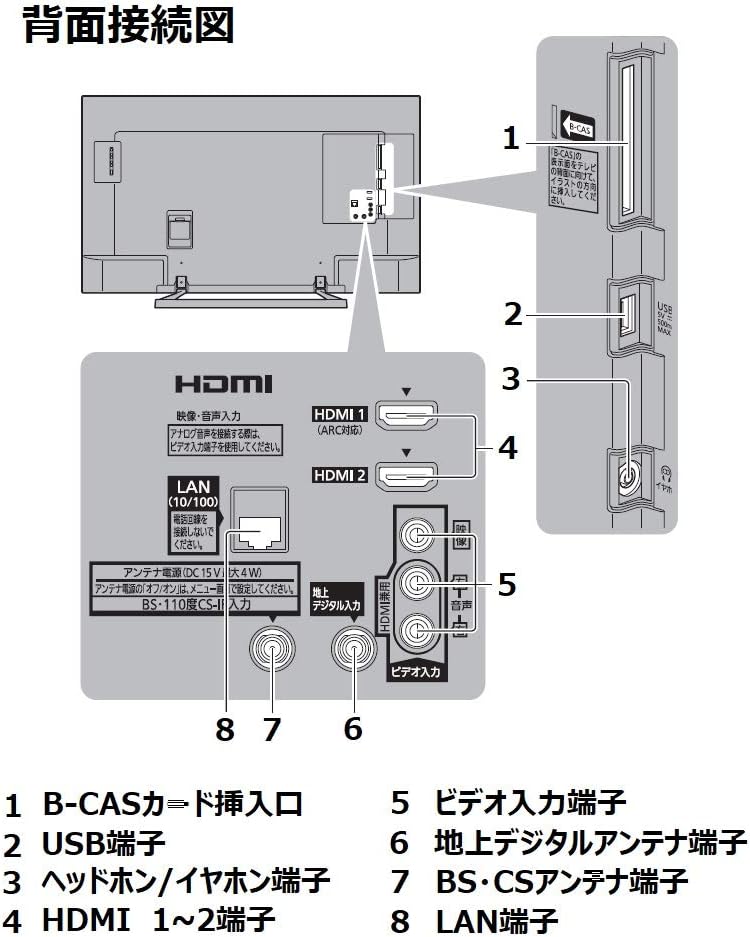
Image: Screenshot of the TV's electronic program guide (EPG) displaying channel listings and program schedules.
Using as a PC Monitor
The TV can also function as a PC monitor by connecting your computer via an HDMI cable. This model features two HDMI ports for versatile connectivity.

Image: The Panasonic TH-32F300 TV displaying data from a connected laptop, demonstrating its use as a PC monitor.
Maintenance
Cleaning the Screen
Gently wipe the screen with a soft, dry, lint-free cloth. For stubborn marks, slightly dampen the cloth with water or a specialized screen cleaner. Avoid using harsh chemicals, abrasive materials, or excessive pressure.
Cleaning the TV Body
Wipe the TV's exterior with a soft, dry cloth. Do not use solvents or alcohol-based cleaners, as they may damage the finish.
General Care
- Unplug the TV from the power outlet before cleaning or when not in use for extended periods.
- Keep the TV away from direct sunlight, heat sources, and excessive moisture.
- Ensure proper ventilation around the TV to prevent overheating.
Troubleshooting
If you encounter any issues with your TV, please refer to the following common solutions before contacting support.
No Power / No Picture
- Check if the power cord is securely plugged into both the TV and the wall outlet.
- Ensure the TV is turned on using the remote control or the power button on the TV.
- Verify that the correct input source is selected (e.g., HDMI 1, TV).
No Signal / Poor Picture Quality
- Check all antenna and HDMI cable connections for looseness or damage.
- Ensure your B-CAS card is correctly inserted into the slot.
- Perform a channel scan from the TV's menu to update available channels.
- If using as a PC monitor, adjust your PC's display settings (resolution, refresh rate) to match the TV's capabilities.
Remote Control Not Working
- Replace the batteries in the remote control.
- Ensure there are no obstructions between the remote and the TV's sensor.
Recording Issues
- Confirm that a compatible external USB hard disk drive is connected and properly formatted.
- Check if the HDD has sufficient free space.
Specifications
| Feature | Detail |
|---|---|
| Screen Size | 32 inches |
| Panel Type | IPS x LED |
| Resolution | 1,366 x 768 (High-Vision) |
| Refresh Rate | 60 Hz |
| Aspect Ratio | 16:9 |
| Tuners | Terrestrial Digital x2, BS x2, CS x2 |
| HDMI Ports | 2 |
| USB Ports | 1 (for external HDD) |
| LAN Port | 1 |
| Audio Output | 10W (5W + 5W) JEITA |
| Power Consumption | 69 W (Standby: approx. 0.1 W) |
| VESA Mount Standard | 200 x 200 mm |
| Supported Internet Services | Actvila |
Warranty and Support
Warranty Information
Please refer to the warranty card included with your product for detailed warranty terms and conditions. Keep your proof of purchase for warranty claims.
Customer Support
For repairs or technical assistance regarding your Panasonic product, please contact the Panasonic Repair Consultation Service.
- Telephone: 0120-878-554
- Operating Hours: 9:00 AM - 7:00 PM (Daily)
- Special Hours (Sundays, Public Holidays, Year-end/New Year): 9:00 AM - 5:30 PM
You can also search for "Panasonic Repair" online for more information.


