
1. Introduction
Thank you for choosing the Renkforce RF-IR-MONO1 Internet Radio. This compact internet radio offers a wide selection of thousands of free radio stations from around the world, ranging from traditional pop to niche music, talk shows, and podcasts. It features a sleep and wake-up function, clear sound reception, Bluetooth streaming, and AUX output for external speakers. This manual provides detailed instructions for setting up, operating, and maintaining your device to ensure optimal performance.
2. Safety Instructions
- Read all instructions carefully before using the device.
- Keep this manual for future reference.
- Do not expose the device to rain, moisture, or extreme temperatures.
- Ensure proper ventilation around the unit. Do not block any ventilation openings.
- Use only the power adapter supplied with the device.
- Do not attempt to open or repair the device yourself. Refer all servicing to qualified personnel.
- Avoid placing the device near heat sources such as radiators, heat registers, stoves, or other apparatus (including amplifiers) that produce heat.
- Clean only with a dry cloth.
3. Package Contents
Please check that all items are present and in good condition:
- Renkforce RF-IR-MONO1 Internet Radio
- Remote Control
- Power Adapter
- User Manual (this document)

Image 1: Renkforce RF-IR-MONO1 Internet Radio and its remote control.
4. Product Overview
The Renkforce RF-IR-MONO1 is a versatile digital internet radio designed for ease of use and high-quality audio. It features a clear display, intuitive controls, and multiple connectivity options.
4.1 Front Panel Controls and Display

Image 2: Front view of the Renkforce RF-IR-MONO1 Internet Radio.
- Display Screen: Shows station information, time, and menu options.
- ON/OFF Button: Powers the unit on or off.
- LOCAL Button: Accesses local radio stations.
- PRESET Button: Saves and recalls favorite stations.
- DIAL / SELECT Knob: Rotates to navigate menus and adjusts volume; press to select.
- LEFT / RIGHT Buttons: Navigates through menu options or tracks.
- MENU Button: Accesses the main menu.
4.2 Rear Panel Connections

Image 3: Rear view of the Renkforce RF-IR-MONO1 Internet Radio.
- Line Out: Connects to external audio systems (e.g., Hi-Fi system, powered speakers).
- Headphone Jack: For private listening with headphones.
- DC IN 5V: Power input for the supplied power adapter.
5. Setup
5.1 Power Connection
- Connect the supplied power adapter to the DC IN 5V port on the rear of the radio.
- Plug the power adapter into a suitable wall outlet.
- Press the ON/OFF button on the front panel or remote control to power on the radio.
5.2 Wi-Fi Network Connection
To access internet radio stations, the device must be connected to a Wi-Fi network.
- Upon first power-on, the radio will guide you through the initial setup, including Wi-Fi configuration.
- If not prompted, press the MENU button, navigate to "Settings" or "Network", and select "Wi-Fi Setup".
- The radio will scan for available Wi-Fi networks. Select your network from the list.
- Enter your Wi-Fi password using the DIAL / SELECT knob and LEFT/RIGHT buttons to navigate characters, then press DIAL / SELECT to confirm each character.
- Once connected, the radio will display a confirmation message.
Note: If the radio is unplugged, you may need to re-enter the Wi-Fi password.
5.3 Initial Setup (Time and Date)
After connecting to Wi-Fi, the radio should automatically synchronize the time and date. If not, you can manually set it via the "Settings" menu.
6. Operating Instructions
6.1 Internet Radio Mode
- Press the MODE button on the remote or navigate through the main menu to select "Internet Radio".
- You can browse stations by location, genre, or search for specific stations.
- Use the DIAL / SELECT knob to navigate and select stations.
- Adjust the volume using the DIAL / SELECT knob (rotate) or the volume buttons on the remote control.
6.1.1 Saving and Recalling Presets
- To Save: While listening to a station, press and hold the PRESET button until the display shows "Save to Preset". Use the DIAL / SELECT knob to choose a preset number (1-10) and press to confirm.
- To Recall: Briefly press the PRESET button. Use the DIAL / SELECT knob to select your desired preset station and press to confirm.
6.2 Bluetooth Mode
Stream music wirelessly from your Bluetooth-enabled smartphone, tablet, or other device.
- Press the MODE button on the remote or navigate through the main menu to select "Bluetooth".
- The radio will enter pairing mode, indicated on the display.
- On your Bluetooth device, enable Bluetooth and search for "RF-IR-MONO1" (or similar).
- Select the radio from your device's list to pair. Once paired, you can stream audio.
- Control playback (play/pause, skip tracks) from your connected device or using the remote control.
6.3 AUX Input
Connect external audio sources like MP3 players or other devices using a 3.5mm audio cable (not included).
- Connect one end of a 3.5mm audio cable to the headphone jack or line out of your external device.
- Connect the other end to the Line Out port on the rear of the RF-IR-MONO1.
- Press the MODE button on the remote or navigate through the main menu to select "AUX In" (or similar).
- Control playback from your external device. The radio's volume control will still function.
6.4 Headphone Output
For private listening, connect standard 3.5mm headphones to the headphone jack on the rear panel. The internal speaker will be muted automatically.
6.5 Alarm and Sleep Function
The radio includes an alarm clock and sleep timer function.
- Alarm: Access the "Alarm" settings via the main menu. Set the alarm time, source (e.g., buzzer, internet radio station), and volume.
- Sleep Timer: Access the "Sleep Timer" settings via the main menu. Set a duration (e.g., 15, 30, 60 minutes) after which the radio will automatically turn off.
6.6 Remote Control Operation
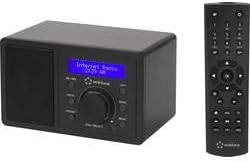
Image 4: Renkforce RF-IR-MONO1 Internet Radio with its remote control.
The included remote control allows convenient operation from a distance. It duplicates most functions available on the front panel and adds direct access buttons for certain features.
- Power Button: Turns the radio on/off.
- Numeric Buttons (0-9): For direct input or selecting presets.
- Navigation Buttons (Up/Down/Left/Right/OK): For menu navigation and selection.
- Volume Up/Down: Adjusts the volume.
- MODE Button: Switches between operating modes (Internet Radio, Bluetooth, AUX).
- EQ Button: Accesses equalizer settings.
- LOCAL Button: Direct access to local stations.
- INFO Button: Displays additional information about the current station or track.
- DIMMER Button: Adjusts display brightness.
7. Maintenance
- Cleaning: Wipe the unit with a soft, dry cloth. Do not use abrasive cleaners, waxes, or solvents.
- Storage: If storing the radio for an extended period, disconnect it from the power supply and store it in a cool, dry place.
- Software Updates: Periodically check the radio's settings menu for available software updates to ensure optimal performance and access to new features.
8. Troubleshooting
| Problem | Possible Cause | Solution |
|---|---|---|
| No power | Power adapter not connected or faulty outlet. | Ensure power adapter is securely connected and the outlet is functional. Try a different outlet. |
| Cannot connect to Wi-Fi | Incorrect password, weak signal, or router issue. | Verify Wi-Fi password. Move the radio closer to the router. Restart your router. |
| No sound from internet radio | Volume too low, station offline, or network issue. | Increase volume. Try a different station. Check Wi-Fi connection. |
| Bluetooth pairing fails | Device not in pairing mode, or too far away. | Ensure the radio is in Bluetooth pairing mode. Move devices closer. Disable and re-enable Bluetooth on your device. |
| Radio loses settings after unplugging | This model may require re-entering Wi-Fi credentials after a complete power loss. | This is expected behavior for some models. Re-enter Wi-Fi password and presets as needed. |
9. Specifications
| Brand | Renkforce |
| Model Number | RF-IR-MONO1 (RF-4830285) |
| Color | Black |
| Connectivity Technology | Wi-Fi, Bluetooth, Auxiliary |
| Tuning Technology | Digital |
| Special Features | Wireless, Sleep/Wake Function |
| Compatible Devices | Smartphone, Tablet, Bluetooth devices, devices with auxiliary jack |
| Power Source | DC 5V (via power adapter) |
| Audio Output Power | 3 Watts (RMS) |
| Bluetooth Range | Up to 10 meters (33 feet) |
10. Warranty and Support
Information regarding spare parts availability and software updates is not explicitly provided in the product details. For warranty claims or technical support, please refer to the retailer or manufacturer's official website for the most up-to-date contact information and policies.


