
1. Introduction
This manual provides detailed instructions for the installation, operation, and maintenance of your CasaCam GuardianCam Air VC1000 AC Powered 720p Spotlight Add-on Camera. This camera is designed to integrate seamlessly with CasaCam VS1001/VS1002 and VS802 wireless security systems, enhancing your property's surveillance capabilities with advanced features like motion-activated spotlights and two-way audio.
Important: This camera is not compatible with VS2072, VS2104, VS2004, VS550, VS5072, VS5802, VS5002, and VS5102A systems.
2. Product Overview
The CasaCam GuardianCam Air VC1000 is an AC-powered add-on camera featuring a 720p HD image sensor, two-way audio, motion detection, a powerful spotlight, night vision, and weatherproof construction. It is designed for outdoor use and offers robust performance for your security needs.
Key Features:
- 720p HD Video: Captures clear, high-definition footage.
- AC Powered: No internal battery, ensuring continuous operation.
- Motion-Activated Spotlight: 500 Lumen high-brightness white LED with manual, motion, and timer activation.
- Smart Motion Detection: Utilizes dual sensors (heat and video motion) to minimize false alarms.
- Night Vision: Provides clear surveillance up to 100 feet in low-light conditions.
- Two-Way Audio: Allows you to see, hear, and speak to individuals on your property via the monitor or mobile app.
- Weatherproof Design: IP54 rated for outdoor use.
- System Compatibility: Add-on camera for CasaCam VS1001/VS1002 and VS802 systems.
Component Identification:

Figure 2.1: Labeled components of the CasaCam GuardianCam Air VC1000 camera. Key parts include the antenna for wireless communication, microphone for audio input, 1W white LEDs for illumination, camera lens for video capture, IR LED for infrared night vision, PIR sensor for passive infrared motion detection, and a speaker for two-way audio output.
System Compatibility:

Figure 2.2: This image clearly shows which CasaCam systems are compatible (VS802, VS1002, VS1001) and incompatible (VS2072, VS2104, VS2004, VS550, VS5072, VS5802, VS5002, VS5102A) with the VC1000 add-on camera. Ensure your existing system matches the compatible models for proper functionality.
3. Setup
Powering the Camera:
The CasaCam GuardianCam Air VC1000 is AC powered and does not contain an internal battery. It requires a continuous power supply for operation.
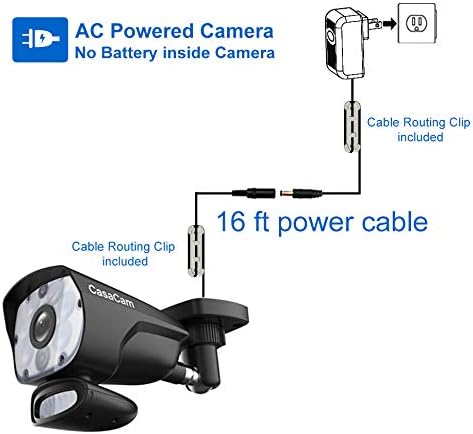
Figure 3.1: Illustration of the AC power connection for the camera. Connect the 16 ft power cable to the camera and then to the AC power adapter, which plugs into a standard electrical outlet. Use the included cable routing clips to secure the cable and prevent damage.
Mounting the Camera:
The camera is designed for wall mounting. Choose a location that provides the desired viewing angle and is within range of a power outlet and your wireless security system's monitor.
4. Operating Instructions
4.1 Touchscreen Responsiveness
If the monitor's touchscreen is not responding well, first ensure that any protective film applied during shipping has been removed. This film can reduce touch sensitivity. For more precise interaction, a stylus or the eraser end of a pencil can be used to tap the screen.
4.2 Playing Back Recorded Video
To play back recorded video on the monitor:
- Tap the SD card icon located in the upper left corner of the monitor screen.
- Navigate to the recording file list to select and view your desired footage.
To play back recorded video on your phone app:
- Open the CasaCam app.
- Locate and select the 'Event List' within the app to access recorded videos.
4.3 Motion Triggered Recording
To ensure motion-triggered recording is active:
- Check the 'running man' icon in the bottom left corner of the monitor.
- If the icon is blue, the motion trigger feature is off.
- If the icon is red, the motion trigger feature is on.
- Tap this icon to toggle the motion trigger feature on or off.
4.4 Remote Review from Phone App
For remote access via your phone app, the monitor must be connected to your router using an Ethernet cable.
- Once connected, observe the network status icon on the monitor.
- A green icon indicates the system is ready for remote access.
- A yellow icon indicates no internet connection. If this occurs, try restarting both the monitor and your router.
- A red icon indicates no wired connection. Verify that the Ethernet cable plugs are fully inserted into both the monitor and the router.
4.5 Resetting the App Password
If you forget the password for your phone app, you can reset it to the default password (000000) through the monitor:
- On the monitor, tap 'Menu'.
- Select 'General Settings'.
- Choose 'Network Setup'.
- Select 'Reset Password'.
- Confirm the reset to default password.
4.6 No Playback File on App
If you are unable to find playback files on the app, ensure that the time zone and daylight saving time settings on the monitor are correctly configured and match the time settings on your phone. Discrepancies can affect file indexing and retrieval.
4.7 Spotlight Functionality
The integrated spotlight activates upon motion detection, providing illumination for clearer video capture and acting as a deterrent.

Figure 4.1: The spotlight camera can be activated manually, by motion, or on a timer. Here, a person walking at night triggers the spotlight, providing clear visibility. This feature enhances security by illuminating potential threats.

Figure 4.2: The spotlight camera illuminates a garage door at night, demonstrating its effectiveness in providing bright, clear visibility in dark conditions. The light can be dimmed via the monitor settings if desired.
4.8 Boosting Wireless Signal
To optimize your camera's wireless signal:
- Ensure the antenna on the camera is securely tightened to establish good contact.
- Raise both antennas on the top of the touchscreen monitor to an upright position.
- If the wireless signal remains intermittent, consider purchasing a CasaCam extension cable for the antenna to reposition it for better reception.
5. Differences Between VS1002 (Spotlight) and VS802 (Night Vision) Cameras
While both camera types are compatible with the CasaCam monitor and are IP54 rated for outdoor use, there are key distinctions:
- VS1002 (Spotlight Camera): This camera functions as a traditional infrared camera but also includes a bright security spotlight. Its housing is made of metal to effectively dissipate heat from the ultra-bright LED. It features a separate motion sensor and a larger speaker, allowing for a longer motion detection range and louder two-way audio on the camera side.
- VS802 (Night Vision Camera): This camera primarily relies on infrared for night vision and has a plastic housing.
6. Maintenance
Regular maintenance ensures optimal performance and longevity of your CasaCam GuardianCam Air VC1000 camera:
- Cleaning: Gently wipe the camera lens and spotlight with a soft, damp cloth to remove dust and debris. Avoid abrasive cleaners.
- Cable Inspection: Periodically check the power cable and connections for any signs of wear, damage, or loose fittings.
- Antenna Check: Ensure the camera and monitor antennas are securely tightened and positioned for best signal.
- Firmware Updates: Check for available firmware updates through the monitor's system settings to ensure your system has the latest features and security enhancements.
7. Troubleshooting
This section addresses common issues you might encounter with your CasaCam GuardianCam Air VC1000 camera.
- Issue: Touchscreen unresponsive or difficult to use.
Solution: Remove any protective film from the screen. Use a stylus or the eraser end of a pencil for more precise input. - Issue: No motion-triggered recordings.
Solution: Verify the 'running man' icon on the monitor is red, indicating the motion trigger feature is active. Tap the icon to toggle it if necessary. - Issue: Remote access via phone app not working.
Solution: Ensure the monitor is connected to your router via an Ethernet cable. Check the network status icon on the monitor: green for active connection, yellow for no internet (restart monitor/router), red for no wired connection (check cable insertion). - Issue: Cannot find playback files on the app.
Solution: Confirm that the time zone and daylight saving time settings on both the monitor and your phone are identical and correct. - Issue: Weak or intermittent wireless signal.
Solution: Tighten the camera antenna. Raise both monitor antennas. Consider using a CasaCam antenna extension cable to reposition the camera antenna for better signal strength. - Issue: Spotlight not activating.
Solution: Check motion detection settings. Ensure the camera is powered and the area is within the detection range. - Issue: Two-way audio unclear or not working.
Solution: Check microphone and speaker for obstructions. Ensure volume settings are appropriate on both the monitor/app and the camera.
8. Specifications
| Feature | Specification |
|---|---|
| Model Number | VC1000 |
| Video Capture Resolution | 720p |
| Power Source | AC Powered (No Batteries Required) |
| Connectivity Technology | Wireless (Wi-Fi) |
| Connectivity Protocol | Wi-Fi |
| Mounting Type | Wall Mount |
| Night Vision Range | 100 Feet |
| Special Features | Motion Sensor, Night Vision, Spotlight, Two-Way Audio |
| Indoor/Outdoor Usage | Outdoor |
| International Protection Rating | IP54 |
| Item Weight | 1.13 Pounds |
| Package Dimensions | 9.13 x 5.75 x 3.62 inches |
| Manufacturer | Home Tech LLC |
9. Warranty and Support
For warranty information and technical support, please refer to the official CasaCam website or contact Home Tech LLC directly. Keep your purchase receipt as proof of purchase.
Protection Plans:
Extended protection plans are available for purchase to cover your device beyond the standard warranty period. Options include:
- 2-Year Protection Plan
- 3-Year Protection Plan
- Complete Protect (monthly subscription covering eligible past and future purchases)
For details on these plans, please visit the product page or contact customer service.