
1. Introduction
The CasaCam GuardianCam Air VS1002 is a wireless security camera system featuring a 7-inch touchscreen monitor and two spotlight HD cameras. This system is designed for easy DIY installation and provides comprehensive surveillance with features like two-way audio, remote access via a free app, and motion-activated recording. The cameras are AC powered and include an installed SD card and battery for the monitor.
Key Features:
- True DIY DVR system with 7-inch touchscreen monitor.
- Security camera and security spotlight light combo.
- Two-way audio for communication via monitor, phone, or tablet.
- Motion-activated spotlights (500 Lumen High Brightness white LED) and recording.
- Auto, manual, and scheduled recording modes with five-second pre-record period.
- Remote access for smartphone and tablet.
- Rechargeable battery and internal SD card included with the monitor.
- System supports up to 4 cameras with single, split, or quad display.
- Smart motion detection using dual sensors (heat and video motion) to minimize false alarms.

2. What's in the Box
Your CasaCam GuardianCam Air VS1002 system package includes:
- Security camera(s)
- 7-inch touchscreen monitor
- Power adapters for cameras and monitor
- Ethernet cable (for remote viewing setup)
- Mounting hardware
- User manual
3. Setup
3.1 Initial Power-Up and Camera Connection
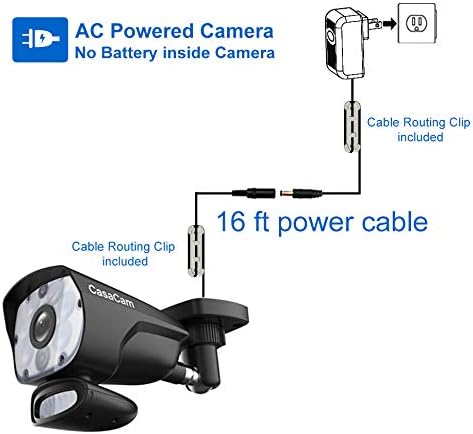
- Connect the power adapters to the cameras and plug them into a power outlet.
- Connect the power adapter to the 7-inch touchscreen monitor and power it on. The cameras should automatically pair with the monitor.
- Ensure the antennas on both the cameras and the monitor are securely tightened and positioned for optimal signal reception.
3.2 Remote Access Setup
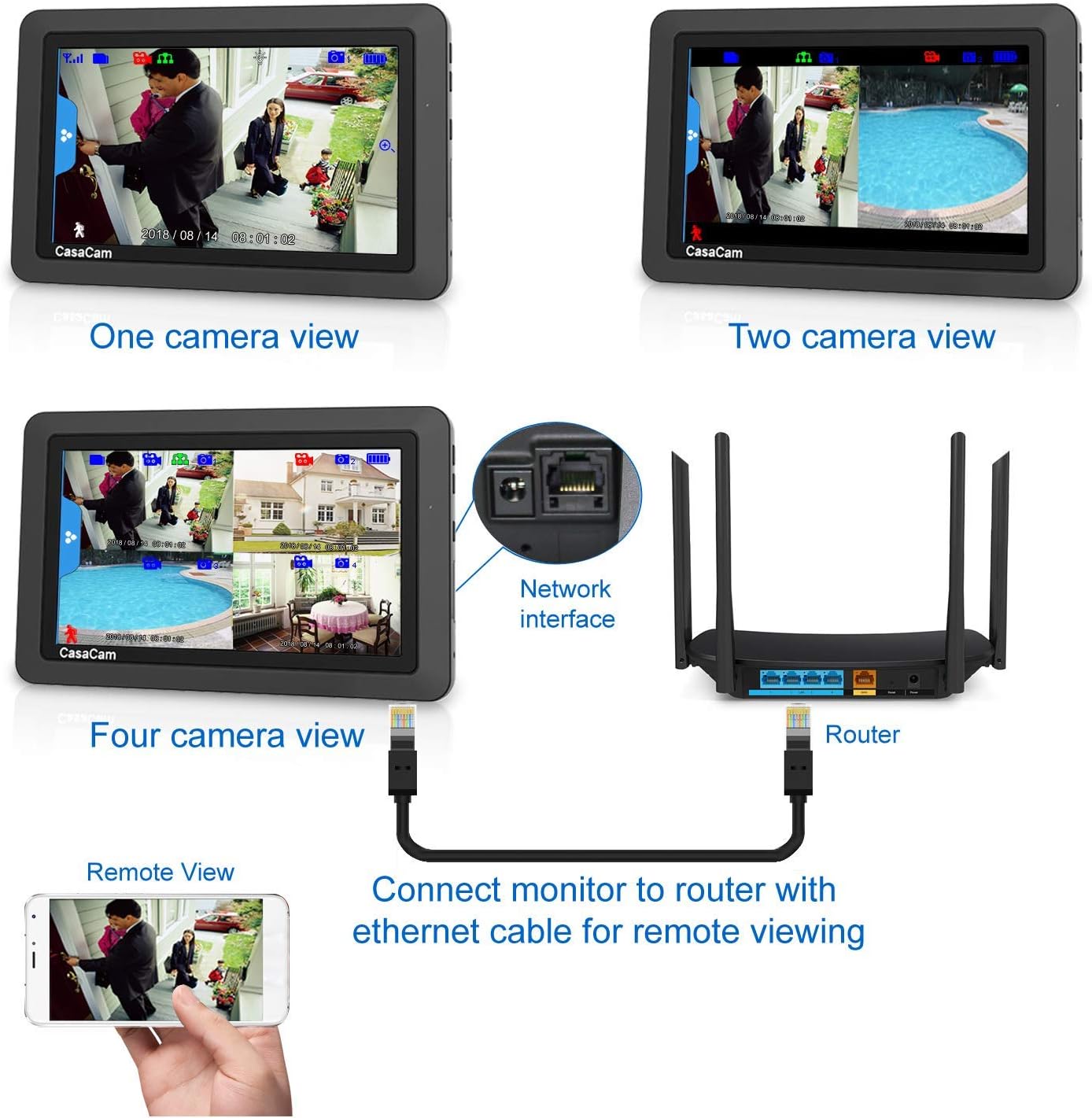
To enable remote viewing on your smartphone or tablet, the monitor must be connected to your router via an Ethernet cable.
- Connect one end of the Ethernet cable to the network interface port on the monitor.
- Connect the other end of the Ethernet cable to an available LAN port on your router.
- Once connected, the network status indicator on the monitor should turn green, signifying readiness for remote access. If it's yellow, there's no internet connection; if red, there's no wire connection.
- Download the CasaCam app on your smartphone or tablet and follow the in-app instructions to add your device.
3.3 Quick Start Guide Video
For a visual guide on setting up your CasaCam system, watch the official Quick Start Guide video:
4. Operating the System
4.1 Monitor Navigation
- Live View: The monitor displays live feeds from connected cameras. You can switch between single, split, or quad views.
- Touchscreen: The 7-inch touchscreen allows for intuitive navigation through menus and settings. If the touchscreen is unresponsive, ensure any protective film has been removed. A stylus or the eraser end of a pencil can improve precision.
- Two-Way Audio: Use the two-way audio feature to communicate with individuals near the camera.
4.2 Recording Modes
The system supports various recording options:
- Auto Recording: Automatically records when motion is detected.
- Manual Recording: Start and stop recording manually via the monitor or app.
- Scheduled Recording: Set specific times for the system to record.
4.3 Spotlight Functionality
The spotlight cameras feature 500 Lumen High Brightness white LEDs that can be activated manually, by motion, or on a timer. This enhances visibility and acts as a deterrent.

5. Maintenance
- Regular Cleaning: Periodically clean camera lenses and the monitor screen with a soft, dry cloth to ensure clear images.
- Firmware Updates: Check for available firmware updates through the system settings on the monitor to ensure optimal performance and security.
- SD Card Management: Regularly review and manage recordings on the SD card. Format the SD card periodically to maintain performance.
- Power Supply: Ensure all cameras and the monitor have a stable power supply.
6. Troubleshooting
6.1 Frequently Asked Questions
- Why is the touchscreen not responding well?
Ensure any protective film has been removed from the touchscreen. Using a stylus or the eraser end of a pencil can improve touch sensitivity. - How to play back recorded video?
On the monitor, tap the SD card icon (usually in the upper left corner) to access the recording file list. On the phone app, navigate to the event list. - Why is there no motion-triggered recording?
Check the running man icon on the monitor (usually in the bottom left corner of the camera view). If it's blue, motion-triggered recording is off. Tap it to turn it red (on). Also, verify motion detection settings and sensitivity in the General Settings menu. - How to use remote review from your phone app?
Ensure the monitor is connected to your router via an Ethernet cable. The network status icon on the monitor should be green. If it's yellow (no internet) or red (no wire connection), troubleshoot your network connection or cable. - How to reset the password for the app?
If you forget the app password, you can reset it to the default (six zeros) via the monitor. Go to Menu > General Settings > Network Setup > Reset Password > Yes. - No playback file on the app.
Verify that the date and time settings on both the monitor and your phone are correctly synchronized. Incorrect time settings can prevent proper file indexing and playback. - Is there any way to boost wireless signal?
Ensure the antennas on both the cameras and the monitor are securely tightened. Adjust the position of the antennas for optimal reception. If signal issues persist, consider purchasing a CasaCam extension cable for the antenna to reposition it for better signal strength.
7. Specifications
| Feature | Detail |
|---|---|
| Brand | CasaCam |
| Model Number | VS1002/5002 |
| Connectivity Technology | Wireless |
| Video Capture Resolution | 720p HD (This specific variant) |
| Number of Channels | 4 |
| Memory Storage Capacity | 8 GB (internal SD card included) |
| Power Source | AC Powered (cameras), Rechargeable Battery (monitor) |
| Item Dimensions L x W x H | 14.17 x 4.33 x 10.24 inches |
| Recommended Uses For Product | Security |
| Low Light Technology | Night Color |
| Night Vision Range | 100 Feet |
| Recording Mode | Manual, Motion Detection, Scheduled |
| Smart Home Compatibility | Smart Home Compatible |
| UPC | 680474045273 |
8. Warranty and Support
For detailed warranty information, product support, and additional resources, please visit the official CasaCam Store: