
Lekvey 7L-01
Lekvey Ergonomic Vertical Wireless Mouse User Manual
Model: 7L-01
1. Introduction
Thank you for choosing the Lekvey Ergonomic Vertical Wireless Mouse. This manual provides essential information for setting up, operating, and maintaining your new mouse. Designed with a scientific ergonomic shape, this mouse promotes a healthy neutral "handshake" wrist and arm position, aiming to reduce strain and discomfort often associated with traditional mice.
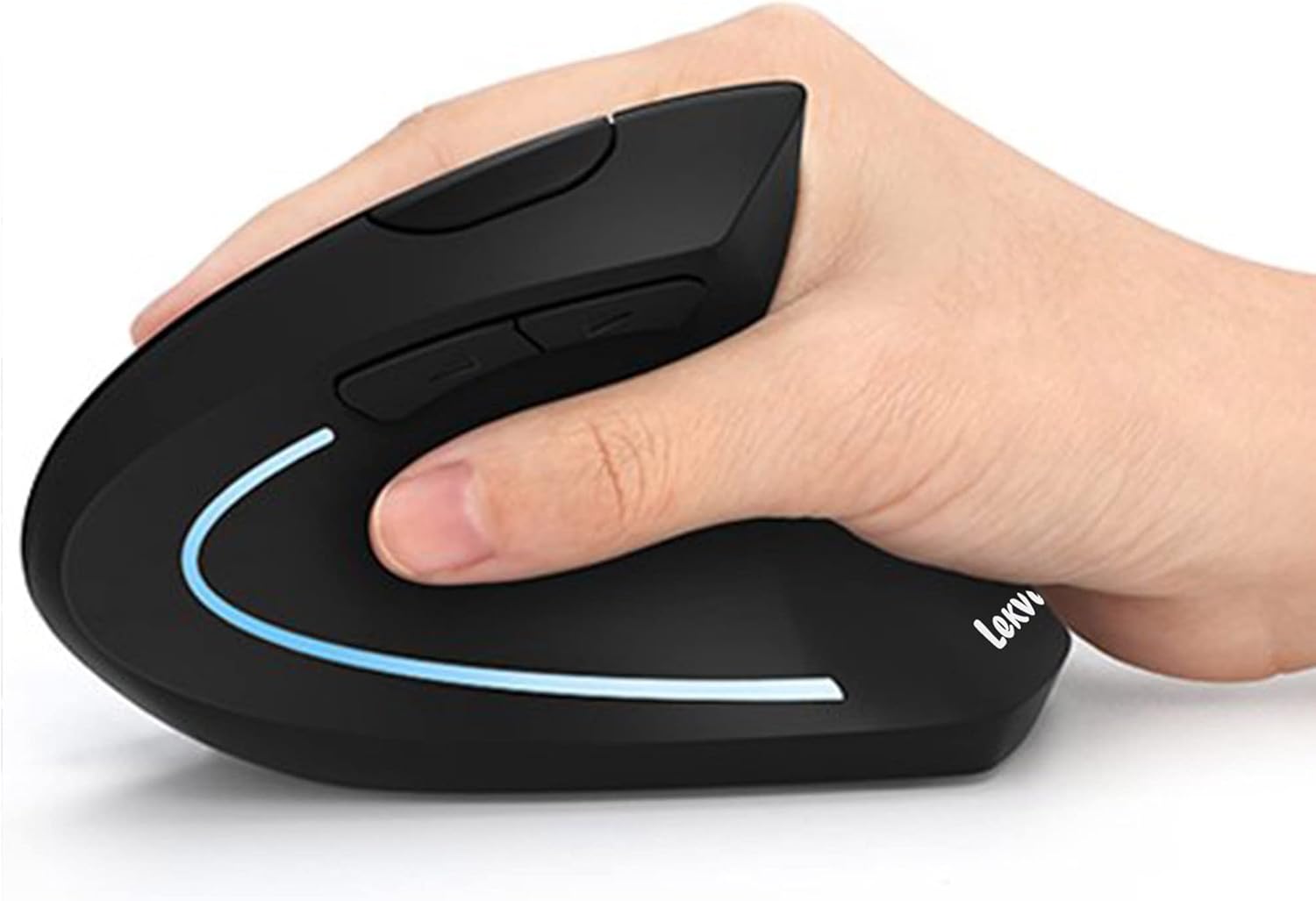
The ergonomic design allows for a natural, comfortable grip, reducing wrist strain.

Visual comparison highlighting the benefits of the vertical ergonomic design over traditional mice for wrist health.
2. Package Contents
- 1 x Lekvey Rechargeable Wireless Ergonomic Mouse
- 1 x 2.4G USB Receiver
- 1 x USB A to USB C Charging Cable (150cm)
- 1 x User Manual
3. Setup Guide
3.1 Connecting the USB Receiver
- Locate the USB receiver stored in the compartment at the bottom of the mouse.
- Remove the USB receiver from its storage slot.
- Plug the USB receiver into an available USB port on your computer (Laptop, PC, Desktop).
- Turn on the mouse using the On/Off switch located on the bottom of the mouse.
- Your computer should automatically detect and install the necessary drivers. The mouse is plug-and-play.

The USB receiver is conveniently stored at the bottom of the mouse for easy access and portability.
3.2 Charging the Mouse
The Lekvey Ergonomic Mouse features a built-in rechargeable battery, eliminating the need for disposable batteries.
- Connect the provided USB A to USB C charging cable to the charging port on the front of the mouse.
- Plug the other end of the cable into a USB power source (e.g., computer USB port, USB wall adapter).
- The mouse will begin charging. A full charge provides approximately 150 hours of use.

Rechargeable battery for convenience and environmental friendliness.
4. Operating Instructions
4.1 Button Functions
Your Lekvey Ergonomic Mouse is equipped with 6 buttons for enhanced functionality:
- Left Click Button: Standard left-click function.
- Right Click Button: Standard right-click function.
- Scroll Wheel: For vertical scrolling.
- DPI Switch Button: Located on top, allows adjustment of cursor sensitivity.
- Page Back Button: Located on the side, navigates back in web browsers or file explorers.
- Page Forward Button: Located on the side, navigates forward in web browsers or file explorers.

Easily switch DPI levels and navigate web pages with dedicated buttons.
4.2 Adjusting DPI Sensitivity
The mouse offers three adjustable DPI (Dots Per Inch) levels: 800, 1200, and 1600. DPI determines the sensitivity of the mouse cursor. To change the DPI, press the DPI Switch Button located on the top of the mouse. Each press will cycle through the available DPI settings.
4.3 Compatibility
The Lekvey Ergonomic Mouse is widely compatible with operating systems including Windows 2000, XP, Vista, 7, 8, 10, and Linux. Note: This mouse is not compatible with Mac OS or Apple Products for the side buttons functionality.
5. Maintenance
5.1 Cleaning
To maintain optimal performance, regularly clean your mouse. Use a soft, dry cloth to wipe the surface. For stubborn dirt, a slightly damp cloth can be used, but ensure no moisture enters the internal components. Avoid using harsh chemicals or abrasive cleaners.
5.2 Battery Care
To prolong the life of the built-in rechargeable battery:
- Avoid fully discharging the battery frequently.
- Charge the mouse when the battery indicator (if present) suggests low power.
- If storing the mouse for an extended period, charge it to about 50% before storage and recharge every few months.
6. Troubleshooting
If you encounter issues with your Lekvey Ergonomic Mouse, please refer to the following common solutions:
- Mouse not responding: Ensure the mouse is turned on using the On/Off switch at the bottom. Check if the USB receiver is securely plugged into a working USB port. Try plugging the receiver into a different USB port.
- Cursor erratic or not moving smoothly: Ensure the mouse is on a clean, flat surface. Check for any obstructions on the optical sensor at the bottom of the mouse. Try adjusting the DPI sensitivity.
- Lag or delayed response: Ensure the mouse is within the effective wireless range (up to 10 meters). Minimize interference from other 2.4GHz wireless devices.
- Charging issues: Ensure the charging cable is properly connected to both the mouse and the power source. Try a different USB port or power adapter.
- Side buttons not working (Mac OS): As noted in compatibility, the side buttons (Page Back/Forward) are not supported on Mac OS. This is expected behavior.
If these steps do not resolve your issue, please contact Lekvey customer support.
7. Specifications
| Feature | Detail |
|---|---|
| Brand | Lekvey |
| Model Number | 7L-01 |
| Connectivity Technology | Wireless, 2.4 GHz USB |
| Movement Detection Technology | Optical |
| DPI Levels | 800 / 1200 / 1600 |
| Number of Buttons | 6 |
| Power Source | Battery Powered (1 Lithium Polymer battery included) |
| Average Battery Life | 150 Hours |
| Item Weight | 3.36 ounces |
| Product Dimensions (LxWxH) | 4.6 x 2.7 x 3.9 inches |
| Color | Black |
| Hardware Platform | Laptop, PC, Desktop |
| Operating System Compatibility | Windows 2000 / XP / 95 / 98 / Vista / 7 / 8 / 10 / 11 / Linux |
8. Warranty and Support
Lekvey provides a 24-month warranty for this product (Replacement or Refund). For any inquiries, technical support, or warranty claims, please contact Lekvey customer service via email: Support.Lekvey@foxmail.com.
Your satisfaction is our priority. We are committed to providing high-quality products and excellent customer service.
Related documents7L-01


Ask a question about this manual
Ask about setup, troubleshooting, compatibility, parts, safety, or missing instructions. Manuals+ will review the question and use this page’s manual context to help answer it.