
1. Introduction
Thank you for purchasing the Zebronics ZEB - BT9451 RUCF 5.1 Multimedia Speaker Home Theater System. This manual provides essential information for the proper installation, operation, and maintenance of your new audio system. Please read this manual thoroughly before use to ensure optimal performance and to prevent damage.
2. Safety Instructions
- Power Source: Ensure the power supply voltage matches the requirements specified on the unit (230 Volts).
- Ventilation: Do not block any ventilation openings. Maintain adequate space around the unit for proper airflow.
- Water and Moisture: Do not expose the unit to rain, moisture, or dripping/splashing liquids. Do not place objects filled with liquids, such as vases, on the apparatus.
- Heat: Keep the unit away from heat sources such as radiators, heat registers, stoves, or other apparatus (including amplifiers) that produce heat.
- Cleaning: Clean only with a dry cloth. Do not use liquid cleaners or aerosol cleaners.
- Servicing: Do not attempt to service this product yourself. Refer all servicing to qualified service personnel.
- Placement: Place the unit on a stable, flat surface. Avoid placing it in direct sunlight or near strong magnetic fields.
3. Package Contents
Please check the package for the following items:
- Subwoofer Unit (1)
- Satellite Speakers (5)
- Remote Control (1)
- Audio Input Cable (1)
- User Manual (This document)
4. Product Overview
The Zebronics ZEB - BT9451 RUCF is a 5.1 multimedia speaker system designed to deliver immersive audio. It features a powerful subwoofer and five satellite speakers for a complete surround sound experience. The system supports multiple input options including AUX, USB, SD card, FM radio, and Bluetooth connectivity.
4.1 Main Unit and Satellite Speakers

Figure 1: Front view of the Zebronics ZEB - BT9451 RUCF 5.1 Multimedia Speaker System, showing the central subwoofer unit, five satellite speakers, and the remote control.

Figure 2: Side view of the Zebronics ZEB - BT9451 RUCF 5.1 Multimedia Speaker System, providing another perspective of the speaker arrangement.
4.2 Key Features and Connectivity
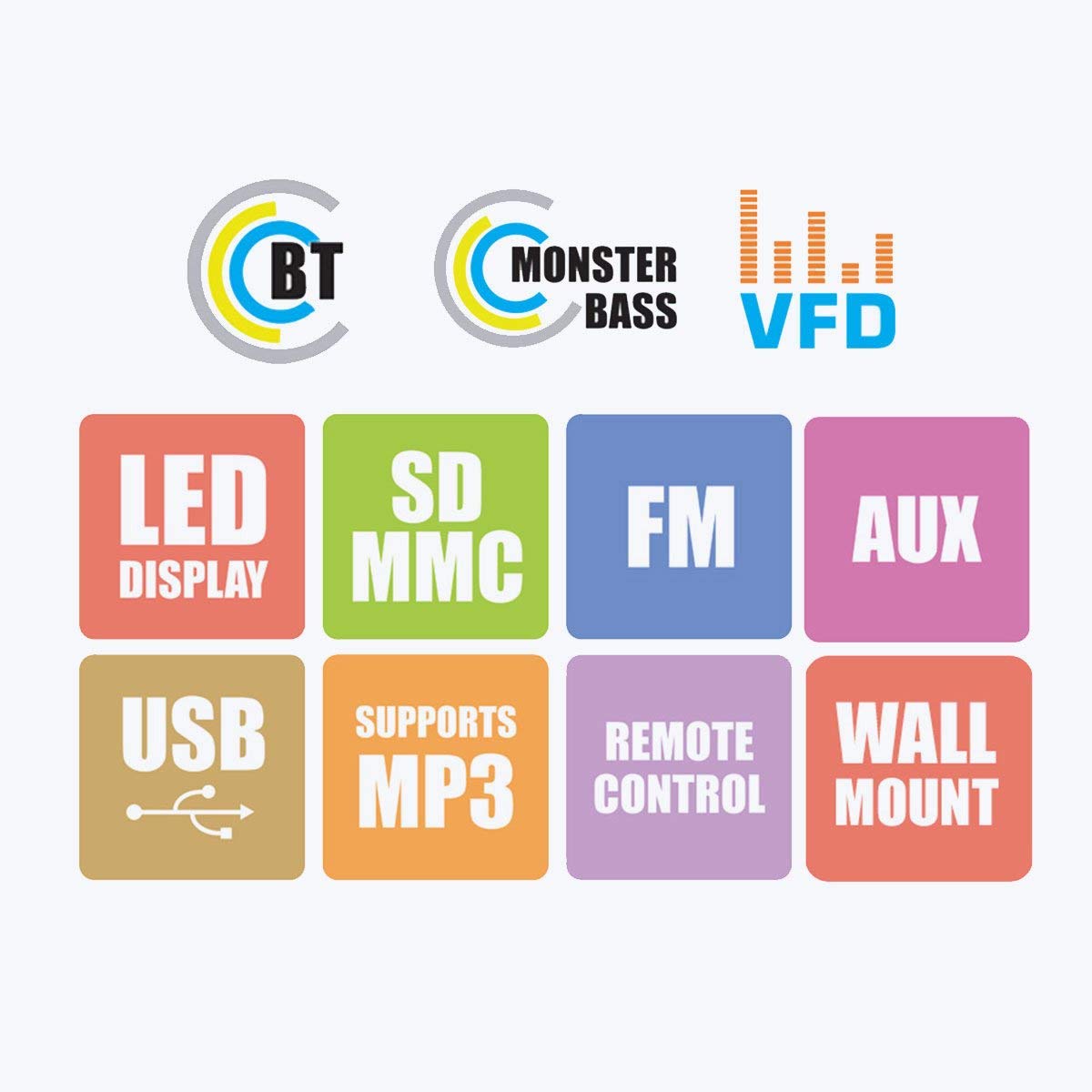
Figure 3: Visual representation of the system's main features, including Bluetooth connectivity, powerful bass, VFD display, LED display, support for SD/MMC cards, FM radio, AUX input, USB playback, MP3 support, remote control functionality, and wall-mount capability for satellite speakers.
4.3 Control Panel and Rear Connections

Figure 4: Detailed views of the subwoofer's front panel, showing the LED display and control buttons, and the side panel with USB and SD card slots. The rear panel connections for audio input (L, R, FL, FR, CEN, SUB, SL, SR) and output are also visible, along with safety warnings.
5. Setup Instructions
5.1 Speaker Placement
- Subwoofer: Place the subwoofer on the floor, preferably in a corner or near a wall, to enhance bass response.
- Front Speakers (FL, FR): Position these to the left and right of your viewing/listening area, facing towards you.
- Center Speaker (CEN): Place this directly above or below your display (TV/monitor).
- Surround Speakers (SL, SR): Position these to the sides or slightly behind your listening position, at ear level if possible.
5.2 Connecting Speakers
Connect the five satellite speakers to the corresponding output ports on the rear panel of the subwoofer unit. Ensure each speaker cable is securely connected to its designated port (FL, FR, CEN, SL, SR).
Refer to Figure 4 for a visual guide to the rear panel connections.
5.3 Connecting Audio Sources
The system offers multiple ways to connect audio sources:
- AUX Input: Use the provided audio input cable to connect your device (e.g., Desktop, Laptop, DVD Player, Projector, LED TV) to the "AUX INPUT" ports (L/R) on the subwoofer's rear panel.
- USB/SD Card: Insert a USB flash drive or SD card into the respective slots on the side panel of the subwoofer for direct media playback.
- Bluetooth: For wireless audio, pair your Bluetooth-enabled device with the speaker system. (See Section 6.4 for detailed Bluetooth pairing instructions).
5.4 Power Connection
After all audio connections are made, connect the power cord to the main power outlet. Ensure the power switch on the rear of the subwoofer is in the OFF position before plugging in.
6. Operating Instructions
6.1 Power On/Off
Flip the power switch on the rear panel of the subwoofer to the "ON" position. The LED display on the front panel will illuminate. To turn off, flip the switch back to "OFF".
6.2 Input Selection
Press the "MODE" button on the front panel or the remote control to cycle through available input modes: AUX, USB, SD, FM, and Bluetooth. The selected mode will be indicated on the LED display.
6.3 Volume Control
Adjust the master volume using the main rotary knob on the front panel of the subwoofer or the "VOL+" / "VOL-" buttons on the remote control.
6.4 Bluetooth Operation
- Switch the speaker system to Bluetooth mode using the "MODE" button. The display will show "BT" or similar, and an audible prompt may sound.
- Enable Bluetooth on your mobile phone or other device and search for available devices.
- Select "ZEB-BT9451" (or similar name) from the list of found devices.
- Once paired, you can play audio from your device through the speaker system.
6.5 USB/SD Card Playback
Insert a USB flash drive or SD card containing MP3 audio files into the corresponding slot. The system will automatically switch to USB/SD mode and begin playback. Use the play/pause, next/previous track buttons on the front panel or remote control to manage playback.
6.6 FM Radio Operation
- Switch the speaker system to FM mode using the "MODE" button.
- Press and hold the "PLAY/PAUSE" button (or a dedicated scan button on the remote) to automatically scan and save available FM stations.
- Use the "PREV/NEXT" buttons to navigate through the saved stations.
7. Maintenance
- Cleaning: Disconnect the power before cleaning. Use a soft, dry cloth to wipe the surfaces of the speakers and subwoofer. Do not use abrasive cleaners, waxes, or solvents.
- Storage: If storing the unit for an extended period, disconnect it from the power supply and store it in a cool, dry place, away from direct sunlight and extreme temperatures.
8. Troubleshooting
| Problem | Possible Cause | Solution |
|---|---|---|
| No power | Power cord not connected; Power switch off; Power outlet faulty | Ensure power cord is securely connected; Turn power switch ON; Test power outlet with another device |
| No sound | Incorrect input mode; Volume too low; Audio cable loose/faulty; Source device muted/volume low | Select correct input mode; Increase volume; Check audio cable connections; Check source device settings |
| Distorted sound | Volume too high; Source audio quality poor; Speaker cables loose | Reduce volume; Try a different audio source; Check all speaker connections |
| Remote control not working | Batteries depleted; Obstruction between remote and unit; Remote sensor blocked | Replace batteries; Remove obstructions; Ensure remote is pointed at the unit's sensor |
| Bluetooth pairing failure | Speaker not in BT mode; Device too far; Device already paired with another unit | Switch to BT mode; Move device closer; Disconnect from other devices and try again |
9. Specifications
| Model Name | ZEB - BT9451 |
| Speaker Type | Desktop, Satellite, Subwoofer |
| Surround Sound Channel Configuration | 5.1 channel |
| Speaker Maximum Output Power | 90 Watts |
| Input Voltage | 230 Volts |
| Impedance | 4 Ohm |
| Frequency Response | 20 KHz |
| Connectivity Technology | Auxiliary, USB, FM, Bluetooth |
| Special Features | Radio, Remote Control, SD Card, Subwoofer |
| Compatible Devices | Home Theater, Laptop, Projector, Television, Desktop, DVD Players, Music Players |
| Subwoofer Diameter | 5 Inches |
| Item Weight | 13 kg 700 g |
| Package Dimensions | 44.2 x 40.8 x 28.6 cm |
10. Warranty and Support
For warranty information and technical support, please refer to the warranty card included with your product or visit the official Zebronics website. You may also contact Zebronics customer service for assistance with product inquiries, troubleshooting, or service requests.
Official Website: www.zebronics.com


