
1. Introduction
The ZENEC Z-E3756 is a sophisticated 2-Din Naviceiver specifically engineered for seamless integration into Fiat Ducato III, Citroen Jumper II, and Peugeot Boxer II vehicles. This unit combines advanced multimedia features with a comprehensive navigation system, all controlled via a responsive 7-inch (17.8 cm) capacitive touchscreen. It offers a wide range of functionalities to enhance your driving experience, including digital radio, Bluetooth connectivity, and smartphone integration.
2. Setup and Installation
The Z-E3756 is designed for direct fitment into the dashboard of compatible vehicles. Professional installation is recommended to ensure correct wiring and optimal performance. The unit integrates with the vehicle's steering wheel remote control for convenient operation.
2.1 Vehicle Compatibility
- Fiat Ducato III: Models 250/251 (2006 – 2011), 250/251 (2011 – 2014), 250/251 (X290) (from 2014), Serie 8 (from 2021, requires assembly kit N-XFDucduc.8)
- Citroen Jumper II: Models 250/250D/250L (from 2006)
- Peugeot Boxer II: Models 250/251 (from 2006)
- Opel Movano Type C: From 2021
2.2 Initial Power-Up and Configuration
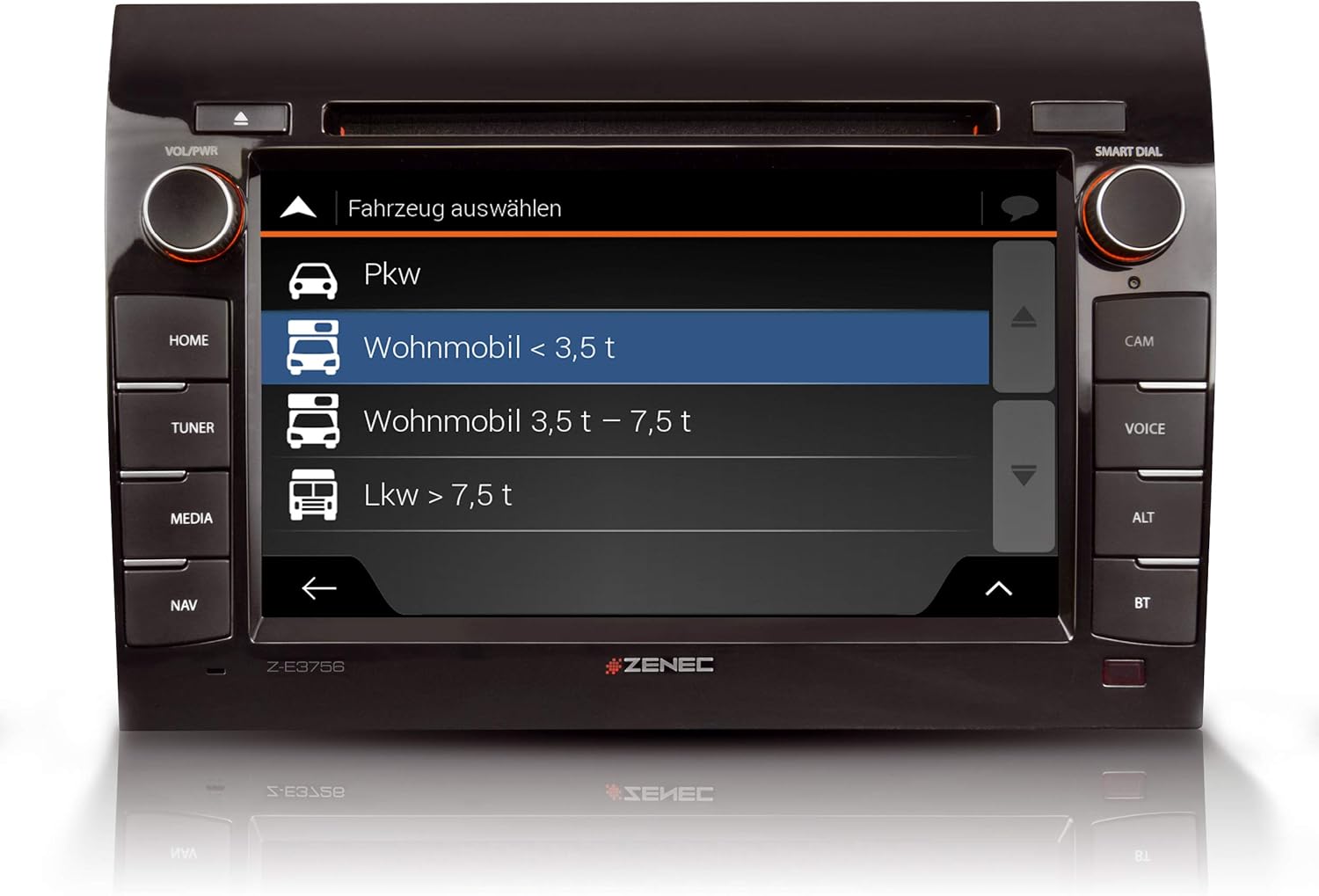
Upon initial power-up, follow the on-screen prompts to configure basic settings such as language, time, and region. For navigation, select the appropriate vehicle profile (e.g., 'Wohnmobil < 3.5 t' for motorhomes under 3.5 tons) and input vehicle-specific data to optimize route planning.

3. Operating Instructions
The Z-E3756 features a user-friendly interface accessible via its capacitive touchscreen and physical buttons. The main menu provides access to all primary functions.
3.1 Main Interface and Navigation
The home screen typically displays quick access icons for key functions such as DAB+, Navigation, and Bluetooth. Swipe gestures or direct touches activate desired applications.

3.2 Multimedia Functions
- DAB+ Digital Radio: Access a wide range of digital radio stations with enhanced sound quality. The dual tuner ensures stable reception.
- FM Radio: Standard FM radio reception is also available.
- Bluetooth: Connect your smartphone for hands-free calling and audio streaming. Manage contacts and call history directly from the unit.
- CD/DVD Player: Insert CDs or DVDs into the integrated drive for audio or video playback.
- USB Ports: Two USB ports allow connection of external storage devices for media playback or charging.
- HDMI: Connect compatible devices via HDMI for high-definition audio and video input.
- iPod/iPhone Compatibility: Direct control and playback from Apple devices.


3.3 Navigation System
The integrated navigation system includes map data for 47 European countries. It features a dedicated Camping P.O.I. (Points of Interest) database with approximately 20,000 campsites and motorhome pitches, along with 6.5 million premium P.O.I.s. Route planning is optimized by selecting a vehicle profile and entering specific vehicle dimensions.

3.4 Android Auto Integration
Connect your Android smartphone to access compatible apps, including navigation applications, directly on the Z-E3756's display. Control functions via the touchscreen or Google Voice Assistant.

3.5 Camera Inputs
The unit features three camera inputs with micro-input, allowing for connection of rear-view cameras or other auxiliary cameras to enhance safety and maneuverability.

4. Maintenance
To ensure the longevity and optimal performance of your Z-E3756 Naviceiver, follow these general maintenance guidelines:
- Cleaning the Screen: Use a soft, lint-free cloth to gently wipe the touchscreen. For stubborn smudges, slightly dampen the cloth with water or a screen-safe cleaning solution. Avoid abrasive materials or harsh chemicals.
- CD/DVD Drive: Keep the CD/DVD slot free from dust and debris. Avoid inserting damaged or dirty discs.
- Software Updates: Periodically check the ZENEC website for available software and map updates to ensure you have the latest features and navigation data.
5. Troubleshooting
If you encounter issues with your Z-E3756, consider the following basic troubleshooting steps:
- No Power: Check the vehicle's fuse box and ensure all power connections to the unit are secure.
- No Audio: Verify speaker connections, volume settings, and ensure the mute function is not active.
- Navigation Issues: Ensure GPS antenna is properly connected and has a clear view of the sky. Check for available map updates.
- Bluetooth Connectivity Problems: Ensure Bluetooth is enabled on both the Naviceiver and your mobile device. Try unpairing and re-pairing the devices.
- Screen Unresponsive: Perform a soft reset by pressing and holding the power button for a few seconds, or consult the full manual for specific reset procedures.
For persistent issues, please refer to the comprehensive troubleshooting section in the full product manual or contact ZENEC customer support.
6. Specifications
| Feature | Specification |
|---|---|
| Brand | ZENEC |
| Model Number | 02027E3756 |
| Screen Size | 7 Inch (17.8 cm) |
| Display Type | Capacitive Touchscreen |
| Connectivity Technology | Vehicle-specific wired connection |
| Special Features | Touchscreen, Bluetooth, DAB+, Android Auto, CD/DVD, HDMI, USB |
| Map Type | Europe (47 countries) |
| Audio Output Mode | Stereo |
| Included Components | Power supply, holder |
| Mounting Type | Dashboard Mount |
| Package Dimensions | 31.6 x 28 x 21.5 cm |
| Item Weight | 3.7 kg |
7. Warranty and Support
For detailed warranty information, please refer to the warranty card included with your product or visit the official ZENEC website. For technical support, product registration, or service inquiries, please contact your authorized ZENEC dealer or the manufacturer's customer service department. Keep your proof of purchase and model number (Z-E3756) readily available when contacting support.


