
1. Introduction
Thank you for choosing the Superer 65W UL Listed Power Adapter. This manual provides essential information for the safe and effective use of your new power adapter. Please read it thoroughly before use and retain it for future reference.

Image 1.1: The Superer 65W UL Listed Power Adapter with its detachable power cord. The adapter features a compact black design with an integrated output cable ending in an angled round connector.
2. Important Safety Information
To ensure safe operation and prevent damage, please observe the following safety precautions:
- UL Listed Safety: This product is UL Listed, meeting nationally recognized standards for electronic safety.
- Voltage Compatibility: Only connect the adapter to power outlets within the specified input voltage range (100-240V).
- Current Matching: Ensure your device requires 3.42A or less. Do not use if your laptop requires more than 3.42A.
- Avoid Overheating: Do not cover the adapter during use. Ensure adequate ventilation to prevent overheating.
- Dry Environment: Use the adapter in dry locations only. Avoid exposure to water or high humidity.
- Handle with Care: Do not drop, disassemble, or attempt to repair the adapter.
- Cable Integrity: Inspect the power cord and adapter for any damage before each use. Do not use if damaged.

Image 2.1: Diagram illustrating the safety features of the power adapter, including protection against overheating, overvoltage, electrostatic discharge, short circuit, overcurrent, and overcharge. The image highlights that these protections are verified with test reports.
3. Package Contents
Verify that all items are present in your package:
- 1 x Superer 65W Power Adapter (Model: ADP190342L)
- 1 x Power Cord (for connecting adapter to wall outlet)
4. Product Specifications
| Feature | Specification |
|---|---|
| Model Number | ADP190342L |
| Input Voltage | 100-240V ~ 50/60Hz |
| Output Voltage | 19V |
| Output Current | 3.42A |
| Output Power | 65W |
| Connector Type | Round Connector (Angled) |
| Product Dimensions | 4.21 x 1.85 x 1.22 inches |
| Item Weight | 10.9 ounces |
| Safety Certifications | UL Listed |
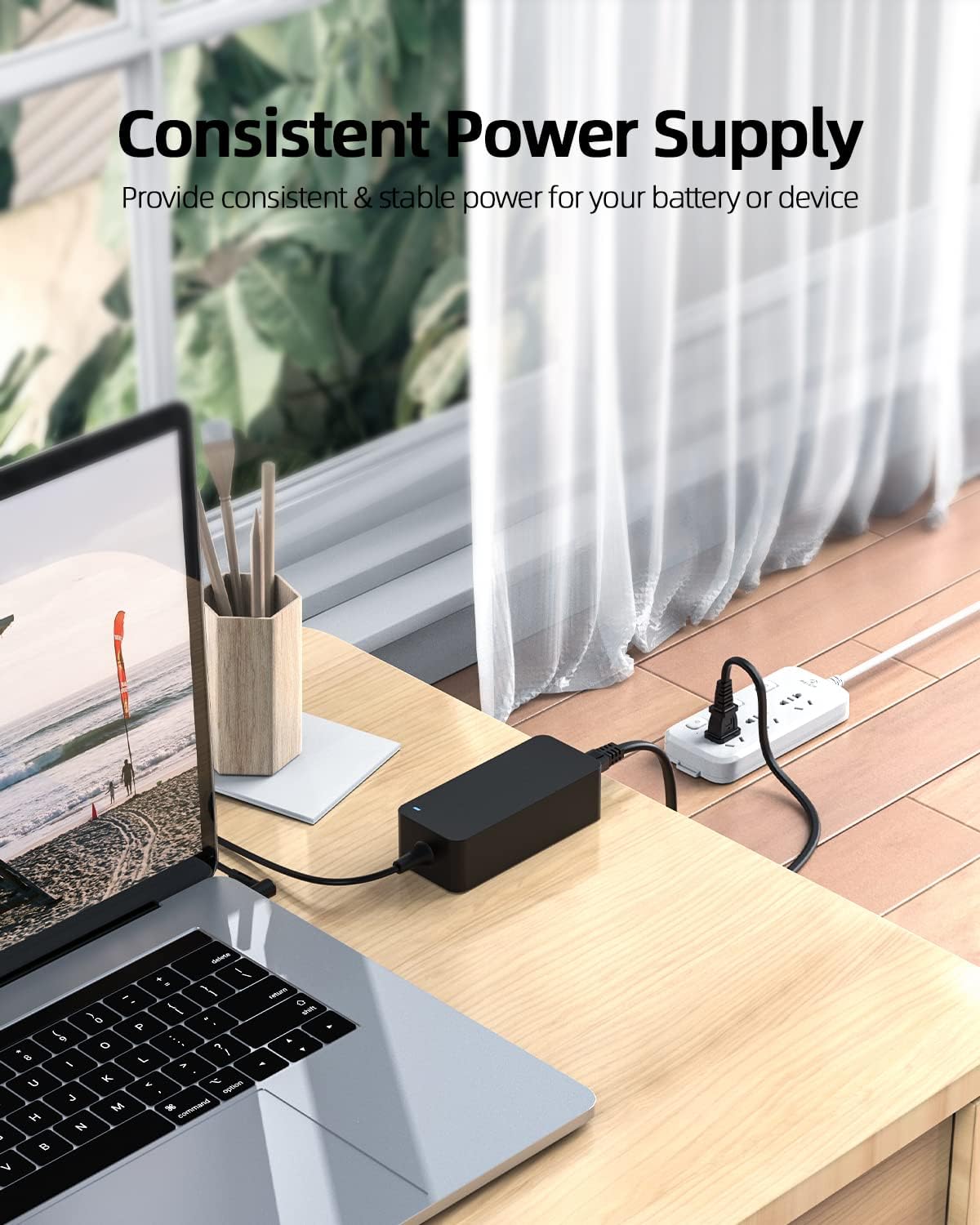
Image 4.1: A visual representation of the power adapter's dimensions, showing its length of approximately 4.16 inches, width of 1.79 inches, and height of 1.17 inches.
5. Compatibility
This Superer 65W power adapter is compatible with various Getac tablet and laptop models. Please verify your device's power requirements before use.
Compatible Getac Models:
- Getac V110 (including V110G3, V110G4)
- Getac F110 (including F110G3, F110G4, F110G5)
- Getac RX10H, RX10 (including RX10G2)
- Getac S410 (including S410G2)
- Getac S400
- Getac K120
- Getac T800
- Getac A140
Important Note: Do not use this adapter if your laptop requires more than 3.42A (65W).

Image 5.1: A compatibility chart showing that the adapter supports 19V 3.42A (65W) devices. It also indicates that it is not compatible with devices requiring 19V 4.74A (90W). A close-up of the angled round connector is also shown.
6. Setup Instructions
Follow these steps to connect your power adapter:
- Connect Power Cord: Insert the detachable power cord into the input port of the Superer power adapter.
- Plug into Outlet: Plug the other end of the power cord into a standard wall outlet (100-240V).
- Connect to Device: Insert the angled round connector of the adapter's output cable into the charging port of your compatible Getac tablet or laptop.
- Verify Connection: The power lamp on the adapter should illuminate, indicating a successful connection and power supply.

Image 6.1: The power adapter connected to a laptop, demonstrating a consistent power supply. The adapter is plugged into a power strip, and its output cable is connected to the laptop's charging port.
7. Operating Guidelines
Once connected, the adapter will automatically begin charging your device. The power lamp on the adapter indicates its operational status.
- Power Lamp: A lit power lamp (typically blue or green) confirms the adapter is receiving power and supplying it to your device.
- Charging Status: Refer to your device's battery indicator for its charging status.
- Consistent Power: The adapter is designed to provide consistent and stable power for your battery or device.

Image 7.1: Details of the adapter, highlighting the power lamp indicator, the fastener tape for cable management, and the longer wire for extended reach.
8. Care and Maintenance
Proper care extends the life of your power adapter:
- Cleaning: Disconnect the adapter from power and your device before cleaning. Use a soft, dry cloth. Do not use liquid cleaners.
- Storage: When not in use, store the adapter in a cool, dry place. Use the integrated fastener tape to neatly coil the cable.
- Cable Protection: Avoid sharp bends or kinks in the cables. Do not place heavy objects on the cables.
- Environmental Conditions: Protect the adapter from extreme temperatures and direct sunlight.
9. Troubleshooting
If you encounter issues, try these solutions:
- No Power Lamp Indication:
- Ensure the power cord is securely connected to both the adapter and the wall outlet.
- Test the wall outlet with another device to confirm it has power.
- Try a different power outlet.
- Device Not Charging:
- Verify the adapter's output connector is fully inserted into your device's charging port.
- Confirm your device's power requirements (voltage and amperage) match the adapter's specifications (19V, 3.42A).
- Restart your device.
- If possible, test the adapter with another compatible device or test your device with another known-good adapter.
- Adapter Overheating:
- Ensure the adapter is in a well-ventilated area and not covered.
- Disconnect the adapter and allow it to cool down.
- Confirm your device does not exceed the adapter's 65W power rating.
If problems persist after trying these steps, please contact Superer customer support.
10. Warranty and Support
Superer provides an assurance period for this product. For specific warranty details, replacement, or return eligibility, please refer to your purchase documentation or contact Superer customer service.
Customer Service:
For technical support or warranty claims, please visit the official Superer website or contact their customer support channels as provided at the time of purchase.
Online Resources: Superer Amazon Store