
1. Introduction
The iCarsoft VAWS V1.0 is a professional and powerful vehicle fault diagnosis tool designed for Audi, VW, Seat, and Skoda vehicles. It features a 2.8-inch TFT LCD display and specialized diagnostic software to accurately identify and resolve complex vehicle issues. This manual provides detailed instructions for setting up, operating, maintaining, and troubleshooting your device.
2. Product Overview
2.1 Device Components
Familiarize yourself with the main components and controls of your iCarsoft VAWS V1.0 scanner.

Image 1: Front and back view of the iCarsoft VAWS V1.0 scanner with numbered components.
- LCD Display: Shows test results and menu options.
- BACK Button: Returns to the previous menu or screen.
- UP Button: Moves the cursor upwards for selection.
- DOWN Button: Moves the cursor downwards for selection.
- LEFT Button: Moves the cursor to the left for selection.
- ENTER Button: Confirms a selection or action from a menu list.
- RIGHT Button: Moves the cursor to the right for selection.
- Function Button (F1): Used for specific functions as indicated on screen.
- Function Button (F2): Used for specific functions as indicated on screen.
- Function Button (F3): Used for specific functions as indicated on screen.
- HELP Button: Displays help information for test results or user operation.
2.2 Package Contents
Verify that all items are present in your product package.
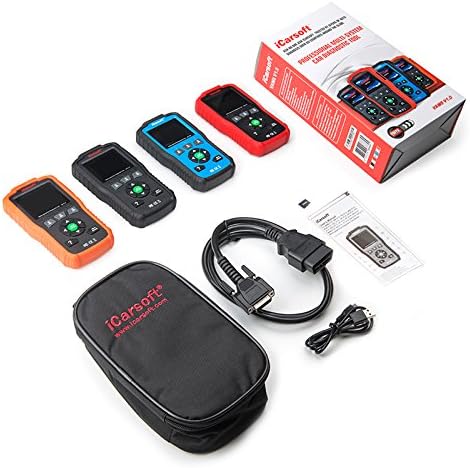
Image 2: The iCarsoft VAWS V1.0 scanner and its included accessories.
- iCarsoft VAWS V1.0 Diagnostic Scanner
- OBD-II Connection Cable
- USB Cable for Updates
- User Manual (this document)
- Protective Carrying Case
3. Setup
3.1 Initial Power-Up
The device is powered directly from the vehicle's OBD-II port. No external power source is typically required for basic operation.
3.2 Connecting to Vehicle
- Locate the vehicle's 16-pin Data Link Connector (DLC), usually found under the dashboard on the driver's side.
- Ensure the vehicle's ignition is in the OFF position.
- Connect the OBD-II cable from the scanner to the vehicle's DLC.
- Turn the vehicle's ignition to the ON position (engine off). The scanner should power on automatically.
3.3 Language Selection
Upon first use or after a reset, you may need to select your preferred language. Navigate through the menu using the UP/DOWN buttons and confirm with the ENTER button. Supported languages include English, German, Dutch, Spanish, and French.
4. Operating Instructions
4.1 Basic Navigation
Use the directional arrow buttons (UP, DOWN, LEFT, RIGHT) to move through menu options. Press the ENTER button to select an option or confirm an action. The BACK button will return you to the previous screen or menu.
4.2 Diagnostic Functions
The iCarsoft VAWS V1.0 offers a range of diagnostic capabilities:
- Read & Clear Trouble Codes: Access and clear Diagnostic Trouble Codes (DTCs) from various vehicle systems, including engine, transmission, Anti-lock Braking System (ABS), and airbags.
- Live Data: View real-time sensor data from the vehicle's ECU, which can assist in diagnosing intermittent issues.
- Full ECU Diagnosis: Perform a comprehensive scan of the Electronic Control Unit for a single vehicle brand.
- Oil Light/Service Reset: Reset the service lamp after performing an oil change or scheduled maintenance.
- Battery Test: Obtain the voltage of the vehicle's battery via the OBD port when the engine is running.
- DTC Library: Look up definitions for DTCs directly on the device.
- Print Data Function: Record diagnostic data and generate customized test reports for printing via a connected computer.
5. Maintenance
5.1 Software Updates
To ensure optimal performance and access to the latest vehicle data and features, regularly update the scanner's software. Updates are performed via USB 2.0 connection to a computer running Windows 10. Visit the official iCarsoft website for update instructions and software downloads.
5.2 Cleaning and Storage
- Clean the device with a soft, damp cloth. Do not use abrasive cleaners or solvents.
- Store the scanner in its protective carrying case when not in use to prevent damage.
- Avoid exposing the device to extreme temperatures or direct sunlight for extended periods.
6. Troubleshooting
If you encounter issues with your iCarsoft VAWS V1.0 scanner, refer to the following common troubleshooting steps:
- Device Not Powering On: Ensure the OBD-II cable is securely connected to both the scanner and the vehicle's DLC. Verify the vehicle's ignition is in the ON position. Check the vehicle's fuse for the OBD-II port if the issue persists.
- Communication Error: Confirm the vehicle's ignition is ON. Ensure the cable connection is stable. Try connecting to a different vehicle (if available) to rule out a vehicle-specific issue.
- Incorrect Readings: Ensure the vehicle's make, model, and year are correctly selected in the scanner's menu (if prompted). Perform a software update to ensure the latest vehicle protocols are supported.
- Screen Freezes: Disconnect the scanner from the vehicle, wait a few seconds, and then reconnect. If the issue persists, perform a software update.
7. Specifications
| Feature | Specification |
|---|---|
| Display | 2.8" TFT LCD, 320*240 Pixels |
| Operation Temperature | 0°C ~ 50°C (32°F ~ 122°F) |
| Storage Temperature | -20°C ~ 70°C (-4°F ~ 158°F) |
| Operating Voltage | 9 ~ 18V |
| Operating Current | 150mA @ 12V (Typical) |
| Power Consumption | 1.8W (Typical) |
| Dimensions (L x W x H) | 187.5 x 101 x 32 mm (7.38 x 3.98 x 1.26 inches) |
| Item Weight | 1.6 pounds |
| Supported Operating System (for updates) | Windows 10 |
8. Warranty and Support
iCarsoft products are designed for reliability and performance. For specific warranty details, please refer to the warranty card included with your product or visit the official iCarsoft website. For technical support, software updates, or further assistance, please visit the iCarsoft official website or contact their customer service department.
Official iCarsoft Website: www.icarsoft.com


