
DURGOD K320
DURGOD Taurus K320 TKL Mechanical Gaming Keyboard User Manual
Model: K320
Introduction
Thank you for choosing the DURGOD Taurus K320 TKL Mechanical Gaming Keyboard. This manual provides detailed instructions for setting up, operating, and maintaining your new keyboard. The K320 is designed for performance and durability, featuring Cherry MX mechanical switches, double-shot PBT keycaps, and a compact tenkeyless design.

Image: The DURGOD Taurus K320 TKL Mechanical Gaming Keyboard in white with grey keycaps, showcasing its compact design.
Package Contents
- DURGOD Taurus K320 TKL Mechanical Gaming Keyboard
- USB Cable
- Keycap Puller

Image: The retail packaging box for the DURGOD Taurus keyboard, indicating the brand and model.
Setup
Unpack the Keyboard: Carefully remove the keyboard and accessories from the packaging.
Connect the USB Cable: Locate the USB Type-C port on the back of the keyboard. Connect one end of the provided USB cable to the keyboard and the other end (USB Type-A) to an available USB port on your computer.
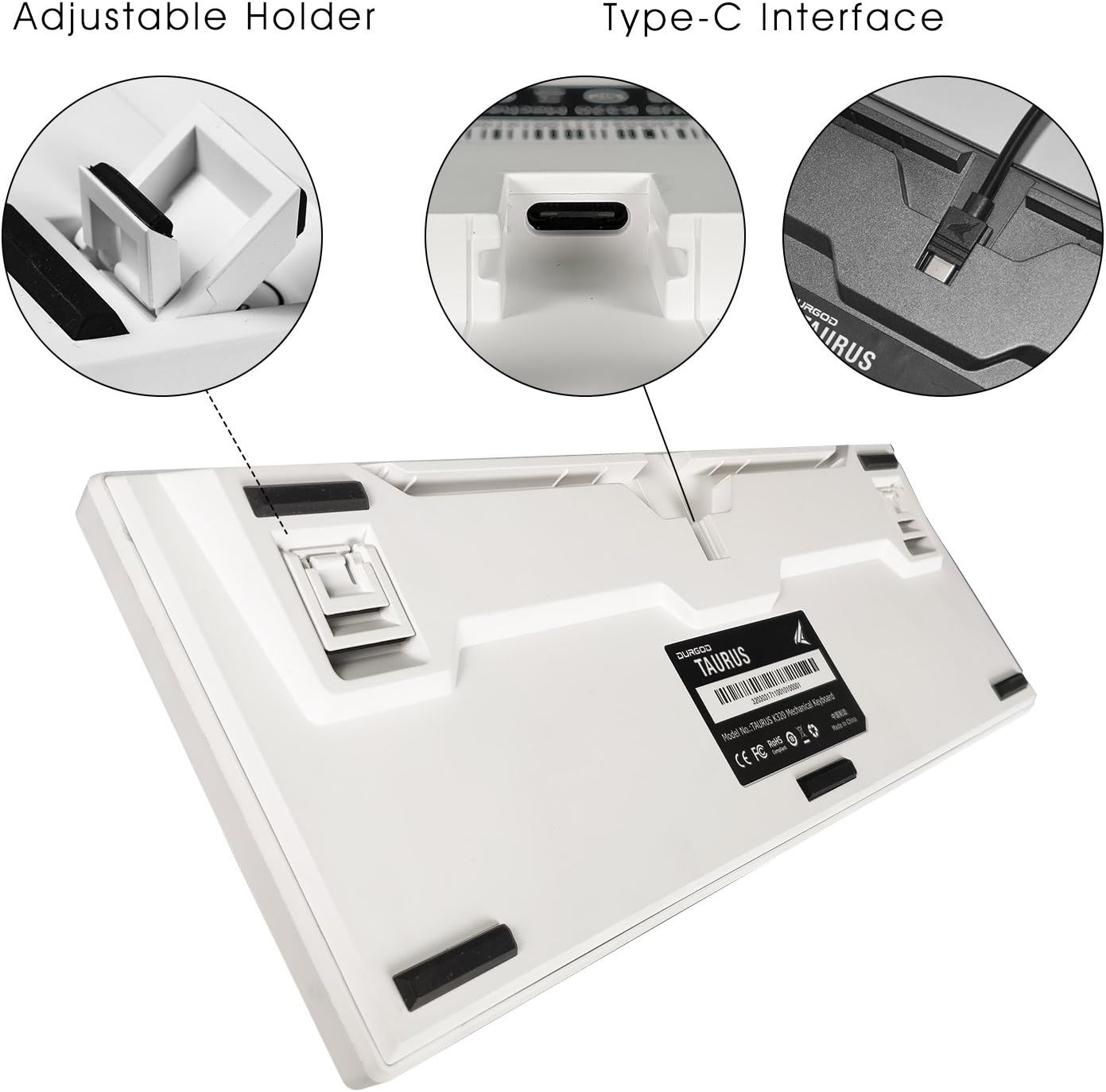
Image: The underside of the DURGOD K320 keyboard, highlighting the adjustable feet and the USB Type-C port for connection.
Adjust Keyboard Height: The keyboard features adjustable holders on the underside. Flip them out to set your preferred typing angle.
Cable Management: The keyboard offers three different directions for cable routing to help keep your desk tidy. Route the cable through the desired channel on the underside of the keyboard.

Image: Diagram showing the three cable routing channels on the bottom of the keyboard for organized cable management.
Driver Installation: The keyboard is plug-and-play. Your operating system should automatically detect and install the necessary drivers. No additional software installation is typically required for basic functionality.
Operating Instructions
Basic Usage
The DURGOD Taurus K320 is a standard 87-key Tenkeyless (TKL) mechanical keyboard. Simply plug it in and begin typing.
Function (FN) Key Combinations
The keyboard features a Function (FN) key that, when pressed in combination with other keys, activates multimedia controls and other special functions.
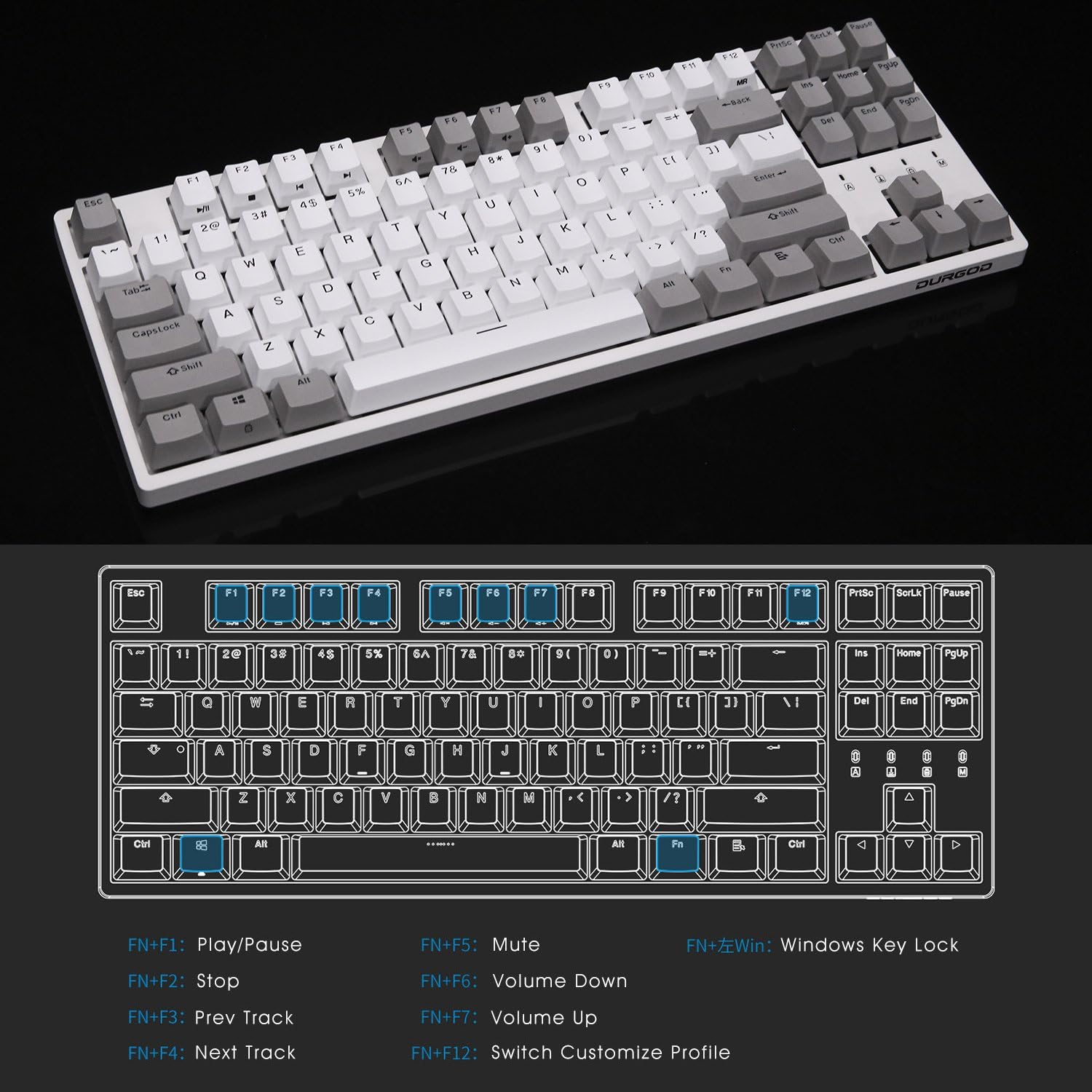
Image: A diagram illustrating the keyboard layout and the various functions accessible via the FN key combinations, such as multimedia controls and Windows key lock.
- FN + F1: Play/Pause
- FN + F2: Stop
- FN + F3: Previous Track
- FN + F4: Next Track
- FN + F5: Mute
- FN + F6: Volume Down
- FN + F7: Volume Up
- FN + F12: Switch Customize Profile (if applicable with software)
- FN + Win: Windows Key Lock (prevents accidental presses during gaming)
Key Features
- Cherry MX Blue Mechanical Switches: Deliver a fast and precise response with great tactile feedback.
- N-Key Rollover (NKRO): Ensures every key press is registered, even during rapid, simultaneous keystrokes, providing a competitive edge for gamers.
- Double-Shot PBT Keycaps: Durable and elegant, resistant to wear and fading.
- Detachable USB Type-C Cable: Provides convenience and supports communication and charging on Type-C interface devices.
- Compact 10-Keyless Design: Ideal for smaller desktop spaces and easy transport.

Image: A close-up view of the Cherry MX Blue mechanical switches on the keyboard, with several keycaps removed to show the switch mechanism.

Image: An exploded diagram of the keyboard's internal structure, highlighting components like PBT double-shot keycaps, ultra-precision mold, precise steel plate positioning, FR-4 double layer PCB, and Cherry MX mechanical switches.
Maintenance
Proper maintenance will extend the lifespan of your DURGOD K320 keyboard.
- Cleaning: Regularly clean the keyboard to prevent dust accumulation and key jamming. Use a soft brush or compressed air to remove debris between keycaps. For surface cleaning, a slightly damp, lint-free cloth can be used.
- Keycap Removal: Use the provided keycap puller to carefully remove keycaps for deeper cleaning or switch inspection. Gently pull straight up on the keycap.
- Avoid Liquids: Do not splash liquids into the keyboard. Liquid damage can cause permanent malfunction.
- Avoid Excessive Force: Do not apply excessive force to the keys or the keyboard itself to prevent damage or deformation.
- Storage: Avoid placing the keyboard in direct sunlight or in environments with extreme temperatures or humidity.

Image: A warning label with important safety and maintenance instructions, including avoiding sunlight, regular cleaning, not applying excessive force, and avoiding liquid spills.
Troubleshooting
| Problem | Possible Cause / Solution |
|---|---|
| Keyboard is not responding. |
|
| Certain keys are not working or are "sticky". |
|
| FN key combinations are not working. |
|
| Windows key is disabled. |
|
Specifications
| Feature | Detail |
|---|---|
| Model | K320 |
| Keyboard Type | Mechanical Gaming Keyboard |
| Switch Type | Cherry MX Blue (as per product variant) |
| Keycap Material | Double-Shot PBT |
| Layout | 87 Keys (Tenkeyless TKL) |
| Connectivity | USB Type-C (Detachable Cable) |
| N-Key Rollover (NKRO) | Supported |
| Product Dimensions | 14.07 x 5.22 x 0.96 inches |
| Item Weight | 2.18 pounds |
| Compatible Devices | PC |
| Manufacturer | DURGOD |
Warranty and Support
DURGOD products are designed for reliability and performance. For warranty information and technical support, please refer to the official DURGOD website or contact their customer service directly.
Please retain your proof of purchase for warranty claims.
Manufacturer: DURGOD
Related documentsK320

Ask a question about this manual
Ask about setup, troubleshooting, compatibility, parts, safety, or missing instructions. Manuals+ will review the question and use this page’s manual context to help answer it.