
Walfront UM24C/UM24
Walfront UM24C/UM24 USB 2.0 Power Meter Tester User Manual
Model: UM24 / UM24C
1. Introduction
The Walfront UM24C/UM24 USB 2.0 Power Meter Tester is a versatile device designed for measuring various electrical parameters of USB-powered devices. It features a colorful LCD display for clear and easy reading of voltage, current, power, capacity, and energy. Its compact size and robust design make it suitable for a wide range of applications, from testing laptops and computers to power banks, chargers, and mobile phones.

Figure 1.1: Front view of the Walfront UM24C/UM24 USB Power Meter displaying real-time voltage and current measurements.

Figure 1.2: Top view of the Walfront USB Meter, highlighting its compact design and "USB Meter" branding.
2. Features
- Colorful LCD Display: Provides clear and easy-to-read measurements.
- Multi-Angle View: Designed for intelligent and convenient viewing from various angles.
- Durable Construction: Features a mini size and is built with double-sided, anti-scratch hard PC material for protection.
- Comprehensive Measurement: Capable of testing voltage, current, power, and capacity.
- Energy Detection: Monitors energy consumption.
- Fast Charging Identification: Supports quick charge recognition modes (QC2.0, QC3.0).
- Data Storage: Allows for storage of up to 10 groups of data.
- Wide Application: Suitable for testing various USB-powered devices including laptops, computers, power banks, chargers, discharge loads, data cables, tablets, and cell phones.
3. Specifications
| Parameter | Value |
|---|---|
| Model (Optional) | USB tester, USB tester with communication (UM24, UM24C) |
| Input Voltage | 4.50-24.00V |
| Input Current | 0-3.000A |
| Voltage Measurement Resolution | 0.01V |
| Current Measurement Resolution | 0.001A |
| Voltage Measurement Accuracy | ± (0.2%+1 digit) |
| Current Measurement Accuracy | ± (0.8%+3 digits) |
| Voltage Curve Range | 4.5V-24.0V |
| Current Curve Range | 0.00A-3.00A |
| Data Store | 10 groups |
| Time Delay Screen Time | 0-9 min |
| Screen Brightness Setting | 0-5 level (total 6 levels) |
| Recognition Mode | QC2.0, QC3.0 |
| Load Impedance Range | 1.5Ω-9999.9Ω |
| Temperature Range | -10-100°C (0-200°F) |
| Refresh Rate | 2Hz |
| Dimensions (L*W*H) | Approx. 7.1*3.1*1.2cm (2.8*1.2*0.4inch) |
| Weight | 56g (1.98 oz) |
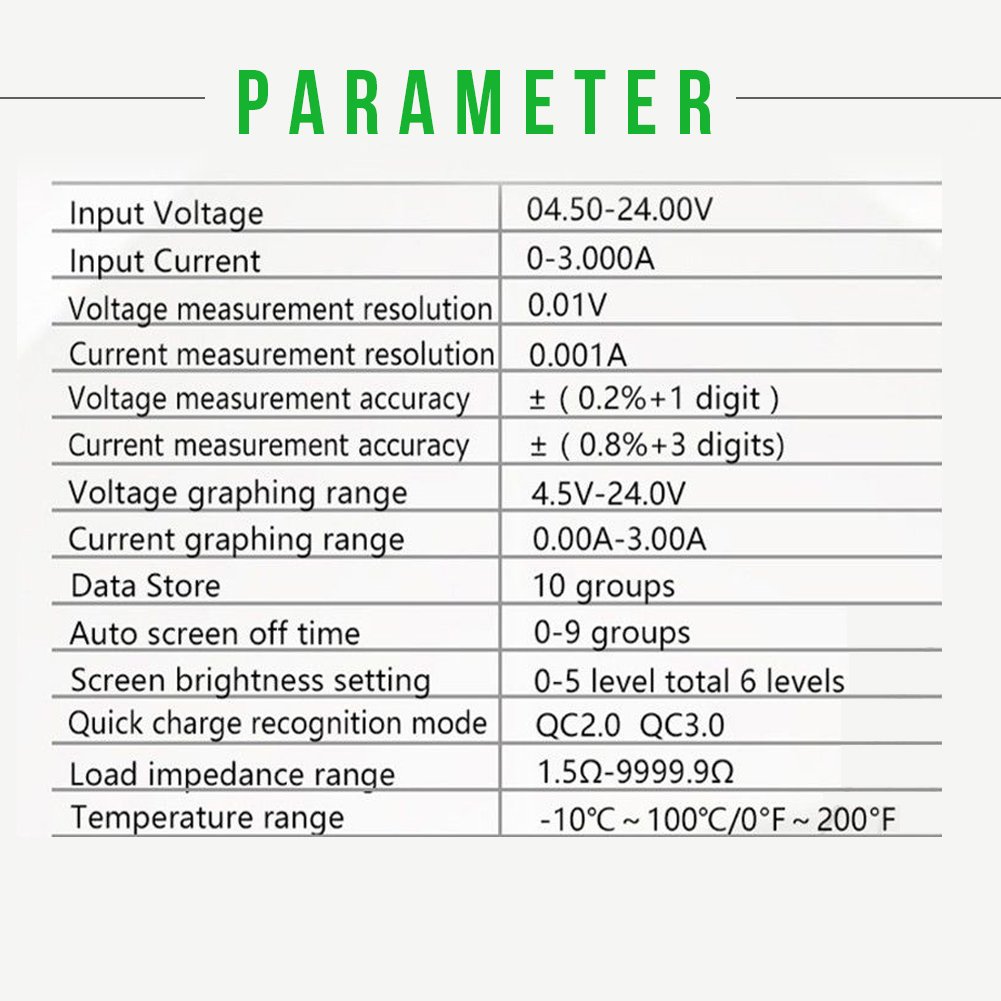
Figure 3.1: Detailed technical parameters of the Walfront UM24C/UM24 USB Power Meter.

Figure 3.2: Physical dimensions of the Walfront UM24C/UM24 USB Power Meter.
4. Setup
The Walfront UM24C/UM24 USB Power Meter is designed for simple plug-and-play operation. Follow these steps to set up the device:
- Identify Ports: The meter has a male USB-A connector for input, a female USB-A port for output, and a micro-USB port for external power or communication (UM24C model).
- Connect Input: Plug the male USB-A connector of the UM24/UM24C into the USB port of your power source (e.g., wall charger, power bank, computer USB port).
- Connect Device: Plug the device you wish to test (e.g., smartphone, tablet, USB fan) into the female USB-A output port of the UM24/UM24C.
- Power On: Once connected, the meter's LCD display will automatically power on and begin displaying real-time measurements.
- Optional External Power/Communication (UM24C only): For the UM24C model, a micro-USB port is available. This port can be used to power the meter externally or for data communication with a computer (requires specific software, not included).
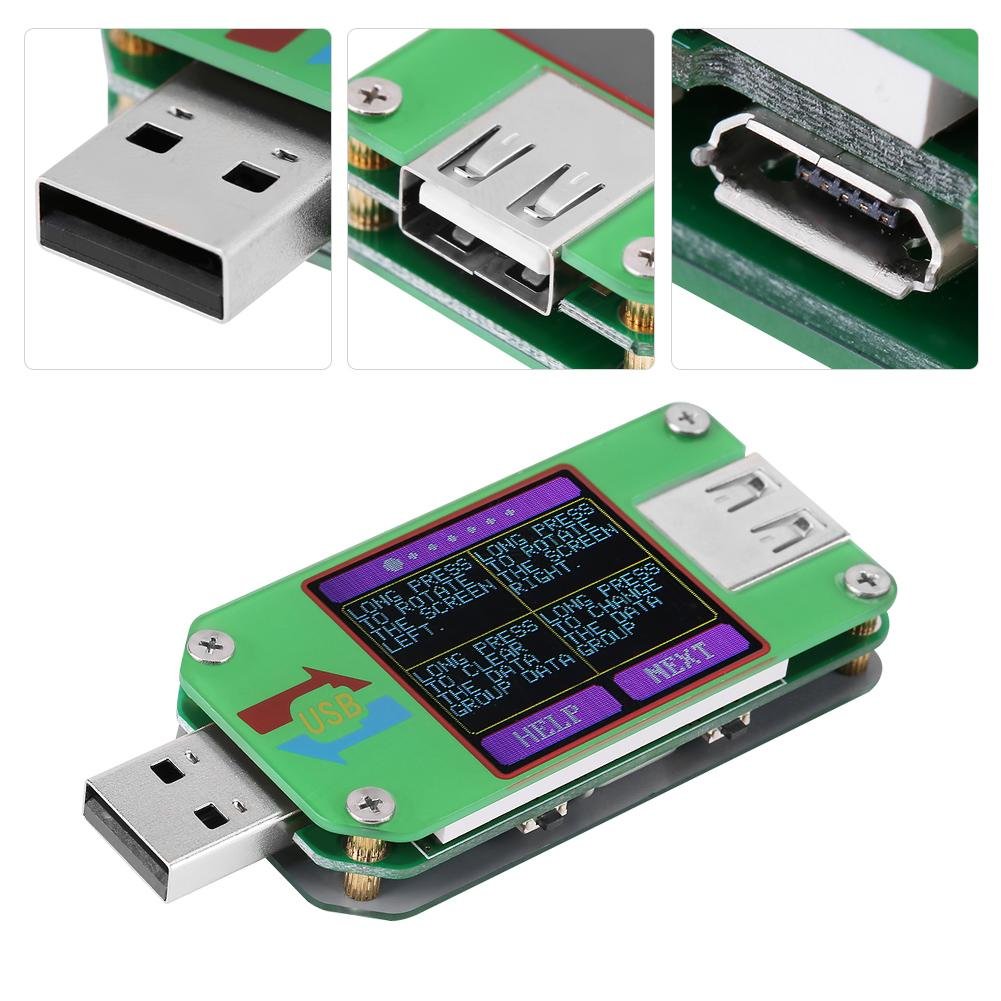
Figure 4.1: Detailed view of the input and output ports on the Walfront UM24C/UM24 USB Power Meter.
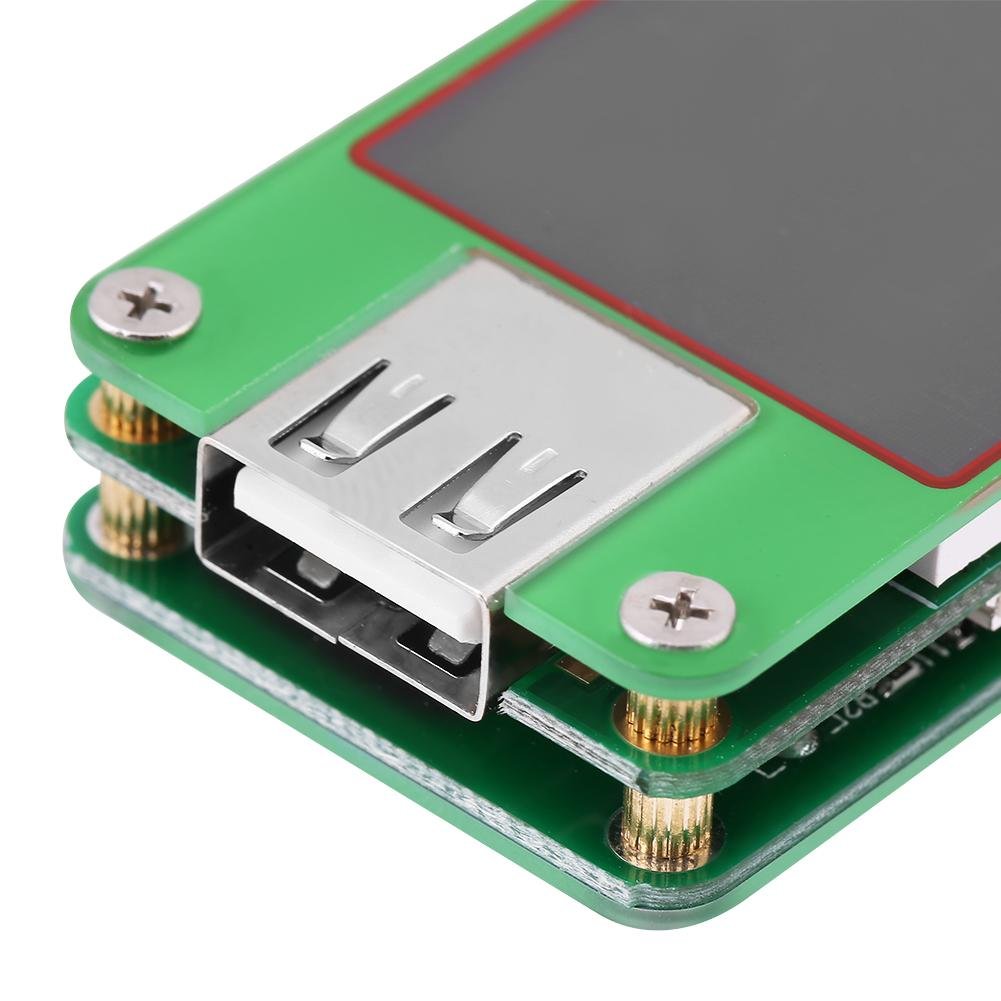
Figure 4.2: Close-up of the USB-A output port, where the device under test is connected.

Figure 4.3: Close-up of the Micro-USB input port, used for external power or data communication on the UM24C model.
5. Operating Instructions
The UM24C/UM24 features a user-friendly interface with two primary buttons: "HELP" and "NEXT". These buttons allow you to navigate through different display screens and access various functions.
5.1 Button Functions
- "HELP" Button:
- Short Press: Displays a help screen explaining button functions.
- Long Press: Rotates the screen display to the left.
- "NEXT" Button:
- Short Press: Cycles through the 7 different display pages/functions.
- Long Press: Rotates the screen display to the right. Also used to clear data or change data groups depending on the current screen.
5.2 Display Screens and Functions
The meter cycles through various screens, each providing different measurement data or settings. Below are descriptions of common screens:
- Main Measurement Screen: Displays real-time voltage (V), current (A), accumulated capacity (mAh), and accumulated energy (mWh). Also shows temperature and the current data group.
- Voltage Graph Screen: Shows a real-time graph of voltage over time, useful for observing voltage stability.
- Current Graph Screen: Displays a real-time graph of current over time, helpful for identifying current fluctuations.
- Data Storage Screen: Allows viewing and managing of the 10 data groups. Long press "NEXT" to clear data for the current group or switch between groups.
- Settings Screen: Adjusts parameters such as screen timeout (0-9 minutes) and screen brightness (0-5 levels).
- Quick Charge Recognition Screen: Identifies the fast charging protocol (e.g., QC2.0, QC3.0) being used by the connected device and charger.

Figure 5.1: Various display screens and button functionalities of the Walfront UM24C/UM24 USB Power Meter.
6. Maintenance
Proper maintenance ensures the longevity and accuracy of your Walfront UM24C/UM24 USB Power Meter.
- Cleaning: Use a soft, dry cloth to clean the display and casing. Avoid using abrasive cleaners or solvents.
- Protection: The meter's design features open sides with layered components. Exercise care to keep the internal components free from dust, debris, and moisture.
- Storage: When not in use, store the meter in its original tin storage case with the plastic window and EVA foam insert to protect it from physical damage and environmental elements.
- Avoid Extreme Conditions: Do not expose the device to extreme temperatures, high humidity, or direct sunlight for prolonged periods.
7. Troubleshooting
If you encounter issues with your Walfront UM24C/UM24 USB Power Meter, refer to the following common problems and solutions:
- Display Not Turning On:
- Ensure the meter is properly plugged into a functioning USB power source.
- Verify that the power source is providing sufficient voltage (minimum 4.50V).
- Inaccurate Readings:
- Ensure all connections are secure and free of debris.
- Test with a known good power source and load to verify functionality.
- Readings can be affected by cable quality; try using a different USB cable.
- Difficulty Plugging into USB Port:
- The meter is approximately 32mm wide, which is wider than a standard USB connector. If your USB port has tight side clearance, it may be difficult to plug in directly. Consider using a short USB extension cable if needed.
- UM24C Model - No Bluetooth/Communication:
- The "C" in UM24C indicates communication capability, typically via the micro-USB port for PC software. It does not imply Bluetooth connectivity. Ensure you are using the correct software and connection method for data communication.
- Screen Rotation Issues:
- If the screen does not rotate as expected, ensure you are performing a long press on the "HELP" (rotate left) or "NEXT" (rotate right) buttons.
8. Warranty and Support
Walfront products are manufactured to high-quality standards. For specific warranty information, please refer to the documentation included with your purchase or contact Walfront customer support directly.
If you require further assistance, have questions about the product's operation, or need technical support, please contact Walfront customer service. Contact details can typically be found on the product packaging or the official Walfront website.
Note: The product description indicates to "Please contact us for instruction" for detailed instructions, implying direct support for comprehensive guidance.
Ask a question about this manual
Ask about setup, troubleshooting, compatibility, parts, safety, or missing instructions. Manuals+ will review the question and use this page’s manual context to help answer it.