
1. Introduction
This manual provides detailed instructions for the installation, operation, and maintenance of your Lightkiwi E2683 WiFi Smart Plug. This device is designed to add smart control capabilities to compatible low voltage landscape lighting transformers, allowing for convenient scheduling and remote management via a smartphone application or voice commands.
2. Safety Information
- The Lightkiwi E2683 is an indoor-rated device. When used outdoors, it must be installed inside a compatible, weather-resistant low voltage landscape lighting transformer enclosure.
- Ensure the Wi-Fi signal strength is adequate at the installation location. Building materials, particularly metal enclosures, can significantly weaken Wi-Fi signals.
- Do not exceed the electrical ratings of the smart plug or the connected transformer. Refer to the specifications section for details.
- Disconnect power before performing any installation or maintenance.
- This device is designed for use with 120VAC power outlets only.
3. Package Contents
- 1 x Lightkiwi E2683 WiFi Smart Plug
4. Product Overview
The Lightkiwi E2683 WiFi Smart Plug is a compact device designed to integrate with your existing low voltage landscape lighting system. It features a single control button and a standard 3-prong outlet.
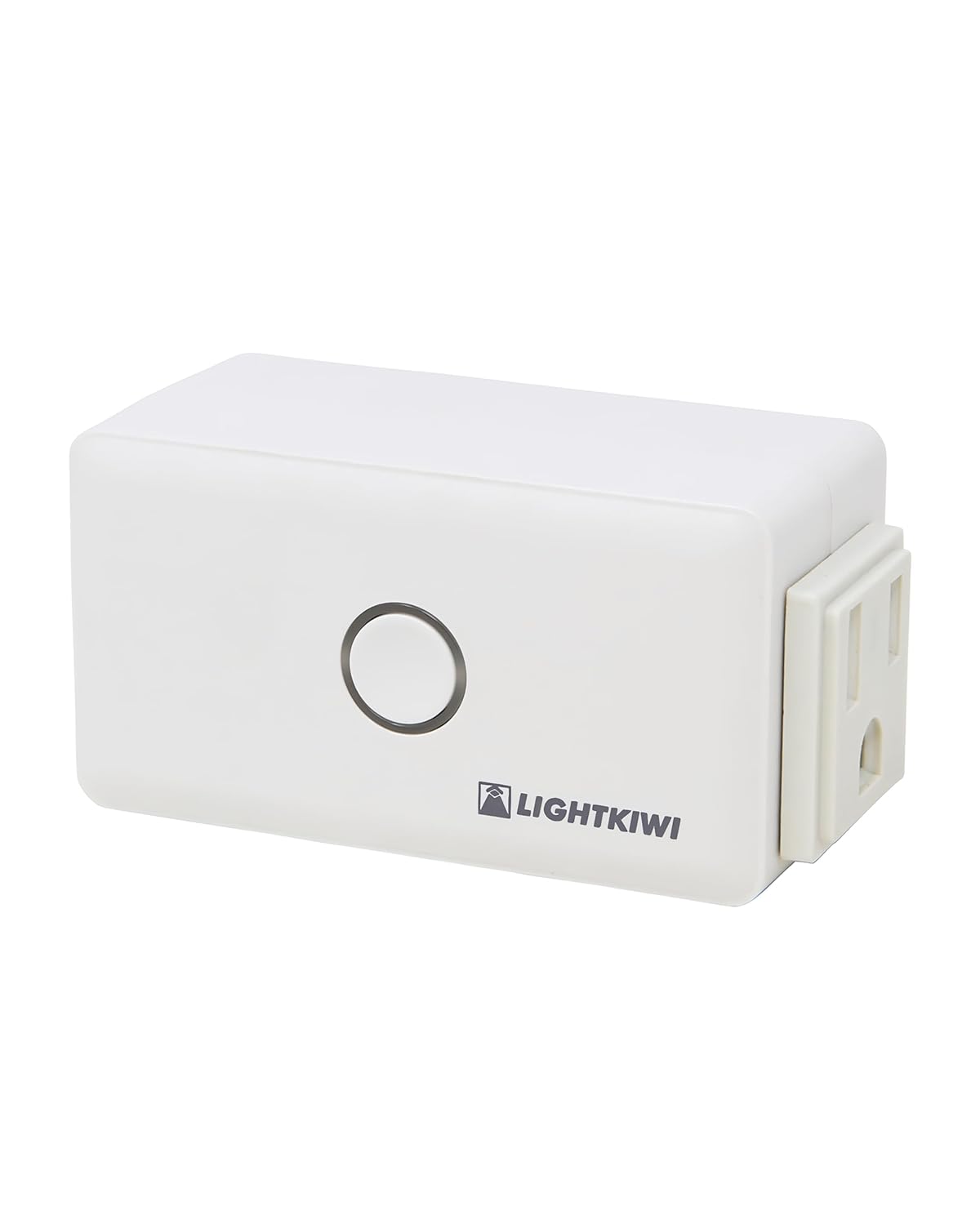
Figure 1: Lightkiwi E2683 WiFi Smart Plug (Angled View)
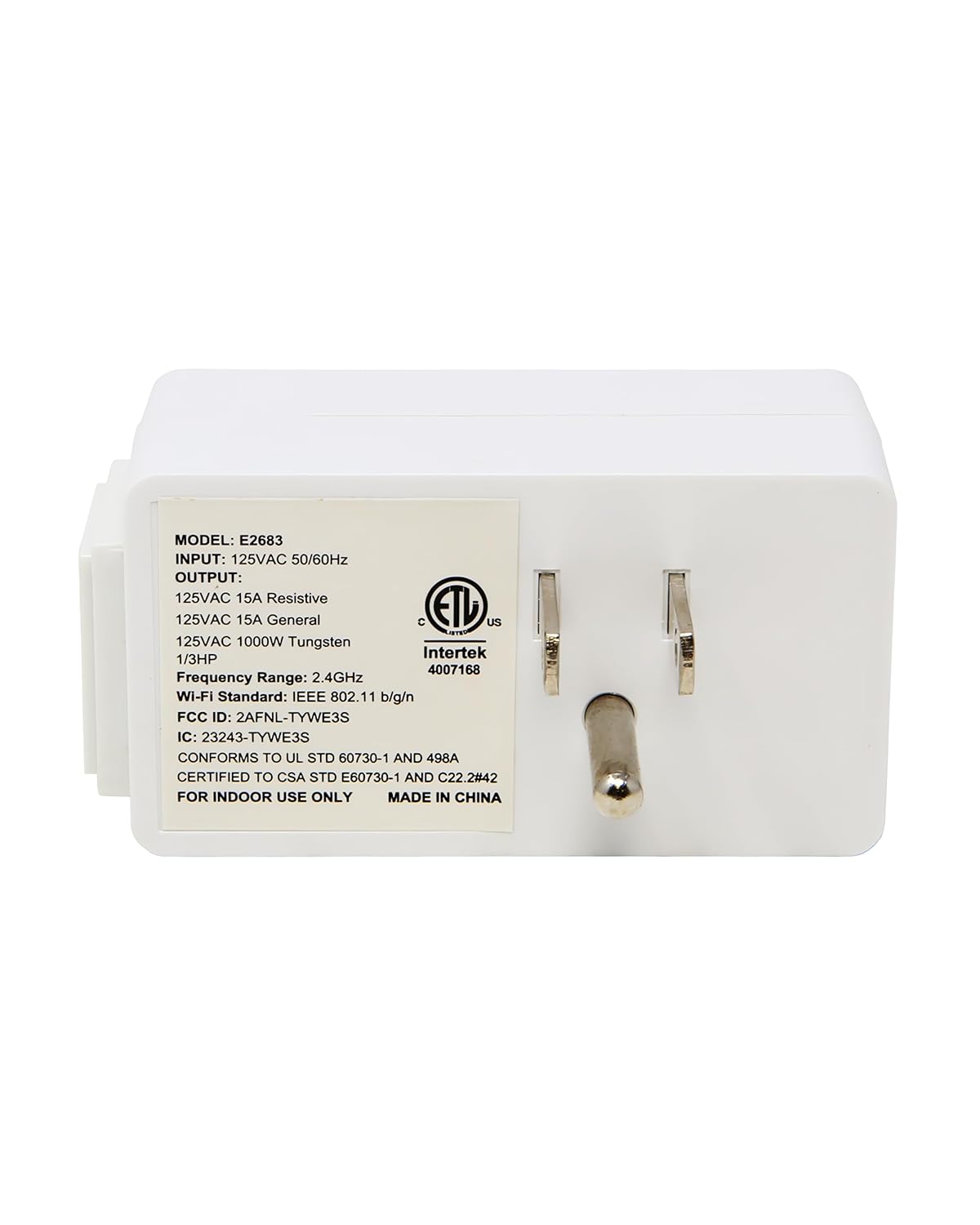
Figure 2: Rear view of the Smart Plug with electrical prongs.
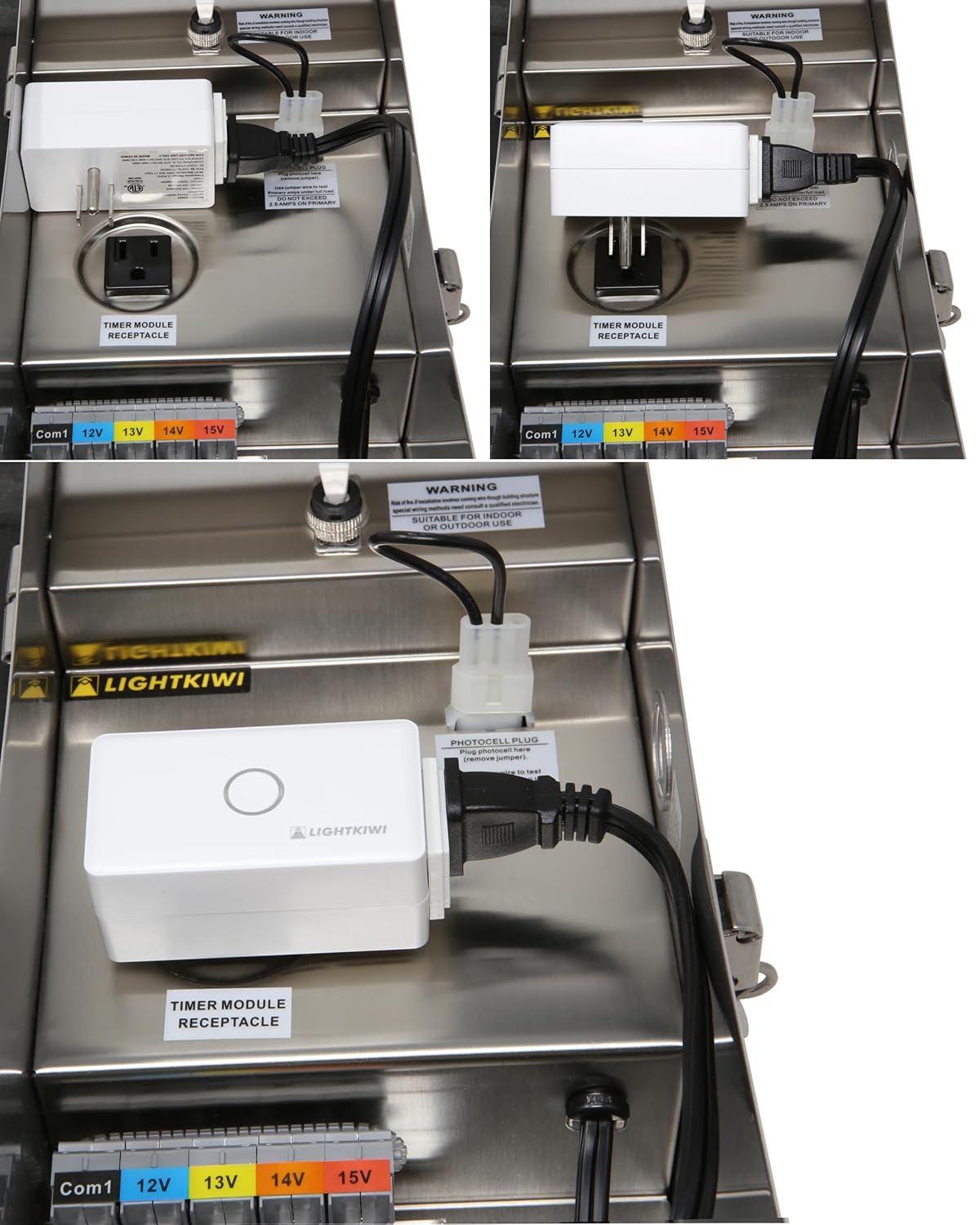
Figure 3: Product label displaying model E2683 and electrical ratings.
5. Setup Instructions
5.1. App Installation
- Download the Smart Life App from the Apple App Store (for iOS 8.0 and higher) or Google Play Store (for Android 4.1 and higher).
- Register or log in to your Smart Life account.
5.2. Network Requirements
- The smart plug requires a 2.4 GHz Wi-Fi network for operation. It is not compatible with 5 GHz networks.
- Ensure a strong Wi-Fi signal is present at the installation location. Metal transformer enclosures can interfere with Wi-Fi signals, potentially causing connectivity issues. Consider the proximity of your Wi-Fi router or a Wi-Fi extender if signal strength is a concern.
5.3. Physical Installation
The Lightkiwi E2683 is designed to be installed inside compatible low voltage landscape lighting transformers. Examples of compatible Lightkiwi transformers include:
- 150-Watt Transformer (Model# C6449)
- 300-Watt Transformer (Model# W9715)
- 600-Watt Transformer (Model# U8810)
- Open the door of your compatible low voltage landscape lighting transformer.
- Locate the timer module receptacle inside the transformer.
- Plug the Lightkiwi E2683 WiFi Smart Plug into the timer module receptacle.
- Ensure the smart plug is securely seated and does not obstruct the transformer's door or other components.

Figure 4: Examples of the E2683 Smart Plug installed within a landscape lighting transformer.
5.4. Device Pairing with Smart Life App
- After plugging in the smart plug, open the Smart Life App on your smartphone.
- The app may automatically detect the new device. If not, tap the "+" icon in the top right corner to manually add a device.
- Select "Electrical Outlet" or "Smart Plug" from the device list.
- Follow the on-screen instructions to connect the smart plug to your 2.4 GHz Wi-Fi network. This typically involves entering your Wi-Fi password.
- Once connected, you can rename the device for easier identification (e.g., "Landscape Lights").
6. Operating Instructions
6.1. Manual Control
The smart plug features a physical button on its front. Pressing this button will manually toggle the power to the connected device (ON/OFF).
6.2. App Control and Scheduling
Once paired with the Smart Life App, you can control your landscape lighting remotely and set schedules:
- Remote ON/OFF: Tap the device icon in the app to turn your lights on or off from anywhere with an internet connection.
- Scheduling: Use the app's scheduling feature to automate your landscape lighting. You can set specific times for the lights to turn on and off daily or on selected days of the week. This helps save energy and provides convenience.
- Timers: Set countdown timers for temporary operation.
6.3. Voice Control Integration
The Lightkiwi E2683 is compatible with Amazon Echo/Alexa and Google Home devices, allowing for voice-activated control.
- Connect to Voice Assistant: In the Smart Life App, navigate to the device settings and link your Amazon Alexa or Google Home account. Alternatively, enable the "Smart Life" skill/action in your Alexa or Google Home app.
- Discover Devices: Ask your voice assistant to discover new devices (e.g., "Alexa, discover devices" or "Hey Google, sync my devices").
- Voice Commands: Once discovered, you can use commands such as:
- "Alexa, turn on Landscape Lights."
- "Hey Google, turn off Landscape Lights."
- "Alexa, set Landscape Lights to turn off in 30 minutes."
7. Maintenance
- Keep the smart plug clean and dry. Use a soft, dry cloth for cleaning.
- Avoid exposing the device to excessive moisture or extreme temperatures.
- Regularly check for any signs of damage to the plug or wiring.
8. Troubleshooting
8.1. Device Not Connecting to Wi-Fi / Frequently Disconnecting
- Check Wi-Fi Band: Ensure your router is broadcasting a 2.4 GHz Wi-Fi network and your phone is connected to it during pairing. The E2683 does not support 5 GHz Wi-Fi.
- Signal Strength: Verify that the Wi-Fi signal is strong at the smart plug's location. Metal transformer enclosures can significantly block Wi-Fi signals. Consider moving your router closer or using a Wi-Fi extender.
- Router Distance: The smart plug may be too far from your Wi-Fi router.
- Reset Device: Unplug the smart plug for 10 seconds, then plug it back in. If issues persist, perform a factory reset (refer to the Smart Life App for specific reset procedures, usually involves holding the button for several seconds).
- Router Settings: Check your router's settings for any restrictions on new devices or MAC address filtering.
8.2. Device Offline After Power Outage
- Some users report that the device may not automatically reconnect to Wi-Fi after a power outage. You may need to manually re-pair the device with the Smart Life App or power cycle the smart plug and your Wi-Fi router.
8.3. Flickering or Erratic Operation
- Power Supply: Ensure a stable power supply to the transformer and the smart plug.
- Wi-Fi Stability: Unstable Wi-Fi connection can lead to erratic behavior. Refer to Wi-Fi troubleshooting steps above.
- Overload: Ensure the connected load does not exceed the smart plug's maximum current rating.
9. Specifications
| Feature | Specification |
|---|---|
| Model Number | E2683 |
| Input Voltage | 120VAC 50/60Hz |
| Output Voltage | 125VAC |
| Current Rating (Resistive) | 15 Amps |
| Current Rating (General) | 15 Amps |
| Current Rating (Tungsten) | 1000W |
| Wi-Fi Standard | IEEE 802.11 b/g/n (2.4 GHz only) |
| Operation Mode | ON-OFF-ON |
| Contact Type | Normally Open |
| Connector Type | Plug In |
| Terminal | Plug-in |
| Circuit Type | Parallel |
| Actuator Type | Push Button |
| Contact Material | Copper |
| Dimensions | 4.57 x 2.83 x 2.64 inches |
| Weight | 6.4 ounces |
| Certifications | ETL Listed |
10. Warranty and Support
For warranty information or technical support, please contact Lightkiwi customer service. Refer to the product packaging or the official Lightkiwi website for the most current contact details.
