
KLIM 8541666873
KLIM Lightning Gaming Keyboard User Manual
Model: 8541666873
Brand: KLIM
Introduction
This user manual provides detailed instructions for the setup, operation, maintenance, and troubleshooting of your KLIM Lightning Gaming Keyboard. Please read this manual carefully to ensure optimal performance and longevity of your device.
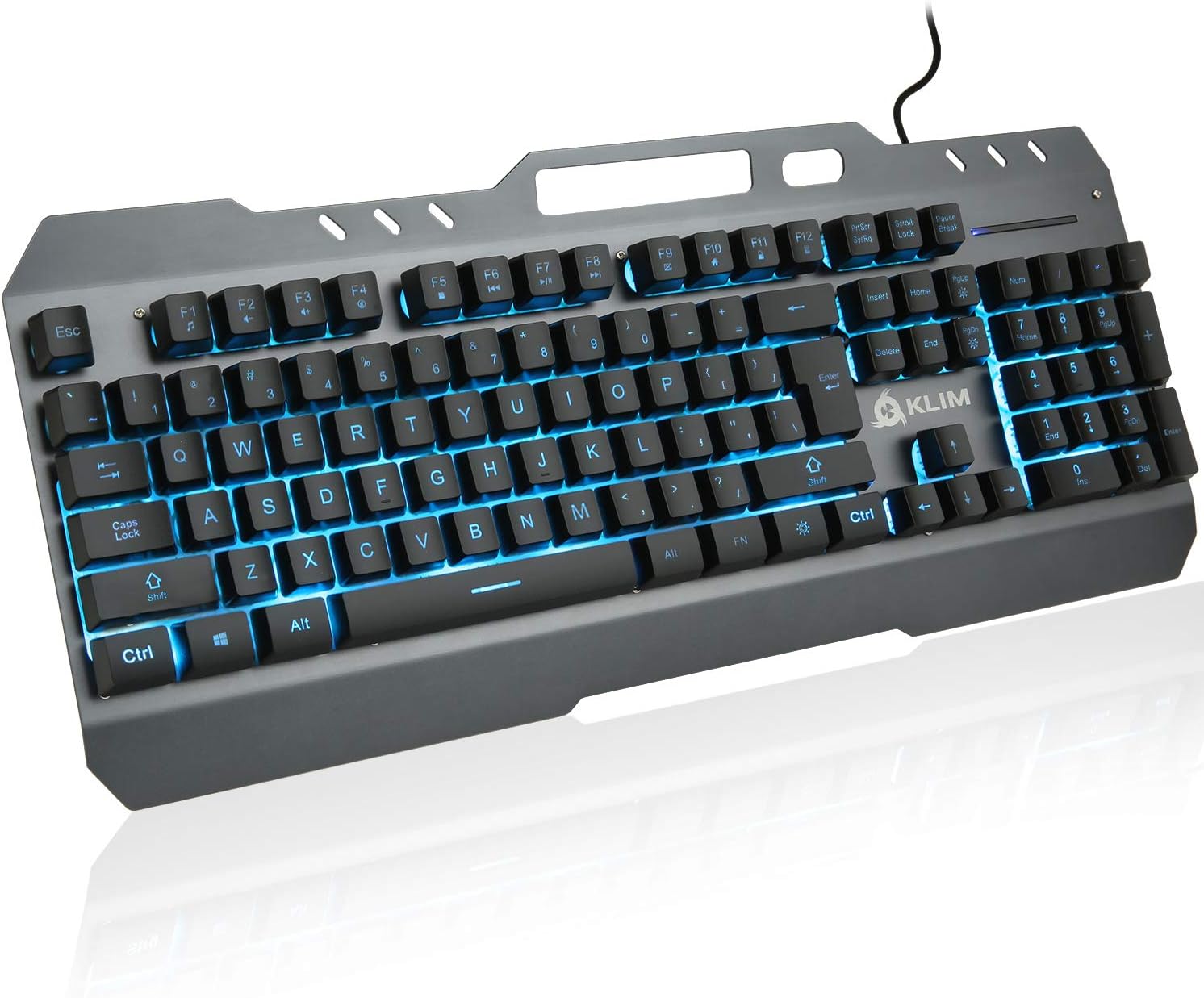
Image: The KLIM Lightning Gaming Keyboard, showcasing its full layout and vibrant blue LED backlighting. The keyboard features a durable metal frame and a standard QWERTY layout.
Setup
Package Contents:
- KLIM Lightning Gaming Keyboard
- User Manual (this document)
- Key Extractor Tool (for keycap maintenance)
Connecting the Keyboard:
- Unpack the KLIM Lightning Gaming Keyboard from its packaging.
- Locate an available USB port on your computer (PC, Mac, PS4, PS5, Xbox One compatible).
- Insert the USB connector of the keyboard firmly into the USB port.
- The keyboard is plug-and-play and does not require additional drivers. It should be recognized automatically by your operating system.

Image: An infographic highlighting key features of the KLIM Lightning keyboard, including USB connectivity, braided cable, metallic build, 7 LED colors, QWERTY layout, resistance, phone holder, nice touch, peace of mind, and recyclable box.
Operating Instructions
Key Features:
- Semi-Mechanical Keys: Provides tactile feedback similar to mechanical keyboards for precise and comfortable typing.
- Durable Metal Frame: The keyboard features a robust metal construction for enhanced durability and stability.
- Anti-Ghosting Technology: Ensures that multiple key presses are registered accurately, crucial for gaming.
- Integrated Phone Holder: A convenient slot at the top of the keyboard allows you to place your smartphone.
LED Backlighting Control:
The KLIM Lightning keyboard features customizable LED backlighting. Use the following key combinations to adjust the lighting:
- Fn + Scroll Lock: Cycles through 7 uniform LED colors (Red, Green, Blue, Yellow, Cyan, Purple, White).
- Fn + Pause Break: Activates the breathing mode, where colors cycle automatically.
- Fn + Up/Down Arrow: Adjusts the brightness of the backlighting.

Image: A close-up view of the KLIM Lightning keyboard's numeric keypad and surrounding keys, illuminated with green LED backlighting, demonstrating the vibrant color options.
Multimedia Keys:
The keyboard includes dedicated multimedia function keys accessible via the Fn key in combination with the F-keys (F1-F12). These allow quick access to common functions:
| Key Combination | Function |
|---|---|
| Fn + F1 | Open Media Player |
| Fn + F2 | Volume Down |
| Fn + F3 | Volume Up |
| Fn + F4 | Mute |
| Fn + F5 | Stop Playback |
| Fn + F6 | Previous Track |
| Fn + F7 | Play/Pause |
| Fn + F8 | Next Track |
| Fn + F9 | Open Email |
| Fn + F10 | Open Web Browser |
| Fn + F11 | Lock Computer |
| Fn + F12 | Open Calculator |

Image: The KLIM Lightning keyboard displaying its integrated phone holder feature, with a smartphone securely placed in the slot. The keyboard is illuminated with purple LED backlighting.
Maintenance
Cleaning the Keyboard:
- Disconnect the keyboard from your computer before cleaning.
- Use a soft, lint-free cloth slightly dampened with water or a mild cleaning solution to wipe the surface of the keyboard.
- For dust and debris between keys, use compressed air.
- Avoid using harsh chemicals or abrasive materials, as they may damage the keyboard's finish or keycaps.
Keycap Removal (Optional):
If deeper cleaning is required or if you wish to replace keycaps, use the provided key extractor tool:
- Gently place the key extractor tool over the keycap you wish to remove.
- Apply even pressure and pull upwards until the keycap detaches.
- To reattach, align the keycap with the switch stem and press down firmly until it clicks into place.

Image: A detailed view of the KLIM Lightning keyboard, highlighting its semi-mechanical keys and the included key extractor tool, which is used for easy keycap removal and maintenance.
Troubleshooting
If you encounter issues with your KLIM Lightning Gaming Keyboard, please refer to the following common solutions:
Keyboard Not Responding:
- Ensure the USB cable is securely connected to both the keyboard and the computer's USB port.
- Try connecting the keyboard to a different USB port on your computer.
- Restart your computer.
- Test the keyboard on another computer to determine if the issue is with the keyboard or your system.
LED Backlighting Not Working or Incorrect:
- Ensure the backlighting is not turned off (press Fn + Scroll Lock to cycle colors or Fn + Up Arrow to increase brightness).
- Verify that the keyboard is properly connected to a powered USB port.
- If a specific key's LED is not working, it might indicate a hardware issue.
Keys Not Registering or Double-Typing:
- Check for any debris or foreign objects under the affected keycap. Clean as per the Maintenance section.
- Ensure the keycap is properly seated on its switch.
- If the issue persists, it may indicate a switch malfunction.
If these steps do not resolve your issue, please contact KLIM customer support for further assistance.
Specifications
| Feature | Detail |
|---|---|
| Brand | KLIM |
| Model Name | 8541666873 (KLIM Lightning) |
| Connectivity Technology | USB Wired |
| Keyboard Description | Semi-Mechanical (Hybrid) |
| Number of Keys | 105 |
| Material | Metal Frame |
| Color | Black |
| Item Weight | 2.2 pounds (approx. 1 kg) |
| Product Dimensions (LxWxH) | 17.24 x 7.48 x 1.65 inches |
| Compatible Devices | PC, Mac, PS4, PS5, Xbox One |
| Operating System Compatibility | Windows 2000 and newer |
| Backlighting | 7 Uniform Colors + Breathing Mode |
Warranty and Support
The KLIM Lightning Gaming Keyboard comes with a 5-year warranty, ensuring a safe and reliable purchase. KLIM is committed to exceptional after-sales support.
For any questions, technical assistance, or warranty claims, please visit the official KLIM website or contact their customer support directly. Refer to the product packaging or KLIM's official channels for the most up-to-date contact information.
Related documents8541666873


Ask a question about this manual
Ask about setup, troubleshooting, compatibility, parts, safety, or missing instructions. Manuals+ will review the question and use this page’s manual context to help answer it.