
1. Introduction
This manual provides detailed instructions for the Formuler Z7+ Dreamlink T1/T2 Smart Programmable Learning Remote. This remote is designed to offer versatile control over your compatible devices, including Formuler ZX, Z7+, Z8, Dreamlink T1 PLUS, and T2 models. It features smart programmable learning capabilities, allowing you to consolidate multiple remote functions into one convenient device.
2. Setup
2.1 Battery Installation
The remote requires 2 AAA batteries (not included). To install, gently slide open the battery compartment cover on the back of the remote. Insert the batteries, ensuring correct polarity (+/-), then close the cover securely.
2.2 USB Dongle (if applicable)
Some versions of this remote may include a USB dongle for 2.4GHz wireless connectivity. If present, the dongle is typically stored within the battery compartment. Insert the USB dongle into an available USB port on your compatible device (e.g., Android TV box, PC).

Figure 1: Front view of the Formuler Z7+ Dreamlink T1/T2 Smart Programmable Learning Remote.
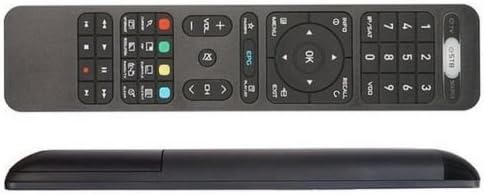
Figure 2: Top and side view of the Formuler Z7+ Dreamlink T1/T2 Smart Programmable Learning Remote, showing its ergonomic design.
3. Operating Instructions
3.1 Button Layout
The remote features a standard layout for intuitive control:
- Power Button: Located at the top, used to power on/off devices.
- Direction Pad & OK Button: For navigation and selection.
- Home & Back Buttons: For quick navigation within menus.
- Volume Controls: Adjust audio levels.
- Mute Button: Mute/unmute audio.
- Page Up/Down Buttons: For scrolling through content.
- Media Player Controls: Play, Pause, Fast Forward, Rewind.
- Number Pad: For direct input of channels or numbers.
- Delete Button: Functions as backspace for text input.
- Voice Command Button: Activates voice input (if supported by the connected device).
- LED Backlight Combination Button: Activates the remote's LED backlight for use in low-light conditions.
3.2 Air Mouse Feature
The remote includes an air mouse feature, allowing you to control a cursor on your screen by moving the remote in the air. This is particularly useful for navigating complex interfaces on PCs or Android TV boxes.
3.3 Voice Commands
Utilize the built-in microphone for voice commands. This feature works with applications and search fields that support Google Assistant or similar voice input. Press the voice command button, speak your command, and release.
4. IR Learning Function
The Formuler Z7+ remote supports IR learning, allowing it to mimic functions from other infrared remotes. This is useful for programming specific buttons, such as the power button, to control your TV or other devices.
4.1 Programming IR Learning
- Place the Formuler remote and the original remote head-to-head, approximately 1 inch apart.
- Press and hold the equipment key you wish to program on the Formuler remote (e.g., the Power button) until its indicator light turns on, then release.
- Press the corresponding key on your original remote. The Formuler remote's indicator light will flash quickly.
- Repeat steps 2 and 3 for any other keys you wish to learn.
- Press the equipment key again to exit learning mode. The indicator light will turn off.
Video 1: Demonstration of IR learning for a programmable remote. This video illustrates the general process for programming buttons from an original remote to a learning remote.
4.2 Clearing IR Learning Functions
To clear all learned IR functions from the remote:
- Press and hold the 'OK' button and the 'Delete' button simultaneously for a few seconds.
- The indicator light will flash, confirming that all learned IR functions have been cleared. Note that this action does not clear Bluetooth connections.
5. Specifications
- Package Dimensions: 8.31 x 1.89 x 0.79 inches
- Item Weight: 2.89 ounces
- Batteries: 2 AA batteries required (not included)
- Color: Black
- Max Number of Supported Devices: 1 (for direct control, but IR learning expands capability)
- Compatible Devices: Digital TV/Set Top Box (and other devices via IR learning)
- Special Feature: Ergonomic design
6. Troubleshooting
- Remote not responding: Ensure batteries are correctly installed and have sufficient charge. Replace if necessary.
- IR learning not working: Ensure the remotes are 1 inch apart and the indicator light is on during the learning process. Try again in a dimly lit room to avoid interference.
- Voice commands not working: Verify that your connected device supports voice input and that the remote is properly paired (if using Bluetooth).
7. Warranty and Support
For warranty information or technical support, please refer to the manufacturer's official website or contact their customer service directly. Keep your purchase receipt for any warranty claims.

