
1. Product Overview
The Microware Ezcap 230 is a standalone device designed to convert audio from cassette tapes directly to MP3 format. It allows users to digitize their analog cassette collections without the need for a computer, saving the converted audio files directly to a USB flash drive. This portable converter also functions as a cassette player.

Image 1.1: Front view of the Microware Ezcap 230 Cassette to MP3 Converter, showing its compact design and controls.
2. Key Features
- Standalone Operation: Converts cassette tapes to MP3 directly to a USB flash drive without requiring a computer.
- Portable Design: Compact and lightweight for easy carrying and use anywhere.
- Playback Function: Allows playback of recorded MP3 files directly from the device.
- Dual Power Supply: Can be powered by 2x AA batteries or a 5V DC adapter via USB.
- Audio Output: Includes a 3.5mm audio jack for connecting headphones or external speakers.
- Automatic or Manual Track Separation: Supports automatic division of tracks during recording or manual separation by pressing the record button.

Image 2.1: Visual representation of the key features of the Ezcap 230, highlighting its portability and standalone functionality.
3. Package Contents
Please check the package for the following items:
- Microware Ezcap 230 Cassette to MP3 Converter
- USB Cable (for power)
- Earphones
- User Manual
Note: AA batteries and USB flash drive are not included and must be purchased separately.

Image 3.1: The Ezcap 230 device shown with its included earphones and USB cable.
4. Setup Guide
4.1 Power Supply
The Ezcap 230 can be powered in two ways:
- USB Power: Connect the supplied USB cable to the device's USB port and plug the other end into a 5V DC USB power adapter (not included) or a computer's USB port.
- Battery Power: Open the battery compartment on the back of the device and insert two (2) AA batteries (not included), ensuring correct polarity.

Image 4.1: Close-up of the battery compartment on the underside of the Ezcap 230, showing where to insert AA batteries.
4.2 Inserting a Cassette Tape
- Open the cassette compartment cover.
- Insert a standard audio cassette tape into the compartment, ensuring it is properly seated.
- Close the cassette compartment cover securely.

Image 4.2: Step-by-step guide illustrating how to insert a cassette tape into the device.
4.3 Connecting USB Flash Drive and Audio Output
- Insert a USB flash drive (formatted to FAT, FAT32, or exFAT, up to 64GB) into the USB port on the side of the device. A green light will flash, indicating the drive is connected.
- Connect the supplied earphones or your own headphones/speakers to the 3.5mm audio output jack for monitoring audio during conversion or for playback.

Image 4.3: The Ezcap 230 with a USB flash drive inserted and earphones connected, ready for operation.
5. Operating Instructions
5.1 Converting Cassette to MP3
- Ensure a cassette tape is inserted and a USB flash drive is connected.
- Press the "Play" button on the top of the device to start playing the cassette tape. You should hear the audio through the connected earphones.
- To begin recording, press the "Record/Stop" button. The green light will illuminate steadily, indicating recording is in progress.
- Automatic Track Separation: The device can automatically detect pauses between songs and create separate MP3 files.
- Manual Track Separation: To manually separate tracks, press the "Record/Stop" button briefly during recording. A new MP3 file will be created for the subsequent audio.
- To stop recording, press the "Record/Stop" button again. The green light will turn off.
- To stop cassette playback, press the "Stop" button.

Image 5.1: Diagram illustrating the steps for converting cassette audio to MP3 format using the Ezcap 230.
5.2 Playing Back Recorded MP3s
After recording, you can play back the converted MP3 files directly on the device:
- Ensure the USB flash drive containing the MP3 files is inserted.
- Press the "Play" button to start playback of the first MP3 file.
- Use the "Previous Track" and "Next Track" buttons to navigate between recorded files.
- Press the "Stop" button to end playback.
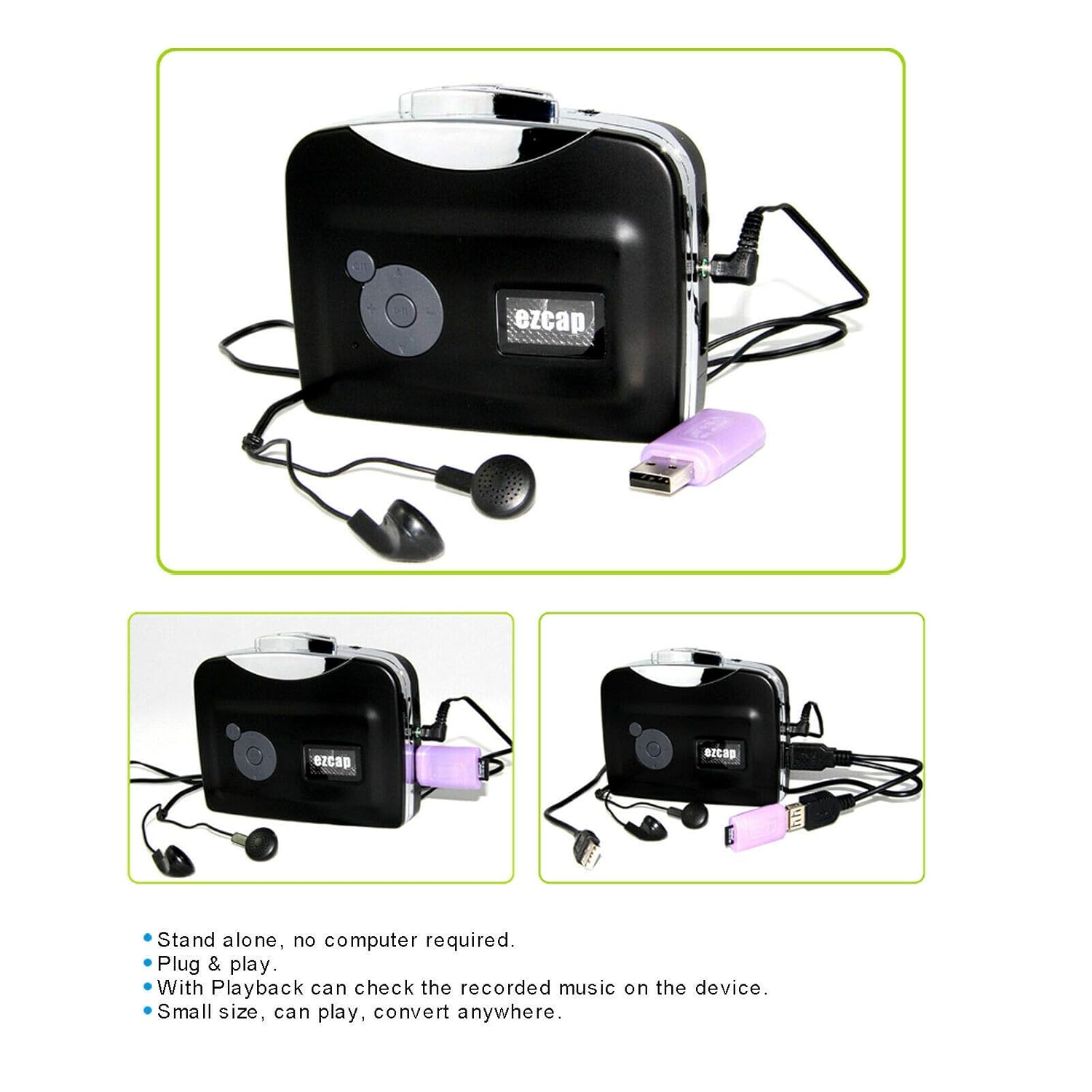
Image 5.2: Close-up of the control panel on the Ezcap 230, showing the playback and navigation buttons.
6. Maintenance and Care
- Keep the device clean by wiping it with a soft, dry cloth. Do not use liquid cleaners or solvents.
- Avoid exposing the device to extreme temperatures, direct sunlight, or high humidity.
- When not in use for extended periods, remove the batteries to prevent leakage.
- Handle cassette tapes carefully to prevent damage to the tape or the device's playback mechanism.
- Regularly check the cassette compartment for dust or debris and clean gently if necessary.
7. Troubleshooting
| Problem | Possible Cause | Solution |
|---|---|---|
| Device does not power on. | No power supply; batteries drained or incorrectly inserted; USB cable not connected properly. | Ensure fresh AA batteries are inserted correctly or USB cable is securely connected to a working power source. |
| No audio during playback or recording. | Earphones/speakers not connected; volume too low; cassette tape damaged; device in wrong mode. | Check earphone connection; adjust volume; try a different cassette tape; ensure device is in playback or record mode. |
| Recording not saving to USB drive. | USB drive not inserted or recognized; USB drive full; incorrect format; drive damaged. | Ensure USB drive is fully inserted; check available space; format drive to FAT, FAT32, or exFAT; try a different USB drive. |
| Cassette tape is "eating" or tangling. | Damaged cassette tape; dirty playback heads; worn out pinch roller. | Try a different cassette tape. If problem persists, the device may require professional servicing. |
8. Product Specifications
| Model | Ezcap 230 |
| Function | Cassette Tape to MP3 Converter, Cassette Player |
| Recording Format | MP3 |
| Power Supply | 2 x AA Batteries or 5V DC USB Power |
| Audio Channel | Stereo L/R |
| USB Interface | Standard USB 2.0 |
| Compatible USB Drive Formats | FAT, FAT32, exFAT (up to 64GB). NTFS format not supported. |
| Dimensions | Approximately 15.3 x 11.5 x 6.3 cm |
| Weight | 154 g |
| Color | Black |
9. Warranty and Support
For warranty information and technical support, please refer to the official MICROWARE website or contact their customer service. Details can typically be found on the product packaging or the manufacturer's official online resources.
Manufacturer: Ezcap
Brand: MICROWARE
Customer Service: Please visit the MICROWARE Store on Amazon for further assistance or contact information.