
1. Product Overview
The Sharp EL-531TG-GY is a scientific calculator designed for students and professionals requiring advanced mathematical functions. It features a 2-line display and Multi-Line Playback, facilitating the input and review of complex equations. This model is suitable for general math, algebra, geometry, trigonometry, statistics, biology, chemistry, and general science applications.
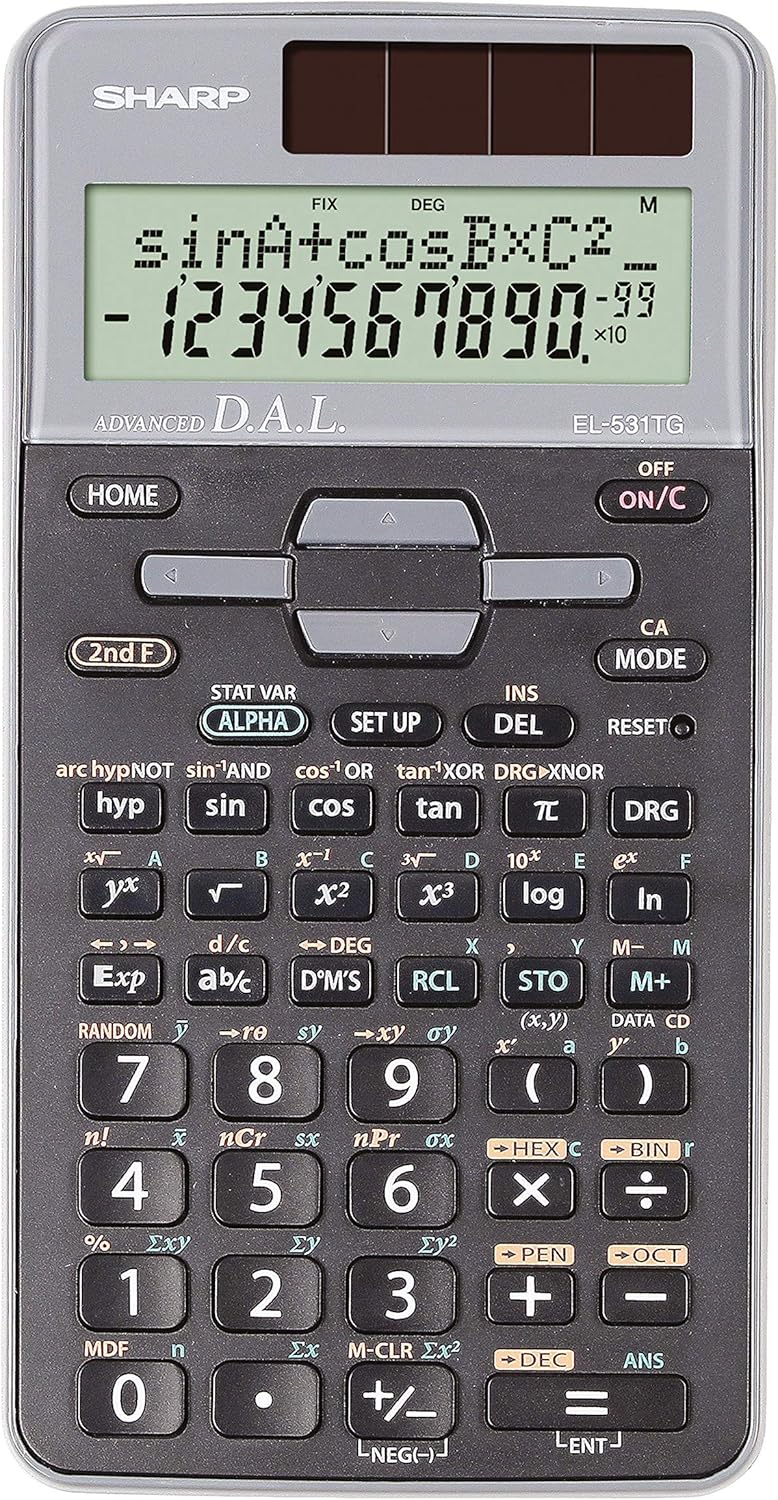
Figure 1: Front view of the Sharp EL-531TG-GY Scientific Calculator, showing the display, keypad, and solar panel.
2. Setup and Initial Use
2.1 Power Source
The EL-531TG-GY calculator operates using both solar power and a single LR44 button cell battery. The solar panel provides power in well-lit environments, while the battery ensures operation in low-light conditions or when solar power is insufficient. An LR44 battery is included with the calculator.
2.2 Turning On/Off
- To turn the calculator ON, press the ON/C key.
- To turn the calculator OFF, press the 2nd F key followed by the OFF key (which is typically the same as ON/C).
2.3 Initial Display Settings
Upon first use or after a reset, the calculator will typically default to certain settings (e.g., DEG for angle units). Refer to Section 3.3 for details on changing mode settings.
3. Operating Instructions
3.1 Basic Arithmetic Operations
Enter numbers using the numeric keypad. Use the +, -, ×, and ÷ keys for addition, subtraction, multiplication, and division, respectively. Press = to obtain the result.
3.2 Scientific Functions
The calculator performs over 273 advanced scientific functions. Many functions are accessed by pressing the 2nd F key before the desired function key.
- Trigonometric Functions: Use sin, cos, tan. Inverse functions (sin⁻¹, cos⁻¹, tan⁻¹) are accessed via 2nd F.
- Logarithmic Functions: Use log (base 10) and ln (natural logarithm).
- Powers and Roots: Use x², √, x³, ³√.
- Fractions: Use the d/c key for fraction input and conversion.
3.3 Mode Settings (DEG/RAD/GRAD)
To change the angle unit mode (Degrees, Radians, Gradians):
- Press the DRG key.
- Repeatedly press DRG to cycle through DEG (Degrees), RAD (Radians), and GRAD (Gradians). The current mode is indicated on the display.
3.4 Memory Functions
The calculator includes memory functions for storing and recalling values.
- STO (Store): Press STO followed by a variable key (e.g., A, B) to store the displayed value.
- RCL (Recall): Press RCL followed by the variable key to recall the stored value.
- M+ (Memory Plus): Adds the displayed value to the independent memory.
- M- (Memory Minus): Subtracts the displayed value from the independent memory.
3.5 Multi-Line Playback
The 2-line display allows for Multi-Line Playback, enabling users to review previous calculations and expressions. Use the directional arrow keys (up/down) to scroll through past entries and results. This feature is useful for checking work or re-using parts of previous calculations.
4. Maintenance
4.1 Cleaning
To clean the calculator, wipe the surface gently with a soft, dry cloth. Do not use abrasive cleaners, solvents, or excessive moisture, as these can damage the display or internal components.
4.2 Battery Replacement
The calculator uses one LR44 button cell battery. If the display becomes dim or erratic in low-light conditions, the battery may need replacement. To replace the battery:
- Ensure the calculator is turned off.
- Locate the battery compartment on the back of the calculator.
- Carefully open the compartment cover.
- Remove the old LR44 battery and insert a new one, ensuring correct polarity (+/-).
- Close the battery compartment cover securely.
4.3 Storage
When not in use, store the calculator in a cool, dry place away from direct sunlight and extreme temperatures. The hard cover included with the calculator provides protection from scratches and minor impacts.
5. Troubleshooting
5.1 Display Issues
- Blank or Dim Display: Ensure sufficient light for the solar panel. If the issue persists, replace the LR44 battery.
- Erratic Display: This may indicate a low battery. Replace the LR44 battery.
5.2 Incorrect Results
- Check Mode Settings: Verify that the angle unit (DEG, RAD, GRAD) is set correctly for trigonometric calculations.
- Input Error: Review your input using the Multi-Line Playback feature to ensure the expression was entered correctly.
- Memory Contents: If using memory functions, ensure the stored values are correct.
5.3 Calculator Not Responding
If the calculator becomes unresponsive, try performing a reset. Locate the RESET button (often a small recessed button requiring a thin object like a paperclip to press). Pressing this button will clear all memory and return the calculator to its factory default settings.
6. Specifications

Figure 2: Front view of the Sharp EL-531TG-GY Scientific Calculator, illustrating its dimensions.
| Feature | Description |
|---|---|
| Model Number | SH-EL531TGGY |
| Display Type | 2-line LCD with Multi-Line Playback |
| Functions | Over 273 advanced scientific functions |
| Power Source | Solar and 1 x LR44 battery (included) |
| Material | Plastic |
| Dimensions (L x W x H) | 16.1 x 8 x 1.5 cm (approx.) |
| Weight | 100 g (approx.) |

Figure 3: Side view of the Sharp EL-531TG-GY Scientific Calculator, showing its slim profile.
7. Warranty and Support
7.1 Warranty Information
This product is covered by a manufacturer's warranty. Please refer to the warranty card included with your purchase or visit the official Sharp website for detailed warranty terms and conditions specific to your region.
7.2 Customer Support
For technical assistance, troubleshooting not covered in this manual, or service inquiries, please contact Sharp customer support. Contact information can typically be found on the Sharp official website or on the product packaging.