
1. Product Overview
The Epson 202 Claria High Capacity Black Ink Cartridge (T202XL120-S) is designed to deliver exceptional print quality for your documents and photos. Featuring pigment black ink, it produces sharp text and vibrant colors that are fast-drying and water-resistant, ensuring long-lasting results. This high-capacity cartridge is ideal for users with high-volume printing needs, offering more prints per cartridge compared to standard capacity options.
Key features include:
- Sharp text and brilliant color output.
- Fast-drying ink for smudge-resistant prints.
- Brilliant prints on both plain and glossy paper.
- Convenient individual ink cartridges for easy replacement.

Image: Epson 202 Claria High Capacity Black Ink Cartridge packaging.
2. Installation Guide
2.1 Unpacking the Cartridge
Carefully remove the ink cartridge from its packaging. Avoid touching the green circuit board or the ink port to prevent damage or clogs. Do not remove any labels or seals other than those specified in your printer's manual.
2.2 Installing the Ink Cartridge
Follow these steps to install the ink cartridge into your compatible Epson printer:
- Ensure your printer is turned on.
- Open the printer's ink cartridge cover. Refer to your printer's specific manual for the exact location.
- Wait for the print head to move to the replacement position.
- Gently squeeze the tab on the old cartridge (if replacing) and lift it straight up to remove.
- Unpack the new Epson 202XL Black ink cartridge. Shake it gently a few times before opening.
- Remove the yellow tape from the top of the cartridge. Do not remove any other seals.
- Insert the new cartridge into the correct slot, pushing it down firmly until it clicks into place. Ensure it is securely seated.
- Close the ink cartridge cover. The printer will begin initializing the new cartridge.
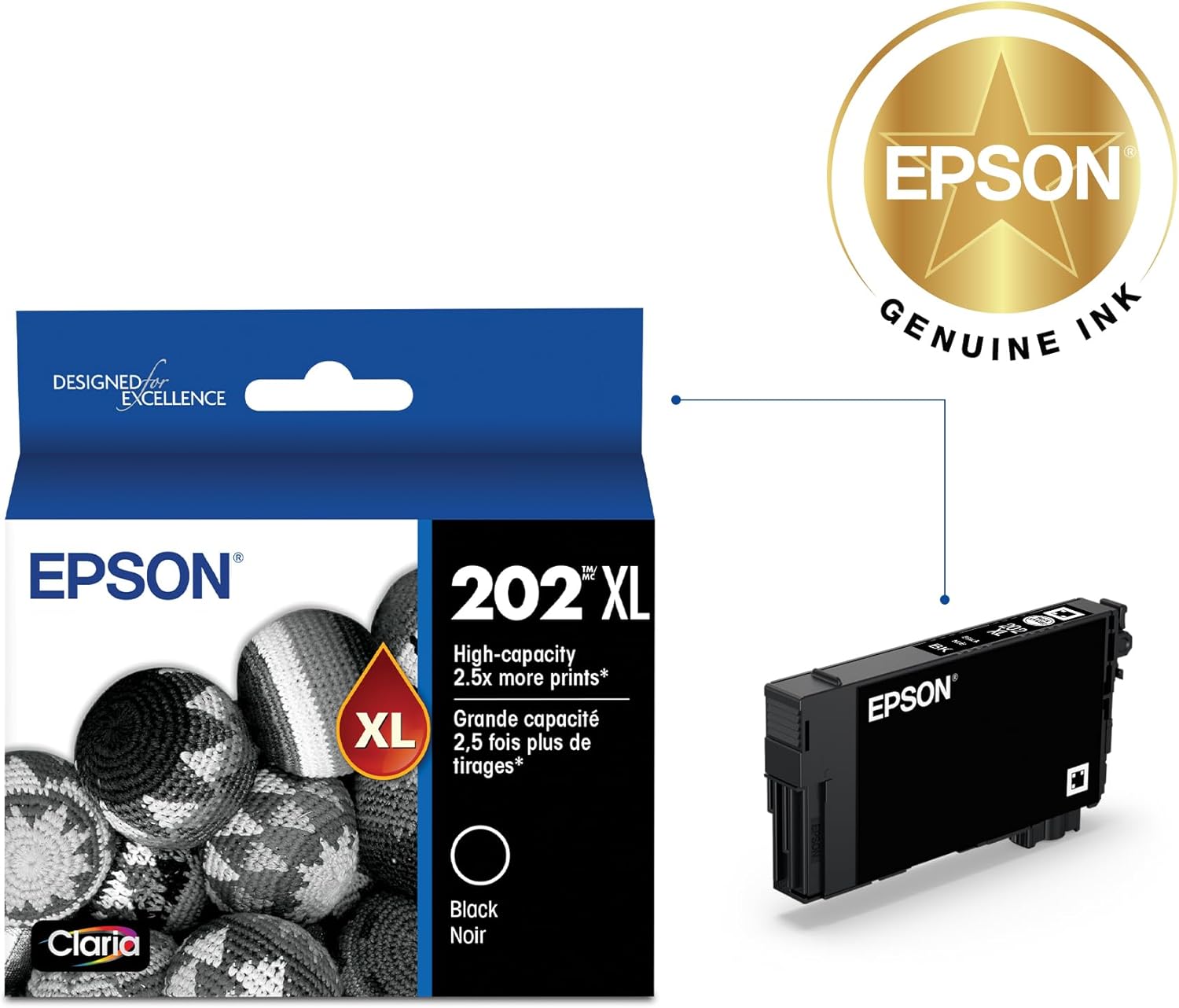
Image: Epson 202XL Black Ink Cartridge removed from its packaging, ready for installation.
3. Operating Instructions
3.1 Compatible Printers
The Epson 202 Claria High Capacity Black Ink Cartridge (T202XL120-S) is specifically engineered to work seamlessly with the following Epson printer models:
- Epson WorkForce WF-2860
- Epson Expression XP-5100
Using genuine Epson ink cartridges ensures optimal performance, print quality, and longevity of your printer.
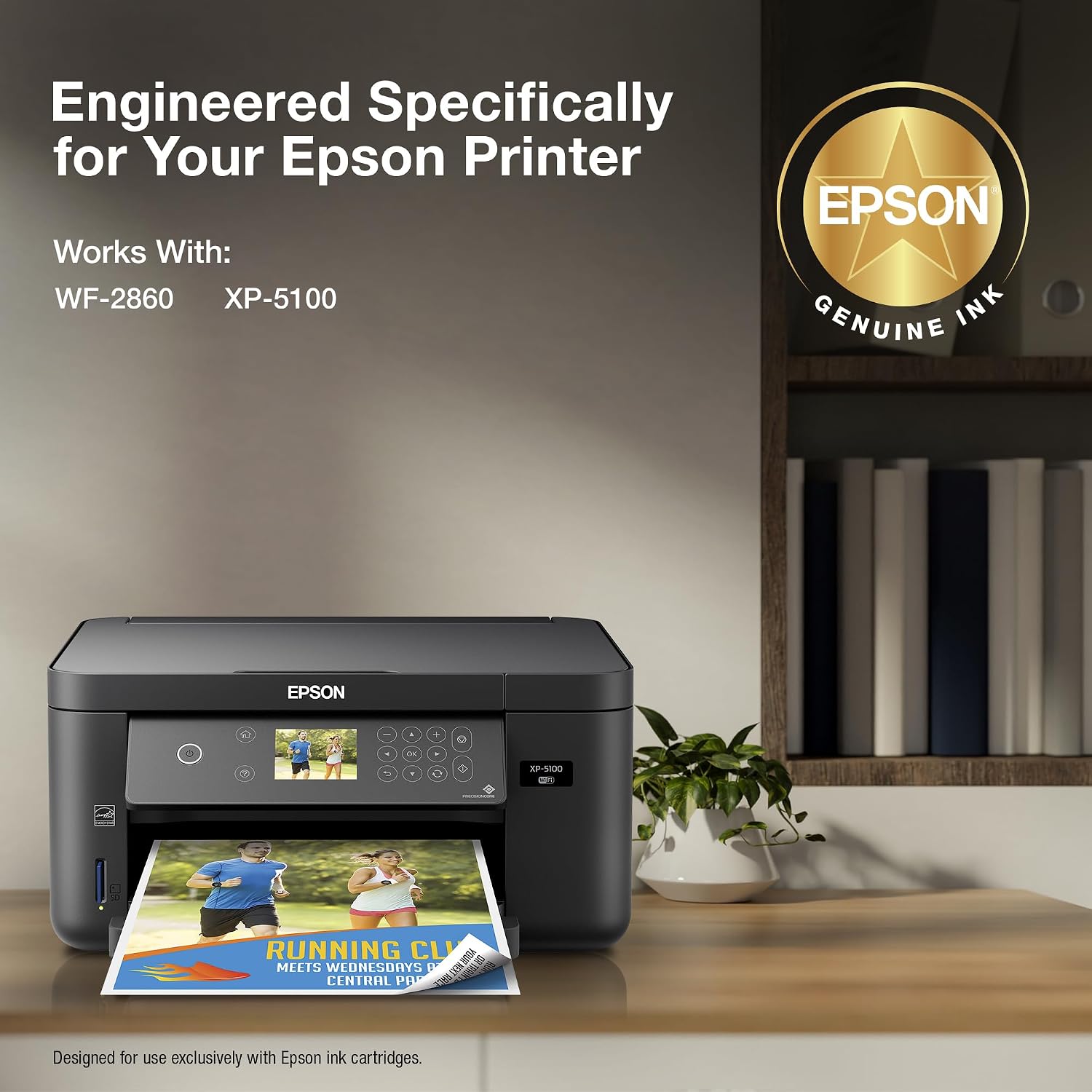
Image: An Epson printer, highlighting its compatibility with Epson ink cartridges.
3.2 Printing Quality
Epson Claria ink is formulated to deliver vibrant colors, sharp text, and consistent quality across various print jobs. The fast-drying properties of the ink help prevent smudging, making it suitable for double-sided printing and handling immediately after printing.

Image: A document being printed, showcasing vibrant colors and sharp detail.
4. Maintenance
4.1 Care and Storage
To ensure the longevity and optimal performance of your Epson ink cartridges:
- Store unused cartridges in their original sealed packaging until ready for use.
- Keep cartridges in a cool, dry place, away from direct sunlight and extreme temperatures.
- Avoid storing cartridges upside down or on their side.
- Once opened, install the cartridge as soon as possible to prevent the ink from drying out.
4.2 Ink Level Monitoring
Your Epson printer software typically provides a utility to monitor ink levels. It is recommended to check ink levels periodically, especially before large print jobs, to avoid interruptions. Replace cartridges when prompted by the printer or when print quality begins to degrade.
5. Troubleshooting
5.1 Cartridge Not Recognized
If your printer does not recognize the newly installed cartridge:
- Ensure the cartridge is correctly seated in its slot. Remove and reinsert it firmly until it clicks.
- Check for any remaining protective tape or seals on the cartridge that might be blocking contacts.
- Clean the electrical contacts on the cartridge and inside the printer with a lint-free cloth slightly dampened with distilled water.
- Restart your printer and computer.
- Verify that you are using a genuine Epson cartridge compatible with your printer model.
5.2 Print Quality Issues (Streaks, Fading, Incorrect Colors)
If you experience issues with print quality:
- Run a nozzle check from your printer's utility software to identify clogged nozzles.
- Perform a print head cleaning cycle through your printer's utility software. You may need to run this several times.
- Ensure you are using appropriate paper settings for your print job.
- Check ink levels and replace any low or empty cartridges.
- Perform a print head alignment if prints appear misaligned.
6. Specifications
| Feature | Description |
|---|---|
| Model Name | T202XL120-S |
| Ink Color | Black |
| Ink Type | Pigment Black (Claria Ink) |
| Page Yield | Approximately 550 pages |
| Compatible Devices | Epson WorkForce WF-2860, Epson Expression XP-5100 |
| Special Feature | Water Resistant |
| Material Type | Plastic |
| Item Weight | 1.44 ounces |
| Product Dimensions | 0.8 x 4.4 x 4.5 inches |
| What's in the Box | 1 x Epson 202XL Black Ink Cartridge |
7. Warranty and Support
7.1 Warranty Information
Epson genuine ink cartridges are covered by Epson's standard limited warranty, which protects against defects in materials and workmanship. For specific warranty terms and conditions, please refer to the documentation included with your printer or visit the official Epson support website.
7.2 Customer Support
For further assistance, technical support, or to purchase additional supplies, please visit the official Epson support website or contact their customer service. You can find detailed FAQs, driver downloads, and contact information on their website.
Official Epson Website: www.epson.com/support