1. Introduction
Thank you for choosing the EMPIRE GAMING Ustream Microphone. This manual provides essential information for the proper setup, operation, and maintenance of your microphone. Please read it thoroughly before use to ensure optimal performance and longevity of the product.
The EMPIRE GAMING Ustream Microphone is designed for high-quality audio capture, ideal for live streaming, podcasting, gaming communication, and voice chat applications.
2. Product Overview
2.1. Key Features
- High-quality sound with noise reduction filter.
- 3-in-1 multifunction button for volume control and mute.
- Compact and detachable microphone design.
- Articulated stand for adjustable angle.
- Anti-slip and weighted base for stability.
- Includes wind protection foam.
- Plug-and-Play USB connectivity, no drivers required.
- Compatible with PC, Mac, PS4, and Xbox One.
2.2. Package Contents
- EMPIRE GAMING Ustream Microphone (detachable)
- Articulated stand
- Wind protection foam
- User manual
2.3. Product Diagram

Figure 1: The EMPIRE GAMING Ustream Microphone, showing its main body, stand, and integrated USB cable.

Figure 2: Side view of the microphone, highlighting its sleek design and adjustable arm.
3. Setup
3.1. Assembly
- Carefully unpack all components from the box.
- Attach the detachable microphone unit to the articulated stand. Ensure it clicks securely into place.
- Place the assembled microphone on a stable, flat surface. The weighted and anti-slip base provides stability.
- If desired, place the included wind protection foam over the microphone head to reduce plosive sounds and breath noise.

Figure 3: Diagram illustrating the microphone's dimensions and 180-degree articulation range for optimal positioning.

Figure 4: The microphone shown with the included wind protection foam installed, ready for use.
3.2. Connecting to Your Device (Plug-and-Play)
The EMPIRE GAMING Ustream Microphone features Plug-and-Play functionality, meaning no additional drivers or software are required for most operating systems.
- Connect the USB cable from the microphone to an available USB port on your PC, Mac, PS4, or Xbox One.
- Your operating system should automatically detect and install the necessary device drivers. This process may take a few moments.
- Once installed, the microphone will be ready for use. You may need to select it as the default input device in your system's sound settings or within your application (e.g., Discord, Twitch, OBS).
3.3. Compatibility
The microphone is compatible with:
- PC (Windows operating systems)
- Mac (macOS operating systems)
- PlayStation 4 (PS4)
- Xbox One
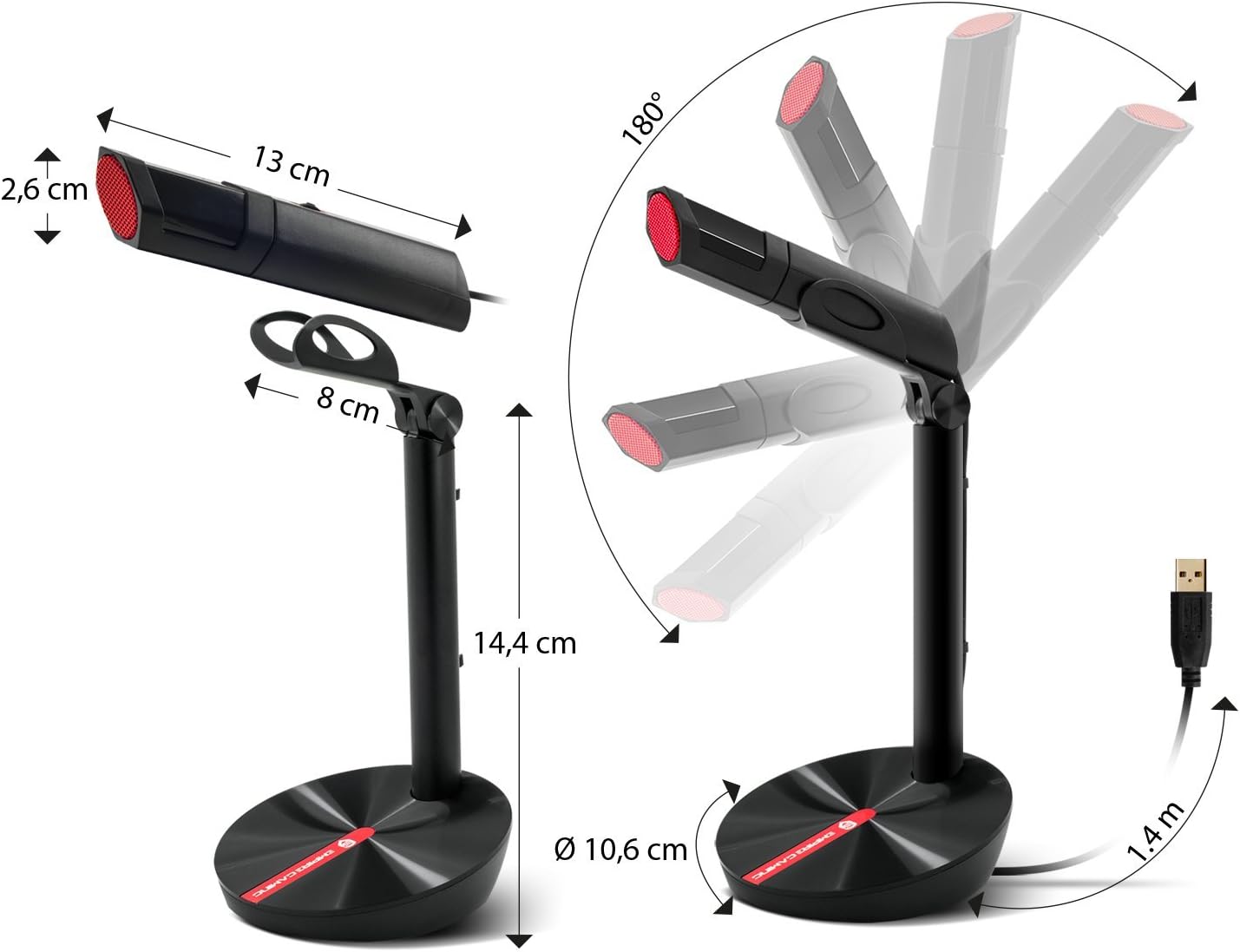
Figure 5: Visual representation of the microphone's compatibility with Discord, Skype, TeamSpeak, and Twitch.
4. Operating Instructions
4.1. Microphone Positioning
For optimal sound quality, position the microphone approximately 15-30 cm (6-12 inches) from your mouth. Utilize the articulated stand to adjust the angle and height to suit your preference.
4.2. Volume and Mute Control
The microphone features a 3-in-1 multifunction button located on its body:
- Volume Adjustment: Rotate the button up or down to increase or decrease the microphone's input volume.
- Mute Function: Press the button to mute or unmute the microphone. When muted, the microphone's LED indicator may change color or turn off (refer to specific model behavior).

Figure 6: Close-up of the microphone's multifunction button for volume control and mute functionality.
4.3. Noise Reduction Filter
The EMPIRE GAMING Ustream Microphone incorporates a noise reduction filter to enhance sound clarity by minimizing background noise. This feature operates automatically to provide clear audio for your audience or teammates.

Figure 7: Internal diagram illustrating the high-quality sound capture and noise reduction filter technology.
4.4. Usage Scenarios
This microphone is optimized for various applications, including:
- Live streaming on platforms like Twitch and YouTube.
- Recording podcasts.
- Voice communication in games via Discord, TeamSpeak, and other chat applications.

Figure 8: A user engaged in a gaming session, utilizing the EMPIRE GAMING Ustream Microphone for communication.
5. Maintenance
To ensure the longevity and optimal performance of your microphone, follow these simple maintenance guidelines:
- Cleaning: Use a soft, dry cloth to wipe the microphone's surface. Avoid using abrasive cleaners or solvents.
- Storage: When not in use, store the microphone in a clean, dry place away from extreme temperatures and direct sunlight.
- Handling: Avoid dropping the microphone or subjecting it to strong impacts, as this can damage internal components.
6. Troubleshooting
If you encounter issues with your EMPIRE GAMING Ustream Microphone, please refer to the following common solutions:
- Microphone not detected:
- Ensure the USB cable is securely connected to both the microphone and your device.
- Try connecting the microphone to a different USB port on your device.
- Restart your computer or console.
- Check your device's sound settings to ensure the Ustream Microphone is selected as the default input device.
- No sound or low volume:
- Check the microphone's multifunction button to ensure it is not muted and the volume is turned up.
- Verify the input volume settings in your operating system and any applications you are using (e.g., Discord, OBS).
- Ensure the microphone is positioned correctly and close enough to the sound source.
- Poor sound quality or background noise:
- Ensure the wind protection foam is properly installed.
- Minimize ambient noise in your environment.
- Adjust the microphone's position to reduce echo or room reverberation.
- Check for any electrical interference from other devices nearby.
7. Specifications
| Feature | Detail |
|---|---|
| Model Name | Ustream Microphone |
| Model Number | OE-MIC-01 |
| Connectivity Technology | USB (USB Type-A connector) |
| Power Source | Wired (USB) |
| Polar Pattern | Unidirectional |
| Audio Sensitivity | 58 Decibels |
| Signal-to-Noise Ratio | 58 dB |
| Microphone Form Factor | Lavalier (referring to compact design) |
| Material | Polycarbonate |
| Special Features | LED RGB |
| Compatible Devices | Personal Computer, Mac, PS4, Xbox One |
| Color | Black |
| Recommended Uses | Gaming |
8. Warranty and Support
For warranty information and technical support, please refer to the documentation provided with your purchase or visit the official EMPIRE GAMING website. Keep your proof of purchase for any warranty claims.
Manufacturer: OPTIMUMWAY


