
1. Introduction
This manual provides essential information for the safe and effective use of your Fancy Buying PI06 laptop battery. It covers specifications, compatibility, installation, usage, safety, maintenance, and troubleshooting. Please read this manual thoroughly before installing and using the battery.

Image 1.1: Fancy Buying PI06 Laptop Battery
This image shows the PI06 laptop battery resting on a wooden desk beside an open laptop, illustrating its typical use environment.
2. Specifications
- Battery Type: Li-ion
- Capacity: 4400mAh / 49Wh
- Cells: 6-cell
- Voltage: 11.1V
- Color: Black
- Dimensions: Approximately 8.98 x 3.23 x 1.54 inches
- Item Weight: Approximately 11.7 ounces
- Recharge Cycles: Up to 500 cycles
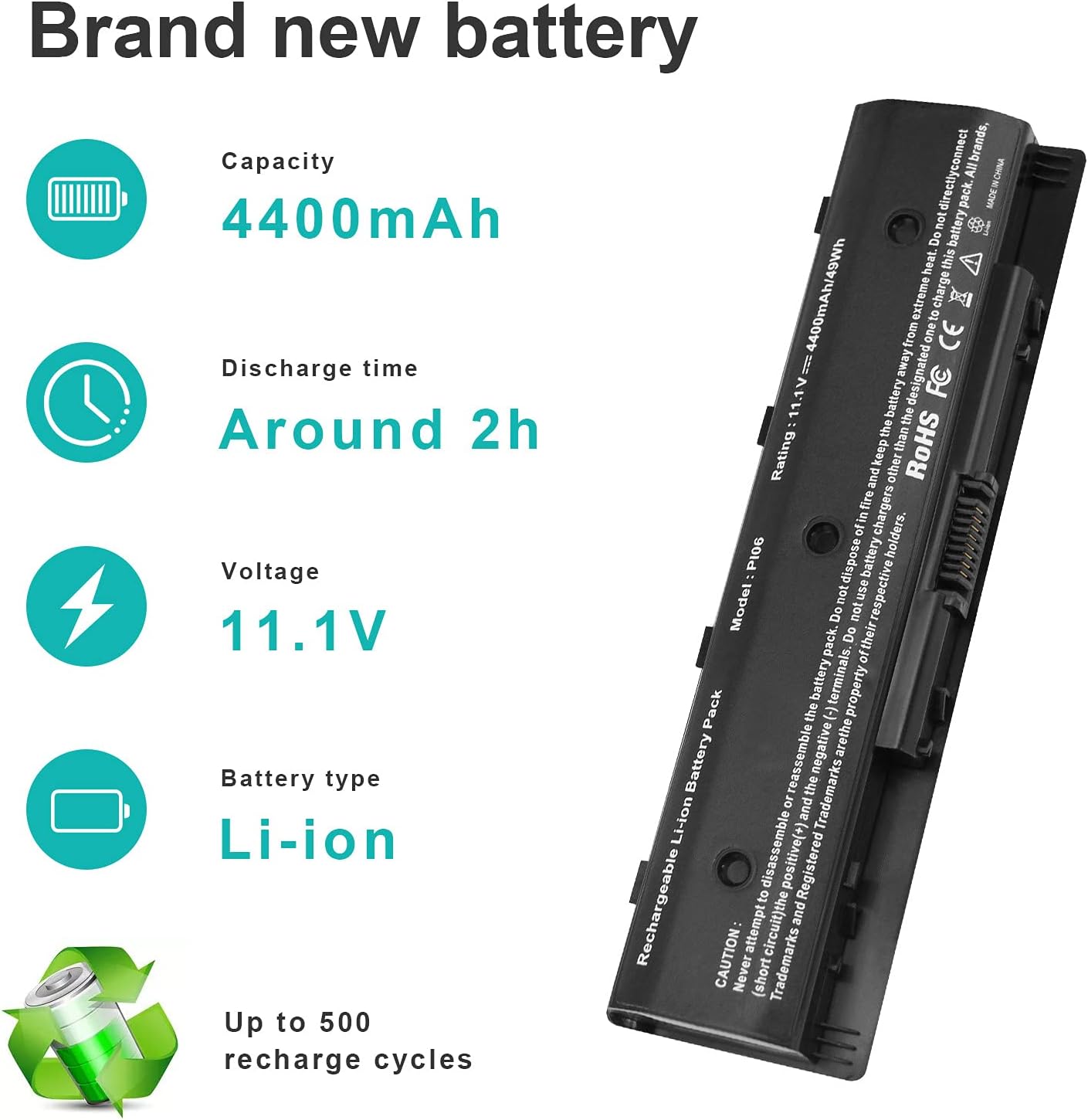
Image 2.1: PI06 Battery Specifications Overview
This image visually summarizes the key specifications of the PI06 battery, including its capacity, voltage, battery type, and expected discharge time.
3. Compatibility
The Fancy Buying PI06 laptop battery is designed to be compatible with various HP laptop models and part numbers. Please verify your laptop's model number or existing battery's part number before purchase and installation.
3.1 Compatible Part Numbers
- 709988-421, 709988-541, 709988-851, 709989-421
- 710416-001, 710417-001, 887758452578, H6L38Aa
- H6L38Aa#Abb, HSTNN-Db4N, HSTNN-Lb4N
- HSTNN-Lb4O, HSTNN-Ub4N, HSTNN-Yb4N, HSTNN-Yb4O
- P106, PI06, PI06XL, PI09
- Tpn-L110, Tpn-L111, Tpn-L112, Tpn-Q117, Tpn-Q119, Tpn-Q120, Tpn-Q121, Tpn-Q122
3.2 Compatible HP Laptop Models
- HP Envy Series: 14, 14t, 14z, 15, 15t, 15z, 17, 17t, 17z, 15-J000 series (e.g., 15-J003CL, 15-J010US), 17-J000 series (e.g., 17-J010US, 17-J020US), M6-N000 series, M7-J000 series.
- HP Pavilion Series: 14t, 14z, 15t, 15z, 17t, 17z, 14-E000 series (e.g., 14-E012LA), 15-E000 series (e.g., 15-E010US), 17-E000 series (e.g., 17-E010US), 17-E100 series (e.g., 17-E110DX), 17Z-E100.
- HP Envy TouchSmart Series: 14, 14t, 14z, 15, 15t, 15z, 17, 17t, 17z, M7, M7t, M7z.
- HP Pavilion TouchSmart Series: 14, 14t, 14z, 15, 15t, 15z, 17, 17t, 17z.

Image 3.1: Compatible Part Numbers and Models
This image lists various compatible part numbers and specific HP Pavilion and Envy laptop series that work with the PI06 battery.
4. Installation Guide
Follow these steps to safely install your new laptop battery. If you are unsure about the process, consult a qualified technician.
4.1 Identifying Your Laptop Model
To ensure compatibility and proper installation, confirm your laptop's exact model number:
- Press the Windows key + R simultaneously to open the Run dialog box.
- Type msinfo32 into the Run dialog box and click "OK".
- In the System Information window, locate "System Model" to find your laptop's model number.

Image 4.1: How to Check Your Laptop Model
This image illustrates the steps to find your laptop's system model using the Windows 'msinfo32' command.
4.2 Battery Replacement Steps (External Battery)
For laptops with externally changeable batteries, follow these general steps:
- Power Off: Shut down your laptop completely and disconnect it from the power adapter.
- Remove Old Battery: Locate the battery release latches or buttons on the underside of your laptop. Slide or press them to unlock and remove the old battery.
- Insert New Battery: Align the new PI06 battery with the battery compartment. Gently slide it into place until it clicks securely. Ensure the power interface and battery buckle are properly engaged for a secure fit.
- Power On: Connect the power adapter and turn on your laptop. Verify that the system recognizes the new battery.
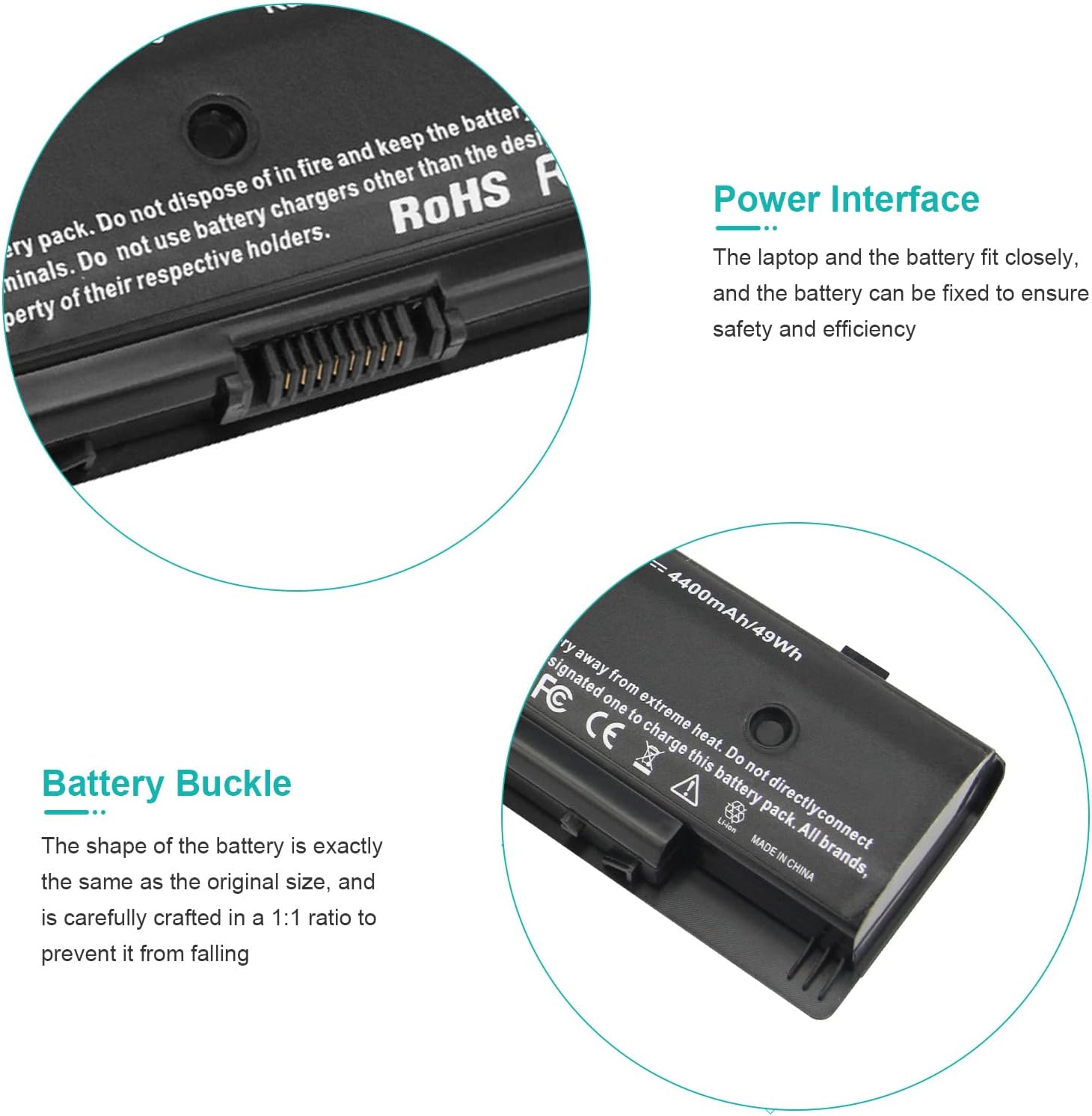
Image 4.2: Power Interface and Battery Buckle
This image highlights the power interface and the battery buckle mechanism, which are crucial for proper battery installation and secure connection within the laptop.
5. Usage and Charging Instructions
5.1 Initial Use and Conditioning
For optimal performance and lifespan, follow these steps for the first few uses:
- Initial Discharge: After installation, discharge the battery to 2% of its capacity.
- Full Charge: Charge the battery fully to 100% without interruption.
- Repeat Cycle: Repeat this discharge-to-2% and full-charge cycle 2-3 times. This helps calibrate the battery and optimize its performance.
5.2 General Usage Guidelines
- Avoid Full Discharge: Do not frequently discharge the battery to 0% as this can reduce its lifespan.
- Avoid Constant Charging: Do not keep the battery constantly plugged in after it reaches 100% charge for extended periods, as this can also affect its longevity.
- Operation Time: Actual operation time varies depending on the device type and usage patterns. The battery is designed for an operation time of approximately 2.5-4 hours under typical conditions.

Image 5.1: Battery Usage and Warning Label
This image shows the battery with a label providing important usage instructions and safety warnings, including recommendations for initial charging and avoiding full discharge.
6. Safety Information
Your Fancy Buying PI06 battery incorporates multiple safety features. Adhere to the following guidelines to ensure safe operation and prevent damage:
- Circuit Protection: Equipped with overcharger and discharger circuit protection.
- Certifications: CE-, FCC-, and RoHS-Certified for safety standards.
- Multiple Protections: Includes short-circuit protection, over-heating protection, over-charge protection, over-voltage protection, over-power protection, electromagnetic safety, anti-static effect, and over-discharge protection.
- Temperature: Do not expose the battery to extreme heat, fire, or temperatures above 60°C (140°F).
- Disassembly: Never attempt to disassemble or reassemble the battery pack.
- Physical Damage: Do not directly connect (short circuit) the positive (+) and the negative (-) terminals. Avoid dropping or subjecting the battery to strong impacts.
- Charging: Only use battery chargers designated to charge this battery pack.
- Disposal: Do not dispose of the battery in fire or with general household waste. Follow local regulations for proper battery disposal.

Image 6.1: Multiple Protection Features
This image illustrates the comprehensive safety features integrated into the battery, designed to protect against various electrical and thermal hazards.
7. Maintenance and Storage
- Cleaning: Keep the battery contacts clean and free from dust or debris.
- Storage: If storing the battery for an extended period, ensure it is charged to about 50-70% and stored in a cool, dry place away from direct sunlight and extreme temperatures.
- Regular Use: For optimal performance, use and recharge the battery regularly. Avoid leaving it unused for very long periods.
8. Troubleshooting
If you encounter issues with your battery, consider the following common solutions:
- Battery Not Recognized:
- Ensure the battery is correctly seated in its compartment and the connections are secure.
- Restart your laptop.
- Check your laptop's BIOS/UEFI settings to ensure the battery is detected.
- Update or reinstall battery drivers through Device Manager in your operating system.
- Short Battery Life:
- Perform the initial conditioning cycles (discharge to 2%, then full charge) 2-3 times.
- Adjust power settings in your operating system to optimize battery usage.
- Close unnecessary applications running in the background.
- Reduce screen brightness.
- Battery Not Charging:
- Verify that the AC adapter is functioning correctly and securely connected to both the laptop and a power outlet.
- Ensure the charging port on your laptop is clean and undamaged.
- Try a different compatible AC adapter if available.
If problems persist after attempting these steps, please contact customer support.
9. Warranty and Support
Fancy Buying provides comprehensive support for your PI06 laptop battery.
- Warranty Period: 12 Months warranty from the date of purchase.
- Money-Back Guarantee: 30-day money-back guarantee.
- Customer Support: 24/7 email support is available for any inquiries or assistance.
- Manufacturer: Dongguan Lewe Electronics Co., Ltd.
For warranty claims or technical assistance, please refer to the contact information provided with your purchase or visit the official Fancy Buying support channels.