
D-Link COVR-C1203-US
D-Link COVR Whole Home Mesh WiFi System User Manual
Model: COVR-C1203-US
Introduction
The D-Link COVR-C1203 Whole Home Mesh WiFi System is designed to provide seamless, high-speed wireless internet coverage throughout your entire home. This system replaces your existing router and utilizes multiple COVR Points to eliminate Wi-Fi dead zones, ensuring a consistent and stable connection for all your devices. With dual-band AC1200 Wi-Fi and Gigabit Ethernet ports, the COVR system offers reliable performance for streaming, gaming, and general internet use across up to 5000 square feet.
What's in the Box
- 3 x COVR-C1200 devices
- Power Adapters (3)
- Quick Installation Guide (QIG)
- Ethernet Cable
- Gift Box
Product Overview
The COVR-C1203 system consists of three identical COVR units, each designed for discreet placement within your home. These units work together to create a unified Wi-Fi network, allowing your devices to seamlessly roam without interruption.

Image: The three compact D-Link COVR units, showcasing their minimalist design.
Each COVR unit features two Gigabit Ethernet ports for wired connectivity, allowing you to connect devices like smart TVs, gaming consoles, or desktop computers directly to the network for maximum speed and stability. The system is managed through a user-friendly mobile application.

Image: The D-Link Wi-Fi app interface on a smartphone, illustrating easy control and monitoring of the COVR system.
Setup Instructions
Setting up your D-Link COVR system is designed to be quick and straightforward using the D-Link Wi-Fi app.
- Download the D-Link Wi-Fi App: Search for "D-Link Wi-Fi" in your mobile device's app store (App Store for iOS or Google Play Store for Android) and download the application.
- Prepare Your Modem: Disconnect your existing router (if any) and power off your modem. Wait for about 30 seconds before proceeding.
- Connect the First COVR Unit: Connect one of the COVR units to your modem using the included Ethernet cable. Plug the Ethernet cable into one of the Gigabit Ethernet ports on the COVR unit and the other end into your modem's LAN port.
- Power On: Connect the power adapter to the COVR unit and plug it into a power outlet. Power on your modem.
- Launch the App: Open the D-Link Wi-Fi app on your smartphone. Follow the on-screen instructions to set up your new COVR Wi-Fi network. The app will guide you through connecting to the COVR unit's temporary Wi-Fi network and configuring your new network name (SSID) and password.
- Place Additional COVR Units: Once the first unit is configured, the app will prompt you to set up the remaining COVR units. Place them in different areas of your home to maximize coverage. Ensure they are within range of each other and the main COVR unit for optimal performance.
- Verify Connection: After all units are set up, check the LED indicator on each COVR unit. A solid white light typically indicates a good connection. You can also verify network status through the D-Link Wi-Fi app.
Operating Instructions
The D-Link COVR system creates a single, unified Wi-Fi network name (SSID) for your entire home, allowing your devices to automatically connect to the strongest signal as you move around. This seamless roaming ensures uninterrupted connectivity.

Image: Visual representation of the COVR system providing seamless Wi-Fi coverage throughout a home.
Managing Your Network:
- D-Link Wi-Fi App: Use the app to monitor your network status, connected devices, and manage settings.
- Parental Controls: The app allows you to set schedules for internet access and manage device usage for family members.
- Guest Wi-Fi: Create a separate guest network for visitors, keeping your main network secure.
- Firmware Updates: The app will notify you of available firmware updates, which are crucial for maintaining security and performance.
Maintenance
To ensure optimal performance and longevity of your D-Link COVR system, consider the following maintenance tips:
- Firmware Updates: Regularly check for and install firmware updates through the D-Link Wi-Fi app. These updates often include performance improvements, security patches, and new features.
- Optimal Placement: Ensure COVR units are placed in open areas, away from obstructions like large metal objects, thick walls, or other electronic devices that may cause interference.
- Cleaning: Gently wipe the exterior of the COVR units with a soft, dry cloth to remove dust. Do not use liquid cleaners or abrasive materials.
- Ventilation: Ensure the ventilation holes on the units are not blocked to prevent overheating.
- Rebooting: Periodically rebooting your COVR system (unplugging and replugging the power adapters) can help resolve minor network issues and improve performance.
Troubleshooting
If you encounter issues with your D-Link COVR system, refer to the following common problems and their solutions:
| Problem | Possible Solution |
|---|---|
| No Internet Connection |
|
| Weak Wi-Fi Signal or Dead Zones |
|
| Slow Internet Speeds |
|
| COVR Unit LED is Red/Orange |
|
| Cannot Access D-Link Wi-Fi App |
|
Technical Specifications
| Feature | Detail |
|---|---|
| Model Name | COVR-C1203-US |
| Wireless Type | 802.11n, 802.11a, 802.11ac, 802.11g |
| Frequency Band Class | Dual-Band (2.4 GHz and 5 GHz) |
| Coverage Area | Up to 5000 Sq. Ft. (with 3 units) |
| Ethernet Ports | 2 x Gigabit Ethernet ports per unit |
| Operating System | D-Link OS |
| Item Weight | 8.8 ounces (per unit) |
| Product Dimensions | 4.37 x 4.3 x 2.08 inches (per unit) |
| Color | White |
| Voltage | 120-240 Volts |
| Manufacturer | D-Link Systems, Inc. |
| First Available | February 12, 2018 |
Warranty and Support
The D-Link COVR-C1203 Whole Home Mesh WiFi System comes with a 3-Year Limited Warranty. This warranty covers defects in materials and workmanship under normal use during the warranty period.
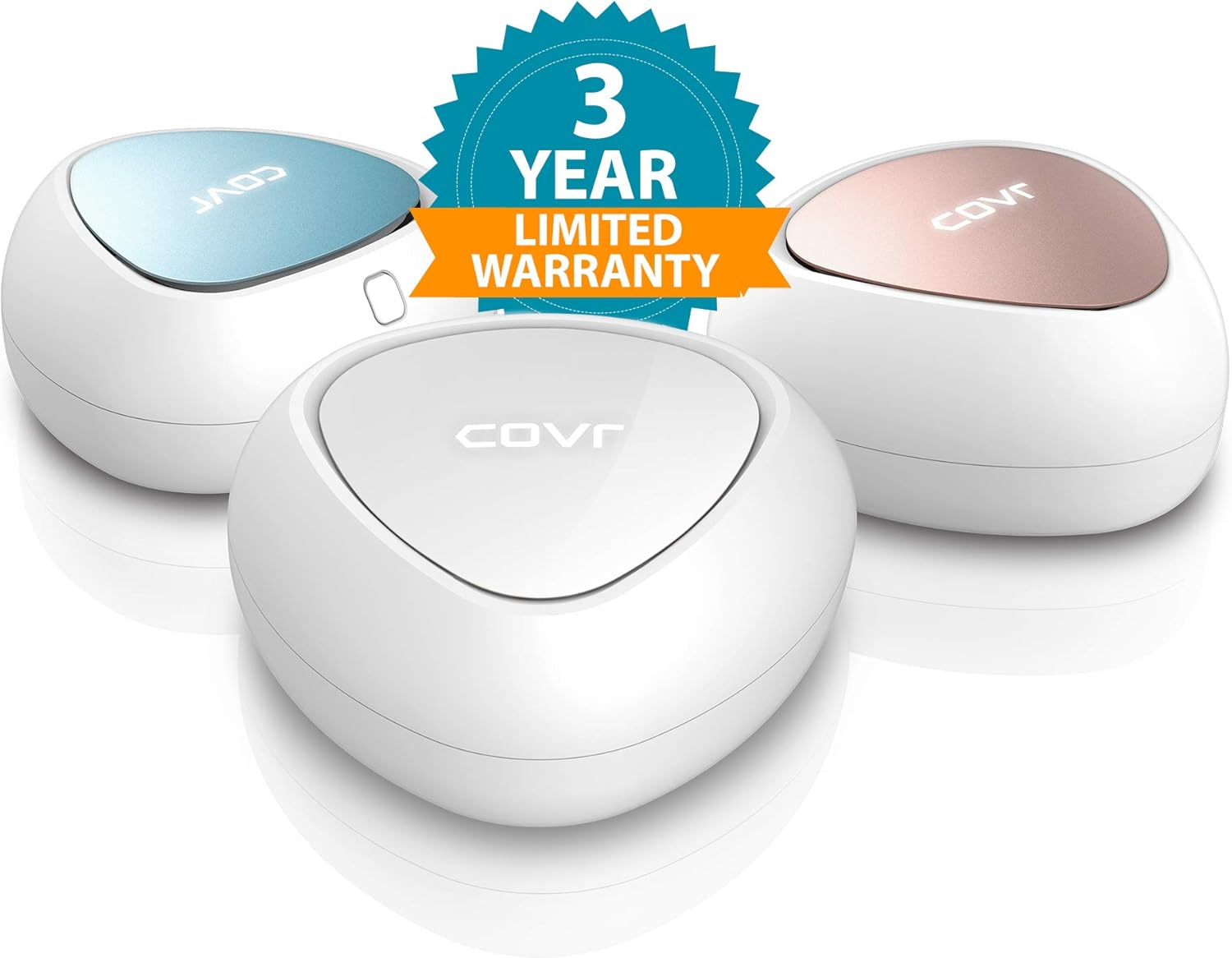
Image: The D-Link COVR unit highlighting its 3-Year Limited Warranty.
For detailed warranty terms and conditions, please refer to the warranty card included in your product packaging or visit the official D-Link support website.
Technical Support:
If you require technical assistance or have questions not covered in this manual, please visit the D-Link support website for FAQs, troubleshooting guides, and contact information for customer support. Ensure you have your product model number (COVR-C1203-US) and serial number ready when contacting support.
Related documentsCOVR-C1203-US


Ask a question about this manual
Ask about setup, troubleshooting, compatibility, parts, safety, or missing instructions. Manuals+ will review the question and use this page’s manual context to help answer it.