
Miroir M220
Miroir M220 HD Pro Portable Projector User Manual
Model: M220 | Brand: Miroir
1. Introduction
Welcome to the user manual for your Miroir M220 HD Pro Portable Projector. This compact and powerful device is designed to provide high-quality projection for various uses, from business presentations to home entertainment. Its advanced features, including auto focus and keystone correction, ensure a seamless viewing experience. Please read this manual thoroughly to understand the projector's functions and ensure optimal performance.
2. Product Features
- Native 720p HD Resolution: Delivers crisp, high-definition visuals with support for up to 1080p input, ensuring clear and vibrant images for movies, presentations, and more.
- Auto Focus & Vertical Keystone Correction: Features automatic focus and vertical keystone adjustment (±40°) for quick and easy image setup without manual tweaking.
- Versatile Connectivity Options: Equipped with USB-C for video and charging, HDMI input, and a USB-A port for device charging, accommodating a wide range of devices including laptops, smartphones, and streaming sticks.
- Built-in Rechargeable Battery: Integrated lithium-ion battery provides up to 2 hours of projection time, allowing for portable use without the need for constant power supply.
- Compact & Lightweight Design: Weighs just 1.1 lbs and measures 6.7" x 4.2" x 1.1", making it easy to transport and ideal for on-the-go presentations or entertainment.
3. What's in the Box
- Miroir M220 HD Pro Portable Projector
- Power Cord
- HDMI Cable
- User Manual (this document)
4. Product Overview

Figure 4.1: Front-top view of the Miroir M220 Projector, showcasing its sleek black design and lens.

Figure 4.2: Rear view of the projector, highlighting the various connectivity ports including Audio, USB 5V Out, HDMI, Reset, and Type C (USB-C).

Figure 4.3: Close-up of the projector's front, showing the projection lens and auto-focus sensor.

Figure 4.4: The compact size of the Miroir M220 allows it to easily fit into a small bag, emphasizing its portability.
5. Setup Guide
- Charging the Projector: Before first use, fully charge the projector using the provided power cord. Connect the USB-C charging cable to the projector's USB-C Charge port and the other end to a power adapter. The charging indicator light will show charging status.
- Placement: Place the projector on a stable, flat surface. For optimal image quality, project onto a smooth, light-colored wall or a projector screen. Ensure there are no obstructions in front of the lens.
- Power On: Press and hold the power button on the projector for a few seconds until the indicator light turns on and the lens emits light.
- Connecting a Device:
- HDMI: Connect your device (laptop, streaming stick, game console) to the projector's HDMI port using the provided HDMI cable.
- USB-C Video: For compatible devices, connect a USB-C to USB-C cable from your device to the projector's USB-C Video port.
- USB-A: The USB-A port is primarily for charging external devices.
- Adjusting Image: The projector features automatic focus and vertical keystone correction. If the image appears blurry or distorted, slightly move the projector or adjust its angle. The auto-focus will typically correct the image within a few seconds.
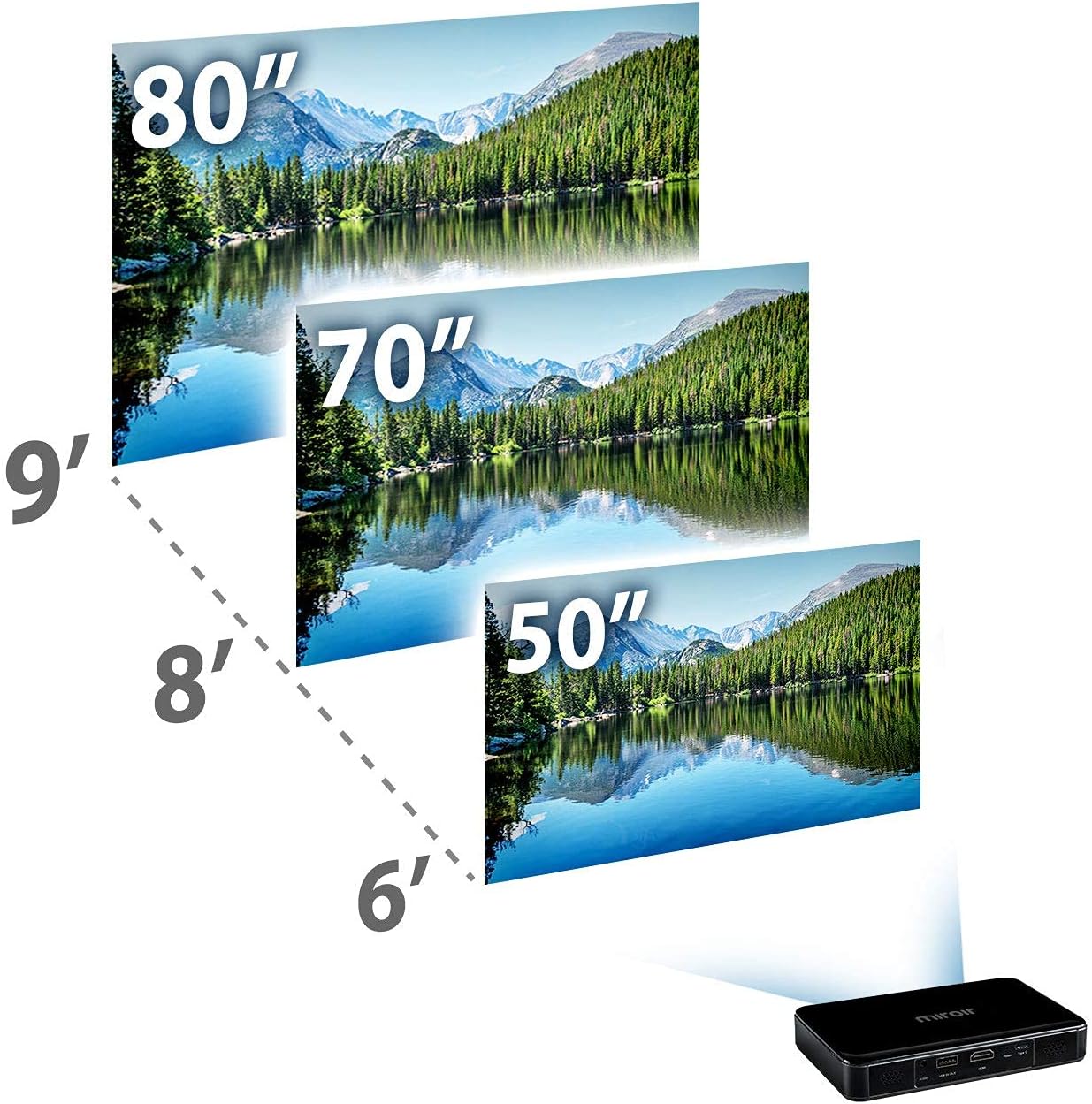
Figure 5.1: Guide for optimal projection distances to achieve various screen sizes (e.g., 50", 70", 80").
6. Operating Instructions
6.1 Power On/Off
- To Power On: Press and hold the power button on the top of the projector for approximately 3 seconds. The projector will start up and display the Miroir logo.
- To Power Off: Press and hold the power button again for approximately 3 seconds. The projector will shut down.
6.2 Focus and Keystone Correction
The Miroir M220 features automatic focus and vertical keystone correction. This means the projector will automatically adjust the image clarity and shape when moved or repositioned. If the image is not perfectly clear or rectangular:
- Slightly move the projector to trigger the auto-focus mechanism.
- Ensure the projector is placed on a level surface and pointed directly at the projection surface for best results.
6.3 Connecting to Devices
The projector supports various input sources:
- HDMI: Connect any HDMI-enabled device (laptops, Blu-ray players, gaming consoles, streaming devices) to the HDMI port. The projector will automatically detect the input.
- USB-C Video: Use a compatible USB-C cable to connect devices like modern laptops, tablets, or smartphones that support video output over USB-C.
- Audio Out: Connect external speakers or headphones to the 3.5mm audio jack for enhanced sound.
Video 6.1: An overview of the Miroir M220 HD Pro LED Portable Projector, showcasing its features and various usage scenarios.

Figure 6.2: The Miroir M220 projector in use during an outdoor gathering, demonstrating its versatility for entertainment in various environments.
7. Maintenance and Care
- Cleaning the Lens: Use a soft, lint-free cloth specifically designed for optical lenses to gently wipe the projector lens. Do not use abrasive cleaners or solvents.
- Cleaning the Body: Wipe the projector's exterior with a soft, dry cloth. For stubborn marks, a slightly damp cloth can be used, followed by a dry one.
- Ventilation: Ensure the projector's ventilation openings are not blocked during operation to prevent overheating.
- Storage: When not in use, store the projector in a cool, dry place, away from direct sunlight and extreme temperatures. It is recommended to store it in its original packaging or a protective case.
- Battery Care: To prolong battery life, avoid fully discharging the battery frequently. Charge it regularly, even if not in active use.
8. Troubleshooting
| Issue | Possible Cause | Solution |
|---|---|---|
| No image or 'No Signal' message | Incorrect input source, loose cable connection, device not outputting signal. | Check cable connections. Ensure the source device is powered on and configured to output video. Try a different cable or port. |
| Image is blurry or out of focus | Projector moved, auto-focus not triggered. | Slightly move the projector to re-trigger auto-focus. Ensure the lens is clean. |
| Image is distorted (trapezoid shape) | Projector not perpendicular to the screen. | The projector has automatic vertical keystone correction. Ensure it's on a flat surface. Adjust the projector's vertical angle slightly to allow it to correct. |
| No sound or low volume | Volume too low, external speakers not connected properly, source device volume. | Increase projector volume. Check volume on the source device. Ensure external speakers are connected correctly to the Audio Out port. |
| Projector overheats or shuts down | Blocked ventilation, prolonged use in hot environment. | Ensure ventilation openings are clear. Allow the projector to cool down. Use in a well-ventilated area. |
9. Technical Specifications
| Feature | Specification |
|---|---|
| Product Dimensions | 4.13 x 6.63 x 1.13 inches |
| Item Weight | 15.8 ounces |
| Model Number | M220 |
| Batteries | 1 Lithium Polymer batteries required (included) |
| Display Resolution | Native 1280 x 720p (supports up to 1080p input) |
| Connectivity Technology | HDMI, USB-C (Video & Charging), USB-A (Charging Out), Audio Out |
| Special Features | Built-In Speaker, Portable, Digital Keystone Correction, Lightweight, Auto Focus |
| Manufacturer | Miroir USA |
| Country of Origin | China |
10. Warranty and Support
The Miroir M220 HD Pro Portable Projector comes with a standard manufacturer's warranty. For specific warranty terms and conditions, please refer to the warranty card included with your product or visit the official Miroir website.
For technical support, troubleshooting assistance, or to inquire about repairs, please contact Miroir customer service. You can also find additional resources and a downloadable PDF version of this user manual at the following link:
Related documentsM220


Ask a question about this manual
Ask about setup, troubleshooting, compatibility, parts, safety, or missing instructions. Manuals+ will review the question and use this page’s manual context to help answer it.