
Introduction
This manual provides comprehensive instructions for the setup, operation, and maintenance of your Lawmate LMWIFICASE WiFi 1080P HD Smart Phone Camera Case. Please read this manual thoroughly before using the device to ensure proper functionality and to maximize its performance.
Product Overview
The Lawmate LMWIFICASE is a discreet camera system integrated into a functional smartphone case, designed for covert video recording and live streaming. It features a high-definition camera, Wi-Fi connectivity for remote access, and internal storage capabilities.
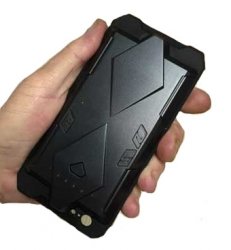
Image: Front view of the Lawmate LMWIFICASE Smart Phone Camera Case, showing the integrated camera lens and design.
Key Components:
- Camera Lens: Discreetly located on the case.
- Micro SD Card Slot: For local video storage.
- USB Charging Port: For power and data transfer.
- Power/Function Button: Controls device power and recording modes.
- Status Indicator Lights: Provide feedback on device status (e.g., recording, Wi-Fi connection).
Setup
1. Charging the Device
Before initial use, fully charge the device. Connect the provided USB cable to the charging port on the camera case and plug the other end into a USB power adapter (not included) or a computer USB port. The indicator light will show charging status and turn off when fully charged.
2. Inserting the Micro SD Card
Locate the micro SD card slot. Gently insert a compatible micro SD card (up to 32GB, Class 10 recommended) with the gold contacts facing down until it clicks into place. Ensure the device is powered off before inserting or removing the card.
3. Downloading the Mobile Application
Search for the official Lawmate PV Cam Viewer application on your smartphone's app store (available for iOS and Android). Download and install the application.
4. Connecting to Wi-Fi
- Power on the camera case by pressing and holding the Power/Function button until the indicator lights activate.
- On your smartphone, go to Wi-Fi settings and connect to the Wi-Fi network broadcast by the camera case (e.g., "PV-XXXXXX"). The default password is typically "88888888".
- Open the PV Cam Viewer application. The device should automatically be detected. If not, manually add the device within the app.
Operating Instructions
1. Recording Video
Once connected via the app, you can initiate video recording. Tap the 'Record' button within the PV Cam Viewer app to start or stop recording. Videos are saved to the inserted micro SD card.
2. Live Viewing
From the PV Cam Viewer app, select the connected device to access the live video feed. This allows you to monitor the camera's view in real-time from your smartphone.
3. Changing Settings via App
The app provides access to various settings, including video resolution (1080p, 720p), motion detection sensitivity, loop recording, date/time stamp, and Wi-Fi password modification. Navigate to the 'Settings' menu within the app to adjust these parameters.
4. Motion Detection Recording
Enable motion detection in the app settings. When activated, the camera will automatically begin recording when movement is detected within its field of view, conserving battery life and storage space.
Maintenance
Cleaning
Use a soft, dry cloth to clean the camera lens and the exterior of the case. Avoid using liquid cleaners or abrasive materials, as they may damage the device.
Battery Care
To prolong battery life, avoid fully discharging the device frequently. Store the device in a cool, dry place when not in use for extended periods. Recharge the battery periodically if stored for a long time.
Firmware Updates
Periodically check the Lawmate website or the PV Cam Viewer app for available firmware updates. Keeping your device's firmware up-to-date ensures optimal performance and access to new features.
Troubleshooting
Device Not Powering On
- Ensure the device is fully charged.
- Verify the power button is pressed and held correctly.
Cannot Connect to Wi-Fi
- Confirm the camera case is powered on and broadcasting its Wi-Fi signal.
- Check that the Wi-Fi password entered is correct (default: 88888888).
- Ensure your smartphone is within range of the device's Wi-Fi signal.
No Recording or Corrupted Files
- Check if a micro SD card is properly inserted and has sufficient free space.
- Ensure the micro SD card is Class 10 or higher.
- Format the micro SD card using the app settings or a computer.
Poor Video Quality
- Ensure the camera lens is clean and free from obstructions.
- Check the video resolution settings in the app; set to 1080p for highest quality.
- Ensure adequate lighting in the recording environment.
Specifications
| Feature | Detail |
|---|---|
| Model Number | LMWIFICASE |
| Connectivity Protocol | Wi-Fi |
| Controller Type | Android (also compatible with iOS) |
| Video Capture Resolution | 1080p, 720p |
| Wireless Communication Technology | Wi-Fi |
| Low Light Technology | Night Color |
| Video Capture Format | MPEG-4 |
| International Protection Rating | IP54 |
| Special Feature | Motion Sensor |
| Power Source | AC/DC (via USB) |
| Recommended Uses | Surveillance |
Warranty Information
Specific warranty details for the Lawmate LMWIFICASE are typically provided at the point of purchase or can be found on the official Lawmate website. Please retain your proof of purchase for warranty claims. The manufacturer's warranty generally covers defects in materials and workmanship under normal use.
Support
For technical assistance, troubleshooting beyond this manual, or inquiries regarding your Lawmate LMWIFICASE, please refer to the official Lawmate support channels. This may include their website's FAQ section, online contact forms, or customer service telephone numbers. Always provide your model number (LMWIFICASE) when seeking support.