
Rybozen BR608
Rybozen BR608 Standalone USB Cassette to MP3 Converter User Manual
Model: BR608
Introduction
Thank you for purchasing the Rybozen BR608 Standalone USB Cassette to MP3 Converter. This device allows you to convert your old cassette tapes into digital MP3 format directly onto a USB flash drive, without the need for a computer. It also functions as a portable cassette player, offering auto-reverse and audio output for headphones or external speakers. Please read this manual carefully to ensure proper use and optimal performance.
Product Overview
Package Contents
- Rybozen BR608 Cassette to MP3 Converter
- USB Power Cable
- 3.5mm Earphones
- User Manual

Image: The Rybozen BR608 converter, a USB power cable, 3.5mm earphones, and the user manual are shown as included items.
Device Components and Controls
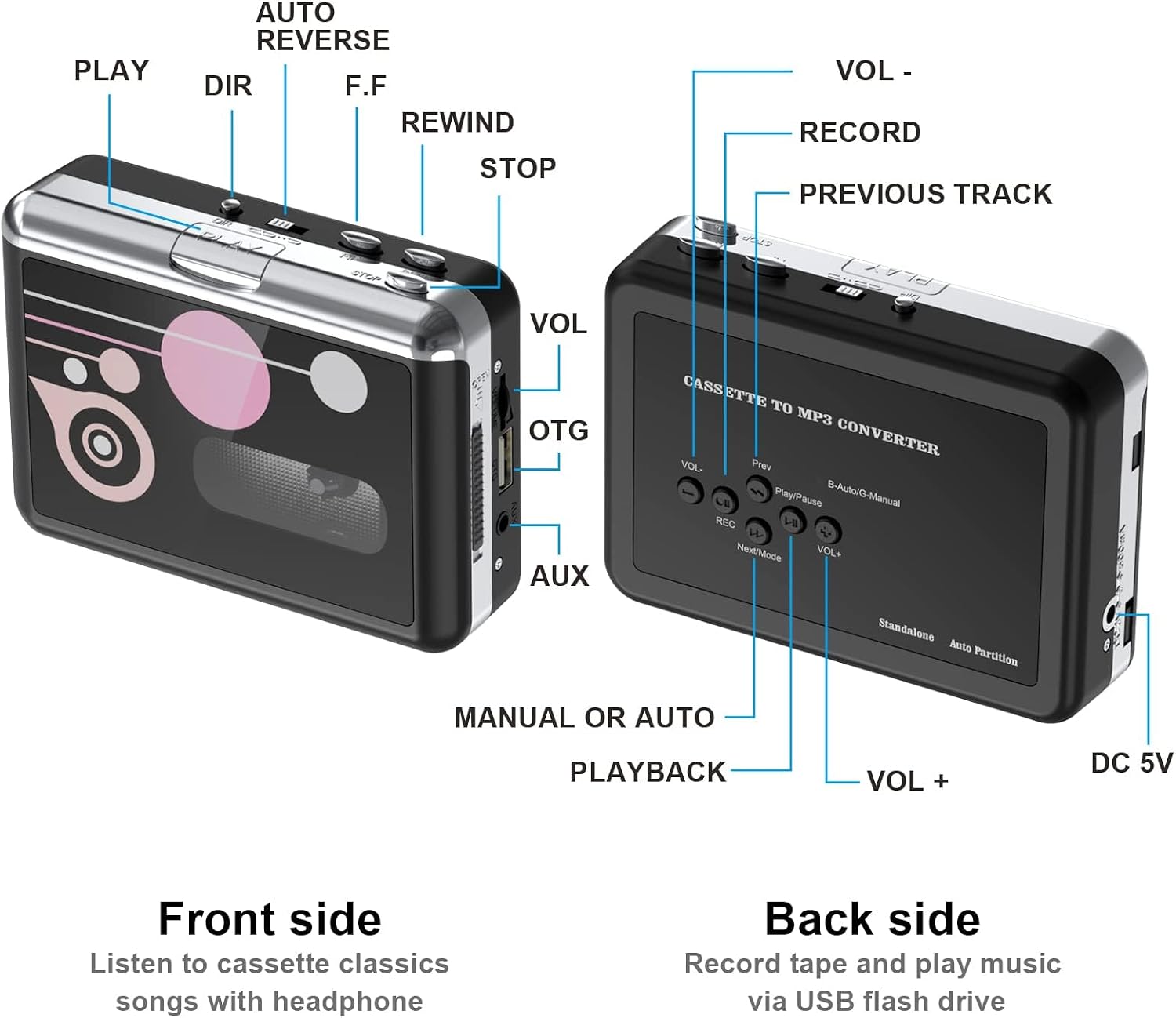
Image: A detailed diagram illustrating the front and back controls of the Rybozen BR608. Front controls include PLAY, DIR (direction), F.F (fast forward), REWIND, STOP, AUTO REVERSE switch, and VOL (volume). Side ports include OTG, AUX, and USB. The back panel shows VOL-, RECORD, PREVIOUS TRACK, VOL+, PLAY/PAUSE, REC, NEXT/MODE, MANUAL OR AUTO switch, and DC 5V port.
Front Side Controls:
- PLAY: Starts cassette playback.
- DIR (Direction): Changes playback direction.
- F.F (Fast Forward): Fast forwards the tape.
- REWIND: Rewinds the tape.
- STOP: Stops playback or recording.
- AUTO REVERSE Switch: Toggles automatic tape direction change.
- VOL (Volume Wheel): Adjusts playback volume.
Side Ports:
- OTG / USB Port: Connects a USB flash drive for recording or playback.
- AUX (3.5mm Audio Output): Connects headphones or external speakers.
Back Side Controls (for MP3 conversion/playback):
- VOL- / VOL+: Adjusts volume during MP3 playback.
- PREV / NEXT/MODE: Navigates between MP3 tracks or changes mode.
- PLAY/PAUSE: Plays or pauses MP3 files.
- REC (Record): Initiates recording from cassette to USB.
- B-Auto/G-Manual Switch: Selects automatic or manual song partitioning during recording.
- DC 5V Port: Power input for the device.
Setup
Powering the Device
The Rybozen BR608 can be powered by two (2) AA batteries or via a USB power supply (5V DC adapter or PC USB port).
- Battery Installation: Open the battery compartment on the back of the device. Insert two AA batteries, ensuring correct polarity (+/-).
- USB Power: Connect the provided USB power cable to the DC 5V port on the device and to a USB power adapter (not included) or a computer's USB port.
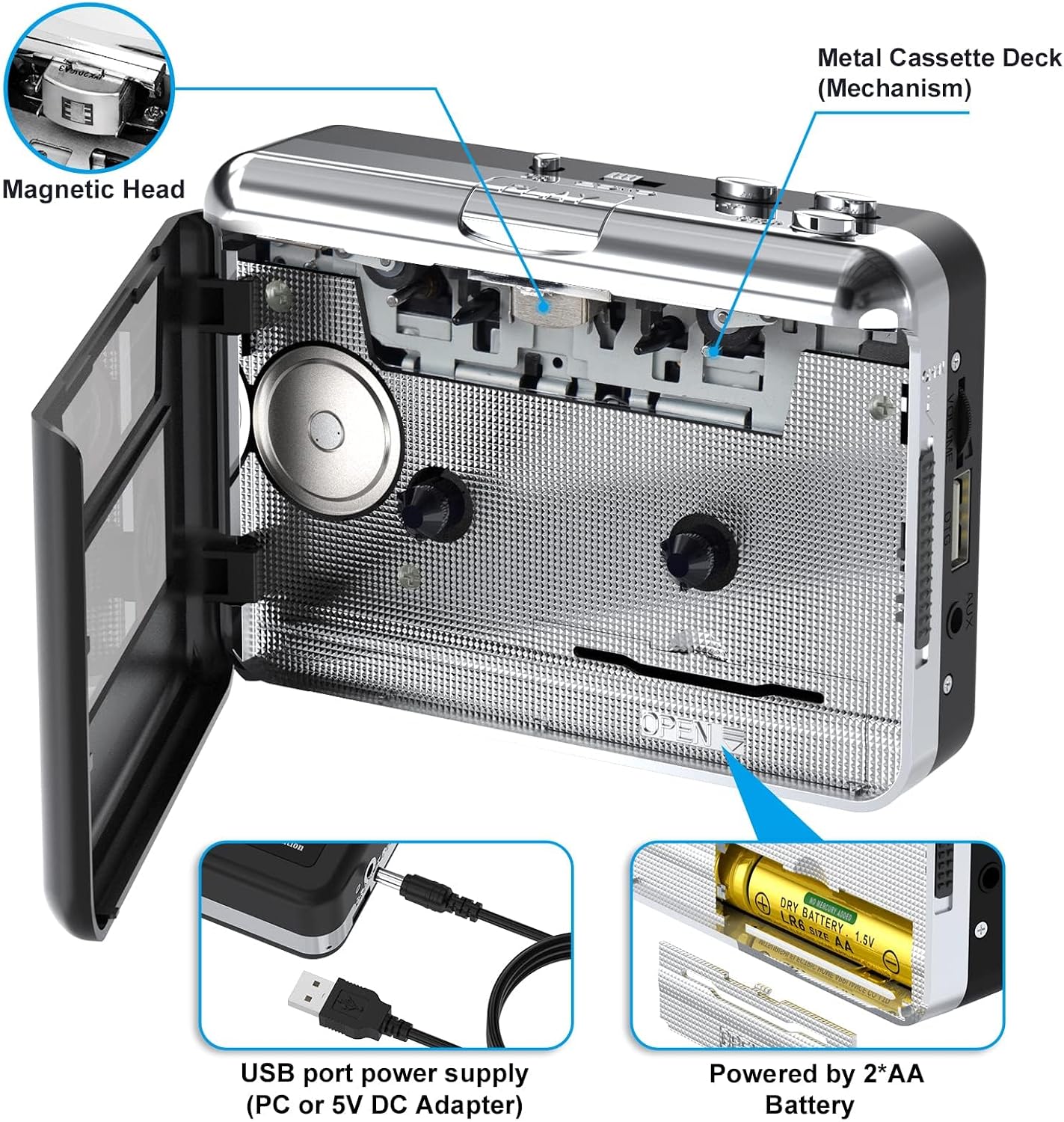
Image: The internal metal cassette deck mechanism is visible, along with the magnetic head. Insets show how to connect the USB power cable and how to insert two AA batteries into the battery compartment.
Inserting a Cassette Tape
- Press the "OPEN" button on the side of the device to open the cassette compartment door.
- Insert a cassette tape with the desired side facing up.
- Close the cassette compartment door firmly until it clicks.
Operating Instructions
Playing Cassette Tapes
- Insert a cassette tape as described in the Setup section.
- Connect headphones to the AUX port or use the built-in speaker (if available).
- Press the PLAY button to start playback.
- Adjust the volume using the VOL wheel.
- Use F.F or REWIND for fast forwarding or rewinding.
- Press DIR to change the playback direction.
- Toggle the AUTO REVERSE switch to enable or disable automatic tape direction change at the end of a side.
- Press STOP to end playback.

Image: A user is shown enjoying music with headphones connected to the Rybozen BR608, demonstrating its use as a portable cassette player.
Converting Cassette Tapes to MP3 (USB Recording)
This device allows you to convert your cassette audio directly to MP3 files on a USB flash drive without a computer.
- Insert a cassette tape into the device.
- Insert a USB flash drive (FAT32 format recommended) into the OTG/USB port.
- Select the desired recording mode:
- Automatic Partitioning (B-Auto): Slide the "B-Auto/G-Manual" switch to "B-Auto". The device will attempt to detect pauses between songs and create separate MP3 files for each track.
- Manual Partitioning (G-Manual): Slide the "B-Auto/G-Manual" switch to "G-Manual". You will manually press the "NEXT/MODE" button to create a new MP3 file for each song.
- Press the PLAY button on the cassette player to start the tape.
- Press the REC button on the back panel to start recording. The LED indicator will light up.
- If using Manual Partitioning, press NEXT/MODE briefly to save the current track and start a new MP3 file for the next song.
- To stop recording, press the STOP button on the cassette player. The LED indicator will turn off.
- The recorded MP3 files will be saved in a folder named "TAPEMP3" on your USB flash drive.

Image: The Rybozen BR608 is shown with a cassette tape inserted and a USB flash drive connected, illustrating the process of converting tape audio to MP3 files.


Image: Two close-up images show the "Auto/Manual" switch for song partitioning during recording and the "Auto Reverse" switch for tape playback direction.
Playing MP3 Files from USB
- Insert a USB flash drive containing MP3 files into the OTG/USB port.
- Press the PLAY/PAUSE button on the back panel to start MP3 playback.
- Use PREV and NEXT/MODE buttons to navigate between tracks.
- Adjust the volume using VOL- and VOL+ buttons.
- Press PLAY/PAUSE again to pause or resume playback.
Maintenance
- Keep the device clean and free from dust. Use a soft, dry cloth for cleaning.
- Avoid exposing the device to extreme temperatures, humidity, or direct sunlight.
- Do not use abrasive cleaners or solvents.
- When not in use for extended periods, remove the AA batteries to prevent leakage.
- Periodically clean the magnetic head and pinch rollers with a cotton swab lightly dampened with isopropyl alcohol to ensure optimal sound quality and tape longevity.
Troubleshooting
| Problem | Possible Cause | Solution |
|---|---|---|
| Device does not power on. |
|
|
| No sound during cassette playback. |
|
|
| Recording to USB fails or produces poor quality. |
|
|
| Automatic partitioning is not accurate. |
|
|
Specifications
| Brand | Rybozen |
| Model Number | BR608 |
| Color | Black |
| Audio Channel | L / R |
| Bitrate | 128 Kbps |
| Total USB Ports | 1 |
| Power Supply | 2 x AA Batteries or USB 5V DC Adapter |
| Rechargeable Battery | No |
| Spare Parts Availability | Information unavailable |
| Software Updates Guaranteed Until | Information not available |
Warranty and Support
For warranty information or technical support, please refer to the contact details provided with your purchase or visit the official Rybozen website. Please retain your proof of purchase for any warranty claims.
Ask a question about this manual
Ask about setup, troubleshooting, compatibility, parts, safety, or missing instructions. Manuals+ will review the question and use this page’s manual context to help answer it.