
Introduction
This manual provides instructions for the Smartby MC42NS00 replacement remote control, designed for use with various Sanyo LED LCD HDTV models. This remote control requires no programming or pairing; simply install batteries, and it is ready for immediate use.
Setup: Battery Installation
To begin using your remote control, you must install two AAA batteries. Batteries are not included with the remote control.
- Locate the battery compartment on the back of the remote control.
- Press down on the latch and slide the battery cover downwards to open it.
- Insert two 1.5V AAA batteries, ensuring the positive (+) and negative (-) terminals align correctly with the markings inside the compartment.
- Slide the battery cover back into place until it clicks securely.
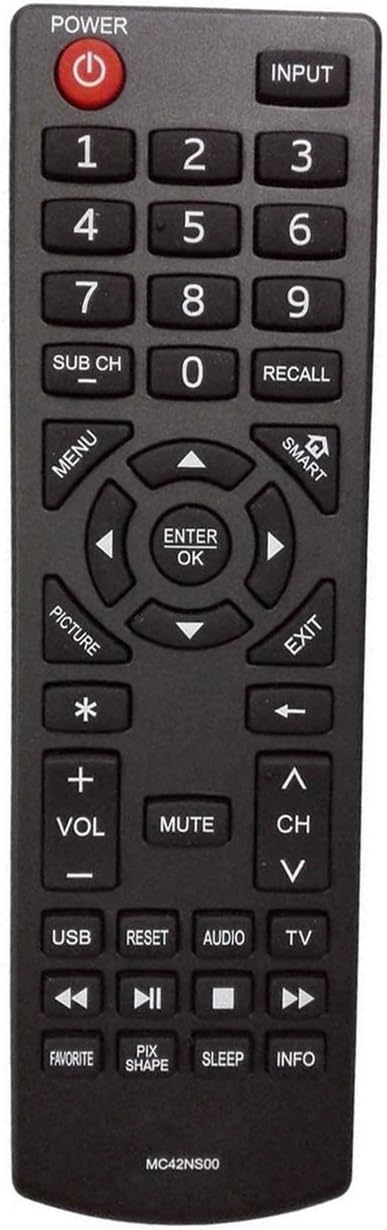
Image: Front and back view of the MC42NS00 remote control, illustrating the location of the battery compartment on the rear.
Operating Instructions
Once batteries are installed, the remote control is ready for immediate use with compatible Sanyo LED LCD HDTVs. Point the remote directly at the television's infrared receiver.

Image: Front view of the MC42NS00 remote control, displaying all buttons and their labels.
Key Functions:
- POWER (①): Turns the television on or off.
- INPUT: Selects the video input source (e.g., HDMI 1, AV, Component).
- Number Buttons (0-9): Directly selects channels.
- VOL +/-: Adjusts the volume level.
- CH +/-: Changes the television channel.
- MUTE: Silences or restores the television's audio.
- MENU: Accesses the television's main menu.
- Navigation Buttons (Up, Down, Left, Right): Navigates through menu options.
- ENTER/OK: Confirms selections within menus.
- EXIT: Exits the current menu or on-screen display.
- SMART: Accesses smart TV features or applications (if supported by your Sanyo TV).
- PICTURE: Adjusts picture settings.
- USB: Switches to USB input mode.
- RESET: Resets certain settings (functionality may vary by TV model).
- AUDIO: Adjusts audio settings or selects audio tracks.
- TV: Switches to TV tuner mode.
- Play/Pause, Stop, Rewind, Fast Forward: Controls media playback (e.g., from USB).
- FAVORITE: Accesses favorite channels list.
- PIX SHAPE: Adjusts picture aspect ratio.
- SLEEP: Sets a sleep timer for the television.
- INFO: Displays information about the current program or input.
Compatible Sanyo TV Models
The Smartby MC42NS00 remote control is compatible with the following Sanyo LED LCD HDTV models:
- DP24E14
- DP39D14
- DP42D24
- DP50E44
- DP55D44
- DP58D34
- DP65E34
- FVD3924
- FVD5044
- FVF5044M
Troubleshooting
If the remote control does not function as expected, consider the following:
- No Response from TV:
- Ensure new batteries are correctly installed with proper polarity.
- Replace old or depleted batteries with fresh ones.
- Check for any obstructions between the remote control and the television's infrared receiver.
- Ensure you are within the effective operating range (up to 10 meters).
- Intermittent Functionality:
- Clean the remote control's infrared emitter and the TV's receiver with a soft, dry cloth.
- Avoid strong light sources (like direct sunlight or bright fluorescent lights) that might interfere with the infrared signal.
Specifications
| Brand | Smartby |
| Model Name | MC42NS00 |
| Connectivity Technology | Infrared |
| Battery Type | 2 x AAA (1.5V) |
| Maximum Range | 10 Meters |
| Button Quantity | 25 |
| Compatible Devices | Television (Sanyo LED LCD HDTV) |
Warranty and Support
For warranty information or technical support, please refer to the product packaging or contact the retailer from whom the product was purchased. Keep your purchase receipt for any warranty claims.