
1. Introduction
This manual provides detailed instructions for the setup, operation, maintenance, and troubleshooting of your Leopold FC750R PD 87-key High-end Mechanical Keyboard. Please read this manual thoroughly before using the product to ensure proper functionality and longevity.
2. Package Contents
Upon opening the package, please verify that all the following items are included:
- Leopold FC750R PD Mechanical Keyboard body
- Keyboard cover
- PS/2 cable
- USB cable (removable type, 1.8m)
- Keycap Puller
- User Manual (this document)
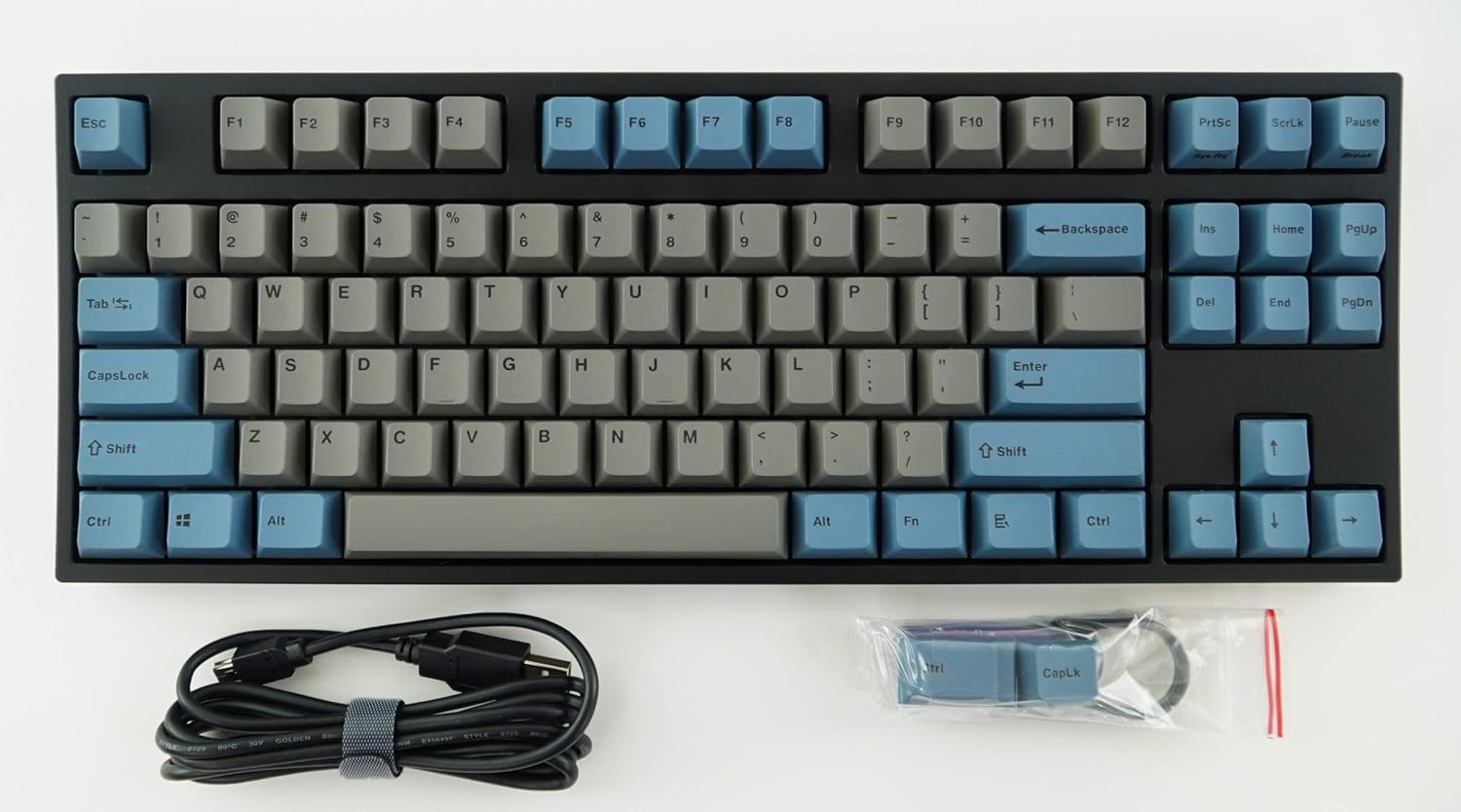
Image: The Leopold FC750R PD Mechanical Keyboard shown with its included accessories, including the USB cable and keycap puller.
3. Setup
Follow these steps to set up your Leopold FC750R PD Mechanical Keyboard:
- Unpack the Keyboard: Carefully remove the keyboard and all accessories from the packaging.
- Connect the Cable: The keyboard supports both USB and PS/2 interfaces.
- For USB connection: Connect the removable USB cable to the port on the back of the keyboard and then to an available USB port on your computer.
- For PS/2 connection: Connect the PS/2 cable to the port on the back of the keyboard and then to the PS/2 keyboard port on your computer.
- Operating System Compatibility: The keyboard is compatible with Microsoft Windows 7, 8, 10, Vista, and XP. No special drivers are typically required for basic functionality.
- Placement: Place the keyboard on a stable, flat surface. You can adjust the keyboard's angle using the flip-out feet located on the underside.

Image: Side view of the Leopold FC750R PD keyboard showing the adjustable feet extended for ergonomic tilt.
4. Operating Instructions
The Leopold FC750R PD is an 87-key mechanical keyboard designed for standard typing and gaming. Its layout is a Tenkeyless (TKL) design, omitting the numeric keypad for a more compact form factor.
4.1. Basic Usage
Once connected, the keyboard should be immediately recognized by your operating system. You can begin typing and using it for all standard computer input tasks.

Image: A full top-down view of the Leopold FC750R PD mechanical keyboard, showcasing its 87-key layout with grey and blue keycaps.
4.2. Function Keys (Fn Combinations)
The keyboard may feature secondary functions accessible via the Fn key. Refer to the keycaps for printed legends indicating these functions (e.g., media controls, volume adjustment, etc.). To activate a secondary function, hold down the Fn key and press the desired function key (F1-F12) or other designated key.

Image: A close-up view of the left side of the Leopold FC750R PD keyboard, highlighting the Esc, F1-F4, Tab, CapsLock, Shift, and Ctrl keys.
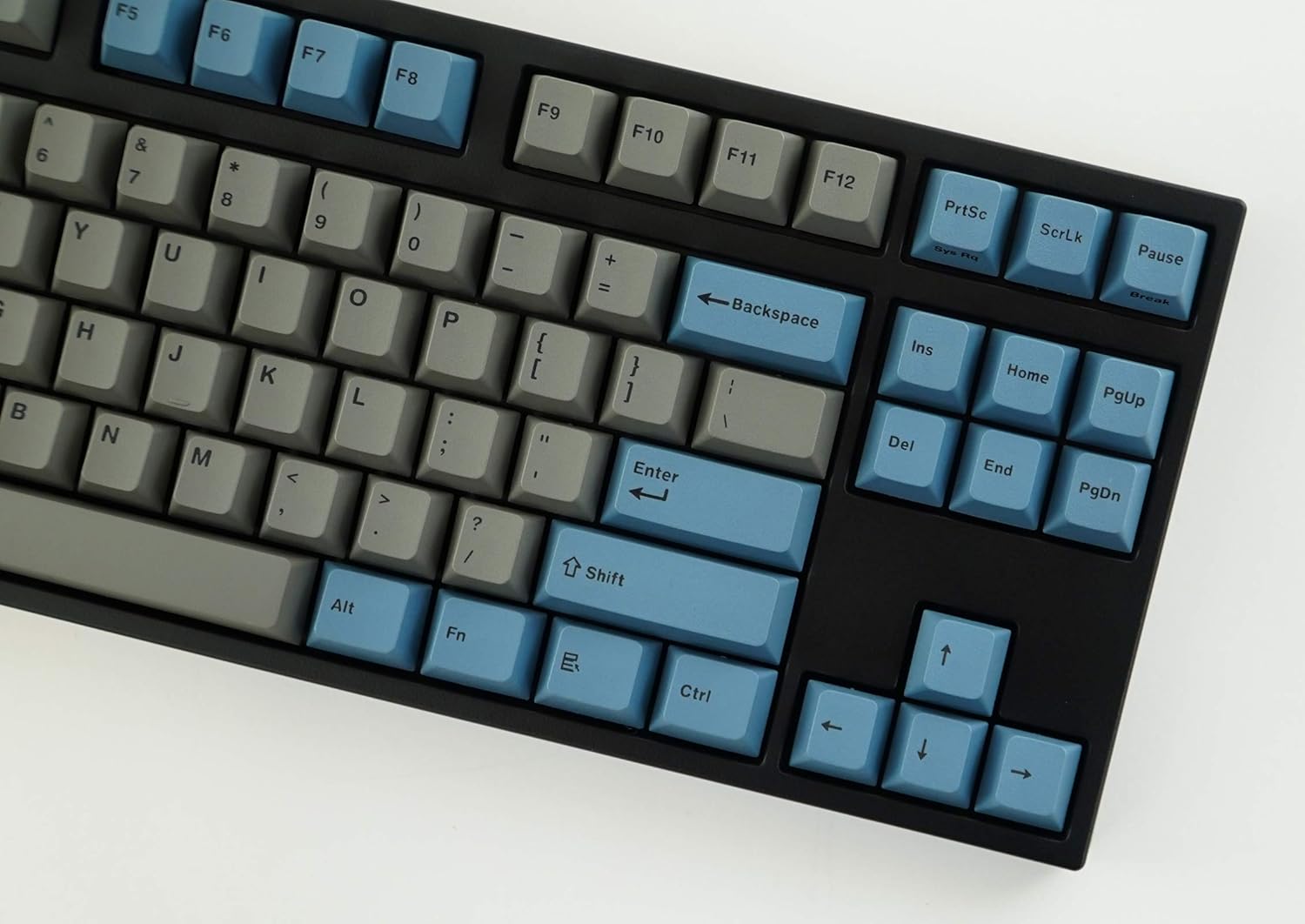
Image: A close-up view of the right side of the Leopold FC750R PD keyboard, showing the Backspace, Enter, Shift, and arrow keys, along with the Insert, Home, Page Up, Delete, End, and Page Down keys.
5. Maintenance
Proper maintenance will extend the lifespan of your mechanical keyboard.
- Cleaning Keycaps: Use a soft, damp cloth to wipe down the keycaps. For deeper cleaning, you can use the included keycap puller to remove keycaps and clean them with mild soap and water. Ensure keycaps are completely dry before reattaching.
- Cleaning the Keyboard Body: Use a soft, dry cloth to wipe dust from the keyboard body. For stubborn dirt, a slightly damp cloth can be used, but avoid excessive moisture.
- Dust Removal: Use compressed air to blow out dust and debris from between the keycaps and switches.
- Avoid Liquids: Do not spill liquids on the keyboard. If a spill occurs, immediately disconnect the keyboard from your computer and allow it to dry completely before reconnecting.
- Storage: When not in use, store the keyboard in a clean, dry environment, ideally using the included keyboard cover to protect it from dust.

Image: A low-angle side profile of the Leopold FC750R PD keyboard, showcasing the keycap profile and the keyboard's sturdy build.
6. Troubleshooting
If you encounter issues with your Leopold FC750R PD keyboard, try the following steps:
- Keyboard Not Responding:
- Ensure the USB or PS/2 cable is securely connected to both the keyboard and the computer.
- Try connecting the keyboard to a different USB or PS/2 port on your computer.
- Test the keyboard on another computer to determine if the issue is with the keyboard or your computer's setup.
- Restart your computer.
- Specific Keys Not Working:
- Check for any physical obstructions under the keycap.
- Carefully remove the keycap using the keycap puller and inspect the switch for any visible damage or debris.
- Input Lag or Disconnections:
- Ensure the cable is not damaged or kinked.
- Avoid connecting the keyboard through unpowered USB hubs; connect directly to the computer if possible.
If the problem persists after trying these steps, please contact Leopold customer support for further assistance.
7. Specifications
| Feature | Detail |
|---|---|
| Model Number | FC750R_EGBPD |
| Switch Brand | Cherry MX (Black Switch) |
| Key Count | 87 keys |
| Key Pitch | 19mm |
| Keystroke | 4 ± 0.5mm |
| Keycap Material | 1.5mm PBT (Polybutylene Terephthalate) |
| Dimensions (L x W x H) | 36.00cm X 14.00cm X 3.30cm (14.17"L x 5.51"W x 1.3"H) |
| Weight | 1kg (2.2 pounds) |
| Cable Length | 1.8m (Removable type) |
| PCB | FR-4 Dual Layer |
| Supported OS | Microsoft Windows 7, 8, 10, Vista, XP |
| Interface | USB & PS/2 |
| Color | Grey/Blue |
8. Warranty and Support
Leopold products are manufactured to high quality standards. For information regarding warranty coverage, please refer to the warranty card included with your product or visit the official Leopold website. For technical support or service inquiries, please contact Leopold customer service through their official channels.
You can visit the Leopold Store on Amazon for more information: Leopold Store
