
Macally ACEBTKEY
Macally Wireless Bluetooth Keyboard User Manual
Model: ACEBTKEY | Brand: Macally
Product Overview
The Macally Wireless Bluetooth Keyboard is designed for seamless connectivity across multiple devices, including Mac and Windows systems. It allows simultaneous connection to up to three Bluetooth devices, enhancing productivity in various environments. This ultra-slim keyboard features 110 keys, including 20 shortcut keys and a numeric keypad, all within a compact design. It is equipped with a long-lasting rechargeable battery for extended wireless use.

Image: Top-down view of the Macally Wireless Bluetooth Keyboard, showcasing its full layout and slim profile.
What's in the Box
- ACEBTKEY Wireless Bluetooth Keyboard
- User Guide
- Charging Cable (USB Micro)
Setup
Charging the Keyboard
Before initial use, fully charge the keyboard. Connect the included USB charging cable to the micro USB port on the right side of the keyboard and the other end to a USB power source (e.g., computer USB port, USB wall adapter). The charging LED indicator will illuminate red while charging and turn green when fully charged.

Image: Close-up of the keyboard's right side, showing the micro USB charging port and the charging indicator light.
Pairing with Devices
The keyboard supports pairing with up to three Bluetooth devices. Follow these steps to pair your keyboard:
- Turn on the keyboard using the On/Off switch located on the top right.
- Press and hold the Fn key and one of the Bluetooth device keys (B1, B2, or B3) for 3-5 seconds until the corresponding Bluetooth indicator light starts blinking rapidly. This indicates pairing mode.
- On your device (Mac, Windows PC, iPad, etc.), go to Bluetooth settings and search for available devices.
- Select "Macally Bluetooth Keyboard" (or similar name) from the list of found devices.
- If prompted, enter the pairing code displayed on your screen using the Macally keyboard and press Enter.
- Once successfully paired, the Bluetooth indicator light on the keyboard will stop blinking and remain solid for a few seconds before turning off.
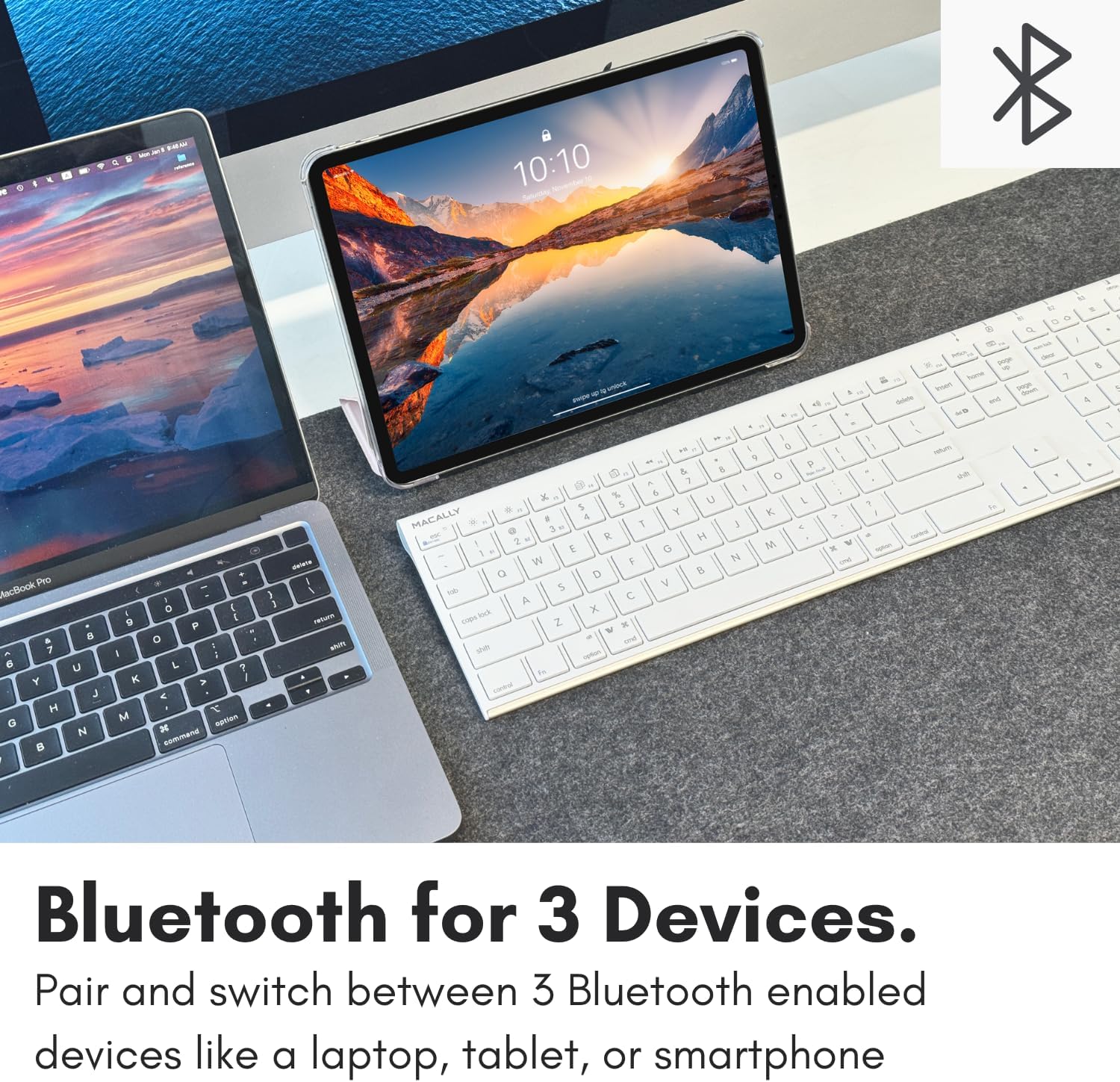
Image: The keyboard highlighting the B1, B2, and B3 keys used for multi-device pairing.
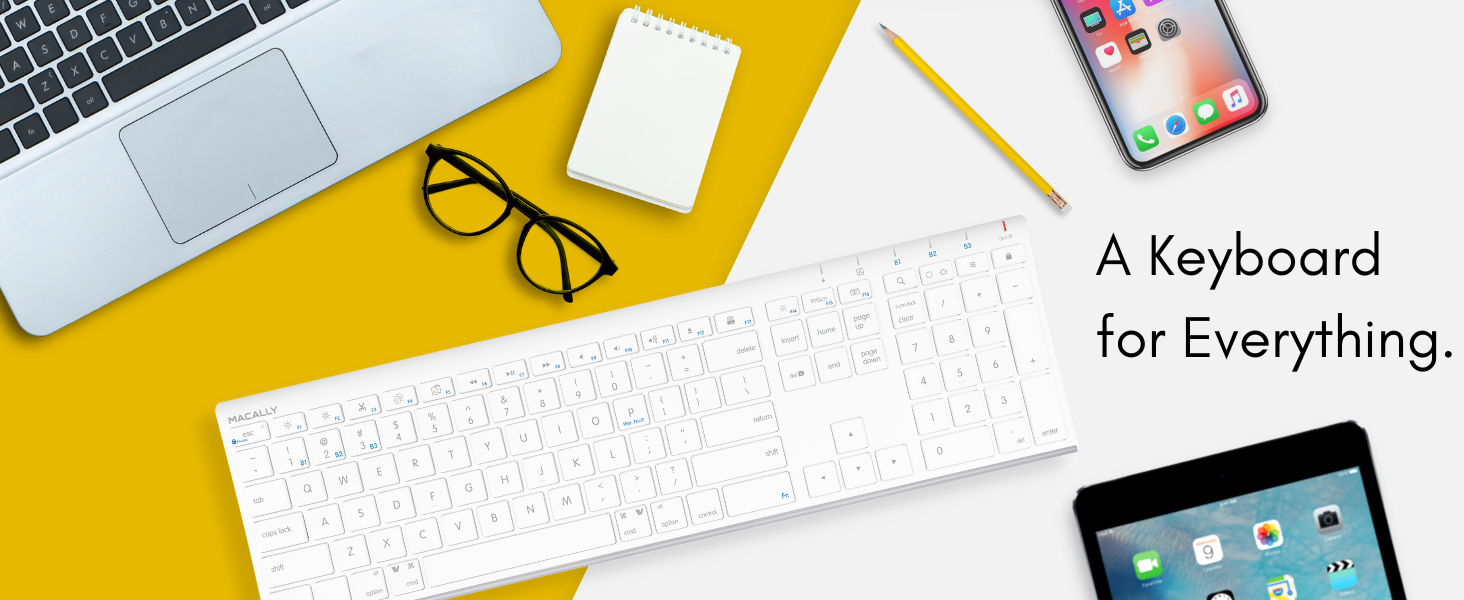
Image: Illustrates the keyboard's multi-sync feature, connecting to a smartphone, desktop computer, and laptop simultaneously.
Initial Setup Video
Video: An official guide demonstrating the initial setup and pairing process for the Macally Wireless Bluetooth Keyboard.
Operating Instructions
Switching Between Devices
To switch between paired devices, simply press and hold the Fn key and the corresponding Bluetooth device key (B1, B2, or B3) for the desired device. The keyboard will connect to the selected device within a few seconds.
Using Shortcut Keys
The keyboard features 20 shortcut keys designed for macOS, enhancing your workflow. These keys provide quick access to functions such as brightness control, mission control, media playback, volume control, and more. Refer to the key labels for specific functions.

Image: The keyboard positioned on a desk, ready for use with an iMac, demonstrating its integration into a workspace.
Fn Lock Function
The keyboard includes an Fn lock function. When activated, the function keys (F1-F12) will perform their standard F-key actions instead of the macOS shortcuts. To toggle the Fn lock, press and hold the Fn key and then press the ESC key. A blue LED light on the top right of the keyboard indicates if the Fn lock is active.
Maintenance
To ensure the longevity and optimal performance of your Macally Wireless Bluetooth Keyboard, follow these maintenance guidelines:
- Keep the keyboard clean by regularly wiping it with a soft, dry cloth.
- Avoid using harsh chemicals, abrasive cleaners, or solvents, as these can damage the surface.
- Do not expose the keyboard to excessive moisture or liquids. In case of spills, immediately disconnect it and allow it to dry completely before reuse.
- Store the keyboard in a cool, dry place when not in use.
- Avoid dropping the keyboard or subjecting it to strong impacts.
Troubleshooting
Keyboard Not Connecting or Disconnecting Randomly
- Ensure the keyboard is fully charged. Low battery can cause connection issues.
- Verify that the keyboard's On/Off switch is in the "On" position.
- Make sure Bluetooth is enabled on your device and the keyboard is within range (typically up to 33 feet or 10 meters).
- Try re-pairing the keyboard. On your device, "forget" or "remove" the keyboard from your Bluetooth device list, then follow the pairing instructions in the "Setup" section.
- If the issue persists, try restarting both the keyboard (turn off and on) and your device.
Function Keys (F1-F12) Not Working as Expected (e.g., media controls)
- Check the Fn lock status. If the blue LED light next to the lock symbol on the top right is on, press and hold Fn and then press ESC to toggle the Fn lock off. This will enable the macOS shortcut functions.

Image: Visual guide for disabling the Fn lock by pressing Fn + ESC, indicated by the lock symbol and blue LED.
Keys Not Responding or Typing Incorrectly
- Ensure the keyboard is properly connected to your device.
- Clean any debris or dust from under the keys.
- On Mac, check System Preferences > Accessibility > Pointer Control and ensure "Enable Mouse Keys" is disabled, as this can interfere with keyboard input.

Image: Guide to disabling "Enable Mouse Keys" in System Preferences to resolve typing issues.
Specifications
| Feature | Detail |
|---|---|
| Model Number | ACEBTKEY |
| Connectivity | Bluetooth |
| Number of Keys | 110 |
| Product Dimensions | 6.5 x 0.98 x 17.1 inches |
| Item Weight | 1.35 pounds |
| Battery Type | Lithium Polymer (rechargeable) |
| Compatible Devices | Apple Mac Pro / Mini, Macbook Air, iMac, Windows PCs, laptops, smartphones, tablets, smart TVs, gaming consoles |
| Manufacturer | Mace Group Inc / Macally Peripherals |

Image: Side view of the keyboard, emphasizing its ultra-slim design of only 0.59 inches.
Warranty and Support
Macally products are designed for durability and performance. For warranty information and technical support, please refer to the official Macally website or contact their customer service directly. Keep your purchase receipt as proof of purchase for any warranty claims.
For further assistance, visit the Macally Store on Amazon.
Related documentsACEBTKEY


Ask a question about this manual
Ask about setup, troubleshooting, compatibility, parts, safety, or missing instructions. Manuals+ will review the question and use this page’s manual context to help answer it.