
1. Introduction
This manual provides essential information for the installation, operation, and maintenance of your SP Silicon Power A55 512GB SATA III 2.5-inch Internal Solid State Drive. Please read these instructions carefully before using the product to ensure optimal performance and longevity.
2. Product Overview
Key Features:
- 3D NAND flash technology for high transfer speeds and enhanced reliability.
- SLC Cache Technology for performance boost and extended lifespan.
- 7mm slim design, compatible with Ultrabooks and ultra-slim notebooks.
- Supports TRIM command, Garbage Collection technology, RAID, and ECC (Error Checking & Correction) for optimized performance and reliability.
What's in the Box:
- 1 x Silicon Power Ace A55 Solid State Drive

Image: SP Silicon Power A55 512GB SATA III 2.5-inch Internal Solid State Drive.
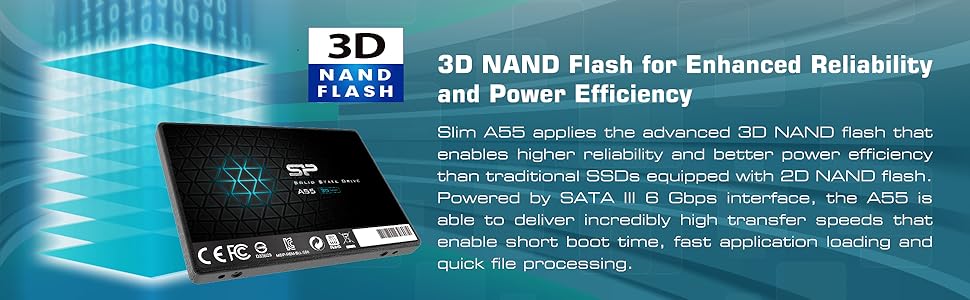
Image: Illustration of 3D NAND Flash technology for enhanced reliability and power efficiency.
3. Setup and Installation
The SP Silicon Power A55 SSD is designed for easy installation in compatible devices such as laptops and desktop computers. Always ensure your device is powered off and disconnected from the power source before beginning installation.
General Installation Steps:
- Prepare Your Device: Power down your computer and remove the battery (for laptops) or unplug the power cable (for desktops).
- Access Drive Bay: Open your computer's casing or drive bay according to its manufacturer's instructions.
- Remove Old Drive (if applicable): Disconnect the SATA data and power cables from your existing hard drive and carefully remove it from the drive bay.
- Install New SSD: Slide the SP Silicon Power A55 SSD into the 2.5-inch drive bay. Secure it with screws if necessary.
- Connect Cables: Connect the SATA data cable and SATA power cable to the SSD.
- Reassemble Device: Close your computer's casing or drive bay.
- BIOS/UEFI Settings: Power on your computer and enter the BIOS/UEFI settings. Ensure the SSD is recognized and set as the primary boot device if you intend to install an operating system on it.
- Operating System Installation: Install your preferred operating system onto the new SSD.
Note: For specific installation instructions tailored to your computer model, please consult your computer's user manual.

Image: SP Silicon Power A55 SSD shown as an affordable upgrade for a laptop.
4. Operating the SSD
Once installed and configured, your SP Silicon Power A55 SSD operates like any other storage drive but with significantly improved performance. The 3D NAND flash and SLC Cache Technology contribute to faster boot-up times, quicker application loading, and overall enhanced system responsiveness.
Performance Benefits:
- Rapid Boot-up: Experience significantly reduced operating system boot times.
- Faster Application Loading: Programs and applications will launch and load data more quickly.
- Improved Multitasking: The SSD's high read/write speeds enhance the system's ability to handle multiple tasks simultaneously without slowdowns.
- Enhanced Gaming: Games will load faster and provide a smoother experience.

Image: Visual representation highlighting the SP Silicon Power A55 SSD's speed, indicating up to 560 MB/s read and 530 MB/s write speeds.
5. Maintenance
To maintain the optimal performance and lifespan of your SP Silicon Power A55 SSD, consider the following maintenance practices:
- TRIM Command: Ensure your operating system has TRIM enabled. TRIM helps the SSD manage its stored data more efficiently, preventing performance degradation over time. Most modern operating systems enable TRIM by default for SSDs.
- Garbage Collection: The SSD's internal firmware automatically performs Garbage Collection to optimize data storage. This process runs in the background and does not typically require user intervention.
- ECC (Error Checking & Correction): The A55 SSD incorporates ECC technology to detect and correct internal data errors, ensuring data integrity and reliability.
- SP Toolbox Software: Silicon Power offers a free SSD health monitor tool, SP Toolbox Software. This tool allows you to monitor the SSD's health status, perform performance tests, and check detailed information such as used space, temperature, total bytes written, and S.M.A.R.T. status. You can download this software from the SP official website.
- Avoid Full Capacity: While the drive offers full capacity, it is recommended to avoid filling the SSD to its absolute maximum. Leaving some free space (e.g., 10-15%) can help maintain performance and extend its lifespan.
6. Troubleshooting
If you encounter issues with your SP Silicon Power A55 SSD, consider the following common troubleshooting steps:
- SSD Not Detected:
- Check all SATA data and power cable connections to ensure they are secure.
- Verify that the SSD is properly seated in the drive bay.
- Enter your computer's BIOS/UEFI settings to confirm the SSD is recognized. Ensure SATA ports are enabled.
- Try connecting the SSD to a different SATA port or using different cables.
- If it's a new SSD, it might need to be initialized and formatted in Disk Management (Windows) or Disk Utility (macOS).
- Slow Performance:
- Ensure TRIM is enabled on your operating system.
- Check if the SSD is nearly full. Free up some space if it is.
- Verify that your SATA controller drivers are up to date.
- Ensure your motherboard's SATA port is operating at SATA III (6Gb/s) speed.
- Run the SP Toolbox software to check the SSD's health and performance.
- Operating System Errors/Crashes:
- Perform a clean installation of your operating system.
- Check for any conflicting software or drivers.
- Run diagnostic tools (e.g., Windows Check Disk, SP Toolbox) to check for drive errors.
If these steps do not resolve your issue, please contact SP Silicon Power customer support for further assistance.
7. Specifications
| Feature | Detail |
|---|---|
| Model Number | SP512GBSS3A55S25 |
| Digital Storage Capacity | 512 GB |
| Hard Disk Interface | Solid State |
| Connectivity Technology | SATA |
| Brand | SP Silicon Power |
| Special Features | SLC Cache Technology, TRIM Support, Garbage Collection, RAID Support |
| Hard Disk Form Factor | 2.5 Inches |
| Compatible Devices | Laptop |
| Installation Type | Internal Hard Drive |
| Read Speed | 500 Megabytes Per Second (up to 560 MB/s advertised) |
| Data Transfer Rate | 6 Gigabits Per Second |
| Item Weight | 50 Grams |
| Item Dimensions (L x W x Th) | 3.94"L x 2.75"W x 0.28"Th |
| Material | 3D NAND Flash |
8. Warranty and Support
Warranty Information:
Your SP Silicon Power A55 SSD comes with a 3-year limited warranty. To receive complete manufacturer warranty services, product support, and other benefits, please register your product via the official SP Silicon Power website.
Customer Support:
For technical assistance, warranty claims, or any product-related inquiries, please visit the official SP Silicon Power website or contact their customer support directly. You can find more information and support resources at: www.silicon-power.com