
1. Introduction
The Moxa EDS-408A is an 8-port entry-level managed Ethernet switch designed for industrial applications. It features eight 10/100 BaseTx ports and supports advanced network management functions such as Port Base VLAN and Quality of Service (QoS). This manual provides detailed instructions for the installation, operation, maintenance, and troubleshooting of the EDS-408A switch, ensuring reliable performance in demanding environments.
2. Product Features
- Network Redundancy: Supports Turbo Ring and Turbo Chain with a recovery time of less than 20 ms for up to 250 switches, along with RSTP/STP for enhanced network reliability.
- Advanced Network Management: Features IGMP Snooping, QoS, IEEE 802.1Q VLAN, and port-based VLAN capabilities to optimize network traffic and performance.
- Flexible Management Interfaces: Easy network management via web browser, Command Line Interface (CLI), Telnet/serial console, Windows utility, and ABC-01.
- Industrial Protocol Support: PROFINET or EtherNet/IP enabled by default (for PN or EIP models), facilitating integration into industrial automation systems.
- Visualized Network Management: Compatible with MXstudio for easy and visualized industrial network management.
3. Package Contents
Please verify that your package contains the following items:
- Moxa EDS-408A Managed Ethernet Switch
- Quick Installation Guide
- Terminal block for power input
- Wall mounting kit
- Warranty card
If any of these items are missing or damaged, please contact your sales representative for assistance.
4. Hardware Overview

Figure 1: Front view of the Moxa EDS-408A Managed Ethernet Switch, showing the 8 Ethernet ports, power inputs, and status LEDs.
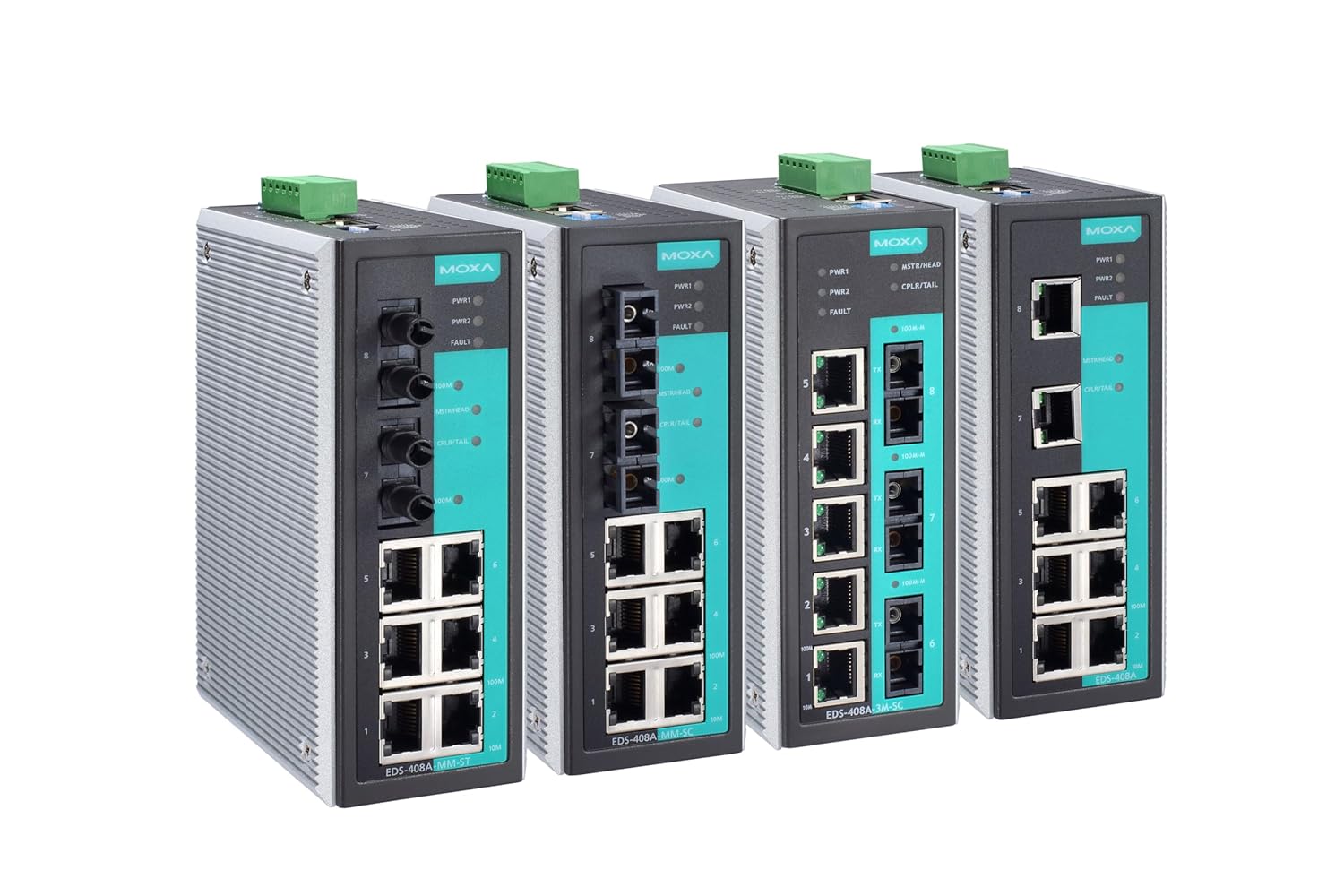
Figure 2: A lineup of multiple Moxa EDS-408A Managed Ethernet Switches, illustrating their compact industrial design and various port configurations.
4.1 Front Panel Layout
- Ethernet Ports (1-8): 10/100BaseT(X) auto-sensing RJ45 ports.
- PWR1/PWR2 LEDs: Indicate the status of the primary and secondary power inputs.
- FAULT LED: Illuminates to indicate a system fault or alarm condition.
- MSTR/HEAD LED: Indicates the switch's role in a redundant ring topology.
- CPLR/TAIL LED: Indicates the switch's role as a coupler or tail in a redundant ring.
4.2 Rear Panel Layout
- Terminal Block: For redundant DC power input.
- Grounding Screw: For proper grounding of the device.
5. Setup
5.1 Mounting the Switch
The EDS-408A can be mounted on a DIN-rail or wall-mounted using the provided kit.
- DIN-Rail Mounting: Attach the DIN-rail mounting plate to the rear of the switch. Hook the top of the plate over the DIN-rail and push the bottom until it clicks into place.
- Wall Mounting: Secure the wall mounting plates to the sides of the switch. Use appropriate screws to fasten the switch to a sturdy wall surface.
5.2 Power Connection
The EDS-408A supports redundant DC power inputs. Connect your power sources to the terminal block on the rear panel. Ensure the voltage is within the specified range (e.g., 12-48 VDC) and observe correct polarity. Secure the terminal block to the switch.
5.3 Network Connection
Connect Ethernet cables from your network devices (e.g., PCs, servers, other switches) to the RJ45 ports on the front panel of the EDS-408A. The ports support 10/100 Mbps speeds and auto-negotiation.
6. Operating Instructions
6.1 Initial Configuration
The EDS-408A can be configured via a web browser, CLI, or Moxa's Windows utility.
- Web-based Management: Connect a PC to any Ethernet port on the switch. Configure your PC's IP address to be in the same subnet as the switch's default IP address (refer to the Quick Installation Guide for default IP). Open a web browser and enter the switch's IP address. Log in using the default credentials.
- CLI (Console/Telnet): Connect a console cable to the switch's console port (if available) or use Telnet to access the command-line interface for advanced configuration.
6.2 Basic Network Settings
Once logged in, you can configure various network settings:
- IP Address: Change the switch's IP address to match your network's addressing scheme.
- VLAN Configuration: Create and assign VLANs to ports to segment your network.
- QoS Settings: Prioritize critical traffic using QoS settings to ensure optimal performance for sensitive applications.
- Redundancy Protocols: Configure Turbo Ring, Turbo Chain, RSTP, or STP for network redundancy.
7. Maintenance
7.1 Cleaning
Regularly clean the exterior of the switch with a soft, dry cloth. Do not use liquid or aerosol cleaners. Ensure the device is powered off before cleaning.
7.2 Firmware Updates
Periodically check the Moxa website for firmware updates. Keeping the firmware up-to-date ensures optimal performance, security, and access to new features. Follow the instructions provided with the firmware update package carefully.
7.3 Backup Configuration
It is recommended to regularly back up the switch's configuration settings. This allows for quick restoration in case of a device replacement or accidental configuration changes.
8. Troubleshooting
This section addresses common issues you might encounter with the EDS-408A switch.
- No Power: Ensure both power inputs are correctly connected and receiving power. Check the PWR1/PWR2 LEDs. If they are off, verify the power source and cabling.
- No Link on Port: Verify the Ethernet cable connection between the switch and the connected device. Check the link/activity LED on the port. Ensure the connected device is powered on and functioning correctly.
- Cannot Access Web Interface: Confirm your PC's IP address is in the same subnet as the switch. Try pinging the switch's IP address. If unsuccessful, reset the switch to factory defaults (refer to the Quick Installation Guide for reset procedure).
- Network Performance Issues: Check QoS settings to ensure critical traffic is prioritized. Verify VLAN configurations to prevent broadcast storms. Inspect cable quality and length.
- FAULT LED On: This indicates a system fault. Check the system logs via the web interface or CLI for specific error messages. Common faults include power supply issues or network redundancy failures.
If you are unable to resolve an issue, please contact Moxa technical support.
9. Technical Specifications
| Attribute | Specification |
|---|---|
| Brand | Moxa |
| Model | EDS-408A |
| Number of Ports | 8 |
| Ethernet Ports | 8 x 10/100BaseT(X) (RJ45) |
| Color | Black |
| Compatible Devices | Desktop |
| Item Weight | 1.08 Kilograms |
| Operating Temperature | 0 to 60°C (32 to 140°F) |
| Power Input | Redundant 12/24/48 VDC (range may vary by specific model) |
| Management | Web, CLI, Telnet, Windows utility, ABC-01, MXstudio |
| Redundancy | Turbo Ring, Turbo Chain, RSTP/STP |
| VLAN | IEEE 802.1Q VLAN, Port-based VLAN |
| QoS | Supported |
10. Warranty and Support
The Moxa EDS-408A switch comes with a standard manufacturer's warranty. Please refer to the warranty card included in your package or visit the official Moxa website for detailed warranty terms and conditions.
For technical support, product inquiries, or service requests, please contact Moxa's customer support team through their official website or the contact information provided in your product documentation. When contacting support, please have your product model and serial number ready.


