
Introduction
The 3nStar SC100 Laser Handheld Barcode Scanner is designed to provide efficient and reliable scanning of linear (1D) barcodes. Its robust design and superior scan performance make it suitable for a wide range of applications, particularly in Point of Sale (POS) environments. The SC100 minimizes the need for extensive user training through its intuitive operation and automatic configuration capabilities. Its integrated rubber co-mold provides protection against accidental drops, ensuring durability and reducing service costs.
Product Overview
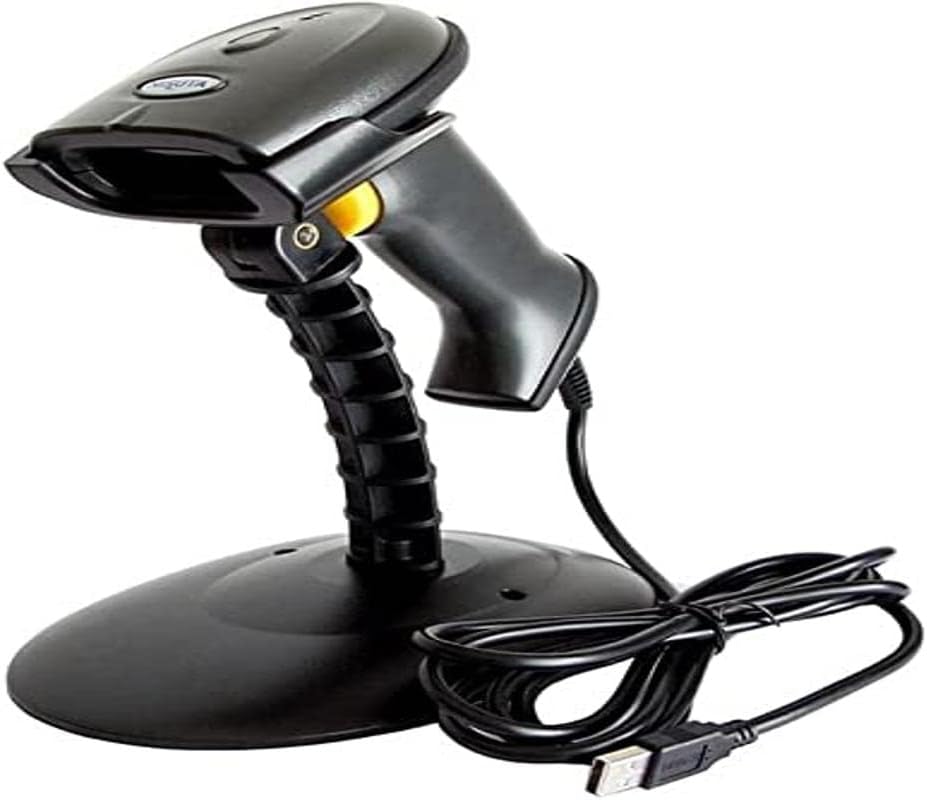
An image showing the 3nStar SC100 Laser Handheld Barcode Scanner. The scanner is black, with a yellow trigger button, and is mounted on a black, flexible stand. A coiled black USB cable is visible next to the base of the stand.
Key Features
- Outstanding Scan Performance: Provides a reliable linear scanning solution, minimizing manual data entry.
- Out-of-Box Experience: Simplifies setup with automatic detection, configuration, and interface recognition.
- Depth of Field: Effective scanning range of 0-280mm (for 0.33mm PCS0.9 barcodes).
- Antiknock Design: Engineered to withstand drops from up to 1.5 meters (5 feet).
Package Contents
Please verify that all items are present in the package:
- 3nStar SC100 Barcode Scanner
- Adjustable Scanner Stand
- USB Cable (Type A)
- User Manual (this document)
Setup
- Connect the USB Cable: Insert the smaller end of the USB cable into the port at the base of the scanner handle. Insert the larger USB Type A end into an available USB port on your computer (Laptop or Desktop).
- Power On: The scanner will typically power on automatically once connected to a powered USB port. A beep or indicator light may confirm successful connection.
- Install the Stand (Optional): If using the stand, securely place the scanner into the cradle on the stand. Adjust the angle of the scanner on the stand for optimal scanning position.
- Driver Installation: The SC100 is a plug-and-play device and generally does not require specific driver installation for most operating systems. It will be recognized as a standard HID keyboard device.
Operating Instructions
Scanning Barcodes
- Handheld Mode: Hold the scanner with the scanning window facing the barcode. Press and hold the yellow trigger button to activate the laser. Aim the laser beam across the entire barcode. A successful scan will be indicated by a beep and/or a green light.
- Autosense Mode (Hands-Free): When placed on its stand, the SC100 can operate in autosense mode. The scanner will automatically detect a barcode placed within its scanning field and activate the laser to read it without requiring the trigger button to be pressed.
Integration with POS Systems
The 3nStar SC100 functions as a keyboard wedge device, meaning it inputs scanned data directly as if it were typed on a keyboard. This allows for seamless integration with various Point of Sale (POS) software and applications, including:
- pcAmerica
- Aldelo
- Quickbooks
- And other applications that accept keyboard input for barcode data.
Simply place your cursor in the desired input field within your software, and scan the barcode. The data will appear automatically.
Maintenance
- Cleaning: Use a soft, lint-free cloth slightly dampened with water or a mild, non-abrasive cleaner to wipe the scanner's exterior, especially the scanning window. Do not use harsh chemicals or abrasive materials.
- Handling: While designed to be durable, avoid dropping the scanner from excessive heights or subjecting it to severe impacts. Keep the scanning window clear of scratches and debris.
- Storage: Store the scanner in a clean, dry environment away from extreme temperatures and direct sunlight when not in use.
Troubleshooting
| Problem | Possible Cause | Solution |
|---|---|---|
| Scanner does not power on. | USB cable not properly connected or USB port not providing power. | Ensure the USB cable is securely connected to both the scanner and the computer. Try a different USB port or computer. |
| Scanner does not read barcodes. | Barcode damaged, incorrect scanning angle, or scanner not configured for barcode type. | Ensure the barcode is clear and undamaged. Adjust the scanning angle and distance. Refer to the full programming manual (if available) for advanced configuration. |
| Scanned data appears incorrectly. | Keyboard layout mismatch or software issue. | Ensure your computer's keyboard layout matches the scanner's default (usually US English). Check your POS software settings. |
| Scanner beeps but no data appears. | No active input field in software or software not recognizing input. | Click into a text field in your application (e.g., notepad, POS software) before scanning. Restart the application or computer. |
Specifications
| Feature | Detail |
|---|---|
| Model Number | SC100 |
| Product Dimensions | 2.68 x 6.69 x 3.86 inches |
| Item Weight | 4.5 ounces |
| Connectivity Technology | USB Cable |
| Power Source | USB Type A 5V |
| Compatible Devices | Laptop, Desktop |
| Scan Rate | 300 scans per second |
| Depth of Field | 0-280mm (0.33mm PCS0.9) |
| Drop Resistance | Withstands 1.5 m (5 ft.) drops |
Warranty and Support
For warranty information and technical support, please refer to the documentation provided with your purchase or visit the official 3nStar website. Keep your proof of purchase for warranty claims.
For further assistance, you may contact 3nStar customer support through their official channels.


