
Moxa NPort 5450
MOXA NPort 5450 Serial Device Server User Manual
Model: NPort 5450
1. Introduction
The MOXA NPort 5450 is a 4-port serial device server designed to connect serial devices to an Ethernet network. It supports RS-232, RS-422, and RS-485 serial interfaces, allowing for versatile integration of various industrial and commercial serial equipment into an IP-based network. This manual provides comprehensive instructions for the installation, configuration, operation, and maintenance of your NPort 5450 device server.
Key features include 10/100M auto-sensing Ethernet, built-in 15 KV ESD surge protection for all serial signals, and versatile socket operation modes such as TCP Server, TCP Client, UDP, and Real COM. Configuration can be performed via Web console, Telnet console, or a Windows utility.
2. Product Features
- 10/100M auto-sensing Ethernet connectivity.
- Four serial ports, supporting RS-232, RS-422, and RS-485 standards.
- Integrated 15 KV ESD surge protection for all serial signals, enhancing reliability.
- Multiple socket operation modes: TCP Server, TCP Client, UDP, and Real COM.
- SNMP MIB-II support for network management.
- Flexible configuration options: Web console, Telnet console, and Windows utility.
3. Hardware Description
The NPort 5450 features a robust design with clearly labeled ports and indicators for easy setup and monitoring.

Figure 3.1: Front angled view of the MOXA NPort 5450, showing the display, control buttons, and serial ports.

Figure 3.2: Top view of the MOXA NPort 5450, highlighting the Ready, Ethernet, and Port (P1-P4) LED indicators, along with the MENU, arrow, and SEL buttons.
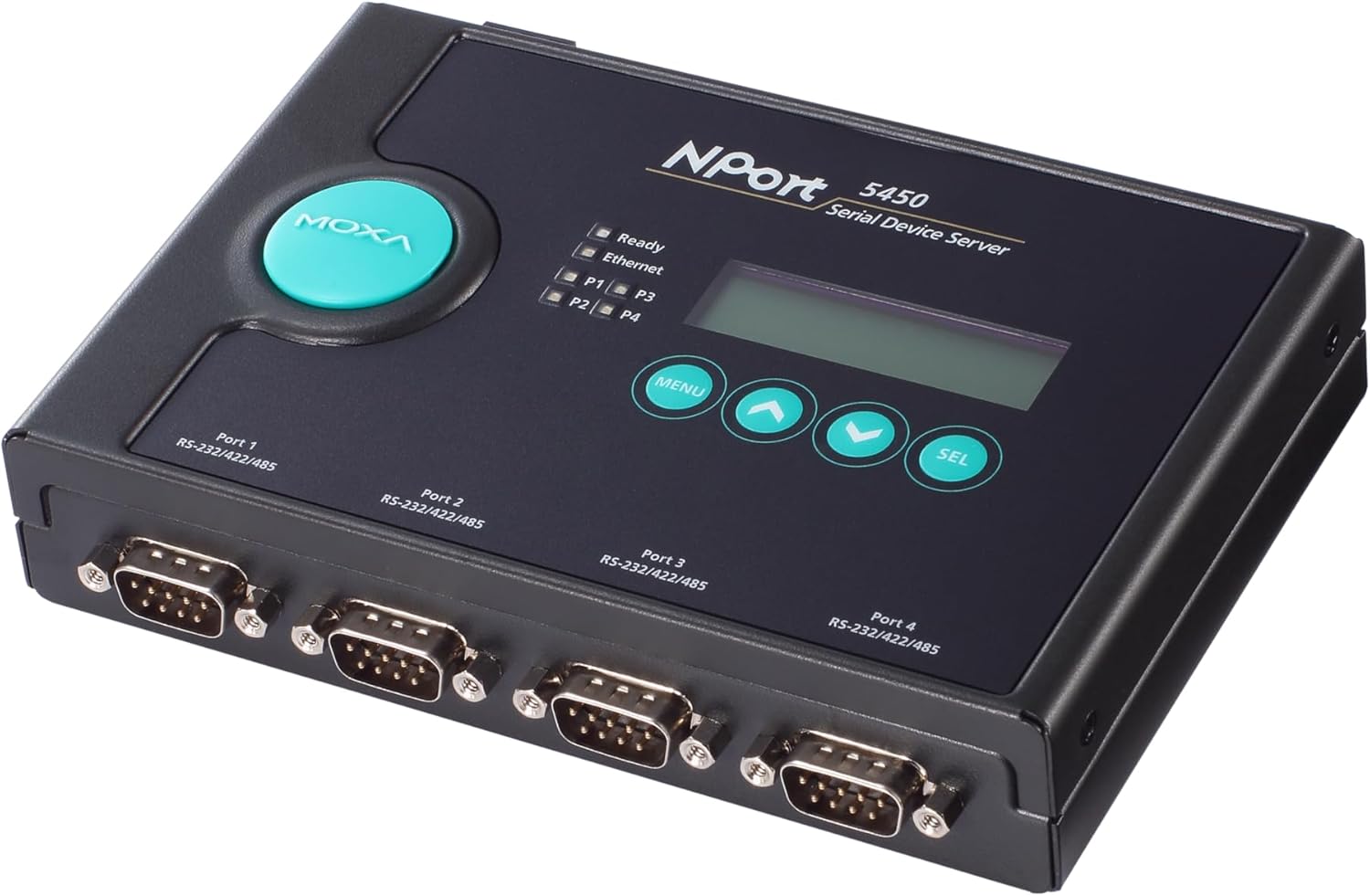
Figure 3.3: Rear angled view of the MOXA NPort 5450, clearly showing the four DB-9 serial ports (Port 1 to Port 4) and their RS-232/422/485 compatibility.
3.1. Front Panel
- LED Indicators:
- Ready: Indicates device operational status.
- Ethernet: Indicates Ethernet link and activity.
- P1-P4: Indicate activity for each serial port.
- LCD Display: Shows device status and configuration menus.
- Control Buttons (MENU, Arrows, SEL): Used for navigating and selecting options on the LCD display.
3.2. Rear Panel
- Serial Ports (DB-9): Four ports (Port 1 to Port 4) supporting RS-232, RS-422, and RS-485.
- Ethernet Port (RJ45): 10/100BaseT(X) auto-sensing Ethernet connection.
- Power Input: DC power jack for connecting the included 110V adapter.
4. Setup and Installation
Follow these steps to set up your NPort 5450 device server.
4.1. Package Contents
Verify that your package contains the following items:
- MOXA NPort 5450 4-Port Device Server
- 110V Power Adapter
- Quick Installation Guide (refer to manufacturer's website for full manual)
- Warranty Card
If any items are missing or damaged, please contact your vendor immediately.
4.2. Hardware Installation
- Mounting: Place the NPort 5450 on a stable, flat surface or mount it using appropriate mounting kits (sold separately) if required for your application. Ensure adequate ventilation around the device.
- Connect Ethernet Cable: Connect a standard RJ45 Ethernet cable from your network switch or router to the Ethernet port on the rear panel of the NPort 5450.
- Connect Serial Devices: Connect your serial devices (e.g., PLCs, sensors, barcode scanners) to the DB-9 serial ports (Port 1-4) on the NPort 5450. Ensure correct pin assignments for RS-232, RS-422, or RS-485 as per your device's requirements.
- Connect Power: Plug the 110V power adapter into the power input jack on the NPort 5450, then plug the adapter into a suitable power outlet. The device will power on automatically.
Note: Always ensure power is disconnected before connecting or disconnecting serial cables to prevent potential damage from electrical surges.
5. Operating Instructions
The NPort 5450 offers several methods for configuration and operation.
5.1. Initial Configuration
For initial setup, it is recommended to use the Windows utility or the Web console.
- Windows Utility: Download the latest NPort Windows utility from the Moxa official website. This utility can automatically discover NPort devices on your local network and allow for easy configuration of IP settings, serial port parameters, and operation modes.
- Web Console: If the NPort 5450 has a default or known IP address, you can access its web-based configuration interface by entering the IP address into a web browser. The default IP address is typically 192.168.127.254.
- Telnet Console: For command-line based configuration, you can Telnet to the NPort's IP address. This method is generally used by advanced users.
5.2. Basic Operation Modes
The NPort 5450 supports various operation modes to suit different application needs:
- Real COM Mode: This mode allows Windows/Linux hosts to access serial devices connected to the NPort as if they were local COM ports. This requires installing Moxa's Real COM driver on the host PC.
- TCP Server Mode: The NPort listens for incoming TCP connections from host applications. When a connection is established, data is transparently exchanged between the serial device and the TCP client.
- TCP Client Mode: The NPort actively initiates a TCP connection to a specified host IP address and port. This is useful for connecting to centralized servers.
- UDP Mode: Data is transmitted using UDP packets, which is connectionless and suitable for applications where speed is critical and some data loss is acceptable.
Refer to the detailed NPort 5450 user manual (available on Moxa's website) for in-depth configuration of each operation mode and advanced settings.
6. Maintenance
Regular maintenance ensures the longevity and optimal performance of your NPort 5450.
- Firmware Updates: Periodically check the Moxa website for firmware updates. Firmware updates can provide new features, performance improvements, and bug fixes. Follow the instructions provided by Moxa for safe firmware upgrades.
- Cleaning: Keep the device clean and free from dust. Use a soft, dry cloth to wipe the exterior. Do not use liquid cleaners or aerosols.
- Environmental Conditions: Ensure the device operates within its specified temperature and humidity ranges to prevent damage. Avoid exposing the device to direct sunlight or extreme temperatures.
7. Troubleshooting
This section provides solutions to common issues you might encounter with your NPort 5450.
7.1. LED Indicator Status
| Indicator | Status | Description / Action |
|---|---|---|
| Ready | Off | Device is not powered on or is faulty. Check power connection. |
| Ready | Solid Green | Device is powered on and operating normally. |
| Ethernet | Off | No Ethernet link. Check Ethernet cable connection and network device. |
| Ethernet | Solid Green | Ethernet link established. |
| Ethernet | Blinking Green | Ethernet data activity. |
| P1-P4 | Off | No serial data activity on the port. |
| P1-P4 | Blinking Green | Serial data activity on the port. |
7.2. Common Issues
- Cannot connect to NPort via network:
- Verify Ethernet cable connection.
- Check network settings (IP address, subnet mask, gateway) of the NPort and your PC. Ensure they are on the same subnet or properly routed.
- Temporarily disable firewall on your PC to rule out blocking issues.
- Use the NPort Windows utility to discover the device's IP address.
- Serial device not communicating:
- Verify serial cable connection and pinout (RS-232, RS-422, RS-485).
- Check serial port settings on the NPort (baud rate, data bits, parity, stop bits, flow control) match the connected serial device.
- Ensure the NPort's operation mode (e.g., Real COM, TCP Server) is correctly configured for your application.
- Check the Px LED for activity. If no blinking, there's no data flow.
For more detailed troubleshooting, refer to the full NPort 5450 user manual on the Moxa support website or contact Moxa technical support.
8. Specifications
| Feature | Specification |
|---|---|
| Model Number | NPort 5450 |
| Ethernet | 10/100BaseT(X) auto-sensing |
| Serial Ports | 4 (DB-9 male) |
| Serial Standards | RS-232, RS-422, RS-485 |
| ESD Protection | 15 KV for all serial signals |
| Configuration Methods | Web console, Telnet console, Windows utility |
| Power Input | 110V AC (via included adapter) |
| Package Dimensions | 15 x 6.73 x 3.58 inches |
| Item Weight | 2.27 pounds |
| Manufacturer | Moxa Inc. |
| Date First Available | January 12, 2018 |
9. Support and Warranty Information
For technical support, detailed documentation, drivers, and firmware updates, please visit the official Moxa website. You can find comprehensive user manuals, FAQs, and contact information for customer service.
Website: www.moxa.com
Information regarding the product warranty is typically provided with the purchase documentation or can be found on the Moxa website. Please retain your proof of purchase for warranty claims.
Related documentsNPort 5450


Ask a question about this manual
Ask about setup, troubleshooting, compatibility, parts, safety, or missing instructions. Manuals+ will review the question and use this page’s manual context to help answer it.