
Product Overview
The JARLINK CA015H 2-in-1 Vertical Laptop Stand is designed to optimize your desktop space by securely holding a laptop, tablet, phone, and pen simultaneously. Constructed from durable aluminum, this stand provides a stable and organized solution for various devices.
Key features include:
- Space-Efficient 2-in-1 Design: Cradles a laptop/pad, phone, and pen, utilizing vertical space for a tidy workspace.
- Adjustable Width: Accommodates various device thicknesses from 0.9 inches to 2.8 inches.
- Non-Slip, Scratch-Resistant Build: Features silicone mats to protect devices and surfaces.
- Robust and Durable Material: Made from anodized aluminum for long-lasting protection.
Setup and Adjustment
The JARLINK CA015H stand features an adjustable dock to fit various laptop and device sizes. Follow these steps to adjust the width:
- Locate the Adjustment Screws: Turn the stand upside down. You will find adjustment screws on the underside of the stand.
- Use the Included Wrench: Insert the provided Allen key (wrench) into the adjustment screws.
- Adjust the Width: Rotate the wrench to loosen or tighten the screws, allowing the two vertical sections to move closer or further apart. Adjust the width to securely hold your device. The adjustable range is from 0.9 inches to 2.8 inches.
- Secure the Adjustment: Once the desired width is achieved, tighten the screws firmly to lock the position.
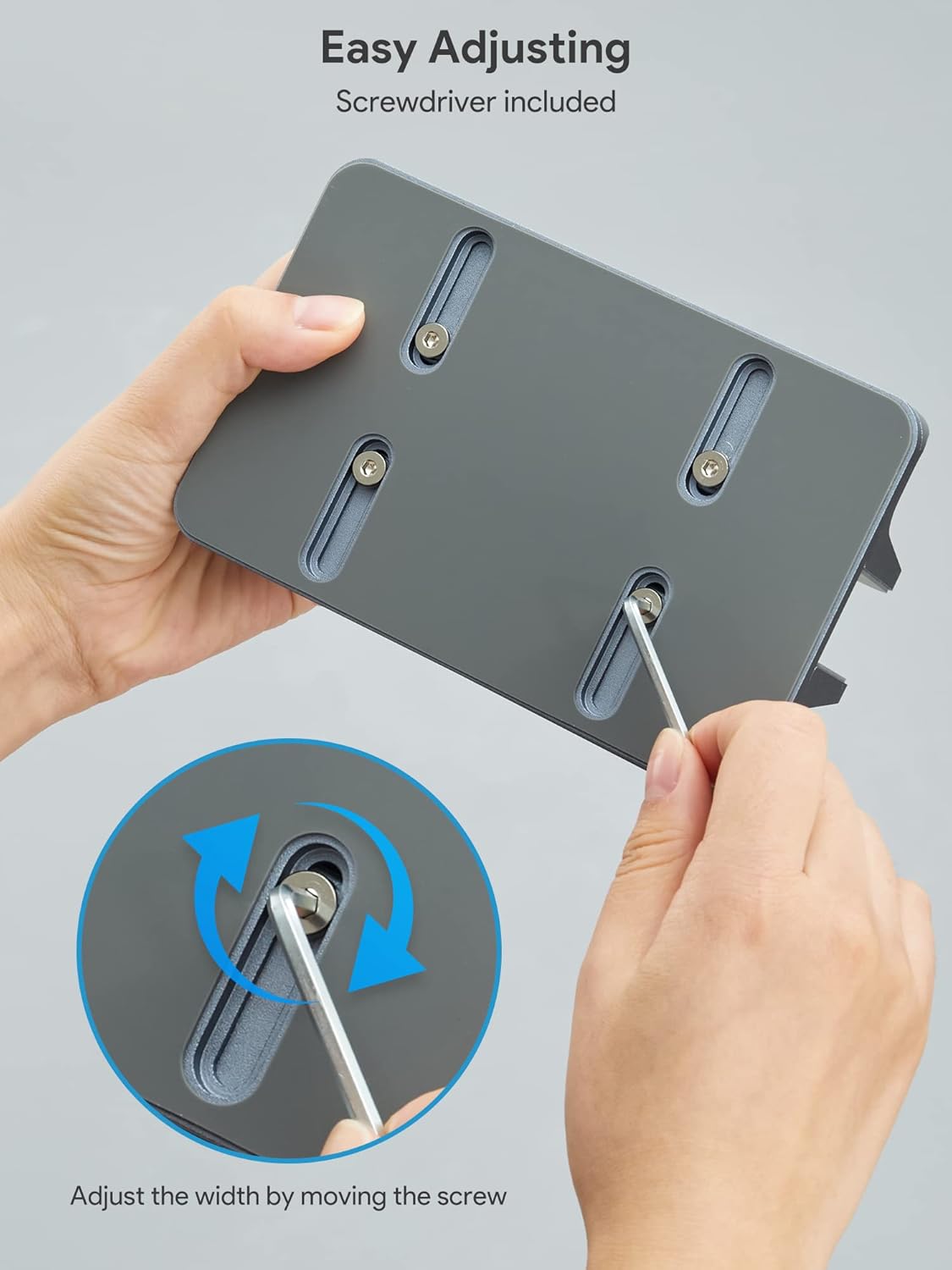
Figure 1: Adjusting the stand's width with the included Allen key.

Figure 2: Visual representation of the adjustable width range.
Operating Instructions
This stand is designed for vertical storage of various devices, helping to save desk space and improve airflow for better heat dissipation.
Placing Your Devices
- Laptop Slot: After adjusting the width, carefully slide your laptop into the main vertical slot. Ensure it sits securely and is stable.
- Additional Slots: The stand includes additional slots for a phone, tablet, or pen. Place these devices into the designated smaller slots.

Figure 3: Example of a laptop and phone placed in the stand for space-saving.
Compatibility
The adjustable design ensures compatibility with a wide range of devices, including but not limited to:
- MacBook Pro/Air
- Microsoft Surface
- Dell, Samsung, Lenovo, Acer, Sony, Asus XPS, HP ENVY Series laptops
- iPads, iPhones, and other smartphones/tablets

Figure 4: The stand's wide compatibility with various electronic devices.
Heat Dissipation
Storing your laptop vertically in the stand allows for improved airflow around the device, which can contribute to better heat dissipation, especially when connected to external monitors and peripherals in a closed-clamshell mode.

Figure 5: Illustration of enhanced heat dissipation when using the vertical stand.
Protection Features
The stand is equipped with non-slip silicone mats on the interior of the slots and on the base. These mats protect your devices from scratches and prevent the stand from sliding on your desk surface, ensuring stability and security.

Figure 6: Detail of the scratch-resistant silicone padding.
Maintenance
To ensure the longevity and appearance of your JARLINK Vertical Laptop Stand, follow these simple maintenance guidelines:
- Cleaning: Wipe the aluminum surfaces with a soft, damp cloth. Avoid abrasive cleaners or solvents that could damage the finish.
- Silicone Pads: Periodically check the silicone pads for dust or debris. Clean them gently with a damp cloth to maintain their non-slip properties.
- Inspection: Regularly inspect the adjustment screws to ensure they remain tight and secure. Re-tighten with the Allen key if necessary.
Troubleshooting
If you encounter any issues with your JARLINK Vertical Laptop Stand, consider the following common solutions:
- Device Not Fitting: Ensure the stand's width is correctly adjusted for your device. Use the included Allen key to widen or narrow the slot as needed. The adjustable range is 0.9 to 2.8 inches.
- Stand Instability: Verify that the adjustment screws are fully tightened. Ensure the stand is placed on a flat, stable surface.
- Scratches on Device: Confirm that the silicone protective pads are properly in place within the slots. If pads are missing or damaged, contact customer support.
For further assistance, please refer to the Warranty and Support section.
Specifications
| Feature | Detail |
|---|---|
| Model Number | CA015H |
| Product Dimensions | 7 x 4 x 2 inches |
| Item Weight | 1.3 pounds |
| Material | Anodized Aluminum, Non-toxic Silicone |
| Adjustable Width Range | 0.9 inches to 2.8 inches |
| Color | Gray |
| Compatible Devices | MacBook Pro, MacBook Air, Microsoft Surface, Dell, Samsung, Lenovo, Acer, Sony, Asus XPS, HP ENVY Series, iPad, iPhone, etc. |
Warranty and Support
Your purchase includes the JARLINK Vertical Laptop Stand and an Allen Key. JARLINK is committed to providing quality products and customer satisfaction.
For any issues encountered during use, or for further support, please contact JARLINK customer service. Refer to the product packaging or the official JARLINK website for contact information.