
1. Introduction
This manual provides detailed instructions for the operation and maintenance of your EVISTR L150 Digital Voice Recorder. Please read this manual thoroughly before using the device to ensure proper functionality and to maximize your user experience.
2. Product Overview
2.1 Key Features
- High-quality audio recording at 1536kbps stereo.
- Noise reduction and Automatic Gain Control (AGC) for clear voice capture.
- 8GB internal storage, supporting up to 560 hours of recording at 32kbps.
- Voice Activated Recording (VOR/AVR) to record only when sound is detected.
- Multiple recording settings: MP3/WAV.
- A-B Repeat and variable playback speed for review.
- 7 preset recording scenes: Normal, Interview, Meeting, Outdoor, Bar, Concert, Meeting Hall.
- Additional functions: Auto Record, Telephone Recording, MP3 Player, Calendar, Alarm Clock, Stopwatch.
- Metal aluminum alloy construction.
2.2 Package Contents
Verify that all items are present in your package:
- EVISTR L150 Digital Voice Recorder Device
- USB Cable
- Earphones
- Line-in Cable
- Telephone Recording Adapter Kits
- User Manual (this document)
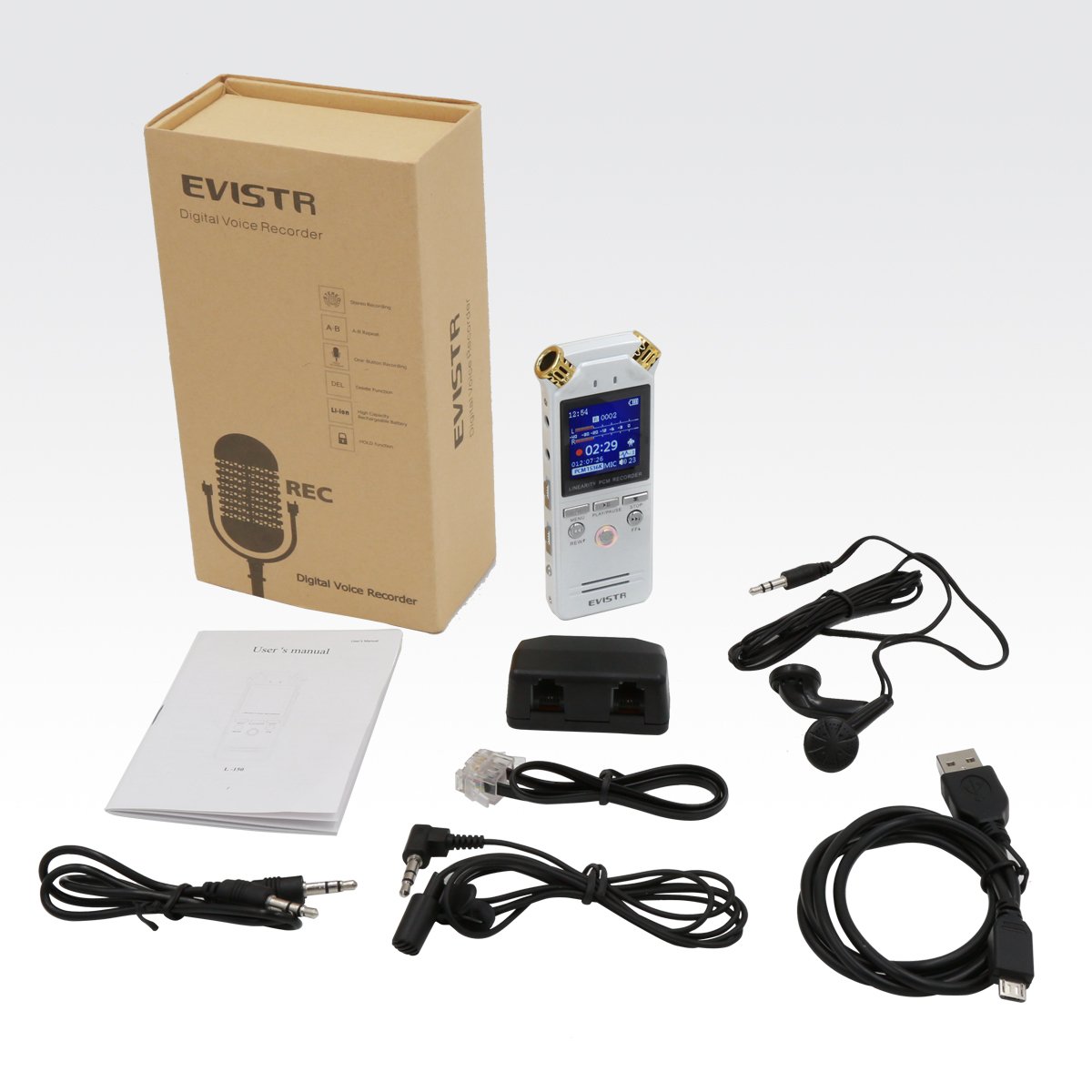
Image: Contents of the EVISTR L150 Digital Voice Recorder package, including the recorder, USB cable, earphones, line-in cable, telephone recording adapter, and user manual.
2.3 Device Layout

Image: Front view of the EVISTR L150 Digital Voice Recorder, showing the display screen, built-in microphones, and control buttons (MENU, PLAY/PAUSE, STOP, REW, REC, FF).

Image: Side view of the EVISTR L150 Digital Voice Recorder, highlighting the MIC/LINE input, TEL LINE input, volume controls, ERASE button, USB port, HOLD switch, and A-B repeat button.

Image: Back view of the EVISTR L150 Digital Voice Recorder, showing the model number, capacity, input voltage, and regulatory marks.
3. Setup
3.1 Charging the Device
Before first use, fully charge the device. Connect the supplied USB cable to the recorder's USB port and to a computer or a USB power adapter (not included). The battery indicator on the display will show charging status.

Image: The EVISTR L150 Digital Voice Recorder connected via USB cable to a laptop, illustrating the charging and data transfer process.
3.2 Power On/Off
- To power on, press and hold the PLAY/PAUSE button.
- To power off, press and hold the STOP button.
- The device features an auto-off function after 3 minutes of inactivity.
3.3 Initial Settings
Access the menu by pressing the MENU button. Use the REW and FF buttons to navigate and PLAY/PAUSE to confirm. Set the date and time for accurate file timestamps.
4. Operating Instructions
4.1 Basic Recording
- To start recording, slide the switch to REC or press the REC button. The recording indicator will illuminate.
- To pause recording, press the PLAY/PAUSE button during recording. Press again to resume.
- To stop recording and save the file, press the STOP button.

Image: A hand pressing the red REC button on the EVISTR L150 Digital Voice Recorder, with instructions for PLAY, REC, STOP, and rebooting the device.
4.2 Playback
- To play a recording, navigate to the desired file using REW and FF buttons, then press PLAY/PAUSE.
- Adjust volume using the VOL + / - buttons on the side.
- A-B Repeat: During playback, press the A-B button once to set point A. Press again to set point B. The device will loop playback between A and B. Press a third time to cancel.
- Variable Playback Speed: Access this function through the menu during playback to adjust the speed.
4.3 Voice Activated Recording (VOR/AVR)
This feature allows the recorder to start recording automatically when sound is detected and pause when silence occurs, conserving memory and battery. Enable VOR/AVR in the device's menu settings.
4.4 Recording Scenes
The device offers 7 preset recording scenes to optimize audio capture for different environments. Select the appropriate scene from the menu:
- Normal
- Interview
- Meeting
- Outdoor
- Bar
- Concert
- Meeting Hall

Image: The EVISTR L150 Digital Voice Recorder depicted in various usage scenarios, including a classroom, interview, meeting, outdoor music event, and speech, illustrating its versatility.

Image: The EVISTR L150 Digital Voice Recorder being held in a meeting room, demonstrating its use for capturing discussions with dynamic noise reduction.
4.5 File Management
To delete a file, select the file during playback or in the file list, then press the ERASE button. Confirm deletion when prompted.
4.6 Connecting to a Computer
Connect the recorder to your computer using the supplied USB cable. The device will appear as a removable disk. You can transfer recorded files to your computer or use the recorder as a portable storage device.
4.7 Telephone Recording
Use the provided telephone recording adapter kits and line-in cable to record telephone conversations. Refer to the specific instructions included with the adapter for detailed setup.
4.8 MP3 Player Function
The device can also function as an MP3 player. Transfer MP3 files to the device's internal storage via USB. Switch between recording files and music files using the DVR/MUSIC switch.
5. Maintenance
- Keep the device dry and away from extreme temperatures.
- Clean the device with a soft, dry cloth. Do not use liquid cleaners or solvents.
- Avoid dropping the device or subjecting it to strong impacts.
- Charge the battery regularly, even if not in use, to maintain battery health.
6. Troubleshooting
- Device is unresponsive/frozen: If the device becomes unresponsive, press and hold the PLAY/PAUSE button for approximately 15 seconds to perform a reboot.
- No recording sound: Check microphone settings, ensure VOR/AVR is not set too high for ambient noise, and verify battery level.
- Cannot transfer files to computer: Ensure the USB cable is securely connected and the device is recognized by the computer. Try a different USB port or cable.
- Keys are not responding: Check if the HOLD switch on the side of the device is engaged. Disengage it to unlock the keys.
7. Specifications
| Feature | Specification |
|---|---|
| Brand | EVISTR |
| Model | L150 |
| Memory Storage Capacity | 8 GB |
| Recording Quality | Up to 1536kbps PCM Stereo |
| Recording Formats | MP3, WAV |
| Max Recording Time (32kbps) | 560 Hours |
| Hardware Interface | USB |
| Compatible Devices | MP3 Player |
| Display Technology | LCD |
| Microphone Format | Built-In |
| Power Source | Battery Powered (Lithium Ion) |
| Battery Average Life | 560 Hours (recording) |
| Product Dimensions | 11 x 1.19 x 3.61 cm |
| Item Weight | 295 g |
8. Warranty and Support
EVISTR offers comprehensive customer support for its products. For assistance, troubleshooting, or warranty inquiries, please refer to the contact information provided with your purchase or visit the official EVISTR website.


