
1. Introduction
This manual provides essential information for the installation, operation, and maintenance of your XFX Radeon RX 570 RS Black Edition graphics card. Please read this manual thoroughly before installation to ensure proper setup and optimal performance. The XFX Radeon RX 570 RS Black Edition is a high-performance graphics card featuring an AMD RX 570 chipset, 8GB GDDR5 memory, and XFX's Double Dissipation cooling design, optimized for gaming and demanding graphical tasks.
2. Product Features
- Chipset: AMD RX 570
- Memory: 8GB GDDR5
- Dual BIOS: Supports both gaming and cryptocurrency mining profiles.
- Cooling: XFX Double Dissipation cooling design for efficient heat management.
- Overclocked: Factory overclocked for enhanced performance out of the box.
- VR Ready: Designed for virtual reality experiences.
- Display Outputs: 3x DisplayPort, 1x HDMI, 1x DVI for versatile monitor connectivity.
3. Setup & Installation
Before installing the graphics card, ensure your computer's power is off and unplugged from the wall outlet. It is recommended to wear an anti-static wrist strap to prevent damage from static electricity.
- Prepare Your System: Open your computer case and locate an available PCI Express x16 slot on your motherboard.
- Remove Slot Covers: Remove the metal slot covers from the back of your computer case corresponding to the PCI Express slot.
- Install the Graphics Card: Carefully align the graphics card with the PCI Express x16 slot. Press down firmly and evenly until the card is securely seated. Ensure the retention clip on the motherboard clicks into place.
- Secure the Card: Use screws to secure the graphics card to the computer case at the bracket.
- Connect Power: Connect the appropriate PCIe power connectors from your power supply unit (PSU) to the graphics card. This model typically requires one 8-pin PCIe power connector. Ensure all connections are firm.
- Close Case & Connect Display: Close your computer case. Connect your display monitor to one of the graphics card's output ports (DisplayPort, HDMI, or DVI).
- Install Drivers: Power on your computer. Once the operating system loads, install the latest AMD Radeon drivers from the official XFX or AMD website. Follow the on-screen instructions to complete the driver installation.

Figure 1: XFX Radeon RX 570 RS Black Edition Graphics Card (Front View)
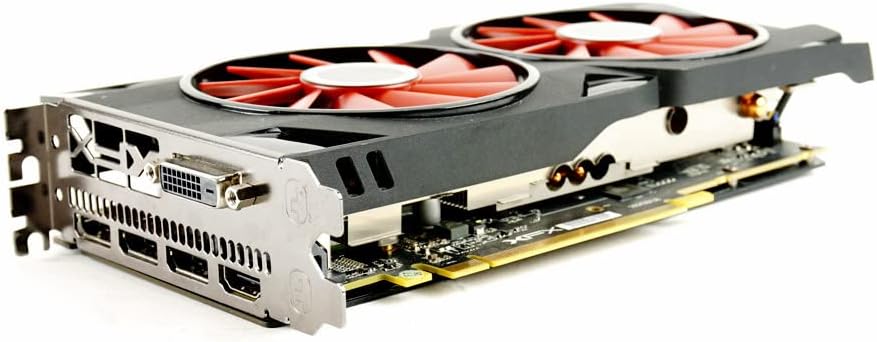
Figure 2: Angled view of the graphics card showing the dual fans and heatsink.
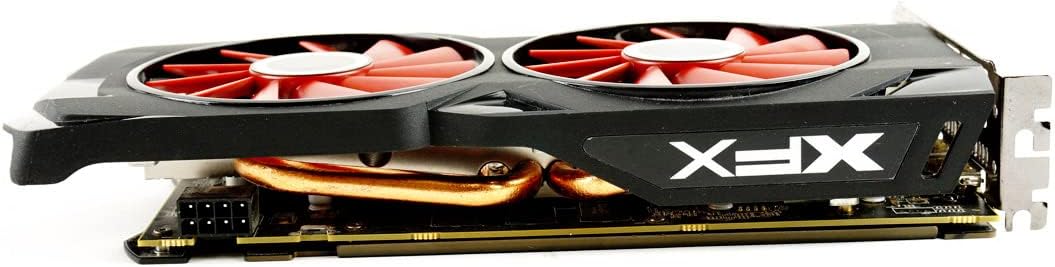
Figure 3: Side view of the graphics card, highlighting the power connector.

Figure 4: Rear view of the graphics card showing the DisplayPort, HDMI, and DVI outputs.
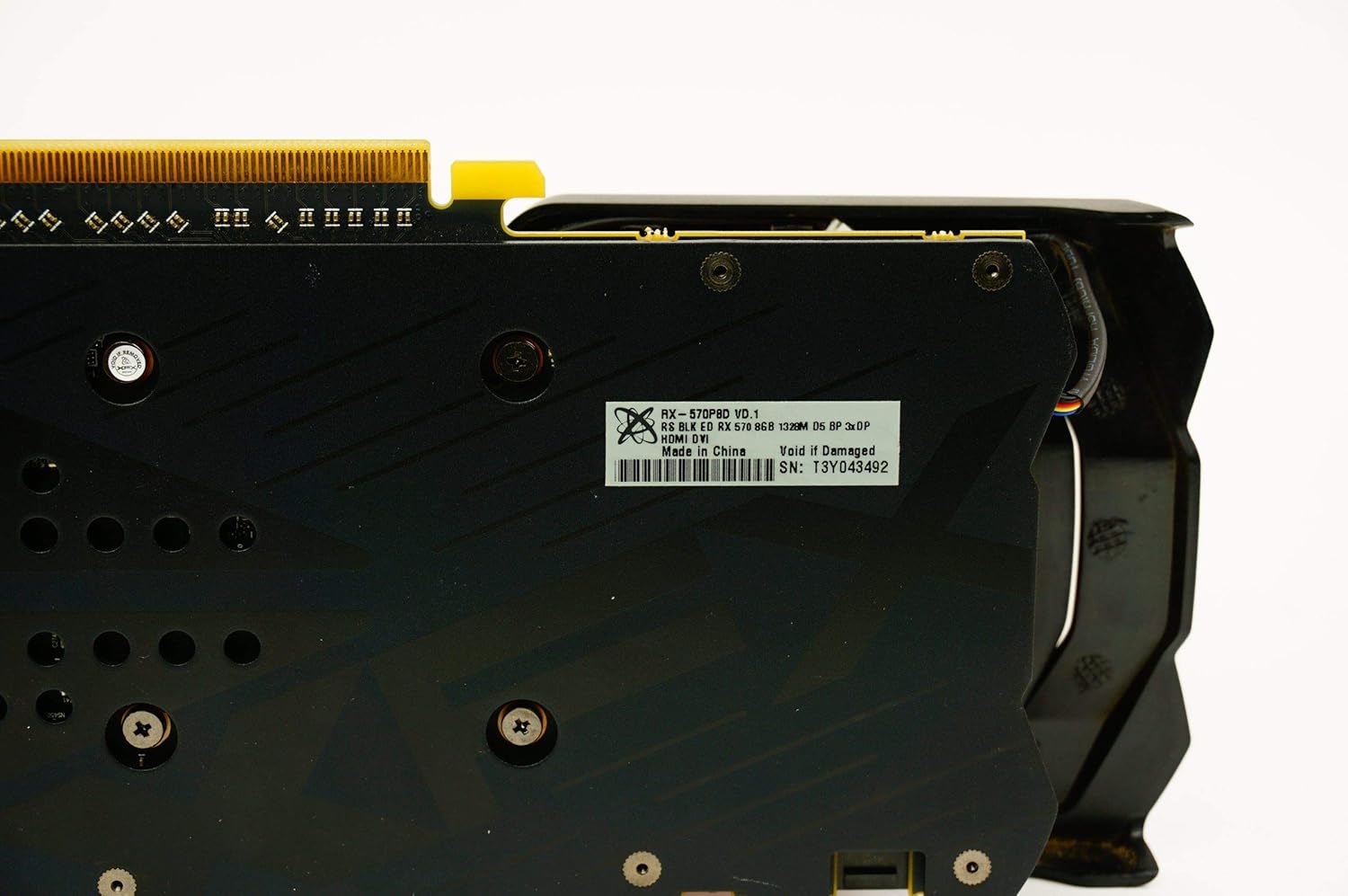
Figure 5: Backplate view of the graphics card, showing the XFX logo and ventilation.
4. Operating Instructions
Once the graphics card is installed and drivers are updated, your system is ready for use. For optimal performance in games and applications, ensure your operating system and graphics drivers are always up-to-date. You can typically find the latest drivers on the official AMD website. Utilize the AMD Radeon Software Adrenalin Edition for fine-tuning performance, managing display settings, and accessing features like Radeon Chill, Radeon Anti-Lag, and Radeon Boost.
5. Maintenance
Regular maintenance helps prolong the life and performance of your graphics card.
- Dust Removal: Periodically clean dust from the fans and heatsink using compressed air. Ensure the computer is powered off and unplugged before cleaning. Hold the fan blades gently to prevent them from spinning too fast during cleaning.
- Driver Updates: Keep your graphics drivers updated to ensure compatibility and optimal performance with new games and software.
- Temperature Monitoring: Use monitoring software (e.g., AMD Radeon Software) to keep an eye on the card's temperature, especially during heavy loads. Ensure adequate airflow within your PC case.
6. Troubleshooting
If you encounter issues with your graphics card, refer to the following common troubleshooting steps:
- No Display/Black Screen:
- Ensure the display cable is securely connected to both the graphics card and the monitor.
- Verify that the graphics card is fully seated in the PCI Express slot.
- Check that all PCIe power connectors are properly attached to the graphics card.
- Test with a different display cable or monitor if possible.
- Driver Issues/Crashes:
- Perform a clean installation of the latest graphics drivers. Use a driver uninstaller utility (like DDU) to remove old drivers before installing new ones.
- Ensure your operating system is fully updated.
- Overheating:
- Clean dust from the graphics card fans and heatsink.
- Ensure your PC case has good airflow with properly configured intake and exhaust fans.
- Monitor temperatures with software to confirm if overheating is the issue.
- Poor Performance in Games:
- Ensure graphics drivers are up-to-date.
- Check in-game graphics settings and reduce them if necessary.
- Verify that your system meets the game's minimum requirements.
- Ensure the graphics card is receiving adequate power from the PSU.
7. Specifications
| Feature | Specification |
|---|---|
| Model Name | XFX Radeon RX 570 RS Black Edition |
| Item Model Number | RX-570P8DBD6 |
| Graphics Coprocessor | AMD Radeon RX 570 |
| Graphics Processor Manufacturer | AMD |
| Graphics RAM Size | 8 GB |
| Graphics RAM Type | GDDR5 |
| Memory Clock Speed | 7000 MHz |
| Graphics Description | AMD Radeon RX 570 with 8GB GDDR5 memory and a core clock speed of 1328MHz |
| Video Output Interface | 3x DisplayPort, 1x HDMI, 1x DVI |
| Display Maximum Resolution | 4096 x 2160 Pixels |
| Graphics Card Interface | PCI Express |
| Number of Fans | 2 |
| Compatible Devices | Desktop |
| Product Dimensions | 24.31 x 3.99 x 12.4 cm |
| Item Weight | 680 g |
8. Warranty & Support
The XFX Radeon RX 570 RS Black Edition graphics card comes with a 3-year warranty. For warranty claims, technical support, or further assistance, please visit the official XFX website or contact their customer service. Keep your proof of purchase for warranty validation.


