
Seagate ST1000LM049
Seagate Barracuda Pro 1TB 2.5-inch Internal SATA Hard Drive (ST1000LM049) User Manual
Model: ST1000LM049
1. Introduction
This manual provides essential information for the installation, operation, maintenance, and troubleshooting of your Seagate Barracuda Pro 1TB 2.5-inch Internal SATA Hard Drive, model ST1000LM049. This drive is designed for high-performance computing applications, offering reliable storage with a 7200 RPM spin speed and 6Gb/s interface.
2. Package Contents
Verify that your package contains the following items:
- Seagate Barracuda Pro 1TB 2.5-inch Internal SATA Hard Drive (ST1000LM049)
Note: Additional cables or mounting hardware are typically supplied with your computer system or purchased separately.
3. Setup and Installation
Proper installation is crucial for optimal performance and data integrity. Always handle the hard drive with care to avoid physical damage or electrostatic discharge (ESD).
3.1 Before You Begin
- Backup Data: If replacing an existing drive, ensure all critical data is backed up.
- Power Off: Shut down your computer and disconnect the power cable.
- Ground Yourself: Use an anti-static wrist strap or periodically touch a grounded metal object to prevent ESD.
- Tools: You may need a Phillips head screwdriver and mounting screws.
3.2 Physical Installation
- Locate Drive Bay: Open your computer case or laptop and identify an available 2.5-inch drive bay.
- Mount Drive: Gently slide the Barracuda Pro drive into the bay. Secure it with screws if required by your system's design.
- Connect Cables: Attach the SATA data cable from the motherboard to the drive's SATA data port. Connect a SATA power cable from the power supply unit (PSU) to the drive's SATA power port.

Image 3.2.1: Front view of the Seagate Barracuda Pro 1TB 2.5-inch internal hard drive, showing the product label with model number ST1000LM049 and capacity.
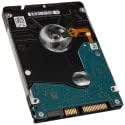
Image 3.2.2: Bottom view of the Seagate Barracuda Pro 1TB 2.5-inch internal hard drive, illustrating the printed circuit board (PCB) and the SATA data and power connectors.
3.3 Initializing and Formatting the Drive
After physical installation, the drive must be initialized and formatted by your operating system.
- Power On: Reconnect the power cable and turn on your computer.
- Access Disk Management:
- Windows: Right-click 'This PC' or 'My Computer', select 'Manage', then 'Disk Management'.
- macOS: Go to 'Applications' > 'Utilities' > 'Disk Utility'.
- Linux: Use a disk utility like GParted or the `fdisk`/`mkfs` commands.
- Initialize Disk: The new drive should appear as 'Unallocated Space'. Right-click it and select 'Initialize Disk' (Windows) or 'Erase' (macOS). Choose the appropriate partition style (e.g., GPT for modern systems).
- Create Volume: Create a new simple volume (Windows) or partition (macOS/Linux), assign a drive letter (Windows), and format it with a suitable file system (e.g., NTFS for Windows, APFS/HFS+ for macOS, Ext4 for Linux).
4. Operating Instructions
Once installed and formatted, your Seagate Barracuda Pro drive functions as standard internal storage. It is compatible with various systems including creative professional workstations, desktop PCs, all-in-one PCs, home servers, and entry-level direct-attached storage (DAS) devices.
- Data Storage: Use the drive to store operating systems, applications, documents, media files, and other data.
- File Transfer: Drag and drop files, copy and paste, or use file management software to move data to and from the drive.
- Performance: The 7200 RPM spin speed and 128MB cache provide fast data access and sustained throughput for demanding applications.
5. Maintenance
To ensure the longevity and reliability of your hard drive, consider the following maintenance practices:
- Regular Backups: Periodically back up critical data to another storage device. This is the most important step to prevent data loss.
- Proper Shutdown: Always shut down your computer properly. Avoid sudden power loss, which can damage the drive.
- Physical Protection: While installed, ensure the computer is not subjected to excessive shock or vibration.
- Temperature Control: Ensure adequate airflow within your computer case to prevent overheating.
- Firmware Updates: Check the Seagate support website for any available firmware updates for your drive model. Follow instructions carefully if performing an update.
6. Troubleshooting
If you encounter issues with your Barracuda Pro hard drive, try the following steps:
6.1 Drive Not Detected
- Check Cables: Ensure SATA data and power cables are securely connected to both the drive and the motherboard/PSU.
- BIOS/UEFI Settings: Verify that the SATA port the drive is connected to is enabled in your system's BIOS/UEFI settings.
- Power Supply: Confirm your power supply unit (PSU) has sufficient wattage to power all components, including the new drive.
- Try Another Port/Cable: Test the drive with a different SATA data cable, power cable, or motherboard SATA port.
- Disk Management: Check 'Disk Management' (Windows) or 'Disk Utility' (macOS) to see if the drive is detected but uninitialized/unformatted.
6.2 Slow Performance
- Check Drive Health: Use S.M.A.R.T. (Self-Monitoring, Analysis and Reporting Technology) tools (available in many operating systems or third-party utilities) to check the drive's health status.
- Defragmentation: For traditional hard drives, regular defragmentation can improve performance. (Not applicable for SSDs).
- System Resources: Ensure your system has sufficient RAM and CPU resources, as these can impact drive performance.
- Driver Updates: Ensure your motherboard's SATA controller drivers are up to date.
6.3 Unusual Noises
- Identify Noise: A clicking, grinding, or repetitive scraping sound often indicates a mechanical failure.
- Immediate Action: If you hear unusual noises, immediately back up any accessible data and consider replacing the drive. Continued use may lead to further data loss.
7. Specifications
Key technical specifications for the Seagate Barracuda Pro 1TB 2.5-inch Internal SATA Hard Drive (ST1000LM049):
| Feature | Specification |
|---|---|
| Model Number | ST1000LM049 |
| Digital Storage Capacity | 1 TB |
| Hard Disk Form Factor | 2.5 Inches |
| Hard Disk Rotational Speed | 7200 RPM |
| Interface | SATA 6Gb/s |
| Cache | 128 MB |
| Item Weight | 2.99 ounces |
| Product Dimensions (LxWxH) | 3.95 x 2.75 x 0.28 inches |
| Compatible Devices | Desktop, Laptop |
8. Warranty and Support
8.1 Product Warranty
The Seagate Barracuda Pro ST1000LM049 is backed by a 5-year limited product warranty. This warranty covers defects in materials and workmanship under normal use. For full details and terms, please refer to the official Seagate warranty statement available on their website.
8.2 Seagate Rescue Data Recovery Services
This drive includes 2 years of Seagate Rescue Data Recovery Services. This service provides professional data recovery assistance in the event of mechanical failure, accidental damage, or natural disaster. Activation and terms for this service can be found on the Seagate website or through the product registration process.
8.3 Technical Support
For technical assistance, driver downloads, or further information, please visit the official Seagate support website. Have your product model number (ST1000LM049) and serial number ready when contacting support.
Related documentsST1000LM049


Ask a question about this manual
Ask about setup, troubleshooting, compatibility, parts, safety, or missing instructions. Manuals+ will review the question and use this page’s manual context to help answer it.