
1. Introduction
The HP 10-P018WM is a versatile 2-in-1 detachable laptop designed for adaptability. It functions as a traditional laptop, a tablet, and can be configured into stand and tent modes. Featuring a 10.1-inch IPS touch display and an Intel Atom X5-Z8350 processor, this device supports Windows inking features with the included HP Active Pen, offering flexibility for various tasks.

Figure 1: HP 10-P018WM Detachable Laptop in tablet mode, highlighting its touchscreen capability.
2. What's in the Box
Verify that all components are present in the packaging:
- HP 10-P018WM Detachable Laptop (Tablet unit and Keyboard base)
- HP Active Pen
- Power Adapter
- Quick Start Guide (if included)
3. Setup
3.1 Initial Charging
Before first use, connect the power adapter to the laptop and a power outlet. Allow the device to charge for at least 30 minutes, or until the battery indicator shows a sufficient charge. A 50% charge can be achieved in approximately 30 minutes.
3.2 Powering On
Press and hold the power button, typically located on the side or top edge of the tablet unit, until the HP logo appears on the screen.
3.3 Windows 10 Setup and Updates
Follow the on-screen prompts to complete the initial Windows 10 setup. This includes selecting your region, language, connecting to a Wi-Fi network, and creating a user account. It is crucial to allow the system to download and install all pending Windows updates after the initial setup. This process may take several hours and require multiple restarts. Attempting to use the device extensively during updates can result in slow performance.
3.4 Attaching and Detaching the Keyboard
To attach the keyboard, align the tablet unit with the keyboard base connectors and gently press until it clicks into place. To detach, firmly pull the tablet unit away from the keyboard base. Ensure the connection is secure when attaching.
4. Operating Your Device
4.1 Device Modes
The HP 10-P018WM supports multiple modes:
- Laptop Mode: Traditional laptop experience with keyboard and touchpad.
- Tablet Mode: Detach the tablet from the keyboard for a portable touch experience.
- Stand Mode: Flip the tablet to face away from the keyboard, ideal for watching videos or presentations.
- Tent Mode: Fold the device into an inverted 'V' shape, suitable for touch-based applications in confined spaces.
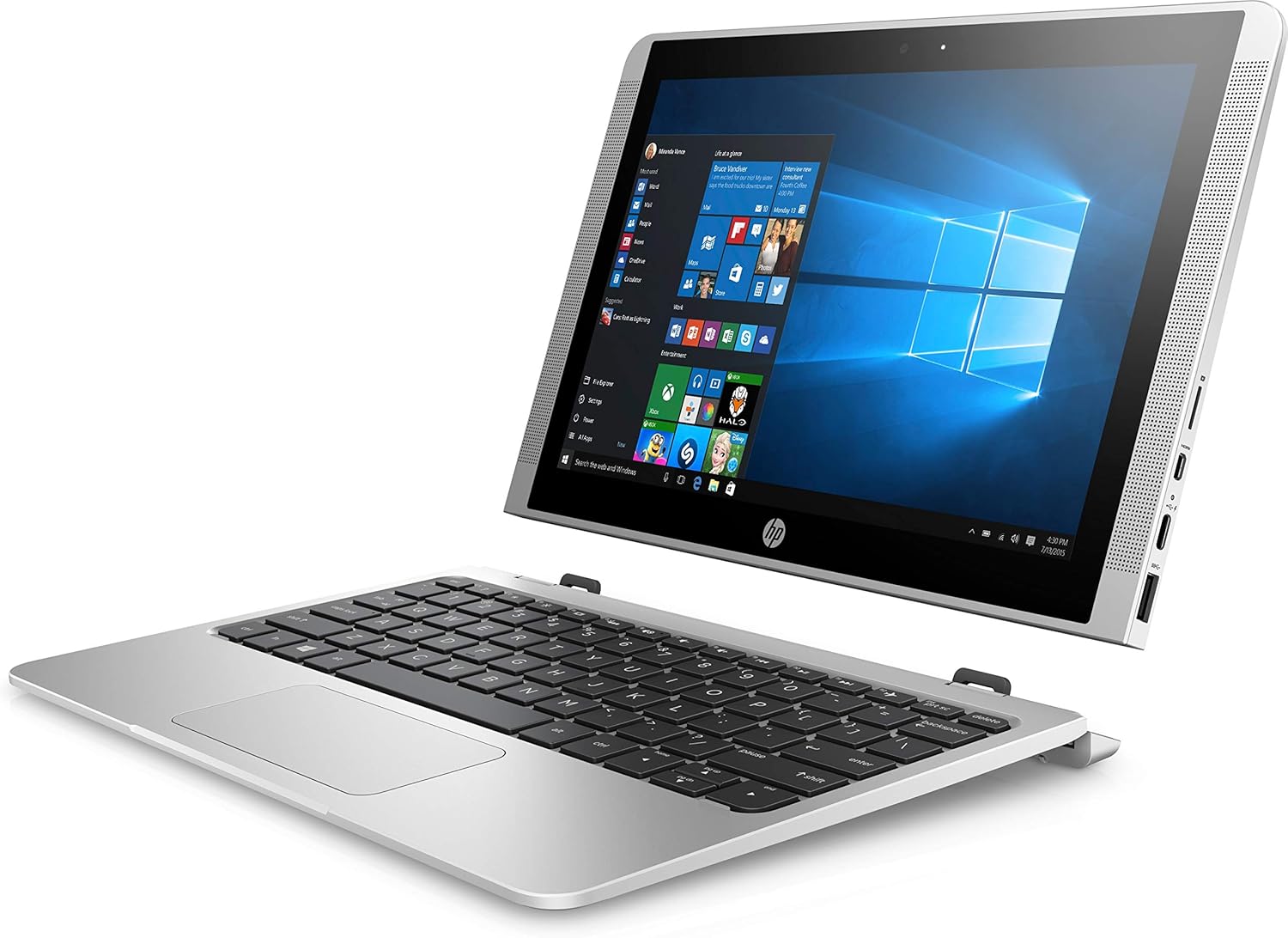
Figure 2: HP 10-P018WM in stand mode, showcasing its versatility.
4.2 Touchscreen Usage
The 10.1-inch IPS display is touch-enabled. Use standard touch gestures for navigation, such as tapping to select, swiping to scroll, and pinch-to-zoom.
4.3 HP Active Pen Usage
The included HP Active Pen allows for precise input, drawing, and writing directly on the screen. It supports Windows inking features for note-taking, sketching, and annotating documents. Ensure the pen has a working battery if applicable.
4.4 Camera Functionality
The device features a 5MP rear camera, positioned to minimize accidental finger obstruction. Use the built-in Camera application in Windows 10 to capture photos and videos.
5. Maintenance
5.1 Cleaning
To clean the screen, use a soft, lint-free cloth lightly dampened with water or a screen cleaner solution. For the device body, use a soft, dry cloth. Avoid harsh chemicals or abrasive materials.
5.2 Battery Care
To maximize battery lifespan, avoid fully discharging the battery frequently. Store the device in a cool, dry place. If storing for an extended period, ensure the battery is charged to approximately 50%.
5.3 Software Updates
Regularly check for and install Windows updates to ensure optimal performance, security, and compatibility. Navigate to Settings > Update & Security > Windows Update.
5.4 Storage Management
With 64GB eMMC storage, managing disk space is important. Regularly delete unnecessary files, uninstall unused applications, and consider using cloud storage or external drives for large files to maintain system performance.
6. Troubleshooting
6.1 Slow Performance
- Check for Updates: Ensure all Windows updates are installed.
- Close Background Apps: Close unnecessary applications running in the background.
- Disk Space: Free up storage space if the drive is nearly full.
- Restart: A simple restart can resolve many temporary performance issues.
6.2 Device Does Not Power On
- Check Power: Ensure the device is charged or connected to a working power outlet.
- Hard Reset: Press and hold the power button for 15-20 seconds to perform a hard reset.
6.3 HP Active Pen Not Responding
- Check Battery: Replace the pen's battery if applicable.
- Restart Device: Restart the laptop to refresh connections.
- Driver Updates: Ensure pen drivers are up to date via Windows Update or HP Support website.
6.4 Overheating
- Ventilation: Ensure the device's vents are not blocked. Use on a hard, flat surface.
- Reduce Load: Close demanding applications if the device feels excessively warm.
7. Specifications
| Feature | Specification |
|---|---|
| Model Number | 10-P018WM (X7U47UA) |
| Display | 10.1-inch IPS Touch Display, 1366 x 768 pixels |
| Processor | Intel Atom X5-Z8350 (1.1 GHz) |
| RAM | 4 GB DDR |
| Storage | 64 GB eMMC |
| Graphics | Intel HD Graphics 400 (Integrated) |
| Operating System | Windows 10 Home |
| Wireless Connectivity | 802.11ac |
| USB Ports | 3x USB 2.0, 3x USB 3.0 |
| Battery Life | Up to 10 hours and 30 minutes |
| Camera | 5MP Rear Camera |
| Weight | Approximately 2.2 pounds |
| Special Features | Detachable design, HP Active Pen support |
8. Warranty and Support
This HP product comes with a standard limited warranty. For detailed warranty information, please refer to the warranty card included with your purchase or visit the official HP support website. For technical assistance, driver downloads, or service inquiries, please visit www.hp.com/support and search for your specific model number (10-P018WM or X7U47UA).


