
TECKNET TK-CA001
TECKNET 1080P Webcam User Manual
Model: TK-CA001
Introduction
This user manual provides comprehensive instructions for the TECKNET 1080P Webcam (Model: TK-CA001). Please read this manual carefully before using the product to ensure proper operation and to maximize its features. Keep this manual for future reference.
Product Features
- HD 1080P Video: Captures natural and fluent full HD video with a 1/3-inch 2 million pixel high-quality image sensor chip.
- 3-Level Adjustable Touch Fill Light: Built-in fill light with three brightness levels (low, medium, high) controlled by a touch switch for optimal lighting in various environments.
- Dual Noise Reduction Microphone: Two built-in microphones with intelligent noise reduction for clear voice pickup within 5-10 meters, filtering out background noise.
- 360° Horizontal Rotation: Supports angle correction and fixed focus, allowing 360° horizontal and 50° up/down rotation. Features a 90° wide-angle lens.
- USB Plug-and-Play: Automatic installation upon connecting to a USB 2.0 interface.
- Wide Compatibility: Compatible with Windows 7/8/10/XP, Mac 10.6, Android V5.0, and various applications like Skype, Facetime, Facebook, Zoom, YouTube, Twitch, and Smart TV.
- Built-in Privacy Cover: Integrated cover to protect privacy when the webcam is not in use.
Package Contents
Please check the package contents upon unboxing:
- TECKNET 1080P Webcam (Model: TK-CA001)
- USB Cable (Type-C, 180 cm length)
- User Manual
Setup Guide
1. Placement
The webcam features a versatile mounting clip that allows it to be placed on various surfaces.
- On a Monitor/Laptop Screen:
Open the clip and place the webcam on top of your monitor or laptop screen. Ensure the front of the webcam faces you and the clip securely grips the back of the screen. The webcam can be rotated 360° horizontally and 50° up/down for optimal positioning.

Image: TECKNET 1080P Webcam with its integrated clip, designed for stable placement on top of a monitor or laptop screen. The webcam is black with a textured finish and features a central lens and a privacy cover mechanism.
- On a Desk/Tabletop:
Fold the clip to form a stable stand and place the webcam on a flat surface. Adjust the angle as needed.
- On a Tripod:
The base of the webcam features a standard 1/4-inch tripod thread. Attach the webcam to a compatible tripod for more flexible positioning.
2. Connection
The TECKNET 1080P Webcam is a plug-and-play device, requiring no additional driver installation for most operating systems.
- Connect the USB cable to the USB 2.0 port on your computer (desktop or laptop).
- The webcam will be automatically detected and installed by your operating system (Windows, macOS, Linux, Chrome OS, Android).
- Once installed, you can select the webcam as your video and audio input device in your preferred video conferencing or streaming application.

Image: A visual representation highlighting the TECKNET webcam's broad compatibility with operating systems such as Mac OS, Windows, Linux, Chrome OS, and Android, emphasizing its plug-and-play functionality.
Operating Instructions
1. Using the Privacy Cover
The webcam features a built-in privacy cover to ensure your privacy when the camera is not in use.
- To open the privacy cover, slide the cover to the side to reveal the lens.
- To close the privacy cover, slide the cover back over the lens.
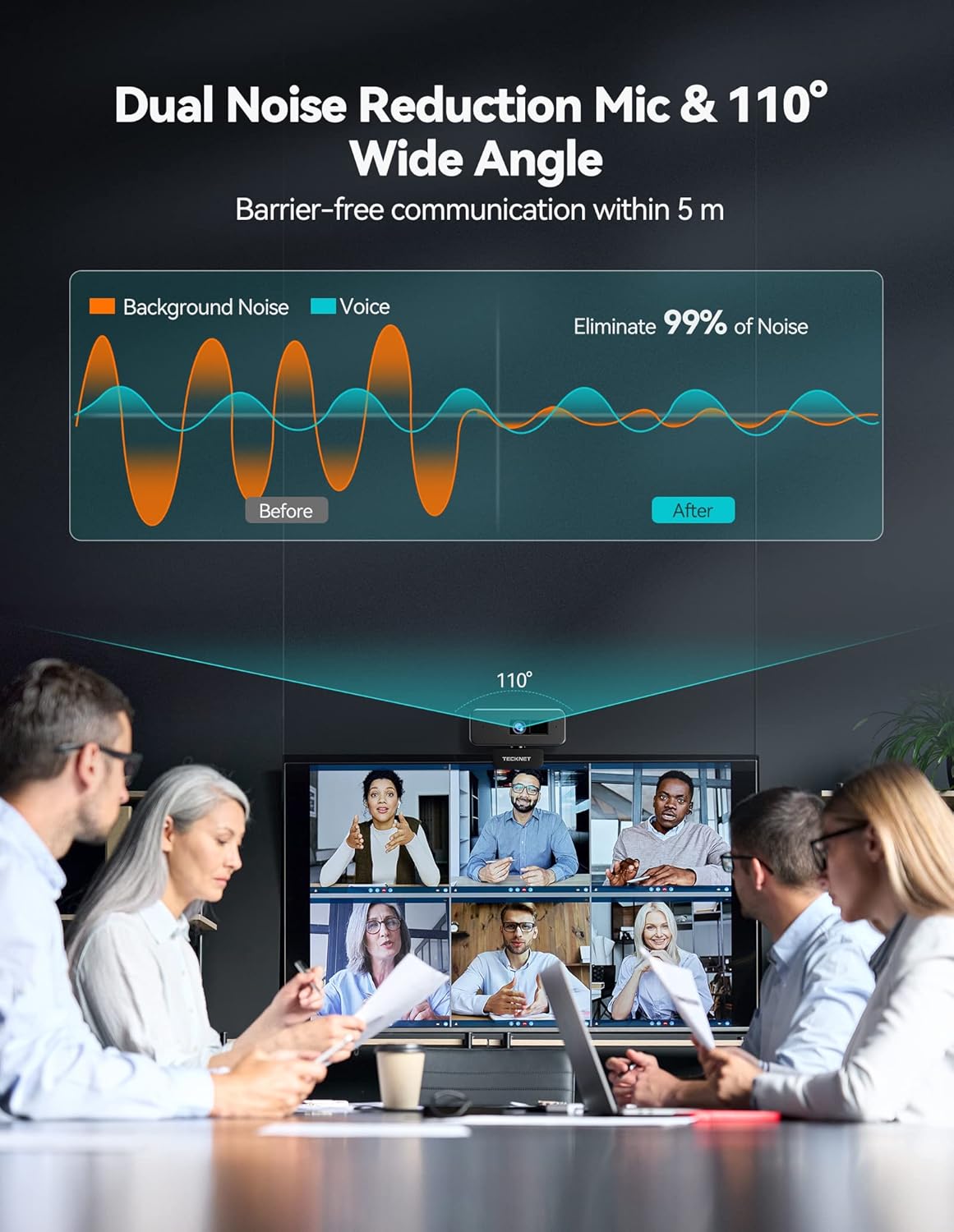
Image: The TECKNET 1080P Webcam shown with its integrated privacy cover in the closed position, emphasizing the security feature. The cover slides over the lens to block the camera's view.
2. Adjusting the Fill Light
The webcam includes a built-in fill light with three adjustable brightness levels.
- Locate the touch switch on the top of the webcam.
- Tap the touch switch to cycle through the brightness levels: Low, Medium, High, and Off.
- Select the desired brightness to improve lighting conditions in dim environments.
3. Using the Microphone
The webcam features dual noise-reduction microphones for clear audio capture.
- The microphones are automatically enabled when the webcam is selected as the audio input device in your application.
- Ensure the webcam's microphone is selected in your application's audio settings for optimal performance.
4. Video Conferencing and Streaming
The TECKNET webcam is ideal for various communication and content creation needs.
- Open your preferred application (e.g., Zoom, Skype, Microsoft Teams, YouTube, Twitch).
- In the application's settings, select “TECKNET Webcam” as your video device and “TECKNET Microphone” as your audio input device.
- Adjust your position and the webcam’s angle (360° horizontal, 50° vertical) to achieve the desired frame. The 90° wide-angle lens can accommodate multiple participants.

Image: A user engaged in an online learning session or video conference, with the TECKNET webcam positioned on top of their laptop screen, demonstrating its use in a typical communication scenario.
Maintenance
- Cleaning: Use a soft, dry cloth to clean the webcam lens and body. Avoid using harsh chemicals or abrasive materials that could damage the surface or lens.
- Storage: When not in use, store the webcam in a cool, dry place. Utilize the built-in privacy cover to protect the lens from dust and scratches.
- Cable Care: Avoid bending or twisting the USB cable excessively to prevent internal damage.
Troubleshooting
| Problem | Possible Cause | Solution |
|---|---|---|
| Webcam not detected. | Loose USB connection, faulty USB port, driver conflict. |
|
| No video output. | Privacy cover closed, incorrect webcam selection in software, application permissions. |
|
| No audio from microphone. | Incorrect microphone selection, microphone muted, application permissions. |
|
| Poor video quality. | Insufficient lighting, dirty lens, internet bandwidth. |
|
Specifications
| Feature | Detail |
|---|---|
| Model Number | TK-CA001 |
| Video Resolution | 1080p Full HD |
| Image Sensor | 1/3-inch 2 Million Pixel CMOS |
| Field of View | 90° Wide Angle |
| Microphone | Dual Stereo Microphone with Noise Cancellation |
| Fill Light | 3-Level Adjustable Touch Fill Light |
| Connectivity | USB 2.0 Plug-and-Play |
| Cable Length | 180 cm (Type-C) |
| Rotation | 360° Horizontal, 50° Vertical |
| Dimensions | 12.45 x 2.79 x 5.08 cm |
| Weight | 198.45 g |
| Compatibility | Windows 7/8/10/XP, Mac 10.6, Android V5.0, Skype, Facetime, Facebook, Zoom, YouTube, Twitch, Smart TV |
Warranty and Support
TECKNET offers a 36-month warranty for this product (registration may be required). If you encounter any issues or have questions regarding your TECKNET 1080P Webcam, please contact our professional customer service team for assistance.
For further support, visit the official TECKNET website or refer to the contact information provided with your product packaging.
Product Video Demonstration
Video: An official product video demonstrating the features and usage of the TECKNET 1080P Webcam, including its privacy cover, high-quality image sensor, dual microphones, and ease of setup. This video provides a visual overview of the product’s capabilities.
Ask a question about this manual
Ask about setup, troubleshooting, compatibility, parts, safety, or missing instructions. Manuals+ will review the question and use this page’s manual context to help answer it.