
DIGOO DG-M1Q
Digoo DG-M1Q 960P 2.8mm Wireless Mini WiFi Night Vision Smart Home Security IP Camera Onvif Monitor User Manual
Brand: DIGOO | Model: DG-M1Q
1. Introduction
The Digoo DG-M1Q is a compact and versatile 960P wireless mini WiFi IP camera designed for smart home security. It features night vision capabilities, motion detection, and two-way audio communication, making it suitable for monitoring various indoor environments. This manual provides detailed instructions for setting up, operating, and maintaining your DG-M1Q camera.
2. Product Features
- High Definition Video: Records in HD 960P resolution with 1,300,000 pixels and H.264 compression for clear video.
- Wide-Angle Lens: Equipped with a 2.8mm wide-angle lens for extensive coverage.
- Night Vision: Features 10 IR LEDs for clear visibility up to 10 meters in low-light conditions.
- Motion Detection & Alarm: Built-in motion detection with email alerts and siren alarm functionality.
- Two-Way Intercom Audio: Allows for real-time communication through the camera.
- Local Storage: Supports Micro TF Card slot up to 64GB for local video storage.
- ONVIF Support: Compatible with ONVIF protocol for broader integration.
- Wireless Connectivity: Supports 2.4G WiFi for easy setup (5Ghz not supported).
- Multi-Platform Support: Compatible with iOS, Android, and Windows PC.
3. Package Contents
Upon opening the package, verify that all the following items are included:
- 1 x Digoo DG-M1Q Mini WIFI IP Camera
- 1 x Digoo DG-M1Q Micro USB Power Cable
- 1 x 3M Double-Side Sticker
- 1 x Full English User Manual (this document)
4. Product Overview
Familiarize yourself with the various components of the Digoo DG-M1Q camera.

Figure 4.1: Labeled diagram of the Digoo DG-M1Q camera, highlighting its components including the hook, speaker, light sensor, 1/3 sensor, indicator light, microphone, and Micro SD card slot (supporting up to 64GB).

Figure 4.2: Illustration emphasizing the 2.8mm wide-angle lens, which provides a broad visual field for comprehensive monitoring.
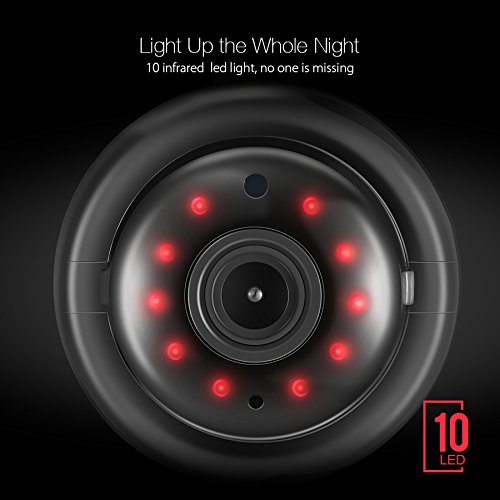
Figure 4.3: Front view of the camera displaying the 10 infrared LED lights, which enable clear night vision up to 10 meters.
5. Setup and Installation
5.1. Powering On
Connect the provided Micro USB Power Cable to the camera's power port and plug the other end into a DC 5V/1A+ power source. The camera will power on automatically.
5.2. APP Installation
To control and monitor your Digoo DG-M1Q camera, you need to install the "DigooEye" application on your mobile device.
- For iOS devices: Search for "DigooEye" in the Apple App Store.
- For Android devices: Search for "DigooEye" in the Google Play Market.
Follow the on-screen instructions within the app to complete the initial setup and connect the camera to your 2.4G WiFi network using the acoustic smart link configuration (WIFI fast configuration). Note: 5Ghz networks are not supported.
5.3. Mounting Options
The Digoo DG-M1Q offers flexible installation methods:
- Existing Frame Support: Replace an old camera using its existing frame support.
- Hook Mounting: Simply hang the camera on a wall using the integrated hook, or a wall nail.
- Adhesive Mounting: Use the provided 3M Double-Side Sticker to adhere the camera to a flat surface.
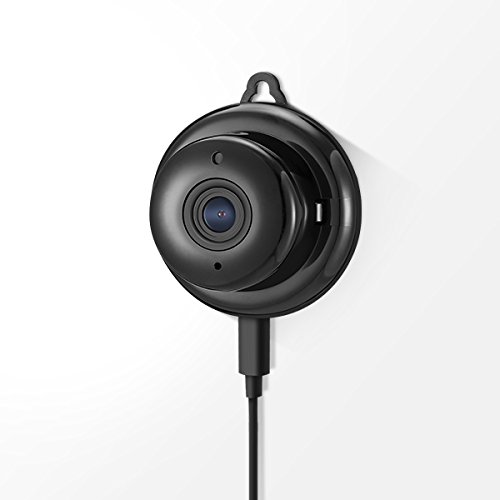
Figure 5.1: The Digoo DG-M1Q camera shown mounted on a wall, demonstrating one of the installation methods.
6. Operating Instructions
Once the camera is set up and connected to the "DigooEye" app, you can access various functions:
- Live View: Access real-time video feed from the camera.
- Video Playback: Review recorded footage stored on the Micro TF card.
- Motion Detection: Enable or disable motion detection. When activated, the camera will alert you via email or siren alarm if movement is detected.
- Two-Way Intercom: Use the microphone and speaker for two-way audio communication.
- Capture & Recording: Manually capture still images or start video recordings.
- IR Auto: Automatic switching to infrared night vision in low light.
- Remote Control: Manage camera settings and functions remotely.
- Password Protection: Secure your camera access with a password.
- Administrator and Guest Settings: Configure different access levels for users.
- One Button Guarding: Quickly activate security monitoring.

Figure 6.1: Depiction of the camera's motion detection capability, showing an alert being sent to a mobile device when an intrusion is detected.
6.1. Network Protocols and Compatibility
The camera supports standard network protocols including TCP/IP, UDP, DNS/DDNS, SMTP, UPNP, DHCP, and P2P. Security is supported for WFA WPA/WPA2 personal, WPS2.0, and WAPI. The camera also supports ONVIF, with the ONVIF port automatically turning on.

Figure 6.2: Diagram showing how Digoo devices, including the DG-M1Q, connect to cloud servers to ensure stable transmission and reliable monitoring.
7. Maintenance
To ensure optimal performance and longevity of your Digoo DG-M1Q camera, follow these maintenance guidelines:
- Cleaning: Gently wipe the camera lens and body with a soft, dry cloth. Avoid using harsh chemicals or abrasive cleaners.
- Placement: Ensure the camera is placed in a stable location, away from direct sunlight, extreme temperatures, and high humidity.
- Firmware Updates: Regularly check the "DigooEye" app for any available firmware updates to ensure your camera has the latest features and security enhancements.
- Power Supply: Always use the original power adapter or a compatible DC 5V/1A+ power supply.
8. Troubleshooting
If you encounter issues with your Digoo DG-M1Q camera, refer to the following common problems and solutions:
- Camera not connecting to WiFi:
- Ensure your WiFi network is 2.4Ghz. The camera does not support 5Ghz.
- Check if the WiFi password entered in the app is correct.
- Move the camera closer to the WiFi router to improve signal strength.
- Restart both the camera and your router.
- No video feed:
- Verify the camera is powered on and the indicator light is active.
- Check your internet connection.
- Ensure the "DigooEye" app is updated to the latest version.
- Motion detection not working:
- Ensure motion detection is enabled in the app settings.
- Adjust the sensitivity settings for motion detection.
- Check if the camera's view is obstructed.
- Poor night vision:
- Ensure there are no reflective surfaces close to the camera that might interfere with the IR lights.
- Check if the IR Auto function is enabled.
If the problem persists, contact Digoo customer support for further assistance.
9. Specifications
| Feature | Detail |
|---|---|
| Model | DG-M1Q |
| Image Sensor | 1/3 Progressive CMOS Sensor |
| Lens | 2.8mm Wide-Angle Lens |
| Day/Night | IR-CUT Auto Switch Filter |
| Digital Noise Reduction | 3D Digital Noise Reduction |
| Image Resolution | HD 960P, 1,300,000 Pixel |
| Video Compression | H.264 |
| Frame Rate | 25fps ± internet adaptively adjustment |
| Memory | Support Micro TF Card Slot (Max to 64GB) Local Storage |
| Onvif | Support Onvif, Auto turn on the Onvif port |
| Network Protocols | TCP/IP, UDP, DNS/DDNS, SMTP, UPNP, DHCP, P2P, etc. |
| Security | WFA WPA/WPA2 personal, WPS2.0 WAPI |
| Fast Configuration | Acoustic smart link configuration (WIFI fast configuration), Support 2.4G router mode (Not support 5Ghz yet) |
| Alarm Function | Build in E-mail alert, Build in Siren Alarm |
| Support System | IOS, Android, Windows PC etc. |
| General Function | Reverse, Capture, Recording, Motion detection, Alarm, IR Auto, Password protection, Video playback, Remote control, Two way intercom audio, One Button Guarding, Administrator and guest setting, etc. |
| IR Light | 10Pcs IR LED |
| IR Distance | 10m |
| Operation Temperature | -10°C ~ +60°C RH95% Max |
| Storage Temperature | -0°C ~ +90°C RH95% Max |
| Power Supply | DC 5V/1A+ |
| Power Consumption | 3W MAX |
| Item Weight | 100 g |
| Package Dimensions | 9.8 x 7.8 x 7.5 cm |
10. Warranty and Support
The Digoo DG-M1Q camera comes with a 1 Month Warranty from the date of purchase. Please retain your proof of purchase for warranty claims.
For technical support, troubleshooting assistance beyond this manual, or warranty inquiries, please contact Digoo customer service through their official website or the contact information provided with your purchase. Ensure you have your product model number (DG-M1Q) and purchase details ready when contacting support.
Related documentsDG-M1Q


Ask a question about this manual
Ask about setup, troubleshooting, compatibility, parts, safety, or missing instructions. Manuals+ will review the question and use this page’s manual context to help answer it.