
Introduction
This user manual provides comprehensive instructions for the Walfront HA-4012 Digital Muslim Islamic Prayer Alarm Clock. This device is designed to assist users with accurate prayer times, Azan alerts, and general timekeeping functions. Please read this manual carefully to ensure proper setup and operation of your new clock.
Product Overview
Familiarize yourself with the main components and features of your Walfront HA-4012 clock.

Figure 1: Front and Back View of the Clock. This image displays the digital screen, control buttons (not explicitly visible but implied by the front view), and the rear panel with mounting points and battery compartment.

Figure 2: Clock Dimensions. The image shows the clock with measurements: approximately 22.5 cm (8.8 inches) wide, 21.5 cm (8.4 inches) high, and 3 cm (1.1 inches) deep.

Figure 3: Power Input and Speaker. A close-up view of the side of the clock, indicating the DC 6V 300mA power input port and a speaker icon, suggesting audio output capabilities.
Setup Guide
1. Powering On
The Walfront HA-4012 clock can be powered by batteries or an external DC 6V 300mA power adapter (not included). Ensure you use the correct power source.
- Battery Installation: Locate the battery compartment on the back of the clock. Open the cover and insert the required batteries, ensuring correct polarity (+/-).
- Power Adapter Connection: If using a power adapter, connect it to the DC 6V 300mA input port on the side of the clock and plug it into a suitable power outlet.

Figure 4: Rear Panel with Battery Compartment. This image shows the back of the clock, highlighting the battery compartment cover and the integrated stand for tabletop use or wall mounting points.
2. Initial Configuration
Upon first power-on or after battery replacement, you may need to set the basic parameters.
- Set Current Time and Date: Use the control buttons (usually located on the side or front panel) to navigate to the time/date setting menu. Adjust the hour, minute, day, month, and year.
- Select City/Location: The clock requires your current city or a nearby major city to calculate accurate prayer times. Access the city selection menu and choose your location from the pre-programmed list.
- Choose Prayer Calculation Method: Different regions may use different prayer time calculation methods. Select the method appropriate for your location (e.g., Umm Al-Qura, Muslim World League, etc.).
- Adjust Azan Volume: If applicable, set the desired volume level for the Azan (call to prayer) alerts.
Operating Instructions
Display Information
The large digital display provides various pieces of information at a glance:
- Current Time: Displays the current time in 12-hour (AM/PM) or 24-hour format.
- Date: Shows the current Gregorian date (Day/Month/Year).
- Prayer Times: Displays the times for Fajr, Shuruq, Dhuhr, Asr, Maghrib, and Isha prayers.
- Temperature: Indicates the ambient temperature.
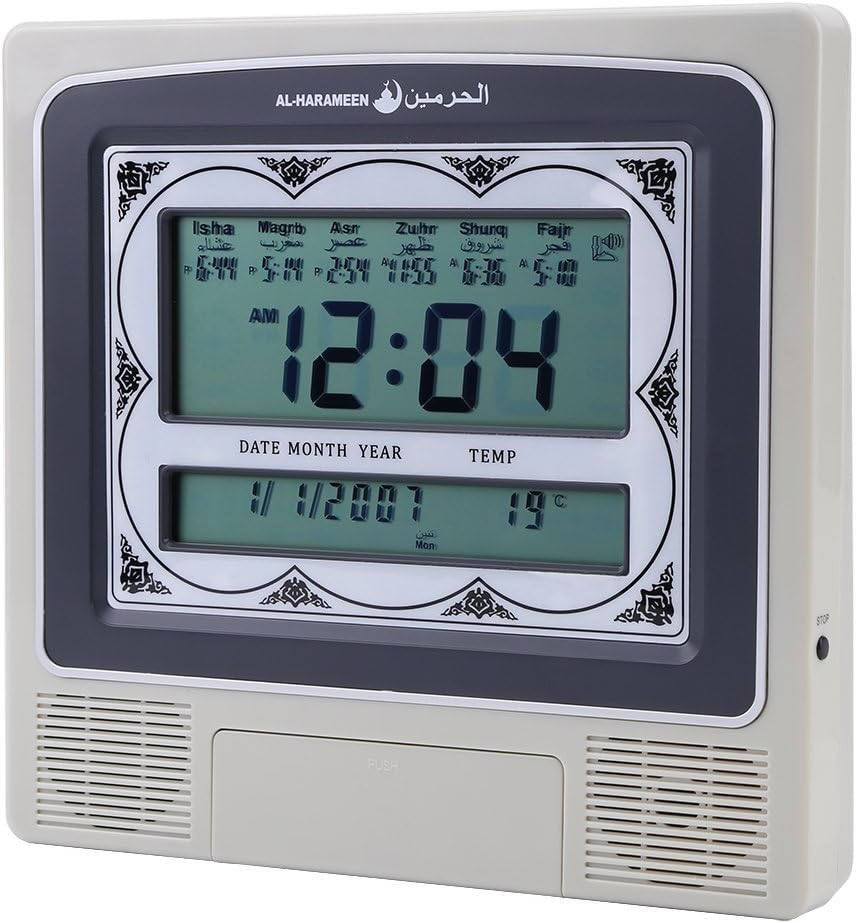
Figure 5: Active Display. This image shows the clock's screen displaying the current time (e.g., 12:04 AM), date (e.g., 1/1/2007), temperature (e.g., 19°C), and the calculated prayer times for Isha, Maghrib, Asr, Zuhr, Shuruq, and Fajr.
Adjusting Settings
Use the navigation buttons (e.g., UP, DOWN, SET, MODE) to access and modify various settings:
- Alarm Settings: Set daily alarms for non-prayer purposes.
- Daylight Saving Time (DST): Manually enable or disable DST if your region observes it.
- Qibla Direction: Some models may offer a Qibla direction feature. Consult the on-screen prompts.
Prayer Time Features
The clock automatically calculates and displays prayer times based on your configured city and calculation method. At each prayer time, the clock will sound the Azan to alert you.
- Automatic Azan: The full Azan will play at the exact prayer times.
- Daily Update: Prayer times are automatically updated daily based on the set location and calculation method.
Maintenance
- Cleaning: Use a soft, dry cloth to clean the clock's surface. Do not use abrasive cleaners or solvents, as they may damage the finish or screen.
- Battery Replacement: If the display dims or the clock functions become erratic, it may be time to replace the batteries. Follow the battery installation steps in the "Setup Guide" section. Dispose of old batteries responsibly.
- Storage: If storing the clock for an extended period, remove the batteries to prevent leakage and potential damage.
Troubleshooting
| Problem | Possible Cause | Solution |
|---|---|---|
| Clock does not turn on. | No power, dead batteries, or incorrect power adapter. | Check battery installation and polarity. Ensure power adapter is correctly connected and functional. |
| Incorrect prayer times. | Wrong city/location set, incorrect calculation method, or incorrect date/time. | Verify the set city, calculation method, and current date/time in the settings menu. |
| Azan sound is too low or absent. | Volume set too low, or Azan feature disabled. | Adjust the Azan volume in the settings. Ensure the Azan alert feature is enabled. |
| Display is dim or flickering. | Low battery power. | Replace the batteries. |
Specifications
| Brand | Walfront |
| Model | HA-4012 |
| Material | Plastic |
| Product Weight | 572 g |
| Power Input | DC 6V 300mA (Adapter not included) |
| Dimensions (Approx.) | 22.5 cm (W) x 21.5 cm (H) x 3 cm (D) |
Warranty and Support
Walfront products are manufactured to high-quality standards. For information regarding warranty coverage, please refer to the warranty card included with your purchase or visit the official Walfront website. For technical support or assistance with your HA-4012 clock, please contact Walfront customer service through their official channels.
Note: Specific warranty terms and support contact details may vary by region.