
Walfront HA-4012
Walfront Islamic Azan Alarm Clock User Manual
Model: HA-4012
Introduction
The Walfront Islamic Azan Alarm Clock is a digital prayer clock designed to assist Muslims with daily prayer times. It features automatic Azan time calculation for various cities, multiple alarm functions including a special Fajr alarm, temperature display, and a full-screen light for visibility in the dark. This manual provides instructions for setting up, operating, and maintaining your clock.

Image: Front view of the Walfront Islamic Azan Alarm Clock, displaying time, date, and prayer times.
Key Features
- Automatic Azan Times: Pre-programmed Azan times for over 1500 cities worldwide, with five daily prayer times.
- Special Fajr Alarm: A unique alarm that adjusts daily relative to the Fajr Azan time, ensuring you wake up consistently after Fajr.
- 5-Minute Snooze Function: Allows for a brief delay before the alarm sounds again.
- Full Screen Light: Provides illumination for easy viewing in low-light conditions.
- Multi-Display: Shows current time, date, week, and daylight saving time status.
- Temperature Display: Displays temperature in Celsius or Fahrenheit.
- Adjustable Volume: Azan volume can be controlled via a dial switch or set to a beep sound.
- Makkah Music: Includes Makkah music for prayer.
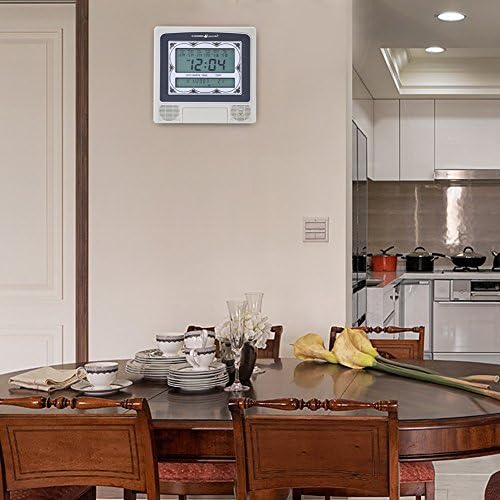
Image: The Walfront Islamic Azan Alarm Clock mounted on a wall, highlighting its function as a Muslim prayer clock.
Setup
Before using your clock, ensure it is powered correctly. The clock operates on battery power (batteries not included) or via a DC 6V 300mA power adapter (if applicable, check product packaging for power adapter inclusion).
1. Initial Power On and Basic Settings
- Insert batteries into the designated compartment or connect the power adapter.
- The clock display should illuminate.
- Locate the SET button, typically on the back or side of the unit.
- Press SET to enter the setting mode.
- Use the UP (▲) and DOWN (▼) buttons to adjust values (e.g., hour, minute, year, month, day).
- Press SET again to confirm each setting and move to the next parameter.
2. Setting Your City for Azan Times
The clock has pre-programmed Azan times for 1500 cities. You need to select your current city for accurate prayer times.
- In setting mode, navigate to the city selection option (this may be indicated by a city code or name on the display).
- Use the UP and DOWN buttons to scroll through the available city codes or names until you find your location. Refer to the included city code list if provided with your product.
- Once your city is selected, press SET to confirm. The clock will automatically calculate the Azan times for your chosen city.
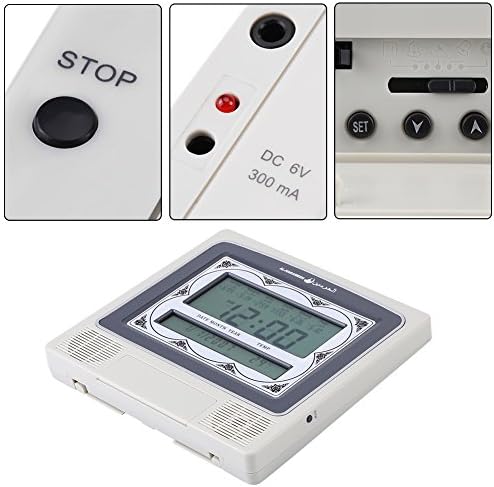
Image: Detailed view of the clock's control buttons (STOP, SET, Y, A) and the DC 6V 300mA power input port.
Operating Instructions
1. Daily Alarm and Fajr Alarm
- The clock provides five daily Azan times automatically based on your selected city.
- To set a specific daily alarm (non-Azan related), navigate to the alarm setting mode using the SET button. Adjust the desired alarm time using the UP and DOWN buttons.
- The special Fajr alarm function allows you to set an alarm relative to the Fajr Azan. For example, if you set it for "5 minutes after Fajr," the alarm time will automatically adjust each day to maintain this interval.
2. Snooze Function
When an alarm sounds, press the STOP button (or a designated snooze button if available) to activate the 5-minute snooze function. The alarm will sound again after 5 minutes.
3. Volume Control
The Azan volume can be adjusted using the dial switch, typically located on the side or back of the clock. You can also set the clock to beep 3 times instead of playing the full Azan by adjusting this setting in the menu or via the dial.
4. Temperature Display
The clock displays the current room temperature. You can switch between Celsius and Fahrenheit units through the settings menu (refer to the setup section for navigating settings).
5. Full Screen Light
The full screen light activates to improve visibility of the display in dark environments. This feature is typically automatic or can be toggled via a dedicated button.
Maintenance
- Cleaning: Wipe the clock with a soft, dry cloth. Do not use abrasive cleaners or solvents, as they may damage the display or casing.
- Battery Replacement: If the display dims or functions become erratic, replace the batteries. Ensure correct polarity when inserting new batteries.
- Placement: Place the clock on a stable surface or mount it securely on a wall. Avoid direct sunlight, extreme temperatures, or high humidity.
Troubleshooting
| Problem | Possible Cause | Solution |
|---|---|---|
| Display is blank or dim. | Low or dead batteries; power adapter not connected or faulty. | Replace batteries or ensure power adapter is securely connected and functional. |
| Azan times are incorrect. | Incorrect city selected; incorrect date/time set. | Verify and re-select your city. Ensure the current date and time are set accurately. |
| Alarm does not sound. | Alarm is turned off; volume is too low or muted. | Check alarm settings to ensure it is enabled. Adjust the volume dial. |
| Buttons are unresponsive. | Temporary software glitch; low battery. | Remove and re-insert batteries (power cycle). Replace batteries if low. |
Specifications
| Brand | Walfront |
| Model | HA-4012 |
| Display Type | Digital |
| Color | Gray, White |
| Product Dimensions | 8.8"W x 8.4"H |
| Item Weight | 1.25 pounds (0.57 Kilograms) |
| Power Source | Battery Powered (Batteries not included) |
| Material | Plastic |
| Mounting Type | Wall Mount |
| Special Features | Alarm, Daylight Saving, Temperature Display |
| UPC | 663862629408 |
Warranty and Support
This Walfront product is protected by a Lifetime Warranty. Walfront is committed to customer satisfaction. If you encounter any issues with the product quality or functionality, please contact Walfront customer support for assistance.
For support, please refer to the contact information provided with your product packaging or visit the official Walfront website.
Ask a question about this manual
Ask about setup, troubleshooting, compatibility, parts, safety, or missing instructions. Manuals+ will review the question and use this page’s manual context to help answer it.